DUE TO SPAM, SIGN-UP IS DISABLED. Goto Selfserve wiki signup and request an account.

DUE TO SPAM, SIGN-UP IS DISABLED. Goto Selfserve wiki signup and request an account.
https://github.com/shapeblue/cloudstack/pull/45
When a new zone is created, the console proxy and secondary storage virtual machines for that zone also need to be created. These virtual machines need a template from which to be created. A database entry is created for a system VM template to be used for these console proxy and secondary storage virtual machines but no template image is actually copied or stored in secondary storage. The seeding of the template image into secondary storage is an extra step in the Cloudstack installation process. The system VM template APIs will help do the work of getting the template image into secondary storage.
This is the functional specification of the system VM template API
Document History
| Version | Author/Reviewer | Date |
|---|---|---|
| 1.0 | Darrin Hüsselmann |
|
This feature adds an Application Programming Interface (API) and User Interface (UI) that will enable an administrator to:
· Upload a system VM template to the management server and into secondary storage from a web browser.
· Register a system VM template by specifying a URL or choosing an official Cloudstack system VM template to download.
· Copy a system VM template from an existing zone.
· Activate a system VM template.
· List inactive system VM templates.
Use cases
Upload a system VM template from a browser running on a local machine to secondary storage through the management server.
Install a system VM template from a URL.
Install a system VM template from a selection of official templates.
Copy a system VM template from one zone to another.
These options are available from the add zone wizard and the template upload and register forms.
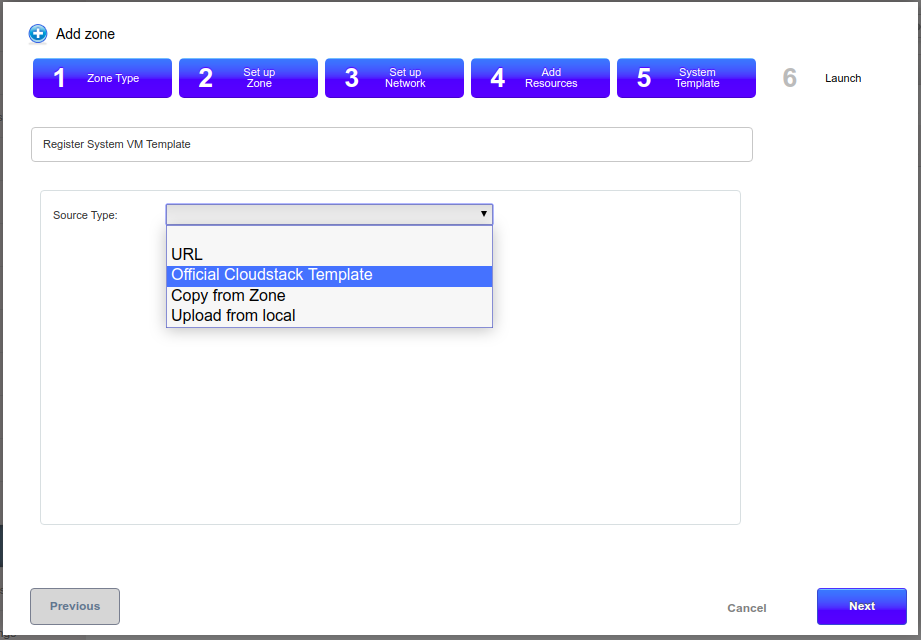
An administrator will have the option to install a system VM template from the zone creation wizard, the "Register template" form, the "Upload from local" form and by calling the seedSystemVMTemplate API command.
Multiple system VM templates can be uploaded to the management server, but only one can be active per hypervisor. Once a system VM template is activated, all other system VM templates for the specific hypervisor is deactivated. Deactivated system VM templates are not returned by the listTemplates command, unless the templateFilter parameter is set to "Inactive".
getSystemVMTemplateDefaultURL - Returns the URL where to download the official Cloudstack system VM template for a specific hypervisor. This API was used to populate the name and description fields when selecting a hypervisor in the web UI.
seedSystemVMTemplate - Copies a system VM template into secondary storage.
activateSystemVMTemplate - Sets a specific system VM template to be used for a specific hypervisor.
| Name | Parameters | Required | Usage |
|---|---|---|---|
Name | Parameters | Required | Usage |
ActivateTemplate | templateId | Yes | The id of the template to be set as the system VM template to use. |
SeedSystemVMTemplate | fileuuid | No | The uuid of the file that was uploaded to the management server for seeding the template. |
| hypervisor | Yes | The target hypervisor |
| id | Yes | Destination zone id |
| url | No | URL where to download the system VM template from. |
| localfile | Yes | Boolean indicating if a file was uploaded to the management server |
GetSystemVMTemplateDefaultUrl
| hypervisor | Yes | The target hypervisor. |
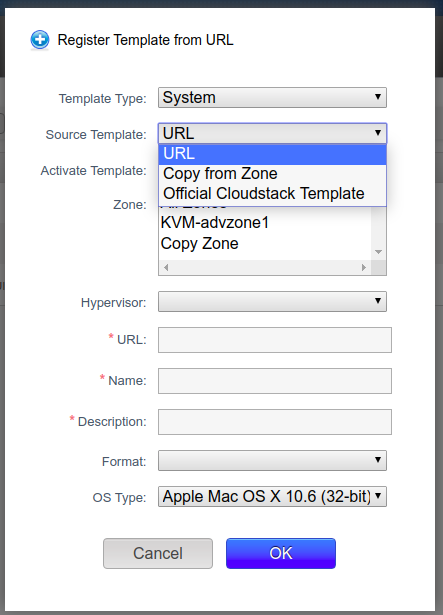
The "Upload from local" and "Register template" forms have been extended to allow the installation of the system VM template:
A new template type dropdown has been added to choose between a system or user template:

In the "Register Template" form, "Template Type" and an "Official Cloudstack Template" option have been added to the source template dropdown.
The add zone wizard has been extended to allow an opportunity to install the system VM template from the 4 different sources:
A new filter option allows the listing of inactive templates:
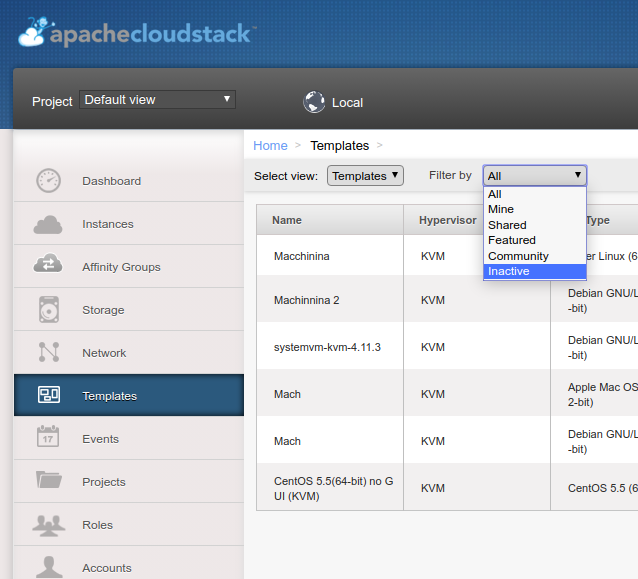
The need for a new filter was identified to allow an admin to see deactivated templates. When activating a template for a specific hypervisor, all other templates for that hypervisor becomes inactive and removed from the list of templates. Using the inactive filter will then list those inactive templates.
N/A
N/A