DUE TO SPAM, SIGN-UP IS DISABLED. Goto Selfserve wiki signup and request an account.
...
Once you have finished installing cTAKES and its separately-bundled resources, you will be able to see what cTAKES is capable of.
| Note |
|---|
If you wish to perform named entity recognition / concept identification for anything other than a few sample concepts, you will need to perform the optional step of installing the separately-bundled UMLS resources - see step 4. And you will need to use an aggregate that makes use of those UMLS resources. |
Prerequisites
Step | Example | |||||||||||||||
|---|---|---|---|---|---|---|---|---|---|---|---|---|---|---|---|---|
1. Make sure you have Java 1.6 or higher. Most systems come with Java already installed.
| Windows:
|
...
Step | Example | |||||||||||||||
|---|---|---|---|---|---|---|---|---|---|---|---|---|---|---|---|---|
1. Navigate to the cTAKES downloads page on the Apache site and download the binary package. Select a mirror site and press the Change button to modify the URL to your desired mirror location before doing the download or accept the default.
| Windows:
| |||||||||||||||
2. (Optional but recommended) Verify the downloaded files against a file signature to ensure you have the proper and complete file. | No example | |||||||||||||||
3. Unzip the file you downloaded into a directory that you want to be the cTAKES install location. The compressed files contain a single directory at the top level. This folder we will call <cTAKES_HOME>. You will need to refer to this directory later.
Linux:
| Windows:
|
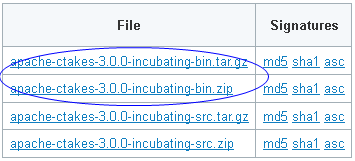
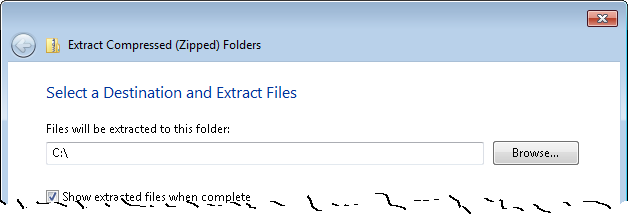
Optional steps - install UMLS resources and set UMLS password
4. Download cTAKES 3.0 Dictionaries and models. These resources are required to operate cTAKES.
| Windows:
| ||||||||||||||||||||||||||||
5. Copy (or move) the resources to cTAKES_HOME.
| Windows:
| ||||||||||||||||||||||||||||
Step | Example | ||||||||||||||||||||||||||||
|---|---|---|---|---|---|---|---|---|---|---|---|---|---|---|---|---|---|---|---|---|---|---|---|---|---|---|---|---|---|
4. Obtain a UMLS license if you don't already have one. You can request one at https://uts.nlm.nih.gov/license.html | No example | ||||||||||||||||||||||||||||
5. Edit the following files, adding in your UMLS user ID and password as parameters to the java command: | |||||||||||||||||||||||||||||
| Code Block | ||
|---|---|---|
| ||
bin\runctakesCVD.bat
bin\runctakesCPE.bat
|
Linux:
| Code Block | ||
|---|---|---|
| ||
bin/runctakesCVD.sh
bin/runctakesCPE.sh
|
| Code Block | ||
|---|---|---|
| ||
java -Dctakes.umlsuser=YOUR_ID_HERE -Dctakes.umlspw=YOUR_PASSSWORD_HERE -cp ... |
6. Download cTAKES 3.0 Dictionaries and models. These resources are required to operate cTAKES.
| Info |
|---|
Due to licensing considerations and easy of installability, one download from an external location was established with all the resources you will need. Licensing for these resources is found within the download. |
| Info |
|---|
Download time will be commensurate with 1GB of data. |
Go to cTAKES resources and download the ZIP file with a matching version from the ctakesresources project.
Unzip the files into a temporary location such as C:\temp.
Linux:
Obtain the URL of the version matching ZIP file from cTAKES resources, get the file, and unzip to a temporary location. Windows:
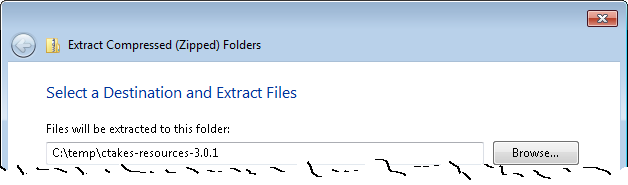
Linux:
| Code Block | ||
|---|---|---|
| ||
cdcp -R /tmp wget http:/resources/sourceforge.net/projects/ctakesresources/files/ctakes-resources* /usr/local/apache-ctakes-3.0.1.zip sudo unzip ctakes-resources-3.0.1.zip |
7. Copy (or move) the resources to cTAKES_HOME.
Copy the contents of the temporary resources directory (and all sub-directories) to <cTAKES_HOME>/resources.
| Info |
|---|
There may be conflicts while taking this action. Overwrite the cTAKES_HOME files with those in the resources download. |
0-incubating/resources |
(Optional) Add UMLS access rights
| Note |
|---|
In the initial setup cTAKES will recognize only few sample concepts in text. If you wish to perform named entity recognition or concept identification for anything other than these few words, you will need to 1) obtain the rights to use UMLS resources 2) add those credentials to cTAKES, and 3) use an aggregate that makes use of those UMLS resources. If you don't, cTAKES will work but won't recognize much. |
Step | Example | |||||||||||||||||||||||||
|---|---|---|---|---|---|---|---|---|---|---|---|---|---|---|---|---|---|---|---|---|---|---|---|---|---|---|
1. If you do not have a UMLS username and password, you may request one at UMLS Terminology Services. | No example | |||||||||||||||||||||||||
2. Edit the following files, adding in your UMLS user ID and password as parameters to the java command:
Linux:
|
Windows:
Linux:
|
Process documents using cTAKES
...
Step | Example | |||||||||||||||||
|---|---|---|---|---|---|---|---|---|---|---|---|---|---|---|---|---|---|---|
1. Open a command prompt and change to the cTAKES_HOME directory.
|
Linux:
| |||||||||||||||||
2. Start the CAS Visual Debugger by running this command: | Windows:
Linux:
| |||||||||||||||||
3. Copy the example text from the next cell in this table and paste the contents into the Text section of CVD, replacing the text that is already there. |
| |||||||||||||||||
4. An analysis engine (AE) needs to be loaded in order to process text.
rather than than
in this step.
Click Open.
| | |||||||||||||||||
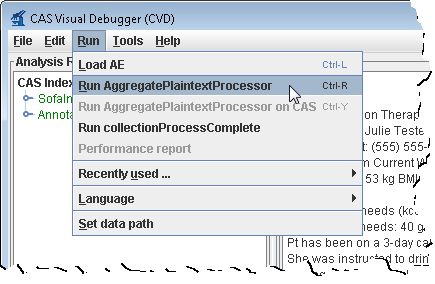
5. From the menu bar, click Run -> Run AggregatePlaintextProcessor or "Run AggregatePlaintextUMLSProcessor". | | |||||||||||||||||
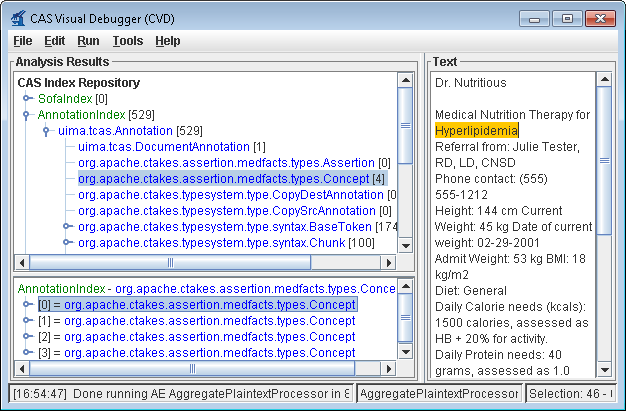
6. You'll get a list of all the annotations for this clinical document in the Analysis Results frame. Annotations such as concepts mentioned, division by sentence, etc from the pipeline are viewable. To see one, in the Analysis Results frame, click on the key in front of:
This will show an AnnotationIndex in the lower frame. Select any annotation in that lower frame and you will see the text discovered in
Now select items in the lower frame to see the text being annotated. | |
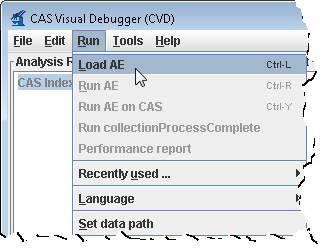
...
Step | Example | ||||||||||||
|---|---|---|---|---|---|---|---|---|---|---|---|---|---|
1. Open a command prompt and change to the cTAKES_HOME directory:
|
Linux:
| ||||||||||||
2. Create a directory for some test data. | Windows:mkdir testdata | ||||||||||||
3. Download this sample file and place it into the testdata directory. | No example | ||||||||||||
4. Start the collection processing engine by running this command: | Windows:
Linux:
| ||||||||||||
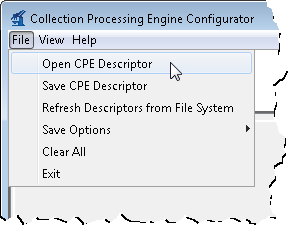
5. This will bring up the Collection Processing Engine Configurator. In the Menu bar click File >Open CPE Descriptor | | ||||||||||||
6. Navigate to the file
| No example | ||||||||||||
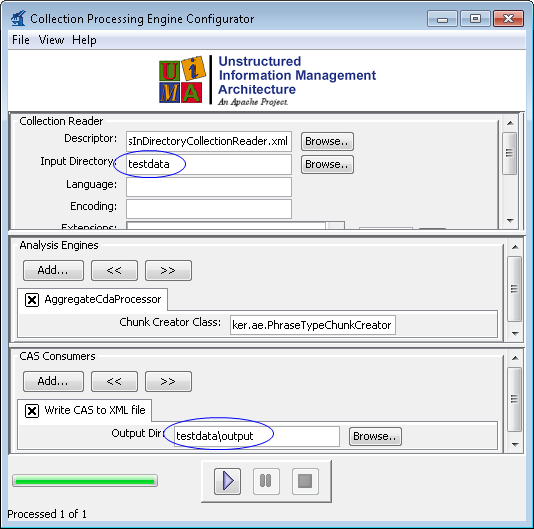
7. Change the Collection reader input directory to testdata and the CAS Consumer output directory to testdata/output in the CPE fields | | ||||||||||||
8. Click the Play button (green/blue play arrow near the bottom).
| | ||||||||||||
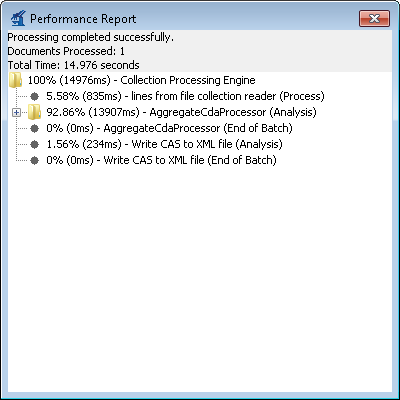
9. You should see that one document was processed. You did process a collection of documents. In this case the collection only contained one just to show how to do it. Close the results window. 10.
| | ||||||||||||
11 10. Close the CPE application. You may be prompted to save changes. Since this was just a test you may click the No button. | No example |
...