DUE TO SPAM, SIGN-UP IS DISABLED. Goto Selfserve wiki signup and request an account.
...
现在您可从我们的官方下载页面获得 Apache OpenOffice 4.0。基于 OpenOffice 3.4 的成功发布(其下载量已达 57,000,000),此次的*重要更新*包括令人振奋的新功能、程序改进和漏洞修复。OpenOffice 4.0 增加了许多新功能,包括创新的 Sidebar 用户界面、附加支持 增加了许多新功能,包括创新的侧边栏用户界面、附加支持 22 个语种(包括 3 个新语种),500 个漏洞修复、Microsoft Office 互操作性完善、绘制/图形改进和性能提升等等。详情可参见后续的 Release Note。
...
我们希望向正在升级的用户致以特别问候。希望您会喜欢这些新功能,尤其是 Sidebar 的用户界面。此功能基于 侧边栏的用户界面。此功能基于 IBM Lotus Symphony 产品的代码。我们对该代码进行调整,并根据像您这样的用户的多次反馈作出改进,然后将其整合到 OpenOffice。
...
在 Apach,我们的工作模式非常透明,就像开放社区的志愿者。我们开发开源软件以服务大众,不会请求您给予资金援助。如果您有兴趣加入我们,帮助我们发布 OpenOffice 的下个杰出版本,我们将竭诚欢迎。我们不仅是编程人员,也是一群测试人员、用户界面设计师、网页设计师、技术写作人员、易用性专家、译员和社交媒体专家等等。我们欢迎各领域的志愿者加入。欲了解更多信息,请访问 Get Involved 页面。
新特性和改进
...
全新侧边栏
Sidebar 是所有 侧边栏是所有 OpenOffice 应用中的主要新特性。
比起传统的工具栏,Sidebar 可更好地利用目前的宽屏显示。“Properties”面板属于环境敏感型,其面板显示其最常用于当前编辑任务的文档属性。比起传统的工具栏,侧边栏可更好地利用目前的宽屏显示。“属性”面板属于上下文相关型,该面板会显示其最常用于当前编辑任务的文档属性。
单击这些图片可查看详细视图:
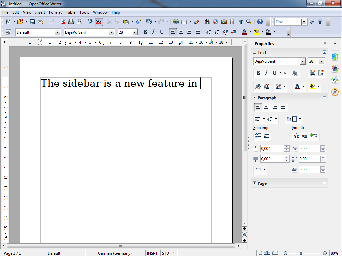
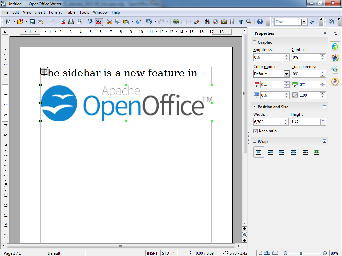
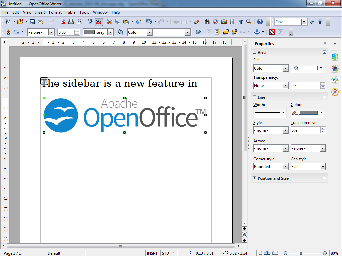
Screenshots of Writer with contexts for text, bitmap, and shapes (from left to right). The new OpenOffice logo has been pasted as bitmap (center) and editable outlines (right). 上下文为文本、位图和图形的 Writer 截图(从左至右)。您可以将 OpenOffice 的新标志作为位图(中间)和可编辑的缩略图进行粘贴(右侧)。
如果您发现自己不经常使用特定面板,只需点击其标题,便可收缩到单行文本。面板标题左侧 + 或 - 指示面板是否需要收缩或扩展。
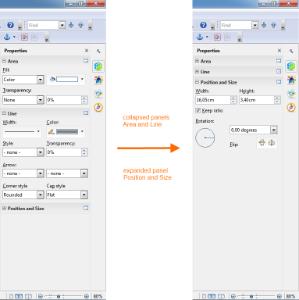
Different panels expanded or collapsed
- Eleven property panels have been migrated from IBM Lotus Symphony: Alignment, Area, Cell Appearance, Graphic, Line, Number Format, Page, Paragraph, Position and Size, Text and Wrap.
- Seven panels come from the old Impress tool panel: Available for Use, Custom Animation, Layouts, Recently Used, Slide Transition, Table Design, Used in This Presentation.
- Four are non-modal (ie non locking) dialogs: Functions, Gallery, Navigator, Syles and Formatting.
- One is new: Insert.
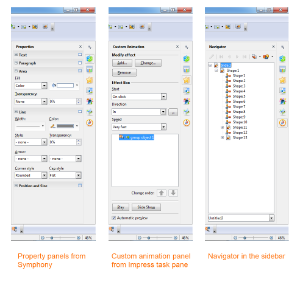
Panels from Symphony, the old Impress task pane, OpenOffice dialogs (from left to right).
The width of the Sidebar can be adjusted. The controls adapt their size accordingly. If you need more space then it can be undocked — and possibly moved to a second display — or it can be reduced to a thin tab bar. A single click on one of the icons and the sidebar is back.
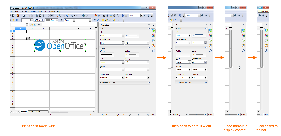
Different widths of the sidebar: maximum width, default width, too narrow to display content, collapsed to tab bar (from left to right).
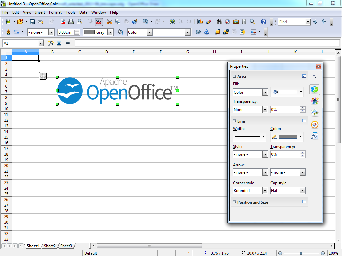
Floating sidebar, can be moved to second screen
Of course, not all of OpenOffice's functionality can be represented by controls in the Sidebar. If you need an advanced function then just click on the "more options" button in the title bar of a panel to open a dialog with many more options and properties.
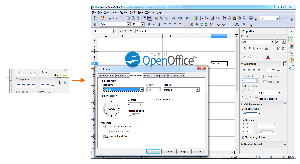
Click on 'more options' to get, well, more options.
不同的收缩和扩展面板
- 有 11 个属性面板沿用了 IBM Lotus Symphony:对齐、区域、单元格外观、图形、线条、数字样式、页面、段落、位置和大小、文本和环绕。
- 有 7 个面板来自以前的 Impress 工具栏:可供使用的、动画效果、幻灯片布局、表格设计、最近使用的、幻灯片切换、在本演示文稿中使用。
- 有 4 个非模态(ie 非锁定)窗口:函数、库、导航、样式和格式。
- 有 1 个新的面板:插入。
面板来自 Symphony、旧版 Impress 任务栏、 OpenOffice 窗口(从左至右)。
您可调整侧边栏的宽度。控制面板的大小也会作出相应调整。如果您需要更多空间,还可以将侧边栏分离出来——可以将它移动到另一个视图窗口——或者将其调整缩小至标签栏。单击其中一个图标,侧边栏即可恢复。
侧边栏的不同宽度:最大宽度、默认宽度、太窄而无法显示内容、缩至标签栏(从左至右)。
可将浮动侧边栏移动至另一视图窗口
当然,侧边栏的控制面板不能展现 OpenOffice 的所有功能。如果您需要高级功能,只要点击面板标题栏上的“更多选项”按钮即可打开包含更多选项和属性的对话框。
点击“更多属性”以获取更多有用的选项。
欲了解更多信息,请访问OpenOffice wiki。More information can be found in the OpenOffice wiki.
Interoperability Improvements
...