DUE TO SPAM, SIGN-UP IS DISABLED. Goto Selfserve wiki signup and request an account.
...
描述 | 原版 | AOO 3.4.1 | AOO 4.0 |
|---|---|---|---|
支持 Docx 格式文件中的大纲层级 | | | |
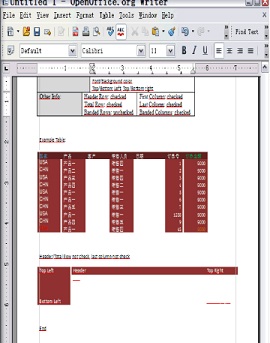
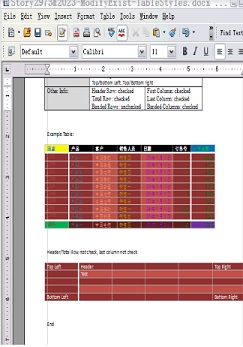
支持 docx 格式文件中表格样式的表格背景颜色 | | | |
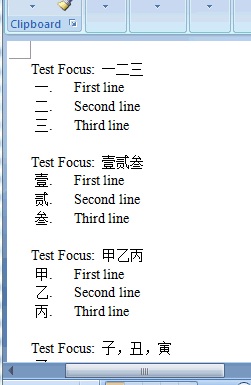
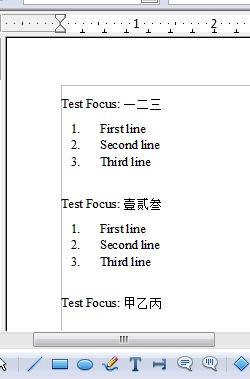
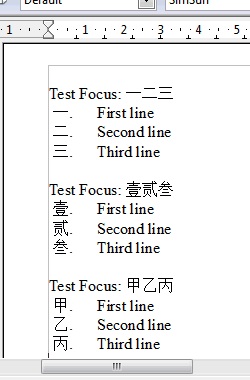
支持 docx 格式文件中更多的编号&项目编号类型 | | | |
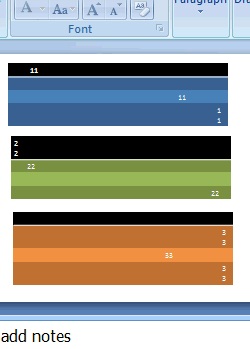
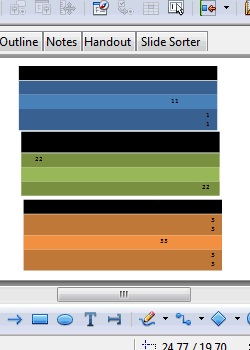
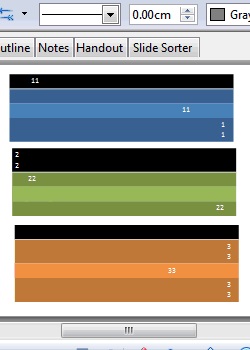
支持 pptx 格式文件中表格的字体颜色 | | | |
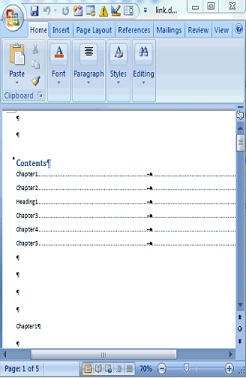
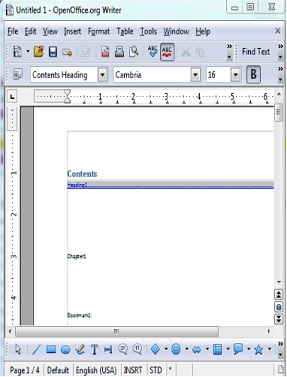
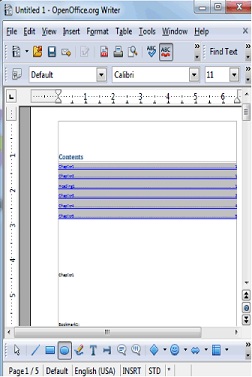
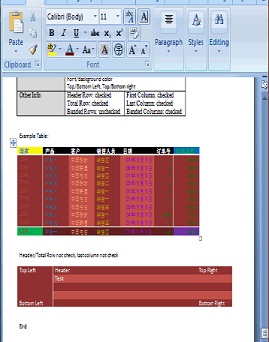
...
绘图对象的改进/
...
完善
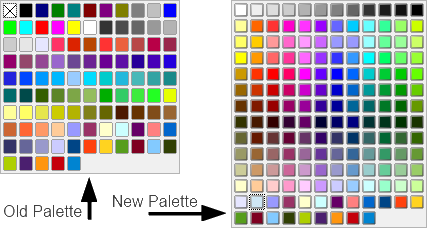
New Color Palette
The Color Palette is enhanced and extended with a selection of more useful colors, arranged in a new scheme to make finding colors simpler.
The new Palette is a mix of the Lotus Symphony Palette combined with the most useful original colors.
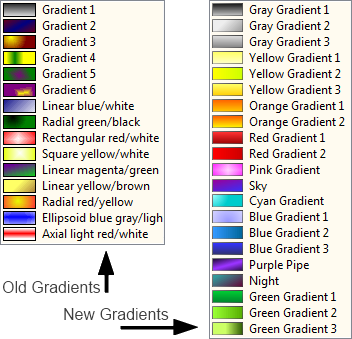
New Gradients
The Gradients are enhanced and extended with new, more useful ones, mainly taken from Lotus Symphony. The old ones are kept, but moved to the end of the list (not in the picture). These Gradients create much nicer fills for uses such as Slide Backgrounds.
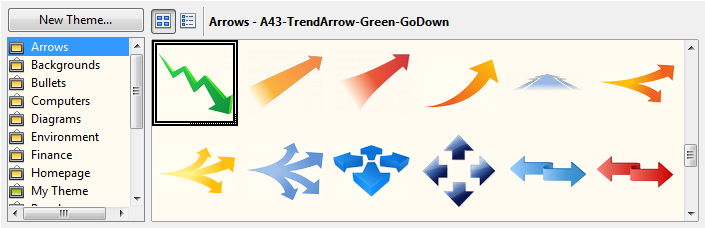
New Gallery Themes and Gallery enhancements
Gallery themes added from Symphony.
- Arrows
- Bullets (extended)
- Computers
- Diagrams
- Environment
- Finance
- People
- School & University
- Symbols
- Textshapes
- Transport
Enhancements to existing Gallery
- Old themes are kept and sometimes extended
- Gallery is now able to store and use SVG graphics
- Many new graphics are now in SVG format, which saves space on your computer and gives the user the highest quality vector format
- Ability to add your own SVG and Metafile format graphics
- Can now be oriented horizontally or vertically and will adapt it's layout automatically
- Now also available anytime in the new Sidebar
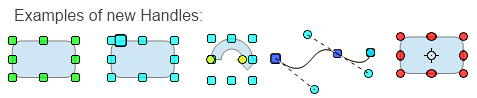
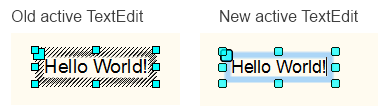
Refined the Selection Handles User Interface
- Selection Handles were reworked to be more distinguishable.
- Transparency was added to give a slight 'clue' when the Handles cover something, but only for the Handle's fill (not their outlines) to not make them harder to view as necessary.
- The design was slightly rounded.
- Colors were tweaked a little bit for better identification (mainly when Handles are selected).
- When Keyboard-travelling over handles (CTRL-TAB) yellow handles used for CustomShapes now blink as the other handles to visualize the active handle correctly.
Refined Selection Visualization
- For many occasions the selection of objects or multiple objects got enhanced using the selection color from the system.
- Usage and fetching of that system-wide SelectionColor was unified to guarantee it for all selections on all Systems.
- A slight blinking was added to identify objects where text can be added by starting to type or pressing return.
This is used in various places such as; Objects with TextEdit mode, highlighting of objects as Drag&Drop target or object manipulation (dashed black/white lines were used before).
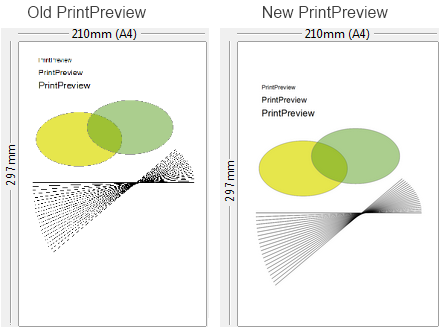
Better Print Preview
The PrintPreview in the Print dialog is now fully AntiAlialised. The previous version was not, thus thin lines could vanish or produce missing parts.
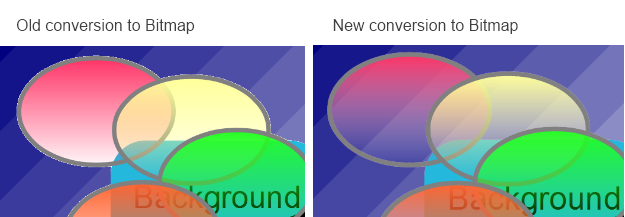
Enhanced conversion to Bitmap Graphics
The conversion to Bitmap graphics is greatly enhanced for all kinds of draw objects, including chart OLEs and others. This is not only useful for internally converting objects to bitmaps, but also used for exports where bitmaps are needed, and the system clipboard. It works with single objects as well as multiple selections. Transparencies of the object and AntiAliasing on its edges are perfect now.
Enhanced FillType 'Bitmap'
All DrawingObjects which can have a Bitmap filling can now profit from the new, greatly enhanced Bitmap FillType:
- The new Bitmap FillType preserves Transparency, the old version was not capable of this and always added a white background.
- It allows the use of vector graphics which stay vector graphic when processed (especially useful in e.g. printing, PDF and other exports).
- It supports SVG and Metafile as FillData, no longer restricted to BitmapData.
- Tiling, AutoFit, Size, Position and Offset settings are fully supported (in Area dialog).
- Animated GIF's are now allowed as FillTypes.
Examples of this include:
- Self-create a scaling-independent fill by drawing anything anytime using DeawObjects
- convert it to Metafile
- create a FillStyle based on it
- Use a SVG or import a vector format (WMF) to define a new FillStyle.
Think about the possibilities for filling the Backgrounds of Pages, Chart bars or other items. This will be used as vector data when printing or at PDF export.

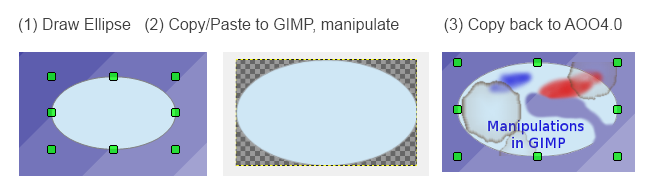
Enhanced Copy/Paste
All applications now support transparent and anti-aliased versions of, for example, DrawObjects in the selection to be exchanged with external applications. This is a result of the enhanced conversion to Bitmap and adding the PNG graphic format to the supported clipboard formats.
Non-Graphic objects are converted on-demand, and graphic objects are copied with full transparency and AntiAliasing support.
It is now possible to Copy/Paste any object to an external PixelGraphic application, modify it as needed, and copy it back to any OpenOffice Application without quality loss. This allows everyone easy and complete image manipulation outside the Office with the tool of his choice and the capabilities he needs.
Enhanced Drag&Drop
Drag&Drop has been enhanced by an 'internal' mode. It is now possible to Drag&Drop anything 'onto' an existing DrawObject to change it's graphic or fill style when holding CTRL+SHIFT (Ctrl+Cmd on Mac) during Drag&Drop.
As visual control, the target object for the Drag&Drop is visualized using the new Selection Visualization and a unique MouseCursor.
- Drag&Drop from external: change FillStyle to Bitmap (including transparence), use e.g. SVG or metafile
- Drag&Drop internal (klick on the source object(s), wait a second until MousePointer changes, start dragging, hold CTRL+SHIFT)
- when source is a DrawObject: Styles are copied (LineStyle, FillStyle, etc.)
- when source is a GraphicObject: FillStyle is adapted to source's geometry content
Here is an example:
(a) Draw an object, e.g. a rounded rectangle with an outline, Draw an arrow object, choose fill and line style for it.
(b) If you Drag&Drop onto the target object, it copies FillStyle and LineStyle.
(c) If you convert the arrow to metafile (e.g. using context menu), Drag&Drop onto the target object, it gets filled with the arrow's vector data.
新的调色板
调色板得到改进,并添加选用了更多有用的颜色,我们采用全新的配色方案,更易找到颜色。
新的调色板利用 Lotus Symphony 调色板并配以最有用的原始颜色。
新的渐变色
渐变色得到改进,并新增了主要来自 Lotus Symphony 更有用的渐变色。我们将旧版颜色移至列表底部(未在图片中显示)。这些渐变色可用于创建更好的填充效果,如幻灯片背景。
剪贴画库主题更新和库的改进
来自 Symphony 的新增剪贴画库主题。
- 箭头
- 项目符号(扩展)
- 计算机
- 图形
- 环境
- 财务
- 人物
- 学校&大学
- 符号和图标
- 文本形状
- 运输
对当前剪贴画库的改进
- 保留旧版主题或得到扩展
- 剪贴画库现在可以储存并使用 SVG 图形
- 现在许多新图形的格式为 SVG,可节省您计算机的空间,给用户带来最高质量的矢量图。
- 您能够自定义添加 SVG and Metafile 格式的图形
- 剪贴画库能够横向或纵向显示,同时将会调整适应横向布局
- 同样,剪贴画库也可以随时显示在新的侧边栏上
完善选择控点用户界面
- 选择控点得到修正,更加清晰可辨。
- 控点覆盖时增加透明度提示,但仅用于控点填充(而非轮廓)以便必要时更易查看。
- 设计略微呈圆形。
- 颜色稍微扭曲以更好识别(主要在选择控点时)。
- 使用键盘操作控点(CTRL-TAB)时,原来用于自定义调节形状的黄色控点现在呈闪动状态,以便准确将活动控点可视化。
完善选择可视化
- 多数情况下使用系统的颜色选择时,对象或多个对象的选择得到改进。
- 统一系统内颜色选择的用法和调取,确保整个系统内所有选择的实现。
- 增加轻微闪烁的效果,以便在开始输入或退格时就能识别能够添加文本的对象。
此改进应用于多处,例如,文本编辑模式下的对象、高亮显示作为拖拽目标的对象或移动的对象(之前使用的是黑/白虚线)。
优化打印预览
现在,打印对话框中的打印预览可以实现完全反走样。而旧版则不能,所以才会造成无法打印出过细线条或内容的部分缺失。
转换成位图功能的改进
将各种绘图对象转换成位图的功能得到了极大的改进,包括图表 OLE 和其它对象。这个改进有助于对象内部转换成位图,同时也可用于将其导出到需要位图的地方以及系统剪贴板。现在,对象的透明度和其边缘反走样的效果堪称完美。
填充类型“位图”的改进
现在,具有位图填充功能的绘图对象可增加全新改进的位图填充类型:
- 全新的位图填充类型保持透明度效果,旧版则不能而且总是白色背景。
- 可以使用矢量图,同时在处理过程中保持矢量图效果(尤其适用于,如打印、PDF和其它导出过程)。
- 支持将 SVG 和元文件作为填充数据,不再局限于位图数据。
- 全面支持平铺、自动适合、大小、位置和偏移设置(在区域对话框中)。
- 现在,动态 GIF 图可作为填充类型。
示例包括:
- 使用绘图对象随时绘制时自定义独立缩放填充
- 将其转换成元文件
- 基于此文件创建填充样式
- 使用 SVG 或导入矢量格式(WMF)以定义新的填充样式
考虑到可能会填充页面、条状图表或其它对象的背景。在打印或以 PDF 导出时,可将这些填充内容作为矢量数据。
复制/粘贴功能的改进
现在,所有应用可支持透明和反走样版本,例如,用于与外部应用交换的绘图对象。这是因为转换成位图的功能得到改进,以及能够向可用的剪贴板格式中添加 PNG 图片格式。
可即时转换非图形对象,同时在复制图形对象时,可完全支持透明和反走样效果。
现在,您可以复制/粘贴对象到外部的图片像素应用,根据需要进行修改,并复制回到 OpenOffice 应用而不影响像素质量。此改进可以让用户利用所需功能和所选工具在 Office 应用外部轻松实现对图像的操作。
拖拽功能改进
“内部”模式下的拖拽功能得到改进。现在,您可以拖拽任何对象到当前的绘图对象上,拖拽过程中按住 CTRL+SHIFT(在 Mac 上为 Ctrl+Cmd)以更改图形或填充样式。
作为可视控点,在使用新的可视选择和独特的鼠标指针时,您可以看见拖拽目标对象。
- 从外部应用进行拖拽:更改填充样式为位图(包括透明度),使用,例如 SVG 或元文件
- 内部拖拽(点击源对象,稍等直到鼠标指针改变,开始拖拽,按住 CTRL+SHIFT)
- 源对象为绘图对象时:可复制样式(线条样式、填充样式等等)
- 源对象为图形对象时:填充样式可适用于源对象的几何图形
示例如下:
(a) 绘制对象,例如,一个轮廓为圆角矩形的对象,绘制一个箭头对象,为此对象选择填充和线条样式。
(b) 如果您拖拽到目标对象,填充样式和线条样式可被复制。
(c) 如果您将箭头转换为元文件(例如,使用上下文菜单),拖拽到目标对象,箭头的矢量数据会填充到该对象中。
如果您需要迅速指明对象的填充样式或想要把某个对象的图形样式复制到另一个对象,这个改进就会非常有用。This comes in very handy if you need to quickly define an object FillStyles or want to copy the GraphicStyles of one object to others.
Also very useful:
- You can use the Gallery as in-betwen space for DrawObjects or GraphicObjects used for that purpose.
- You can directly Drag&Drop from there onto DrawObjects.
- You can Drag&Drop from external sources onto DrawObjects.
...