DUE TO SPAM, SIGN-UP IS DISABLED. Goto Selfserve wiki signup and request an account.
...
- First, open mobile fineract CN application, then you will see login screen, see the Pict .1
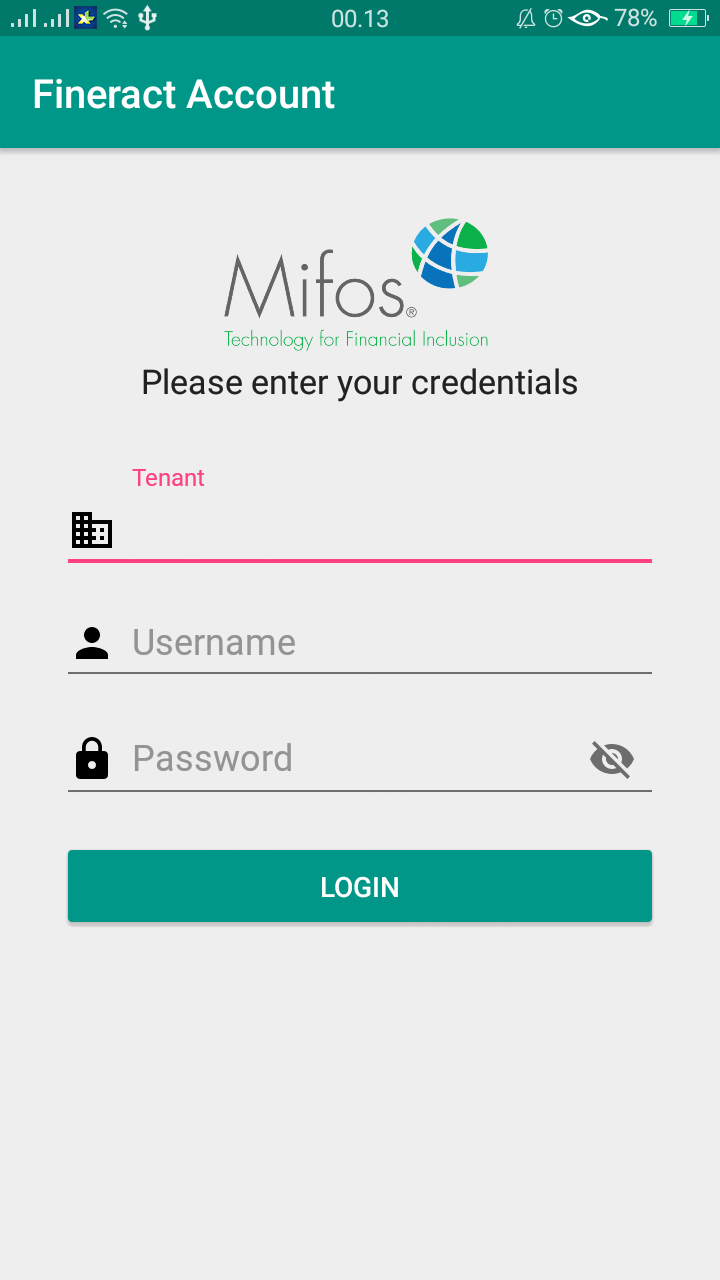
Pict.1
In order to login, do the following :
Enter your Tenant, Username, and Password.
Make sure data has correct.
Then click login.
...
Table of login attribute :
Field Name (Attribute) | Description | Example of Demo |
Tenant | Your Correct Tenant | playground |
Username | Your Correct Username | apache.demo |
Password | Your Correct Password | ven3t1@n |
...
Pict 2.1 Pict 2.2
3. and third, if you are logged in. you will be redirected to the Pict.main dashboard of Fineract Mobile, see the Pict .3
...
Pict.3
Logout to Fineract Account
...
Go to Fineract Mobile Main Dashbord, then swap the menu button.
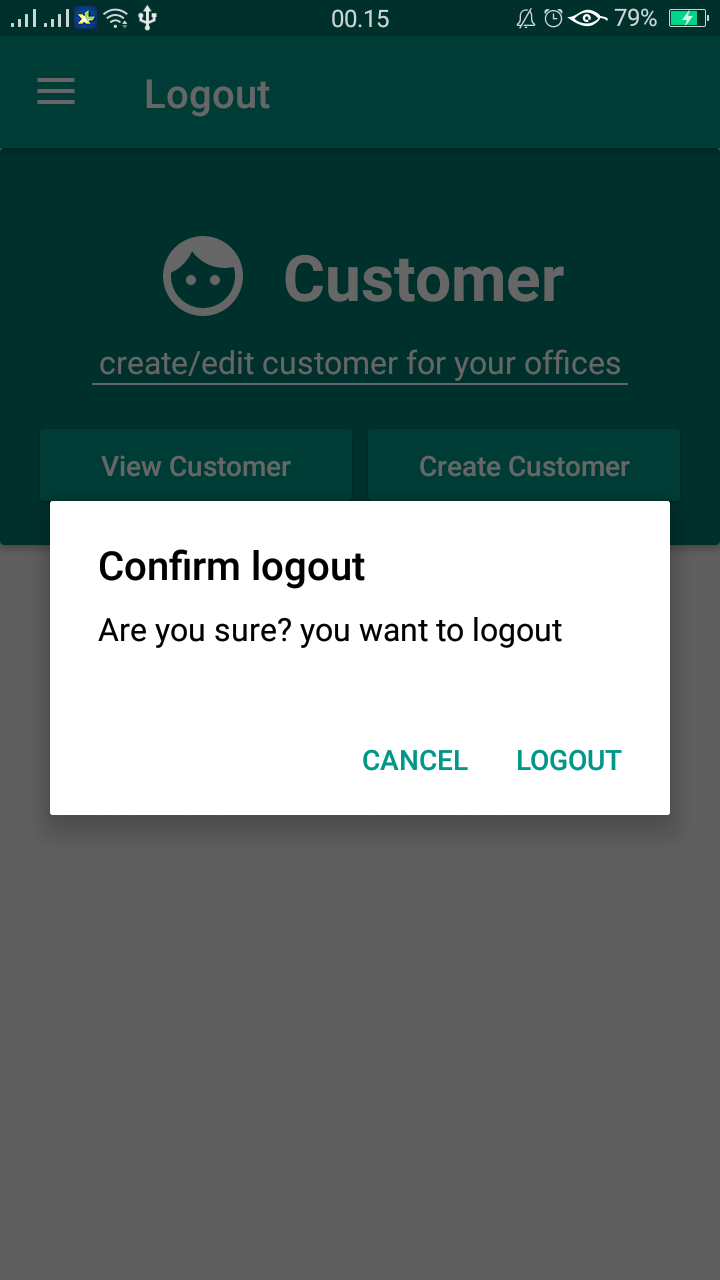
then, click logout. after which a pop-up will appear to confirm that you will be logged out of the application, see the Pict 4.1 & 4.2.

...
Pict 4.1 Pict 4.22
3. and done, you will be returned to the main login menu.
...