DUE TO SPAM, SIGN-UP IS DISABLED. Goto Selfserve wiki signup and request an account.
| Section | ||||||||||||||||||||||
|---|---|---|---|---|---|---|---|---|---|---|---|---|---|---|---|---|---|---|---|---|---|---|
| ||||||||||||||||||||||
| Warning | ||||||||||||||||||||||
| These instructions are under construction. |
These instructions are for end users. With these instructions you can install Apache cTAKES, configure it, and use it to process text (typically text associated with a medical record). If you were planning to expand, change, or modify the code within cTAKES, refer to the cTAKES 3.0 Developer Install Guide.
These instructions will cover installation and a test of the main product including trained models for sentence detection and tagging parts of speech, dictionaries from a subset of the UMLS, a very small subset of the full LVG resource, etc. Optional components are described in the Component Use Guide.
Once you have finished installing cTAKES and its separately-bundled resources, you will be able to see what cTAKES is capable of. Further exploitation of the software's ability may require following a few additional steps involving what dictionaries are being used. The last section on this page covers these next steps.
Prerequisites
Step | Example | |||||||||||||||
|---|---|---|---|---|---|---|---|---|---|---|---|---|---|---|---|---|
1. Make sure you have Java 1.6 or higher. Most systems come with Java already installed.
| Windows:
|
Install cTAKES
Step | Example | |||||||||||||||
|---|---|---|---|---|---|---|---|---|---|---|---|---|---|---|---|---|
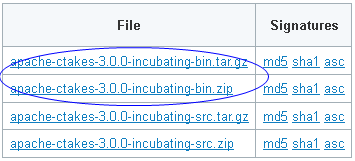
1. Navigate to the cTAKES downloads page on the Apache site and download the binary package. Select a mirror site and press the Change button to modify the URL to your desired mirror location before doing the download or accept the default.
| Windows:
| |||||||||||||||
2. (Optional but recommended) Verify the downloaded files against a file signature to ensure you have the proper and complete file. | No example | |||||||||||||||
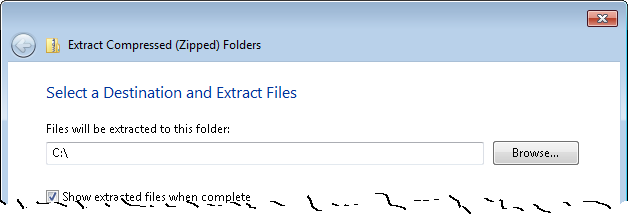
3. Unzip the file you downloaded into a directory that you want to be the cTAKES install location. The compressed files contain a single directory at the top level. This folder we will call <cTAKES_HOME>. You will need to refer to this directory later.
Linux:
| Windows:
| |||||||||||||||
Step | Example | |||||||||||||||
4. Download UMLS and model resources...
| No example |
Process documents using cTAKES
This version allows you to test most components bundled in cTAKES in two different ways:
- Using the bundled UIMA CAS Visual Debugger (CVD) to view the results stored as XCAS files or run the annotators
- Using the bundled UIMA Collection Processing Engine (CPE) to process documents in cTAKES_HOME/testdata directory
You will need a windowing environment on Linux to run these tools.
CAS Visual Debugger (CVD)
cTAKES 3.0 Dictionaries and models. These resources are required to operate cTAKES.
| ||||||||||||||||||||||
1. Open a command prompt and change to the cTAKES_HOME directory. Code Block | | |||||||||||||||||||||
|
| Code Block | ||
|---|---|---|
| ||
cd /usr/local/apache-ctakes-3.0.0-incubating/bin
|
| Note | ||
|---|---|---|
| ||
Note that <cTAKES_HOME>/bin must be your current directory unless you are skilled at setting paths on your machine. |
2. Start the CAS Visual Debugger by running this command:
Windows:
| Code Block | ||
|---|---|---|
| ||
runctakesCVD.bat
|
Linux:
| Code Block | ||
|---|---|---|
| ||
runctakesCVD.sh
|
The application may take a minute to start on slower hardware.
No example
tmp
wget http://sourceforge.net/projects/ctakesresources/files/ctakes-resources-3.0.1.zip
sudo unzip ctakes-resources-3.0.1.zip |
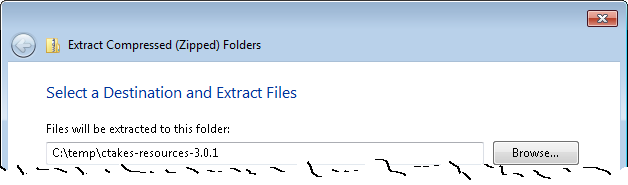
5. Copy (or move) the resources to cTAKES_HOME.
Copy the contents of the temporary resources directory (and all sub-directories) to <cTAKES_HOME>/resources.
| Info |
|---|
There may be conflicts while taking this action. Overwrite the cTAKES_HOME files with those in the resources download. |
This example file can also be found in test data:
| Code Block | ||
|---|---|---|
| ||
<cTAKES_HOME>/testdata/cdptest/testinput/plaintext/testpatient_plaintext_1.txt
|
Windows:
| Code Block | ||
|---|---|---|
| ||
Dr. Nutritious

Medical Nutrition Therapy for Hyperlipidemia
Referral from: Julie Tester, RD, LD, CNSD
Phone contact: (555) 555-1212
Height: 144 cm Current Weight: 45 kg Date of current weight: 02-29-2001
Admit Weight: 53 kg BMI: 18 kg/m2
Diet: General
Daily Calorie needs (kcals): 1500 calories, assessed as HB + 20% for activity.
Daily Protein needs: 40 grams, assessed as 1.0 g/kg.
Pt has been on a 3-day calorie count and has had an average intake of 1100 calories.
She was instructed to drink 2-3 cans of liquid supplement to help promote weight gain.
She agrees with the plan and has my number for further assessment. May want a Resting
Metabolic Rate as well. She takes an aspirin a day for knee pain. |
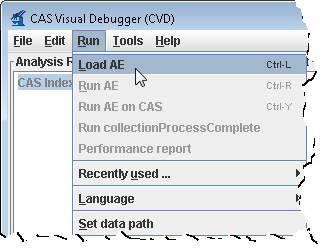
Use the Run-> Load AE menu bar command. Navigate to the file
| Code Block | ||
|---|---|---|
| ||
<cTAKES_HOME>/desc/ctakes-clinical-pipeline/desc/analysis_engine/AggregatePlaintextProcessor.xml
|
Click Open.
Loading the analysis engine may take a minute. Once the analysis engine has successfully loaded you should see a tree in the Analysis Results frame:
Wiki Markup CAS Index Repository \\ \* SofaIndex \[0\] \\ \* AnnotationIndex \[1\] \\
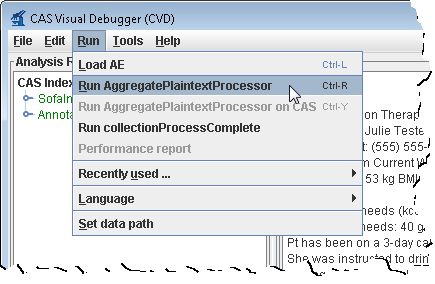
5. From the menu bar, click Run -> Run AggregatePlaintextProcessor.
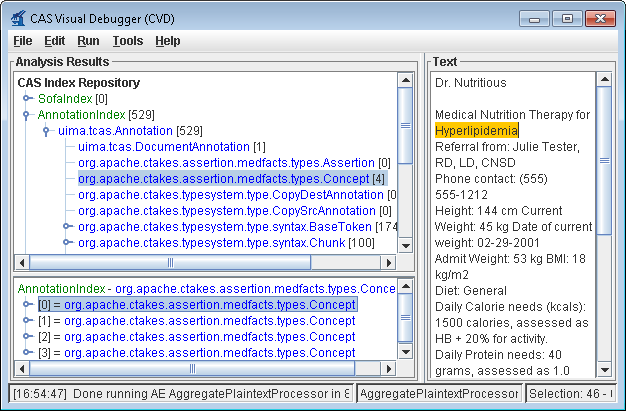
6. You'll get a list of all the annotations for this clinical document in the Analysis Results frame. Annotations such as concepts mentioned, division by sentence, etc from the pipeline are viewable. To see one, in the Analysis Results frame, click on the key in front of:
This will show an AnnotationIndex in the lower frame. Select any annotation in that lower frame and you will see the text discovered inCAS Index Repository
* AnnotationIndex
* uima.tcas.Annotation
* org.apache.ctakes.medfacts.types.Concept
the Text frame on the right like the concept of the problem Hyperlipidemia.
For a medication example select this
Now select items in the lower frame to see the text being annotated.CAS Index Repository
* AnnotationIndex
* uima.tcas.Annotation
* org.apache.ctakes.typsystem.type.textsem.IdentifiedAnnotation
* org.apache.ctakes.typsystem.type.textsem.EventMention
* org.apache.ctakes.typsystem.type.textsem.MedicationEventMention
You may close the CAS Visual Debugger (CVD) application if you wish.
...
Linux:
|
(Optional) Add UMLS access rights
| Note |
|---|
In the initial setup cTAKES will recognize only few sample concepts in text. If you wish to perform named entity recognition or concept identification for anything other than these few words, you will need to 1) obtain the rights to use UMLS resources 2) add those credentials to cTAKES, and 3) use an aggregate that makes use of those UMLS resources. If you don't, cTAKES will work but won't recognize much. |
Step | Example | |||||||||||||||
|---|---|---|---|---|---|---|---|---|---|---|---|---|---|---|---|---|
1. If you do not have a UMLS username and password, you may request one at UMLS Terminology Services. | No example | |||||||||||||||
2. Edit the following files. Add the ctakes.umlsuser and ctakes.umlspw parameters to the java command found in the file.adding in your UMLS. Make sure you substitute your actual ID and password if you cut and paste the example.
Linux:
|
| |||||||||||||||
3. You will select an aggregate when you run cTAKES (continue reading). | No example |
Process documents using cTAKES
This version allows you to test most components bundled in cTAKES in two different ways:
- Using the bundled UIMA CAS Visual Debugger (CVD) to view the results stored as XCAS files or run the annotators
- Using the bundled UIMA Collection Processing Engine (CPE) to process documents in cTAKES_HOME/testdata directory
You will need a windowing environment on Linux to run these tools.
CAS Visual Debugger (CVD)
Step | Example | ||||||||||||||||||
|---|---|---|---|---|---|---|---|---|---|---|---|---|---|---|---|---|---|---|---|
1. Open a command prompt and change to the cTAKES_HOME directory.
|
Linux:
| ||||||||||||||||||
2. Start the collection processing engine by running this command: CAS Visual Debugger by running this command: | Windows:
Linux:
The application may take a minute to start on slower hardware. | No example | |||||||||||||||||
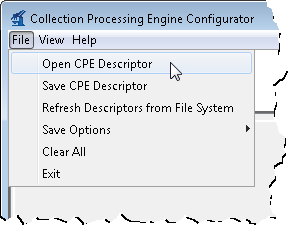
3. This will bring up the Collection Processing Engine Configurator. In the Menu bar click File >Open CPE Descriptor | 37 | ||||||||||||||||||
4. Navigate to the file
Click Open. | No example | ||||||||||||||||||
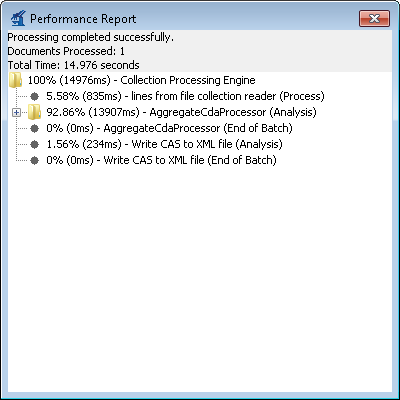
5. Click the Play button (green/blue play arrow near the bottom). | 38 | 6. You should see that one document was processed. You did process a collection of documents. In this case the collection only contained one just to show how to do it. Close the results window. | |||||||||||||||||
7. Close the CPE application. You may be prompted to save changes. Since this was just a test you may click the No button. |
| ||||||||||||||||||
8. Open a new command prompt and change to the <cTAKES_HOME> |
| 9. To test the results there is a comparison tool that will help show that the results match expectations with the following syntax:
Where: <First File> is the first file to compare; <Second File> is the second file to compare; <diff-html> is where the results are written to | Windows:
| Code Block | ||
|---|---|---|
| ||
java -cp ctakes-utils-3.0.0.jar org.apache.ctakes.utils.xcas_comparison.Compare ^
"testdata\cdptest\testoutput\plaintext\sample_note_plaintext.xml" ^
"testdata\cdptest\testsampleoutput\plaintext\sample_note_plaintext.xml" ^
c:\stuff\diff-html.html
|
| Code Block | ||
|---|---|---|
| ||
java -cp ctakes-utils-3.0.0.jar org.apache.ctakes.utils.xcas_comparison.Compare \
"/usr/bin/cTAKES3.0/testdata/cdptest/testoutput/plaintext\sample_note_plaintext.xml" \
"/usr/bin/cTAKES3.0/testdata/cdptest/testsampleoutput/plaintext/sample_note_plaintext.xml" \
/tmp/diff-html.html
|
10. The resulting file will open for you. Look at the comparison to see the annotations resulting from this pipeline.
Windows:
| Code Block | ||
|---|---|---|
| ||
c:\stuff\diff-html.html
|
Linux:
| Code Block | ||
|---|---|---|
| ||
/tmp/diff-html.html
|
Using the same CVD and CPE programs in the manner described above, you can test all the other components. The analysis engines and collection processing engines shipped with cTAKES for some of the annotators are described in the following table.
Annotator | Description | Abbreviated | Example Analysis Engine (AE) | Example Collection processing Engine (CPE) | Example test data |
|---|---|---|---|---|---|
Clinical Document Pipeline | the complete cTAKES pipeline to obtain majority of cTAKES annotations | cdp | cTAKES_HOME/desc/ctakes-clinical-pipeline/desc/analysis_engine/AggregatePlaintextProcessor.xml | cTAKES_HOME/desc/ctakes-clinical-pipeline/desc/collection_processing_engine/test_plaintext.xml | cTAKES_HOME/testdata/cdptest |
Chunker | obtain cTAKES chunking annotations | chunker | cTAKES_HOME/desc/ctakes-chunker/desc/ChunkerAggregate.xml | cTAKES_HOME/desc/ctakes-chunker/desc/ChunkerCPE.xml | cTAKES_HOME/testdata/chunkertest |
Dependency Parser | obtain dependency parsing tree | dp | cTAKES_HOME/desc/ctakes-dependency-parser/desc/analysis_engine/ClearParserSRLTokenizedInfPosAggregate.xml | cTAKES_HOME/desc/ctakes-dependency-parser/desc/collection_processing_engine/ClearParserTestCPE.xml | cTAKES_HOME/testdata/dptest |
Drug NER | the annotator to obtain drug annotations | drugner | cTAKES_HOME/desc/ctakes-drug-ner/desc/analysis_engine/DrugAggregatePlaintextProcesor.xml | cTAKES_HOME/desc/ctakes-drug-ner/desc/collection_processing_engine/DrugNER_PlainText_CPE.xml | cTAKES_HOME/testdata/drugnertest |
Dictionary Lookup | mapping cTAKES annotations to dictionaries (e.g., SNOMED_CT or RxNorm | lookup | cTAKES_HOME/desc/ctakes-dictionary-lookup/desc/analysis_engine/TestAggregateTAE.xml | cTAKES_HOME/desc/ctakes-dictionary-lookup/desc/collection_processing_engine/LookupCPE.xml | cTAKES_HOME/testdata/lookuptest |
PAD Term Spotter | identifying terms related to PAD | pad | cTAKES_HOME/desc/ctakes-pad-term-spotter/desc/analysis_engine/Radiology_TermSpotterAnnotatorTAE.xml | cTAKES_HOME/desc/ctakes-pad-term-spotter/desc/collection_processing_engine/Radiology_Sample.xml | cTAKES_HOME/testdata/padtest |
Smoking Status | the annotator to obtain document or patient-level smoking status | smoking | cTAKES_HOME/desc/ctakes-smoking-status/desc/analysis_engine/SimulatedProdSmokingTAE.xml | cTAKES_HOME/desc/ctakes-smoking-status/desc/collection_processing_engine/Sample_SmokingStatus_output_flatfile.xml | cTAKES_HOME/testdata/smokingtest |
Side Effect | the annotator to find side effect mentions and sentences from clinical documents | sideeffect | cTAKES_HOME/desc/ctakes-side-effect/desc/analysis_engine/SideEffectAggregateTAE.xml | cTAKES_HOME/desc/ctakes-side-effect/desc/collection_processing_engine/SideEffectCPE.xml | cTAKES_HOME/testdata/sideeffecttest |
Next Steps
The cTAKES 3.0 Component Use Guide will help you to understand in great detail each of the cTAKES components that have been installed. In some cases you can learn how to improve the components. However, before you go on to process text in production you will need to consider dictionaries and models.
Dictionaries
Bundled UMLS Dictionaries
cTAKES includes the complete UMLS (SNOMED-CT and RxNorm) dictionaries.
- An rxnorm_index database (a Lucene index) containing drug names from RxNorm
- A UMLS database (using two hsqldb tables) containing anatomical sites, procedures, signs/symptoms, and disorders/diseases from SNOMED-CT (umls_ms_2011ab)
To use them, you must have a UMLS username and password, and an Internet connection.
| Note | ||
|---|---|---|
| ||
If you do not have a UMLS username and password, you may request one at UMLS Terminology Services |
In order to use the UMLS dictionaries shipped with cTAKES you will need to do two things:
(1) Change the UMLSUser and UMLSPW <nameValuePair> strings in these descriptor files with your UMLS username and password.
- Dictionary Lookup: <cTAKES_HOME>/desc/ctakes-dictionary-lookup/desc/analysis_engine/DictionaryLookupAnnotatorUMLS.xml
- (optional) Drug NER: <cTAKES_HOME>/desc/ctakes-drug-ner/desc/analysis_engine/DictionaryLookupAnnotatorUMLS.xml
The following shows where in the files you would make the changes. (Do not change the <configurationParameters> by the same name.)
| Code Block | ||
|---|---|---|
| ||
<nameValuePair>
<name>UMLSUser</name>
<value>
<string>YOUR_UMLS_USERNAME_HERE</string>
</value>
</nameValuePair>
<nameValuePair>
<name>UMLSPW</name>
<value>
<string>YOUR_UMLS_PASSWORD_HERE</string>
</value>
</nameValuePair> |
(2) Include the DictionaryLookupAnnotatorUMLS.xml Analysis Engine within your aggregate Analysis Engine or switch to the ones provided by cTAKES. cTAKES has provided duplicates of shipped Analysis Engine descriptors, put UMLS in the name, and placed DictionaryLookupAnnotatorUMLS.xml within them for these components:
- Dictionary Lookup
- Clinical Documents pipeline
- Drug NER
- Side Effect
So you simply need to switch to using those descriptors. For example, if you were using AggregateCdaProcessor.xml in the Clinical Documents pipeline you would switch to using AggregateCdaUMLSProcessor.xml instead and you will now hook into the complete dictionaries.
You can, of course, modify your own aggregate Analysis Engine files and place the DictionaryLookupAnnotatorUMLS.xml Analysis Engine within them.
Since this is an in-memory database implementation, please be patient during the initial load as it could take approximately 20-30 seconds for the database to initialize.
If you would like to go back to using the small sample dictionaries that do not require a UMLS username, use the DictionaryLookupAnnotator.xml (UMLS is not in the file name) Analyis Engine descriptor in your aggregate. Just removing your password from the DictionaryLookupAnnotatorUMLS.xml files will not switch you back to the small sample dictionaries.
LVG
We have successfully tested the 2008 release of the full LVG data. In order to use this release of the full LVG data you should:
- Download either the full version or the lite version from NIH Lexical Tools
- Extract the TGZ file that you downloaded with a tool like 7-zip (available online) to a temporary directory. On some operating systems, like Windows, this may need to be done in two steps, 1) to uncompress and 2) to unzip.
- Replace the directory <cTAKES_HOME>/resources/org/apache/ctakes/lvg/data/HSqlDb with data/HSqlDb from your extracted download. Replacing the entire directory is appropriate.
- In the future, you can upgrade to later versions of LVG by editing the <cTAKES_HOME>/resources/org/apache/ctakes/lvg/data/config/lvg.properties file, replacing "lvg2008" with the name of the new release.
Building Your Own Dictionaries
To install customized dictionaries for RxNorm, SNOMED-CT, or other vocabularies that are available through the UMLS, see the following posts on the cTAKES forums:
- https://cabig-kc.nci.nih.gov/Vocab/forums/viewtopic.php?f=28&t=423
- https://cabig-kc.nci.nih.gov/Vocab/forums/viewtopic.php?f=28&t=80&start=20#p1459
Models
Some models included in cTAKES may not represent your data distribution well. If you want to build or train your own models, please read the cTAKES 3.0 Component Use Guide, particularly:
...
3. Copy the example text from the next cell in this table and paste the contents into the Text section of CVD, replacing the text that is already there. |
| |||||||||
4. An analysis engine (AE) needs to be loaded in order to process text.
rather than
in this step.
Click Open.
| | |||||||||
5. From the menu bar, click Run -> Run AggregatePlaintextProcessor or "Run AggregatePlaintextUMLSProcessor". | | |||||||||
6. You'll get a list of all the annotations for this clinical document in the Analysis Results frame. Annotations such as concepts mentioned, division by sentence, etc from the pipeline are viewable. To see one, in the Analysis Results frame, click on the key in front of:
This will show an AnnotationIndex in the lower frame. Select any annotation in that lower frame and you will see the text discovered in
Now select items in the lower frame to see the text being annotated. | |
Collection Processing Engine (CPE)
Step | Example | ||||||||||||
|---|---|---|---|---|---|---|---|---|---|---|---|---|---|
1. Open a command prompt and change to the cTAKES_HOME directory:
|
Linux:
| ||||||||||||
2. Create a directory for some test data. | Windows:mkdir testdata | ||||||||||||
3. Download this sample file and place it into the testdata directory. | No example | ||||||||||||
4. Start the collection processing engine by running this command: | Windows:
Linux:
| ||||||||||||
5. This will bring up the Collection Processing Engine Configurator. In the Menu bar click File >Open CPE Descriptor | | ||||||||||||
6. Navigate to the following file, which uses the AggregateCdaProcessor
| No example | ||||||||||||
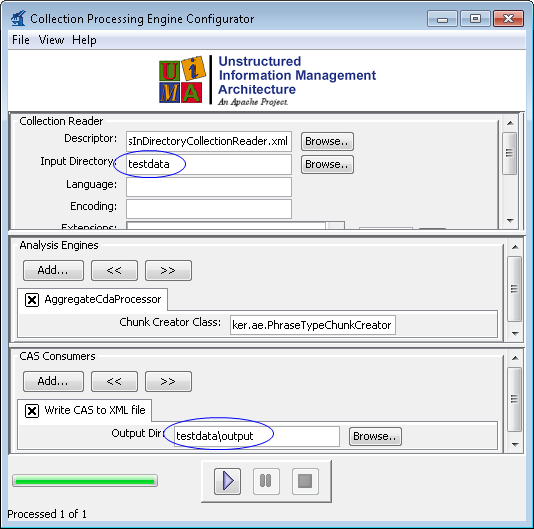
7. Change the Collection reader input directory to testdata, which contains a CDA file(s). | | ||||||||||||
8. Click the Play button (green/blue play arrow near the bottom).
| | ||||||||||||
9. You should see that one document was processed. You did process a collection of documents. In this case the collection only contained one just to show how to do it. Close the results window.
| | ||||||||||||
10. Close the CPE application. You may be prompted to save changes. Since this was just a test you may click the No button. | No example |
Using the same CVD and CPE programs in the manner described above, you can test all the other components. The analysis engines and collection processing engines shipped with cTAKES for some of the annotators are described in the following table.
| Warning |
|---|
cTAKES 3.0 binary distributions did not include test data. Loading the CPE descriptors into the CPE tool will require resetting the input and output directories. Test files could be obtained from the cTAKES 2.5 release binary distribution. Look for a testdata directory in cTAKES_HOME. |
Annotator | Description | Example Aggregate Analysis Engine (AE) | Example Collection processing Engine (CPE) |
|---|---|---|---|
Clinical Document Pipeline | The complete cTAKES pipeline to obtain majority of cTAKES annotations | <cTAKES_HOME>/desc/ctakes-clinical-pipeline/desc/analysis_engine/AggregatePlaintextUMLSProcessor.xml | <cTAKES_HOME>/desc/ctakes-clinical-pipeline/desc/collection_processing_engine/test1.xml |
Chunker | Obtain cTAKES chunk annotations | NA | NA |
Dependency Parser | Obtain dependency parsing tree | <cTAKES_HOME>/desc/ctakes-dependency-parser/desc/analysis_engine/ClearParserSRLTokenizedInfPosAggregate.xml | <cTAKES_HOME>/desc/ctakes-dependency-parser/desc/collection_processing_engine/ClearParserTestCPE.xml |
Drug NER | The annotator to obtain drug annotations | <cTAKES_HOME>/desc/ctakes-drug-ner/desc/analysis_engine/DrugAggregatePlaintextUMLSProcesor.xml | <cTAKES_HOME>/desc/ctakes-drug-ner/desc/collection_processing_engine/DrugNER_PlainText_CPE.xml |
Dictionary Lookup | Mapping cTAKES annotations to dictionaries (e.g., SNOMED_CT or RxNorm | <cTAKES_HOME>/desc/ctakes-dictionary-lookup/desc/analysis_engine/TestAggregateTAE.xml | NA |
PAD Term Spotter | Identifying terms related to PAD | <cTAKES_HOME>/desc/ctakes-pad-term-spotter/desc/analysis_engine/Radiology_TermSpotterAnnotatorTAE.xml | <cTAKES_HOME>/desc/ctakes-pad-term-spotter/desc/collection_processing_engine/Radiology_Sample.xml |
Relation Extractor | Annotate certain relations between certain Event, Entity, and Modifier annotations | <cTAKES_HOME>/desc/ctakes-relation-extractor/desc/analysis_engine/RelationExtractorAggregate.xml | N/A |
Smoking Status | The annotator to obtain document or patient-level smoking status | <cTAKES_HOME>/desc/ctakes-smoking-status/desc/analysis_engine/SimulatedProdSmokingTAE.xml | <cTAKES_HOME>/desc/ctakes-smoking-status/desc/collection_processing_engine/Sample_SmokingStatus_output_flatfile.xml |
Side Effect | The annotator to find side effect mentions and sentences from clinical documents | <cTAKES_HOME>/desc/ctakes-side-effect/desc/analysis_engine/SideEffectAggregateTAE_UMLS.xml | <cTAKES_HOME>/desc/ctakes-side-effect/desc/collection_processing_engine/SideEffectCPE.xml |
Next Steps
The cTAKES 3.0 Component Use Guide will help you to understand, in great detail, each of the cTAKES components that have been installed. In some cases you can learn how to improve the components.
Also, before you go on to process text in production, you will want to consider dictionaries and models. If you did not obtain the rights yet to the UMLS resources and models, you will want to do so. Be aware, the models (within the separate resources download) have been trained on data that may not match your data well enough to be effective. In some cases you might want to modify the dictionaries and train models using your own data.
...