| Section |
|---|
| Column |
|---|
| | Panel |
|---|
| title | Contents of this Page |
|---|
| |
|
| Column |
|---|
| Include Page |
|---|
| CTAKES:Menu cTAKES 3.0 to IncludeCTAKES: |
|---|
| Menu cTAKES 3.0 to Include |
|---|
|
|
|
...
Step | Example |
|---|
1. If you do not have a UMLS username and password, you may request one at UMLS Terminology Services. | No example |
2. Edit the following files, . Add the ctakes.umlsuser and ctakes.umlspw parameters to the java command found in the file.adding in your UMLS user . Make sure you substitute your actual ID and password as parameters to the java command: if you cut and paste the example.
Windows: | Code Block |
|---|
| <cTAKES_HOME>\bin\runctakesCVD.bat
<cTAKES_HOME>\bin\runctakesCPE.bat
|
Linux: | Code Block |
|---|
| <cTAKES_HOME>/bin/runctakesCVD.sh
<cTAKES_HOME>/bin/runctakesCPE.sh
|
| | Code Block |
|---|
| java -Dctakes.umlsuser=<YOUR_UMLS_ID_HERE> -Dctakes.umlspw=<YOUR_UMLS_PASSSWORD_HERE> -cp ... |
|
3. You will select an aggregate when you run cTAKES (continue reading). | No example |
...
Step | Example |
|---|
1. Open a command prompt and change to the cTAKES_HOME directory.
| Note |
|---|
It is best if <cTAKES_HOME> is your current directory. The scripts will change directories, so being home to run the command is best. |
|
Windows:
| Code Block |
|---|
| cd \apache-ctakes-3.0.0-incubating
|
Linux: | Code Block |
|---|
| cd /usr/local/apache-ctakes-3.0.0-incubating
|
|
2. Start the CAS Visual Debugger by running this command:
The application may take a minute to start on slower hardware. | Windows: | Code Block |
|---|
| bin\runctakesCVD.bat
|
Linux: | Code Block |
|---|
| bin/runctakesCVD.sh
|
|
3. Copy the example text from the next cell in this table and paste the contents into the Text section of CVD, replacing the text that is already there.
You can also download a copy of the file from here
| | Code Block |
|---|
| Dr. Nutritious
Medical Nutrition Therapy for Hyperlipidemia
Referral from: Julie Tester, RD, LD, CNSD
Phone contact: (555) 555-1212
Height: 144 cm Current Weight: 45 kg Date of current weight: 02-29-2001
Admit Weight: 53 kg BMI: 18 kg/m2
Diet: General
Daily Calorie needs (kcals): 1500 calories, assessed as HB + 20% for activity.
Daily Protein needs: 40 grams, assessed as 1.0 g/kg.
Pt has been on a 3-day calorie count and has had an average intake of 1100 calories.
She was instructed to drink 2-3 cans of liquid supplement to help promote weight gain.
She agrees with the plan and has my number for further assessment. May want a Resting
Metabolic Rate as well. She takes an aspirin a day for knee pain. |
|
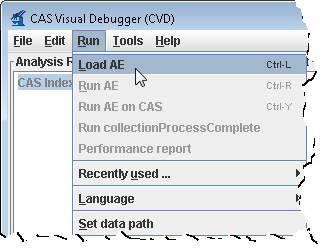
4. An analysis engine (AE) needs to be loaded in order to process text.
If you installed the optional UMLS resources, use | No Format |
|---|
AggregatePlaintextUMLSProcessor.xml |
rather than | No Format |
|---|
AggregatePlaintextProcessor.xml |
in this step.
Use the Run-> Load AE menu bar command. Navigate to the file
| Code Block |
|---|
| <cTAKES_HOME>
/desc
/ctakes-clinical-pipeline
/desc
/analysis_engine
/AggregatePlaintextProcessor.xml
|
Click Open.
Loading the analysis engine may take a minute. Once the analysis engine has successfully loaded you should see a tree in the Analysis Results frame:
| Wiki Markup |
|---|
CAS Index Repository \\
\
* SofaIndex \ [0\] \\
\
* AnnotationIndex \ [1\] \\
| 
|
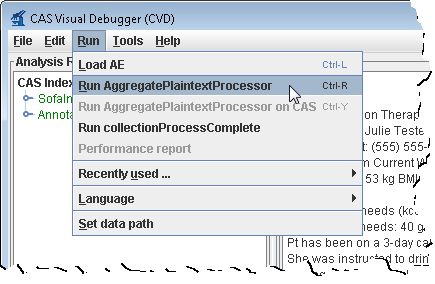
5. From the menu bar, click Run -> Run AggregatePlaintextProcessor or "Run AggregatePlaintextUMLSProcessor".
| 
|
6. You'll get a list of all the annotations for this clinical document in the Analysis Results frame. Annotations such as concepts mentioned, division by sentence, etc from the pipeline are viewable. To see one, in the Analysis Results frame, click on the key in front of:
CAS Index Repository
* AnnotationIndex
* uima.tcas.Annotation
* org.apache.ctakes.medfacts.types.Concept
This will show an AnnotationIndex in the lower frame. Select any annotation in that lower frame and you will see the text discovered in
the Text frame on the right like the concept of the problem Hyperlipidemia.
For a medication example select this
CAS Index Repository
* AnnotationIndex
* uima.tcas.Annotation
* org.apache.ctakes.typsystem.type.textsem.IdentifiedAnnotation
* org.apache.ctakes.typsystem.type.textsem.EventMention
* org.apache.ctakes.typsystem.type.textsem.MedicationEventMention
Now select items in the lower frame to see the text being annotated.
You may close the CAS Visual Debugger (CVD) application if you wish. | 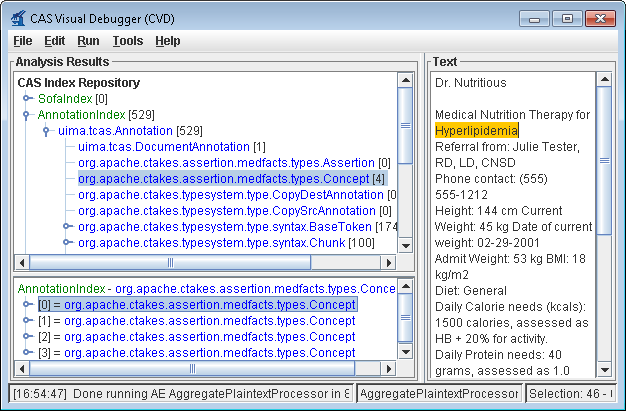
|
...
Step | Example |
|---|
1. Open a command prompt and change to the cTAKES_HOME directory:
| Note |
|---|
It is best if <cTAKES_HOME> is your current directory. The scripts will change directories, so being home to run the command is best. |
|
Windows:
| Code Block |
|---|
| cd \apache-ctakes-3.0.0-incubating
|
Linux: | Code Block |
|---|
| cd /usr/local/apache-ctakes-3.0.0-incubating
|
|
2. Create a directory for some test data. | Windows:mkdir testdata |
3. Download this sample file and place it into the testdata directory.
| No example
|
4. Start the collection processing engine by running this command:
The application may take a minute to start on slower hardware. | Windows: | Code Block |
|---|
| bin\runctakesCPE.bat
|
Linux: | Code Block |
|---|
| bin/runctakesCPE.sh
|
|
5. This will bring up the Collection Processing Engine Configurator. In the Menu bar click File >Open CPE Descriptor | 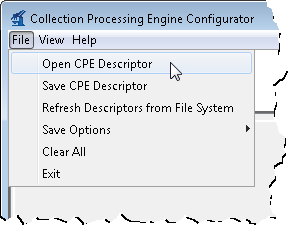 |
6. Navigate to the following file, which uses the AggregateCdaProcessor | Code Block |
|---|
|
<cTAKES_HOME>
  /desc
    /ctakes-clinical-pipeline
      /desc
        /collection_processing_engine
          /test1.xml
|
Click Open.
| No example
|
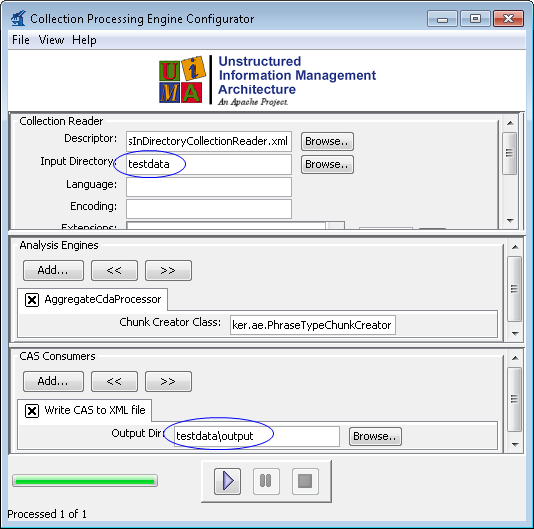
7. Change the Collection reader input directory to testdata and the CAS Consumer , which contains a CDA file(s).
Within the CAS Consumers pane of the same window, change the output directory to testdata/output in the CPE fields
| 
|
8. Click the Play button (green/blue play arrow near the bottom).
| Info |
|---|
What just happened? You placed a sample CDA document into the input of a pipeline. The pipeline was a file system reader that will process all files in a directory. The processing was accomplished by the chunker cTAKES component (noted by the name of the Analysis Engine pictured). One resulting file for each input file was placed into the output directory. This output file is an XML file that annotates the noun phrases and verb phrases. |
|  |
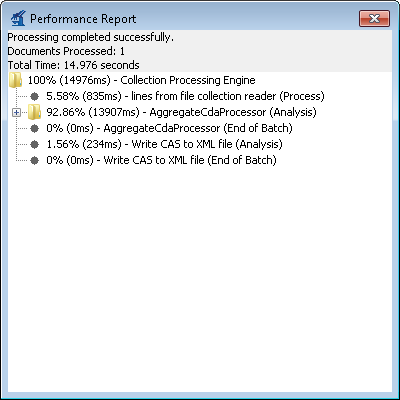
9. You should see that one document was processed. You did process a collection of documents. In this case the collection only contained one just to show how to do it. Close the results window. | Note |
|---|
This example of using the CPE GUI did not use the UMLS resources. If you wish to perform named entity recognition or concept identification for anything other than a few words, you will need to 1) obtain the rights to use UMLS resources 2) add those credentials to cTAKES, and 3) use an aggregate that makes use of those UMLS resources (see above). |
| 
|
10. Close the CPE application. You may be prompted to save changes. Since this was just a test you may click the No button. | No example
|
...
Also, before you go on to process text in production, you will want to consider dictionaries and models. If you did not install the separately-bundled obtain the rights yet to the UMLS resources and models, you will want to do so. Be aware, the models (within the separate resources download) have been trained on data that may not match your data well enough to be effective. In some cases you might want to modify the dictionaries and train models using your own data.