DUE TO SPAM, SIGN-UP IS DISABLED. Goto Selfserve wiki signup and request an account.
Table of Contents |
|---|
View List of Deposit Accounts |
Create a New Deposit Account |
Viewing and Editing a Specific Deposit Account
...
...
Viewing A List of Deposit Accounts
1. Once you have logged into the Fineract CN Mobile app, you will be greeted with the dashboard page. Here, click the "View Customer" button

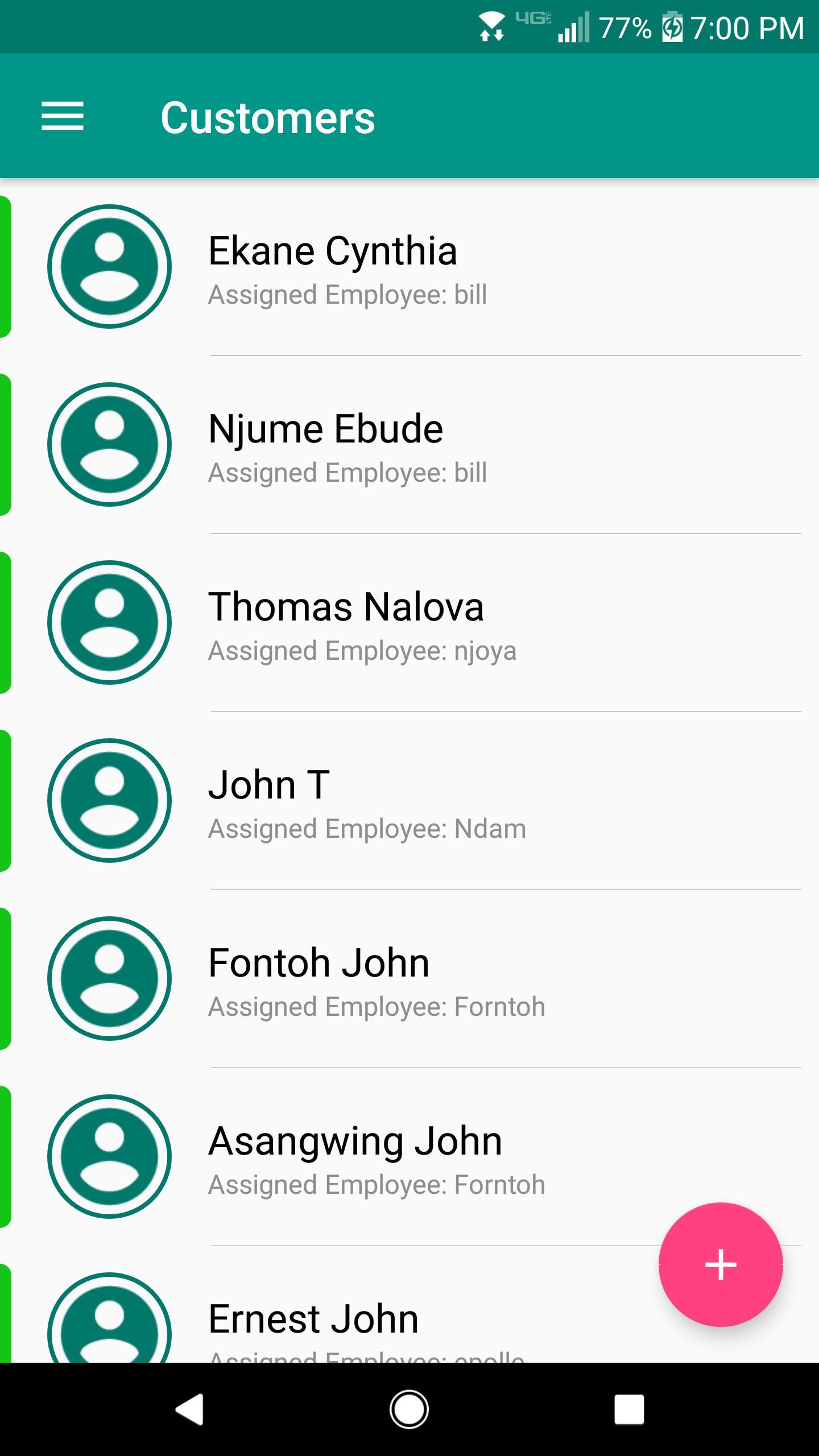
2. Here, you'll be presented with a list of customers. To view a customer's deposit accounts, click on the customer.
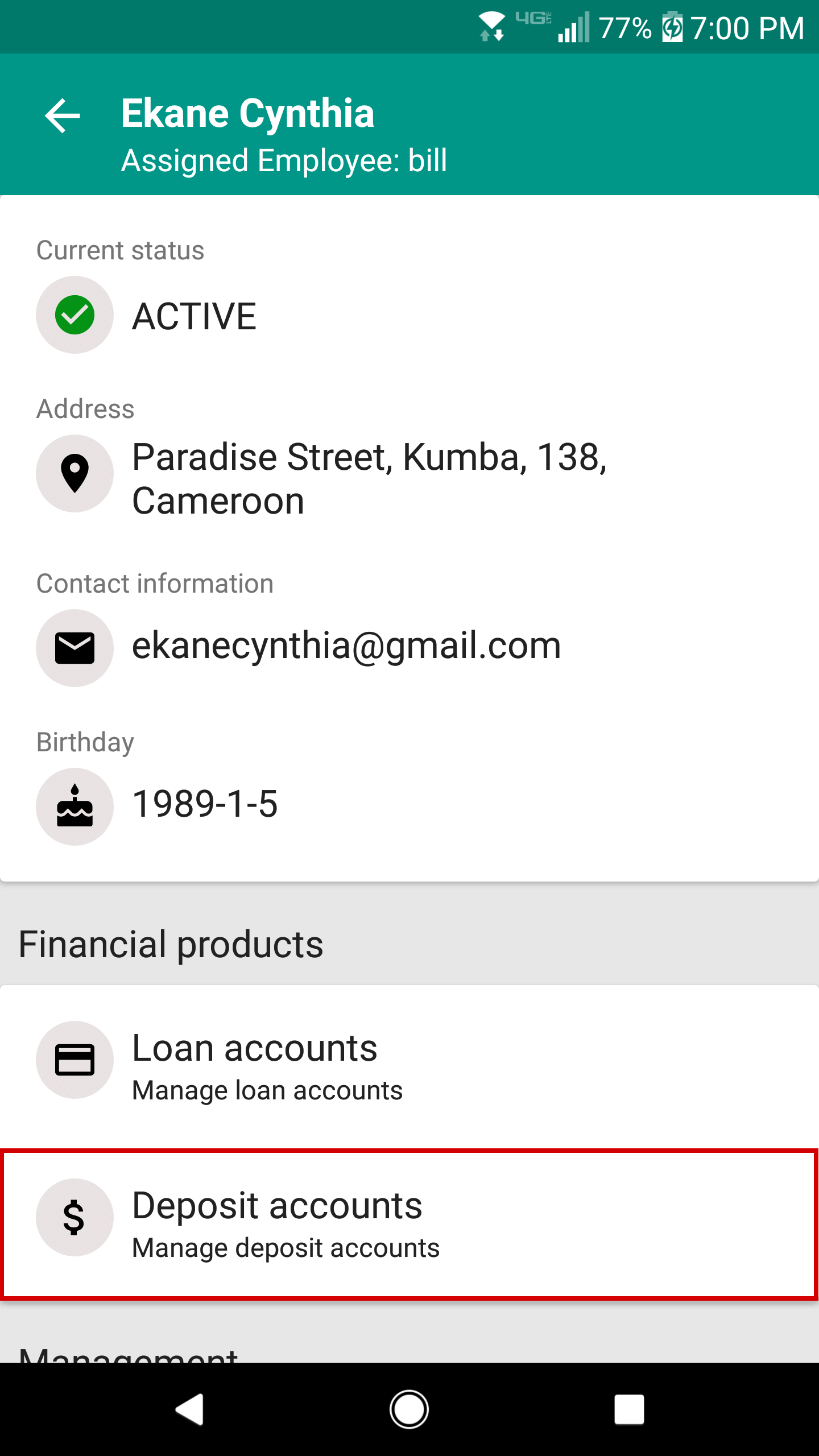
3. You are viewing the details of the customer. To view a list of deposit accounts, scroll down the page, and click on the "Deposit accounts" tab.
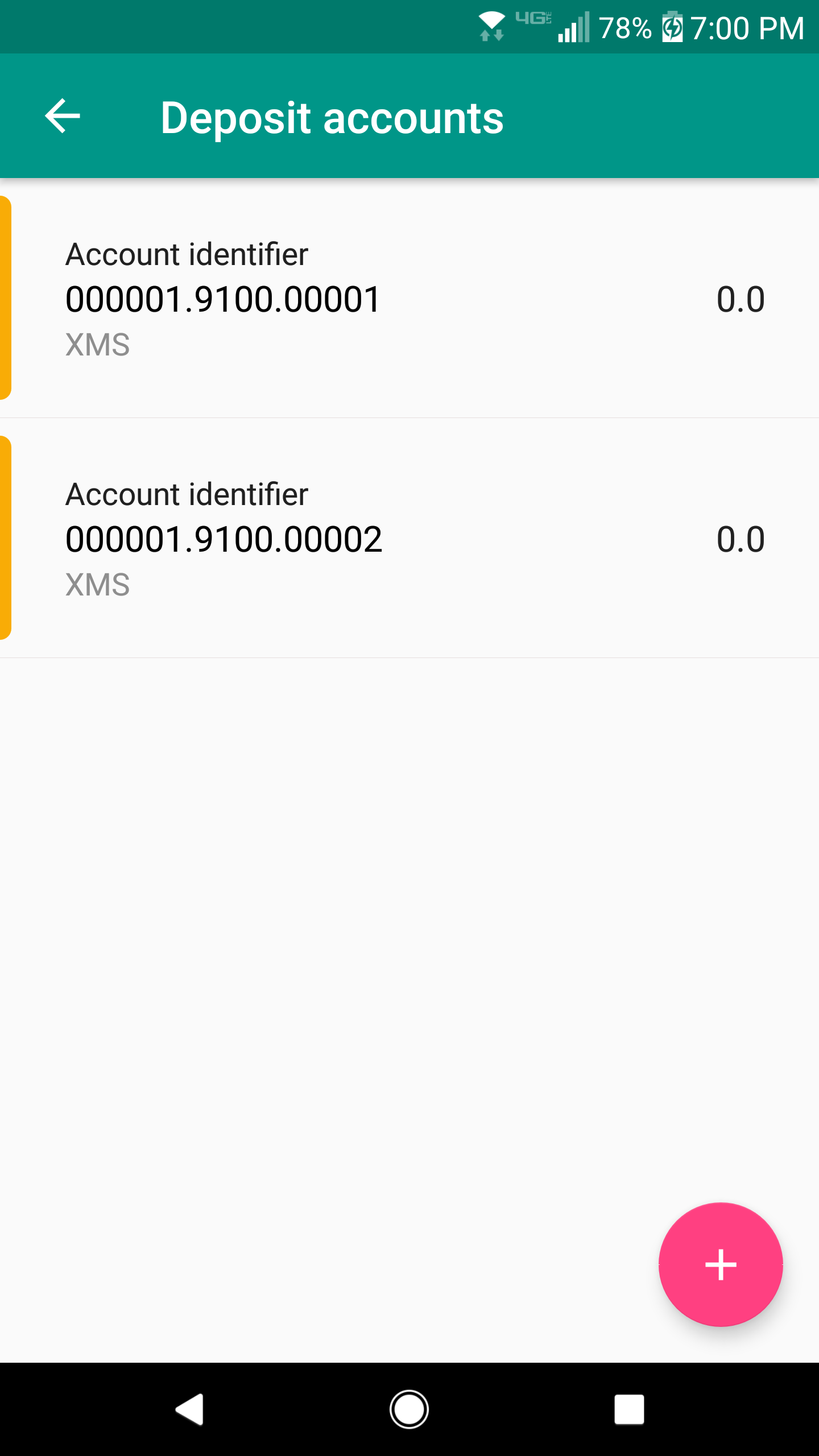
4. You are now viewing a list of the customer's deposit accounts.
...
Creating a New Deposit Account
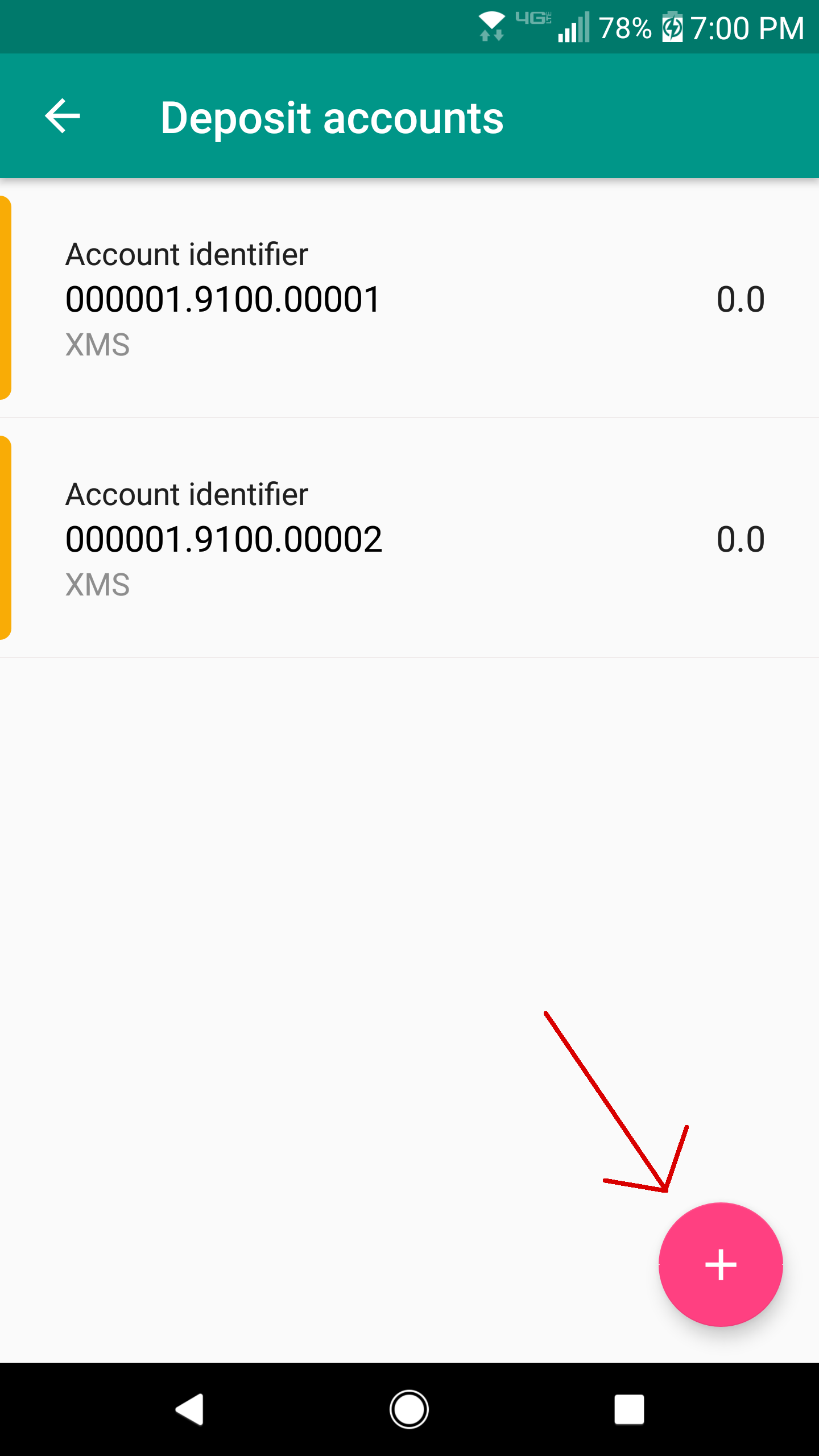
- Once you are viewing a list of the customer's deposit accounts, click the button with the plus
 icon at the bottom-right of your screen. This will launch the new deposit account page.
2. Select a product (Image 1) and a beneficiary (Image 2).
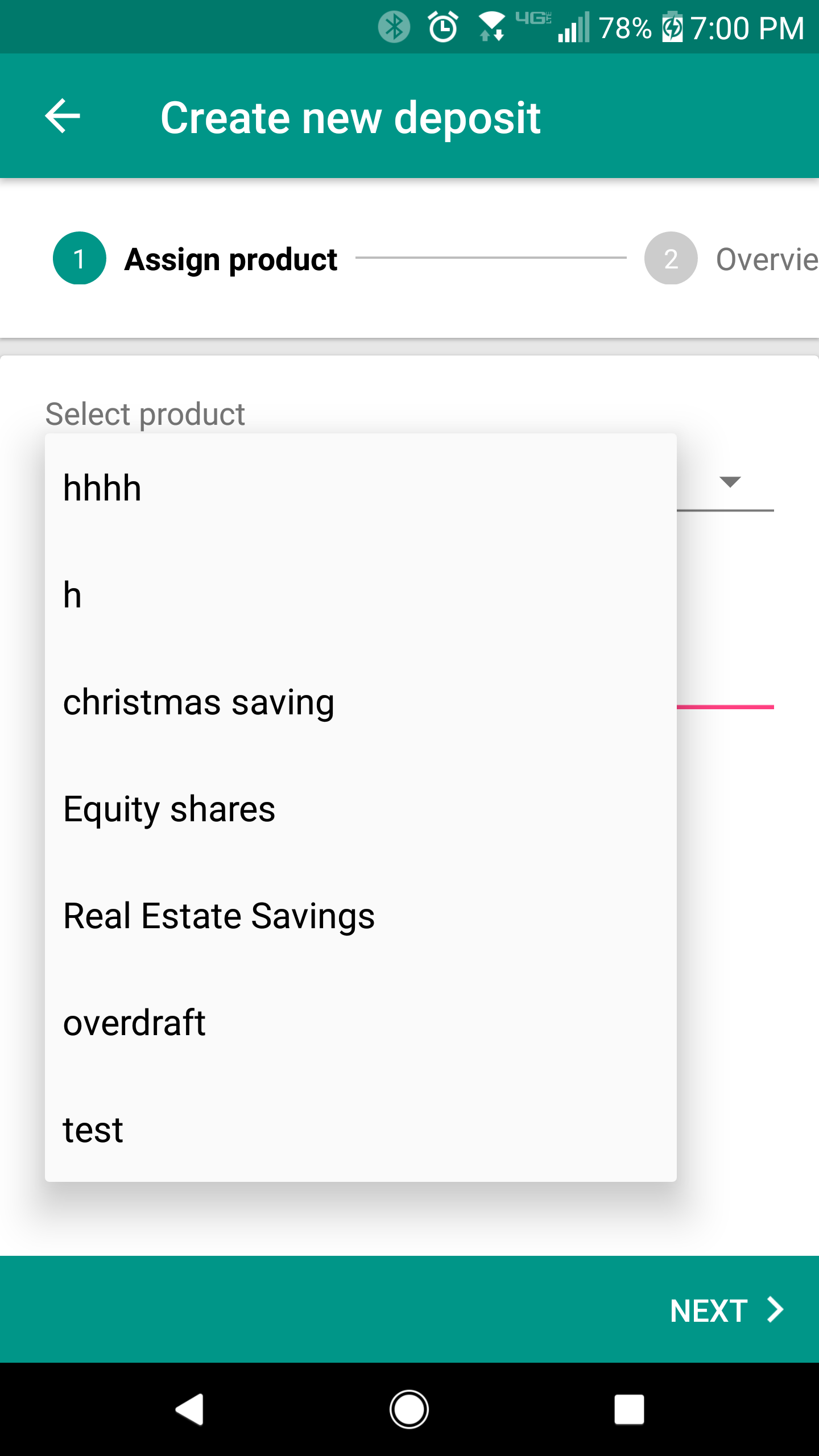
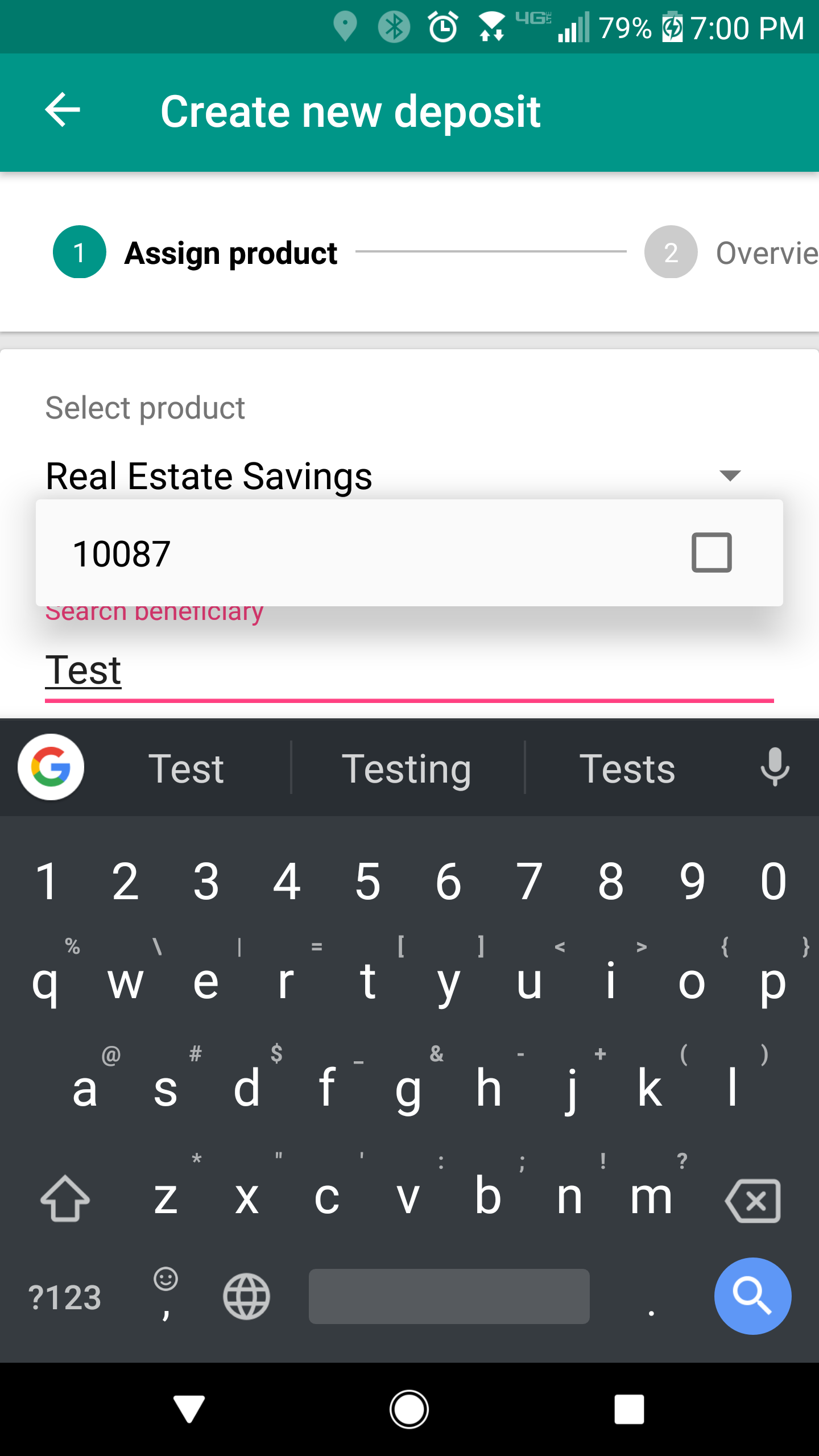
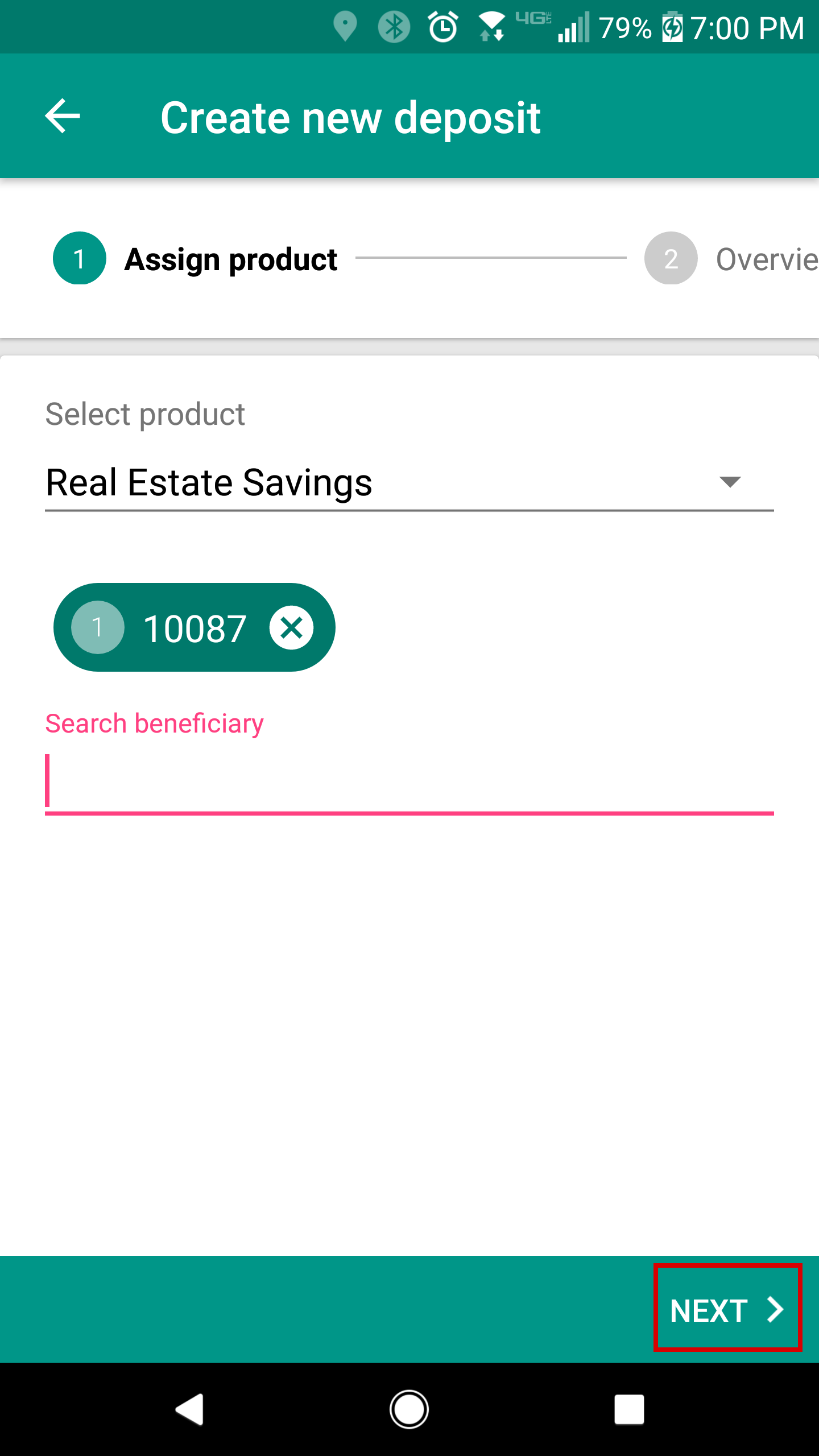
3. Once you have entered in the information required, your screen should look like the image below. Click the "Next" button to proceed.
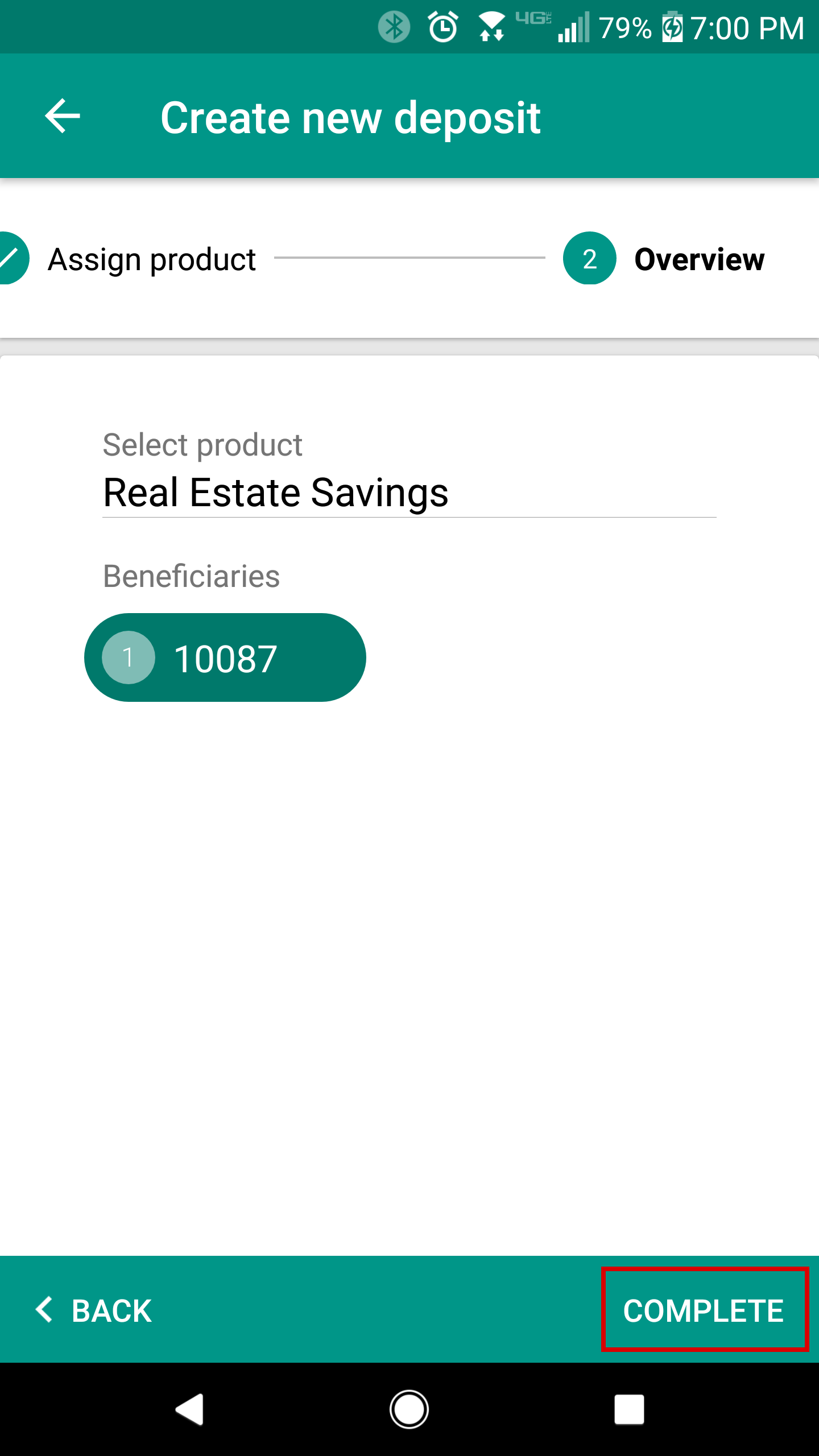
4. You are now at the "Overview" section. Ensure that all information is entered in correctly, and click the complete button. Your deposit account is now created.
...
Viewing and Editing a Specific Deposit Account
1. When viewing a list of all deposit accounts for a customer, click on the account that you want to view.
2. You are now viewing the details of a deposit account. To edit the deposit account, click the edit button on the bottom-right of your screen.
...