DUE TO SPAM, SIGN-UP IS DISABLED. Goto Selfserve wiki signup and request an account.
Apache Airavata
Requirements
It is recommended to have docker installed on the user's laptop to follow the tutorial till end
Steps
1. Go to https://onlinerandomtools.com/generate-random-numbers and download a file that contains a list of random numbers. This will download a file named "output-onlinerandomtools.txt" to your downloads directory
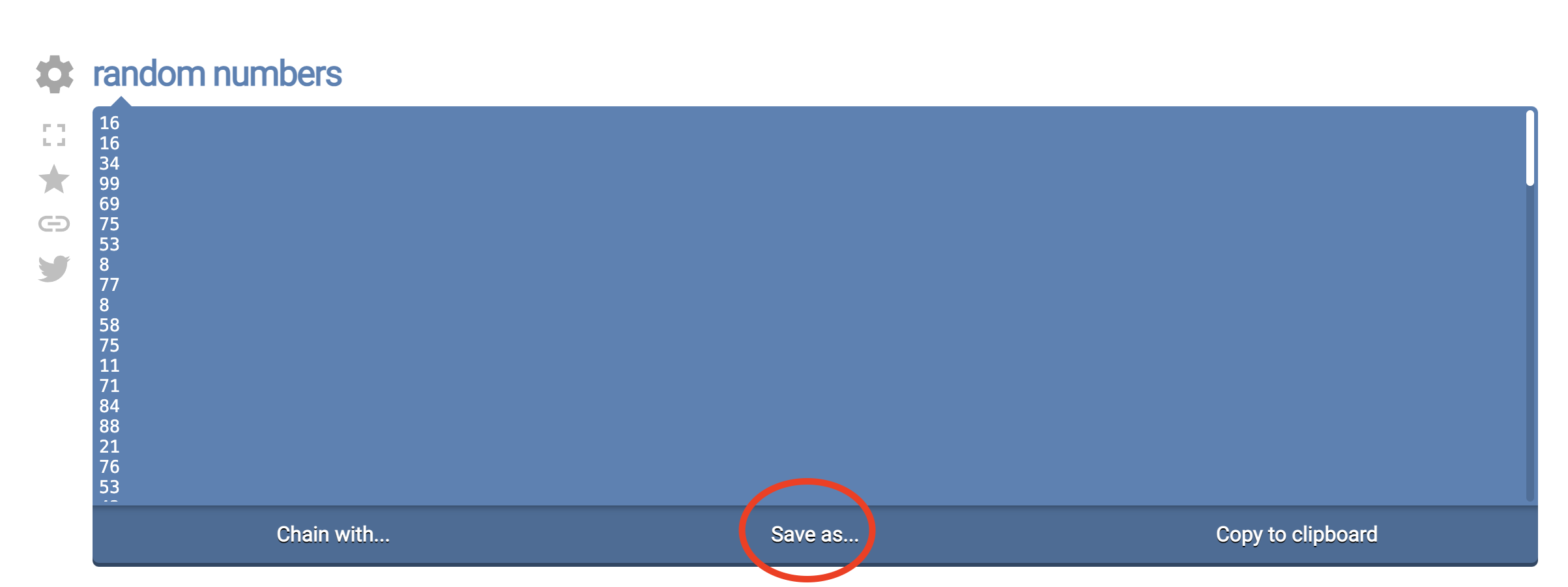
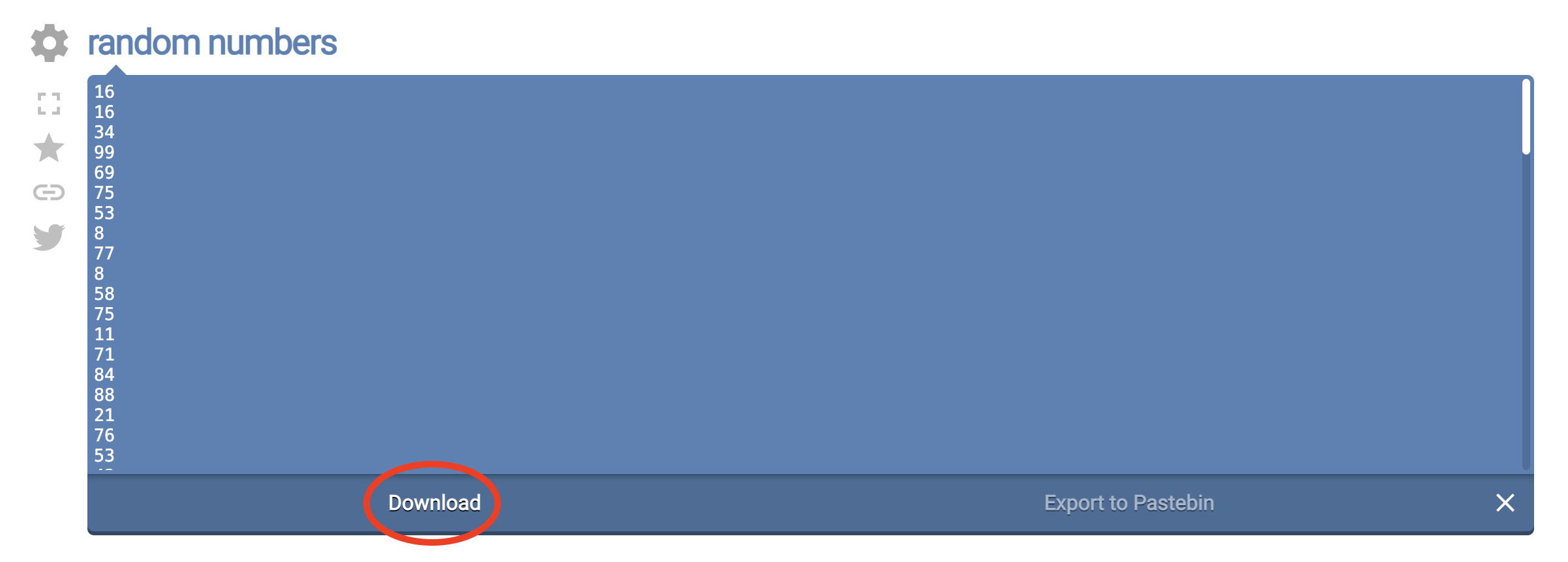
2. Go to https://demo..airavata.org/ and log in through CILogon
3. Click the "Launch a Notebook" button and create a notebook server by providing a name for it. This will spin up a Jetstream2 cloud-hosted notebook server

4. Once the notebook server is available, you should be able to see a start button in front of the notebook entry

5. Click the start button and it will open up a new tab with access to the newly created notebook server
6. Using the notebook file viewer, upload the previously downloaded output-onlinerandomtools.txt to the root level of notebook server

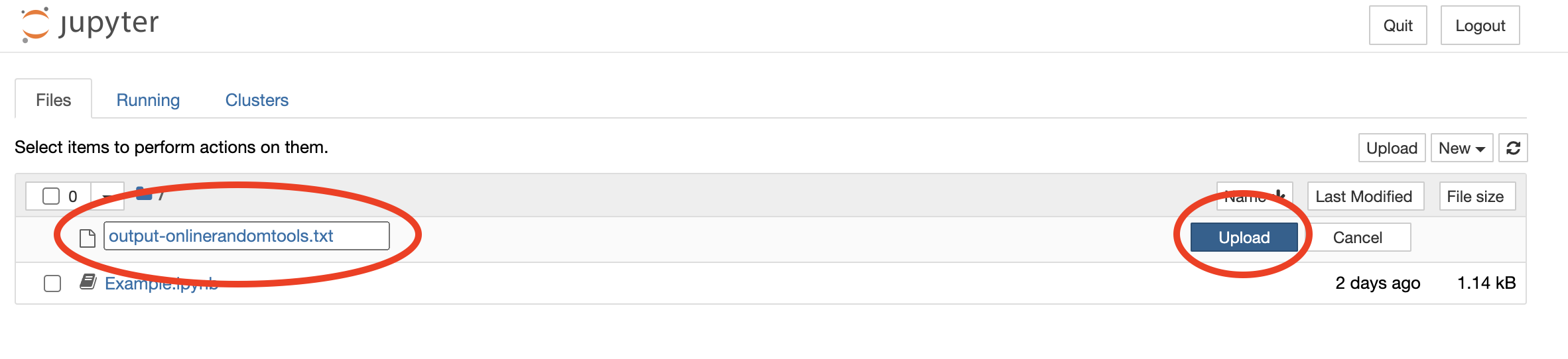
7. Click and open Example.ipynb notebook.
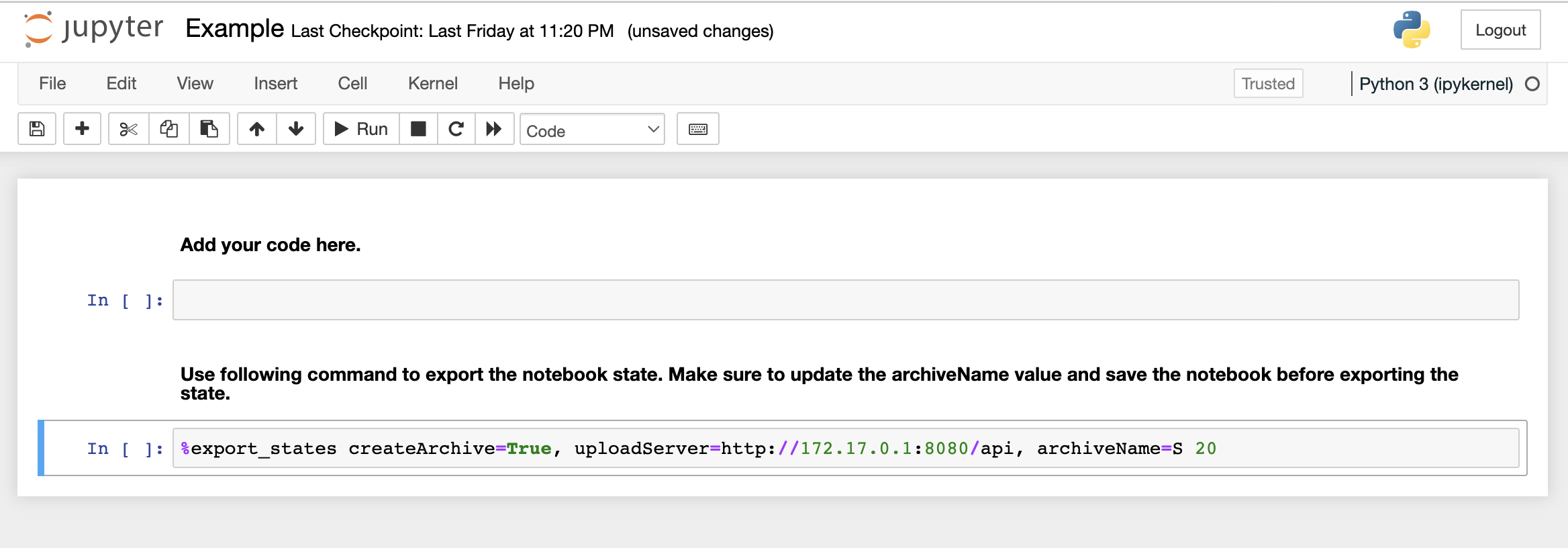
8. Run following code blocks in individual notebook cells
Code Block 1
with open('output-onlinerandomtools.txt', encoding='utf-8-sig') as f:
    content = f.read()
array = content.split()
numbers = []
for item in array:
    numbers.append(int(item))
Code Block 2
total_sum = sum(numbers)
print(total_sum)
Code Block 3
import matplotlib.pyplot as plt
plt.hist(numbers)
9. Above import will throw an error because the notebook runtime does not have matplotlib installed by default. To install matplotlib, get a new cell and run the following command
pip install matplotlib
10. Once the library is installed, try running code block 3 to make sure that the library is properly installed
11. Save the notebook and run the last line (See code block 4 below) of the notebook with an appropriate description. It is very important to save the notebook before running this command to capture the state appropriately
Code Block 4
%export_states createArchive=True, uploadServer=http://172.17.0.1:8080/api, archiveName=Experiment with total sum <SUM>
12. Download the ARCHIVE.zip file to your local disk by clicking the link appeared as the output of above command
13. Run a docker container with the downloaded ARICHIVE.zip as an input. Update the <Local Archive Path> value with the absolute path of the downloaded ARCHIVE.zip file
docker run --cap-add=SYS_PTRACE -it -p 8888:8888 -v <Local Archive Path>:/opt/ARCHIVE.zip -e NOTEBOOK_TOKEN=123456 dimuthuupe/ipykernel:1.2
Overview
Content Tools
For an overview of Apache Airavata visit the Website - https://airavata.apache.org/