You are viewing an old version of this page. View the current version.

Compare with Current View Page History

« Previous Version 8 Next »


1. Objectives

In SDN solutions, some services are provided by the SDN, for example

  • Source NAT
  • Static NAT
  • Load Balancer
  • Port forwarding
  • Network ACL (VPC)
  • Firewall rules (Isolated network)

However, there are still some services which are not supported by the SDN provider, for example

  • Dhcp (supported by some SDN providers)
  • Dns (supported by some SDN providers)
  • UserData (it is unsupported by SDN providers)
  • Vpn

In this case, CloudStack VR is used for provide Dhcp/Dns/Userdata services to the vm instances. It is not in the path of the traffic, it acts as a helper vm
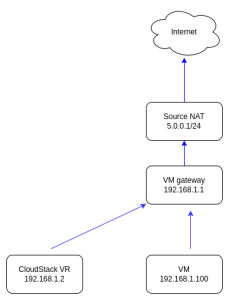
The goal of this feature is to support VPNs in Cloudstack VR

  • Remote access VPN for SDN networks 
  • Site-to-Site VPN for SDN networks

Please note, this supports VPC only. Isolated networks is not supported

2. High Level Design

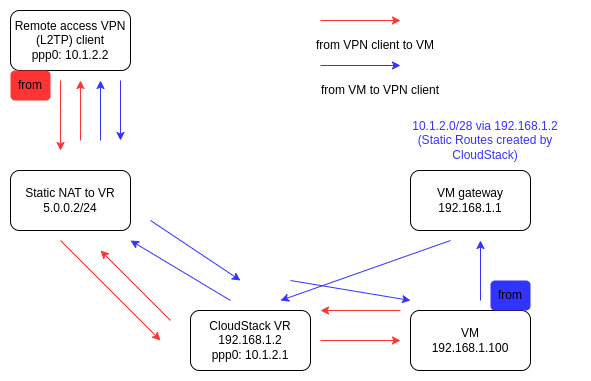
As the first step, the CloudStack VR needs a public IP (via static nat).

For Remote access vpn, the diagram is as below
For Site-to-Site VPN, the diagram is as below
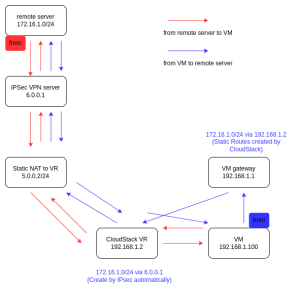
In both cases, as the last step, static routes need to be create by cloudstack and configured in SDN.


3. Implementation

This described some details of the implementation

3.1 database change

a new column is added to the table user_ip_address for public ip address, which indicate if the ip is one-to-one nat to the VPC VR.


  `for_router` tinyint(1) DEFAULT '0' COMMENT 'True if the ip address is used by Domain Router to expose services',


3.2 ipsec configuration for Remote access VPN


root@r-26-VM:~# cat /etc/ipsec.d/l2tp.conf 
#ipsec remote access vpn configuration
conn L2TP-PSK
        authby=secret
        rekey=no
        keyingtries=3
        leftfirewall=yes
        type=transport
        left=172.17.1.67  (private IP of first guest NIC)
        leftid=10.0.88.10 (public IP of VPC VR)
        leftprotoport=udp/l2tp
        right=%any
        rightprotoport=udp/%any
        rightsubnetwithin=0.0.0.0/0
        auto=route

root@r-26-VM:~# cat /etc/ipsec.d/ipsec.any.secrets 
: PSK "4QCNMeE9RjDccgYgPzZZmnkc"


for xl2tpd and vpn users

root@r-26-VM:~# cat /etc/xl2tpd/xl2tpd.conf 
[lns default]
ip range = 10.1.2.2-10.1.2.8
local ip = 10.1.2.1
require chap = yes
refuse pap = yes
pppoptfile =    /etc/ppp/options.xl2tpd

root@r-26-VM:~# cat /etc/ppp/chap-secrets 
# Secrets for authentication using CHAP
# client	server	secret			IP addresses
test1 * test1 *
test2 * test2 *
test3 * test3 *


3.3 ipsec configuration for Site-to-Site VPN


root@r-26-VM:~# cat /etc/ipsec.d/ipsec.vpn-10.0.80.31.conf
#conn for vpn-10.0.80.31
conn vpn-10.0.80.31
 left=172.17.1.67    (private IP of first guest NIC)
 leftid=10.0.88.10   (public IP of VPC VR)
# leftsourceip=10.0.88.10
 leftsubnet=172.17.0.0/20
 right=10.0.80.31
 rightsubnet=172.27.0.0/20
 type=tunnel
 authby=secret
 keyexchange=ike
 ike=aes128-sha1-modp1536
 ikelifetime=1440m
 esp=aes128-sha1
 lifetime=60m
 keyingtries=2
 auto=route
 forceencaps=yes
 dpddelay=30
 dpdtimeout=120
 dpdaction=restart

root@r-26-VM:~# cat /etc/ipsec.d/ipsec.vpn-10.0.80.31.secrets 
10.0.88.10 10.0.80.31 : PSK "test2"


3.4 Static Routes for VPNs on gateway


# This is an example
# 172.17.1.67 is the private IP of first guest NIC of VPC VR

root@dummy-gateway-002:~# ip route
default via 10.0.80.1 dev ens3 
10.0.80.0/20 dev ens3 proto kernel scope link src 10.0.88.1 
10.1.2.0/24 via 172.17.1.67 dev ens8           # For Remote Access VPN, the IP range is 10.1.2.1-10.1.2.8
172.17.1.0/24 dev ens8 proto kernel scope link src 172.17.1.1 
172.17.2.0/24 dev ens9 proto kernel scope link src 172.17.2.1 
172.25.0.0/20 via 172.17.1.67 dev ens8         # For Site-to-Site VPN
172.27.0.0/20 via 172.17.1.67 dev ens8         # For Site-to-Site VPN


4. How to set up VPNs


To create a VPC, please refer to https://docs.cloudstack.apache.org/en/4.19.1.0/adminguide/networking_and_traffic.html#configuring-a-virtual-private-cloud

4.1 Remote Access VPN

Remote access VPN is not supported by Source NAT for SDN networks. 

(1) acquire a Public IP
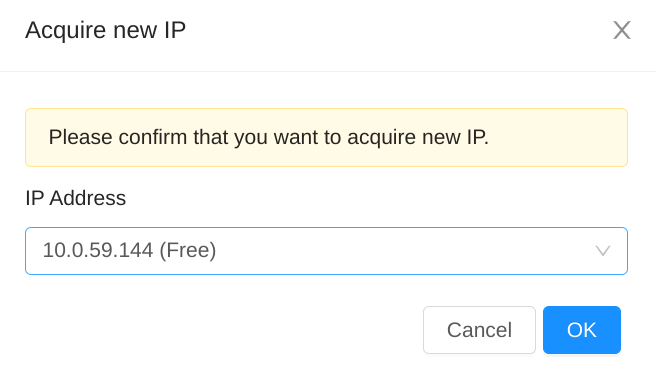
Please use an IP address which is not in the subnet of Source NAT of VPC VR (not Netris)


(2) Enable Remote Access VPN
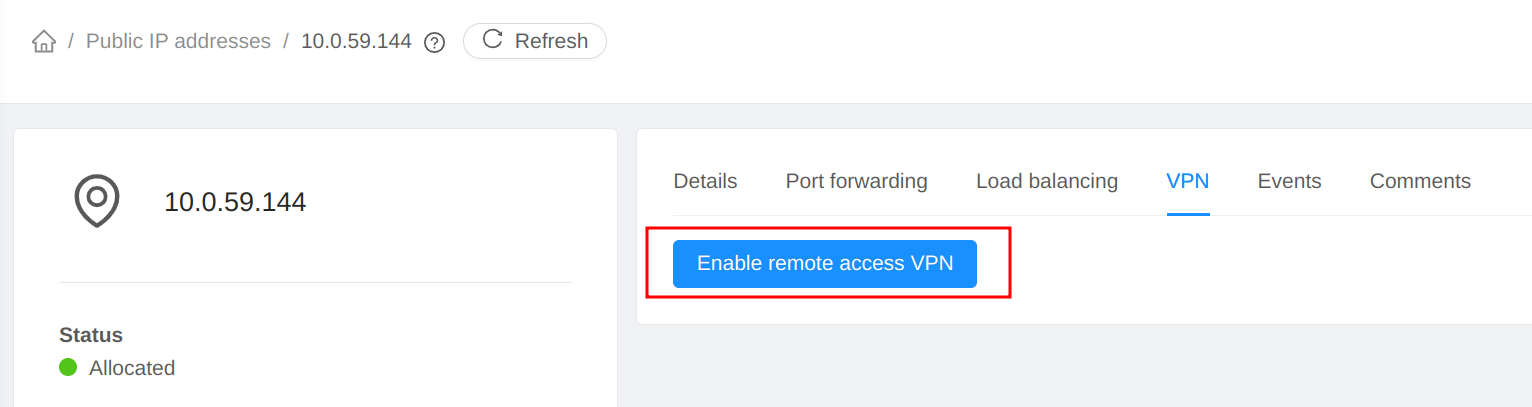

the pre-shared key is displayed
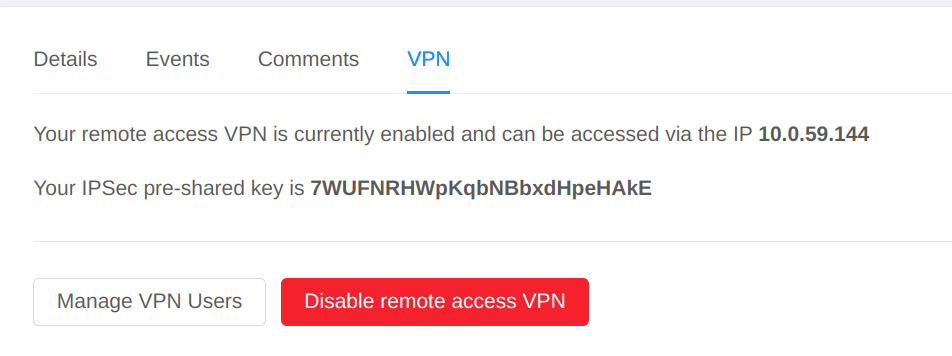
(3) Connect in VPN Client


Please refer to https://docs.cloudstack.apache.org/en/4.19.1.0/adminguide/networking/using_remote_access.html#microsoft-windows-8


Remember , For Windows clients,


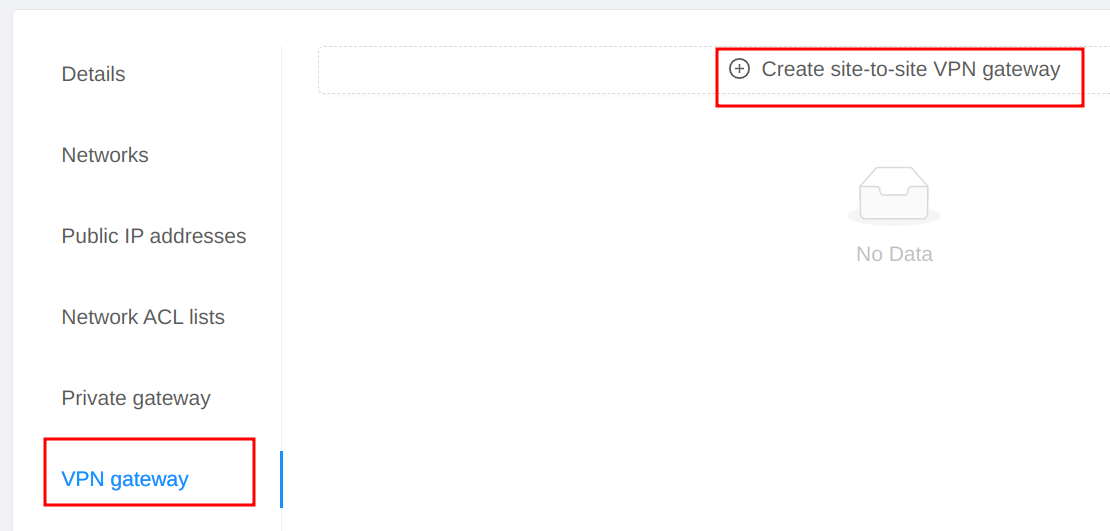
4.2 Site-to-Site VPN


(1) Create VPN gateway


If remote access VPN is enabled, it gets the same IP
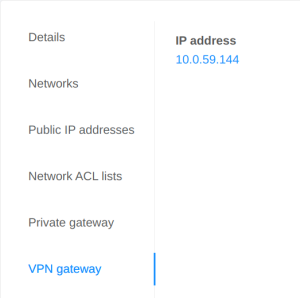
Otherwise, CloudStack automatically assign a Public IP


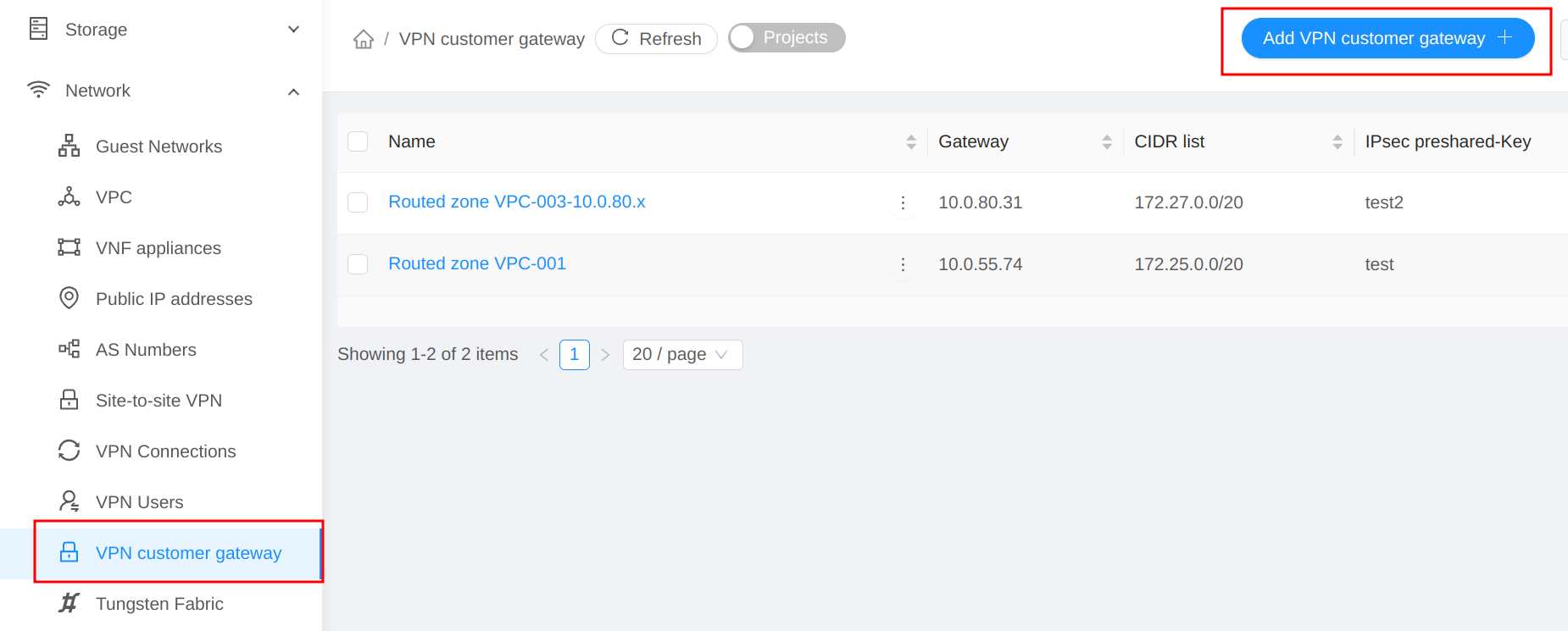
(2) Create customer gateway


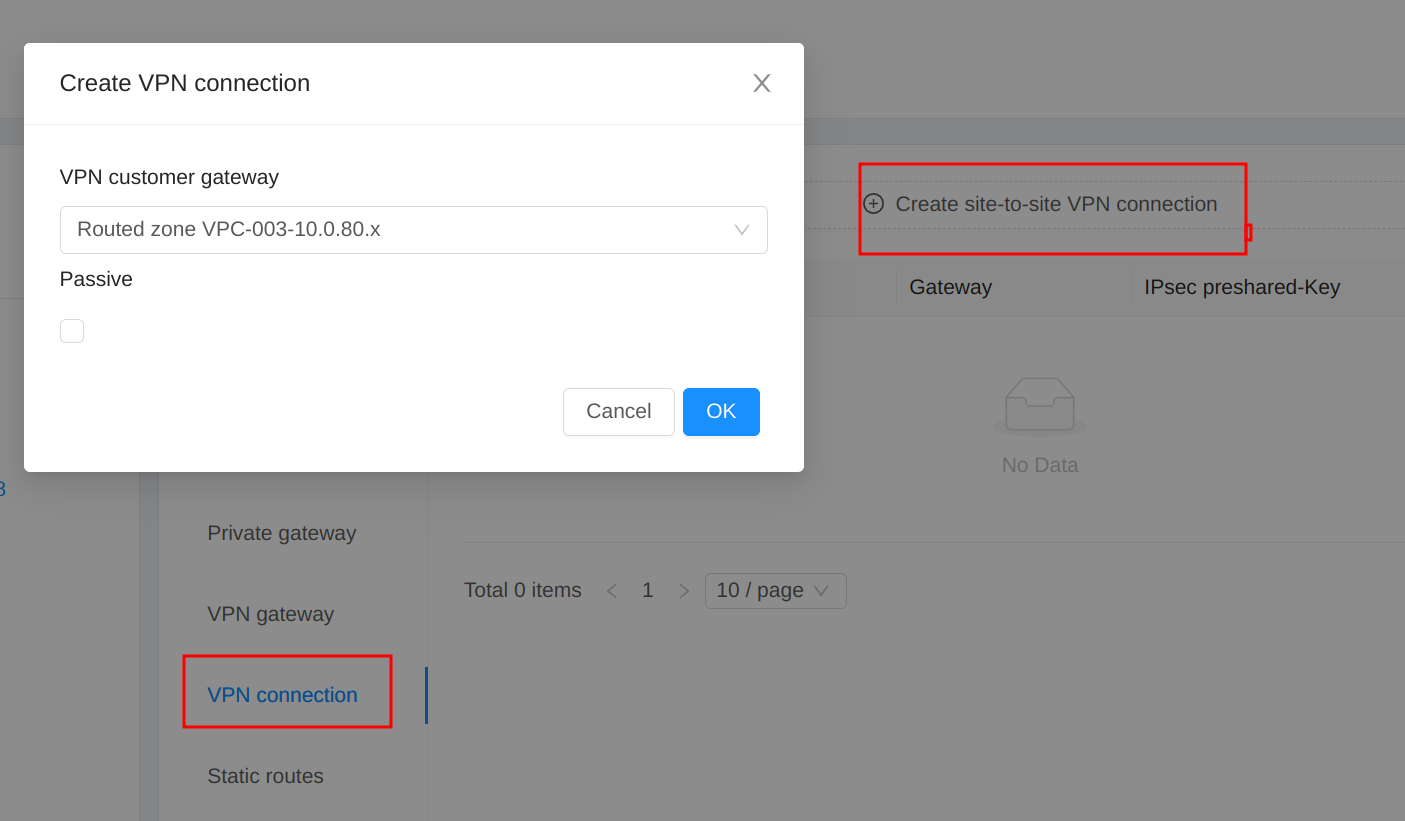
(3) Create VPN connection

5. Test plan

Before testing

  • Create VPC offering
  • Create Network offering
  • Add Vpn Users

5.1 Create VPC, VPC tier and VM


Test cases

Check items and expected results

Create VPC, VPC tier and VM


  1. Create VPC

  • Should succeed

  1. Create VPC tier-1

  • Should succeed

  1. Create VM-1 in VPC tier-1

  • Should succeed

  • VM

    • can get correct VM password

    • can get userdata from VPC VR

  • VPC VR

    • gets placeholder IP (not VM gateway .1)

    • use first guest NIC as default route

5.2 Setup Remote Access VPN

Setup Remote Access VPN


  1. Setup VPN on the Source NAT IP (IP-0)

  • Should fail

  1. acquire a Public IP (IP-1)

  • Should succeed

  1. Enable remote access VPN (IP-1)

  • Should succeed

  • Backend

    • Enable static NAT to first guest NIC/IP of VR

    • Add Static route for guest IP range (next hop: first guest IP of VR)

  1. Test VPN in Windows client (with PSK-1)

  • Should work

    • from VPN client to VM

    • from VM to VPN client

  1. Disable Static NAT (IP-1)

  • Should fail

  1. Release IP (IP-1)

  • Should fail

  1. Disable remote access VPN on (IP-1)

  • Should succeed

  • Backend

    • Delete Static route for guest IP range (next hop: first guest IP of VR)

  1. Enable remote access VPN (IP-1) again

  • Should succeed

  • Backend

    • Add Static route for guest IP range (next hop: first guest IP of VR)

  1. Test VPN in Windows client (with PSK-2)

  • Should work

    • from VPN client to VM

    • from VM to VPN client

  1. Acquire Public IP (IP-2) and Enable VPN

  • Should fail

  1. Disable remote access VPN on (IP-1)

  • Should succeed

  • Delete Static route for guest IP range (next hop: first guest IP of VR)

  1. Disable Static NAT (IP-1)

  • Should succeed

  • Disable static NAT to first guest NIC/IP of VR

  1. Acquire Public IP (IP-3) and Enable VPN

  • Should succeed

  • Backend

    • Enable static NAT to first guest NIC/IP of VR

    • Add Static route for guest IP range (next hop: first guest IP of VR)

  1. Test VPN in Windows client (with PSK-3)

  • Should work

    • from VPN client to VM

    • from VM to VPN client

  1. Disable remote access VPN on (IP-3)

  • Should succeed

  • Delete Static route for guest IP range (next hop: first guest IP of VR)

  1. Disable Static NAT (IP-3)

  • Should succeed

  • Disable static NAT to first guest NIC/IP of VR

5.3 Setup Site-to-Site VPN

Setup Site-to-Site VPN


  1. Create VPN gateway

  • Should work

  • Backend

    • Acquire a Public IP (IP-4) automatically (not Source NAT IP)

    • Enable static NAT to first guest NIC/IP of VR

  1. (Optional) If there is no VPN server to test

    1. Create another VPC

    2. Create VPC tier and VPC VM

    3. Create VPN gateway

    4. Create VPN customer gateway (in step 1)

    5. Create VPN connection

  • Should work

  1. Create VPN customer gateway (in step 2)

  • Should work

  1. Create VPN connection

  • Should work

  • Backend

    • ipsec configs are created in /etc/ipsec.d/ (.conf and .secret) in in VPC VR

    • Add Static routes for multiple CIDRs (next hop: first guest IP of VR)

  1. Check state of VPN connection

  • Should be Connected or Connecting

  1. Reset VPN connection (in VR of VPC in step 2)

    1. ipsec down vpn-xxxxxx

    2. ipsec up vpn-xxxxxx

  • VPN connection is Established

  • ping/ssh work from remote to local tier-1

  • ping/ssh work from local tier-1 to remote

  1. Reset VPN connection (in VR of VPC in step 1)

    1. ipsec down vpn-xxxxxx

    2. ipsec up vpn-xxxxxx

  • VPN connection is Established

  1. Delete VPN connection

  • Should succeed

  • Backend

    • Delete Static routes for multiple CIDRs (next hop: first guest IP of VR)

  1. Disable Static NAT

  • Should fail

  1. Release IP

  • Should fail

  1. Delete VPN gateway

  • Should work

  1. Disable Static NAT (IP-4)

  • Should succeed

  • Disable static NAT to first guest NIC/IP of VR

5.4 Setup both Remote Access VPN and S2S VPN

Setup both Remote Access VPN and S2S VPN


  1. Acquire IP and Enable Remote Access VPN

  • Should work

  • Backend

    • Enable static NAT to first guest NIC/IP of VR

    • Add Static route for guest IP range (next hop: first guest IP of VR)

  1. Create VPN gateway

  • Should work

    • Same IP as Remote Access VPN

  1. Create VPN connection

  • Should work

  • Backend

    • ipsec configs are created in /etc/ipsec.d/ (.conf and .secret) in in VPC VR

    • Add Static routes for multiple CIDRs (next hop: first guest IP of VR)

  1. Test VPN in Windows client (with PSK-4)

  • Should work

    • from VPN client to VM

    • from VM to VPN client

  1. Test Site-to-Site VPN connection

  • If not Established

    • reset VPN connection in remote server

  • Should work

    • from remote to tier-1

    • from tier-1 to remote

  1. Remove Site-to-Site VPN connection

  • Should work

  • Backend

    • Delete Static routes for multiple CIDRs (next hop: first guest IP of VR)

  1. Disable Remote Access VPN

  • Should work

  • Backend

    • Delete Static route for guest IP range (next hop: first guest IP of VR)

  1. Delete VPN gateway

  • Should work

  1. Create VPN gateway

  • Should work

  1. Create VPN connection

  • Should work

  • Backend

    • ipsec configs are created in /etc/ipsec.d/ (.conf and .secret) in in VPC VR

    • Add Static routes for multiple CIDRs (next hop: first guest IP of VR)

  1. Enable Remote Access VPN

  • Should work

  • Backend

    • Add Static route for guest IP range (next hop: first guest IP of VR)

  1. Test Site-to-Site VPN connection

  • If not Established

    • reset VPN connection in remote server

  • Should work

    • from remote to tier-1

    • from tier-1 to remote

  1. Test VPN in Windows client (with PSK-4)

  • Should work

    • from VPN client to VM

    • from VM to VPN client


5.5 Test VPC tier creation

Test VPC tier creation


  1. Create VPC tier-2

  • Should succeed

  1. Create VM-2 in VPC tier-2

  • Should succeed

  • VM

    • can get correct VM password

    • can get userdata from VPC VR

  • VPC VR

    • gets placeholder IP (not VM gateway .1)

    • use first guest NIC as default route

  1. Test Remote access VPN client to tier-2

  • Should work

    • from VPN client to tier-2

    • from tier-2 to VPN client

  1. Test Site-to-Site VPN to tier-2

  • Should work

    • from remote to tier-2

    • from tier-2 to remote

  1. Create VPC tier-3

  • Should succeed

  1. Create VM-3 in VPC tier-3

  • Should succeed

  • VM

    • can get correct VM password

    • can get userdata from VPC VR

  • VPC VR

    • gets placeholder IP (not VM gateway .1)

    • use first guest NIC as default route

  1. Test Remote access VPN client to tier-3

  • Should work

    • from VPN client to tier-3

    • from tier-3 to VPN client

  1. Test Site-to-Site VPN to tier-3

  • Should work

    • from remote to tier-3

    • from tier-3 to remote

5.6 Test VPC tier deletion (first tier)

Test VPC tier deletion (first tier)


  1. Expunge VM-1

  • Should succeed

  1. Remove VPC tier-1

  • Should succeed

  • Backend

    • Disable static NAT to guest NIC/IP of tier-1

    • Enable static NAT to guest NIC/IP of tier-2

    • Update Static routes for multiple CIDRs (next hop: guest IP of VR of tier-2)

  1. Check VPC VR

  • VPC VR:

    • use guest NIC of tier-2 as default route

    • l2tp.conf uses the guest IP of tier-2

    • vpn-xxxxxx uses the guest IP of tier-2

  1. Test Remote access VPN client to tier-2 and tier-3

  • Should work

    • from VPN client to tier-2 and tier-3

    • from tier-2 and tier-3 to VPN client

  1. Test Site-to-Site VPN to tier-2 and tier-3

  • Should work

    • from remote to tier-2 and tier-3

    • from tier-2 and tier-3 to remote

5.7 Test VPC VR reboot

Test VPC VR reboot


  1. Reboot router

  • Should work

  • VPC VR

    • gets placeholder IP (not VM gateway .1)

  1. Check VPC VR

  • VPC VR:

    • use guest NIC of tier-2 as default route

    • l2tp.conf uses the guest IP of tier-2

    • vpn-xxxxxx uses the guest IP of tier-2

  1. Test Remote access VPN client to tier-2 and tier-3

  • Should work

    • from VPN client to tier-2 and tier-3

    • from tier-2 and tier-3 to VPN client

  1. Test Site-to-Site VPN to tier-2 and tier-3

  • Should work

    • from remote to tier-2 and tier-3

    • from tier-2 and tier-3 to remote

5.8 Test VPC restart with cleanup

Test VPC restart with cleanup


  1. Restart VPN with cleanup

  • Should work

  • VPC VR

    • gets placeholder IP (not VM gateway .1)

  1. Check VPC VR

  • VPC VR:

    • use guest NIC of tier-2 as default route

    • l2tp.conf uses the guest IP of tier-2

    • vpn-xxxxxx uses the guest IP of tier-2

  1. Test Remote access VPN client to tier-2 and tier-3

  • Should work

    • from VPN client to tier-2 and tier-3

    • from tier-2 and tier-3 to VPN client

  1. Test Site-to-Site VPN to tier-2 and tier-3

  • Should work

    • from remote to tier-2 and tier-3

    • from tier-2 and tier-3 to remote

5.9 Test VPC tier deletion (from last tier)

Test VPC tier deletion (from last tier)


  1. Expunge VM-3

  • Should succeed

  1. Remove VPC tier-3

  • Should succeed

  • Backend

    • No changes for static NAT.

    • Update Static routes for multiple CIDRs (next hop: guest IP of VR of tier-2)

  1. Expunge VM-2

  • Should succeed

  1. Remove VPC tier-2

  • Should succeed

  • Backend

    • Disable static NAT to guest NIC/IP of tier-2

    • Delete Static routes for multiple CIDRs (next hop: guest IP of VR of tier-2)

  1. Remove VPC

  • Should fail

  1. Disable Remote access VPN

  • Should work

  1. Remove VPC

  • Should fail

  1. Remove VPN connection

  • Should work

  1. Remove VPC

  • Should fail

  1. Remove VPC gateway

  • Should work

  1. Remove VPC

  • Should work

  • No labels