DUE TO SPAM, SIGN-UP IS DISABLED. Goto Selfserve wiki signup and request an account.
OFBIZ-13240 - Getting issue details... STATUS
Introduction
In Apache OFBiz, partial receiving allows warehouse teams to record and update inventory for only the portion of a shipment that has been physically received and inspected, while keeping the original purchase order (PO) and shipment record open for subsequent receiving. This functionality is fully supported in scenarios involving a single shipment per PO and ensures that inventory levels are updated accurately in real time. Importantly, when the full quantity is eventually received, only one invoice will be generated for the entire shipment, maintaining clean financial tracking and avoiding unnecessary complexity.
This workflow is particularly valuable in day-to-day operations where full receiving cannot always be completed in one session.
Common Use Cases
- Your supplier delivered the complete order, but due to time constraints (e.g., end of shift, limited staff, or ongoing quality inspections), the warehouse team could only unload, inspect, and receive part of it today, with the remainder scheduled for tomorrow.
- Large or bulky shipments might require staged processing over multiple days, allowing partial inventory updates while preserving linkage to the same PO
By handling receipts this way, businesses maintain accurate stock visibility and avoid delays in production or fulfillment.
How It Works in Practice
The process is straightforward and can be performed either from the Purchase Order screen or the Facility (warehouse) module. For this guide — reflecting real-world practices where warehouse staff typically handle receiving — we will demonstrate the steps using the Facility screen, as it aligns closely with their daily workflow and access permissions.
Below are the detailed step-by-step instructions, including screenshots, for both common approaches. Follow the method that best matches your user access and workflow preferences.
Step-by-step guide with screenshots
Note on Shipment Creation in This Guide
In this Receiving guide, we demonstrate workflows using automatic shipment creation (via the Receive button in the Actions section on the Purchase Order screen). This method instantly generates a Shipment ID, which is then used when receiving via the Facility Module through the Receive Inventory tab, providing a complete and accurate end-to-end example.
While Apache OFBiz fully supports manual shipment creation for advanced control, the current version has a few known issues that affect the standard receiving workflow. To learn more about it, you can visit our guide Receiving Multiple Shipments Against a PO where we have explained how to create a manual shipment and the current issues.
Step 1: Review the Purchase Order and Generate Shipment ID
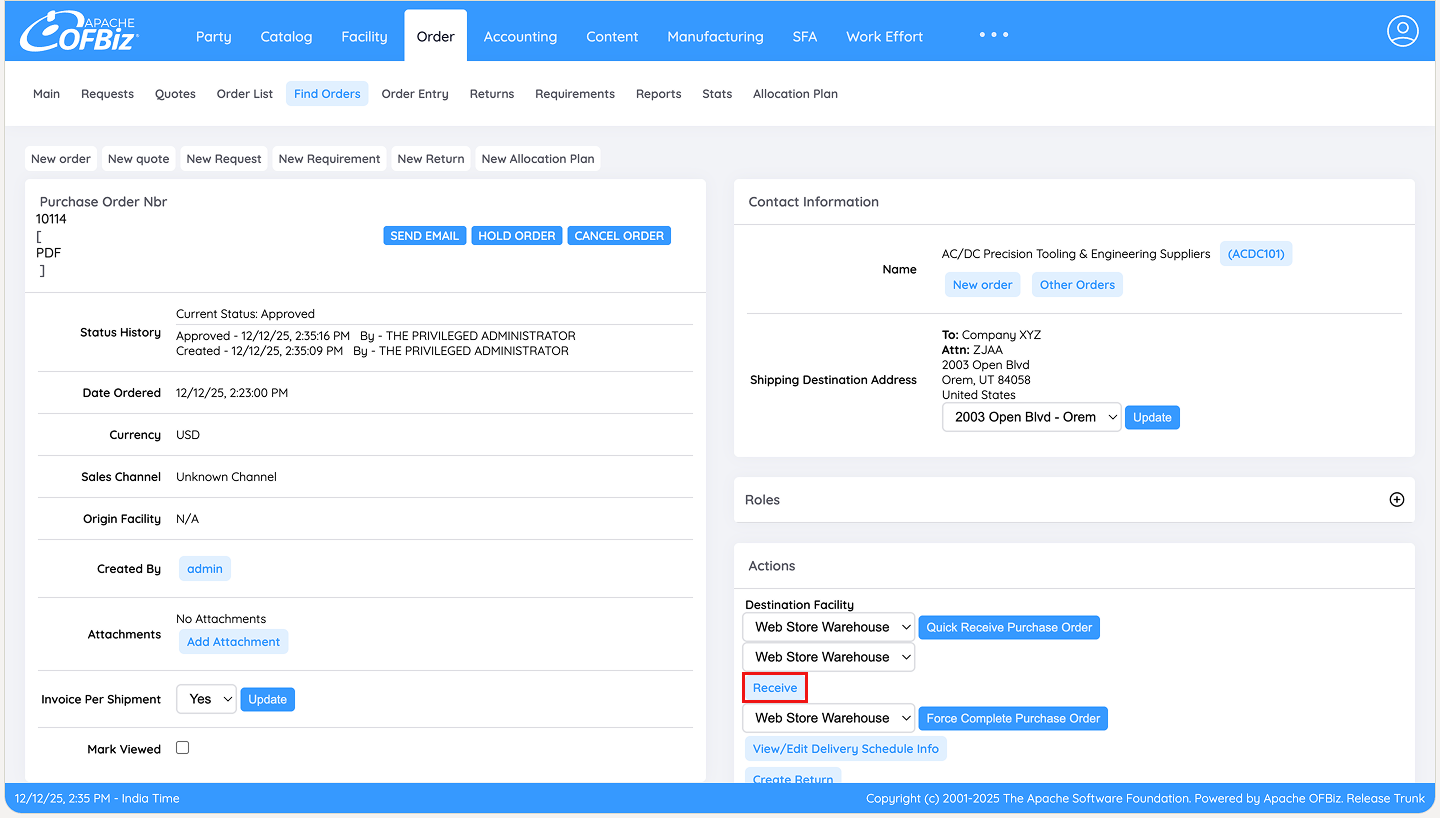
Begin by checking the approved Purchase Order to confirm the items and quantities expected. Click on the Receive button as noted earlier to generate Shipment ID automatically in the Actions section as highlighted below.
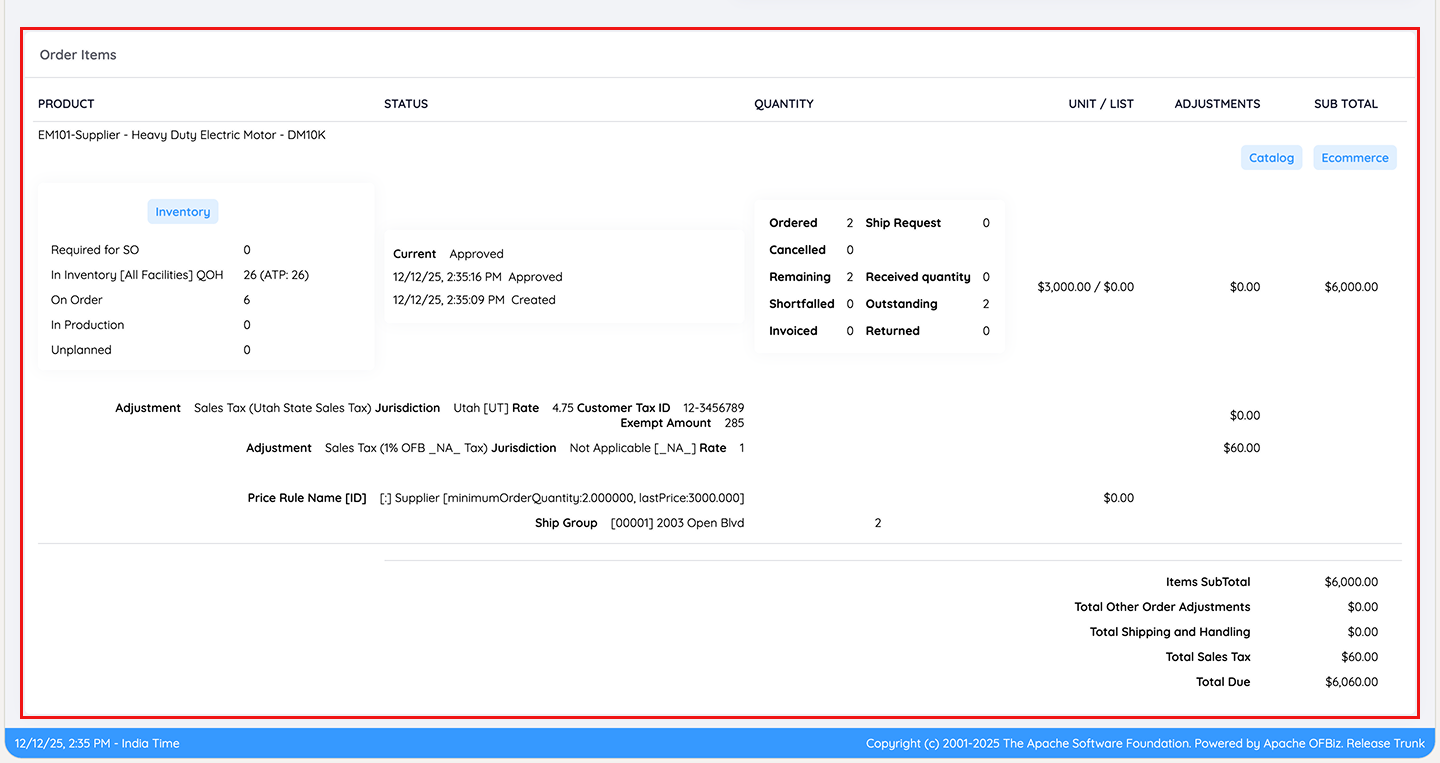
In our example, the PO includes two heavy-duty electric motors. You can scroll down to confirm the quantities first and make sure your PO has the items and quantities as per your requirement in the Order Items section as shown below.
Step 2: Navigate to the Facility Screen
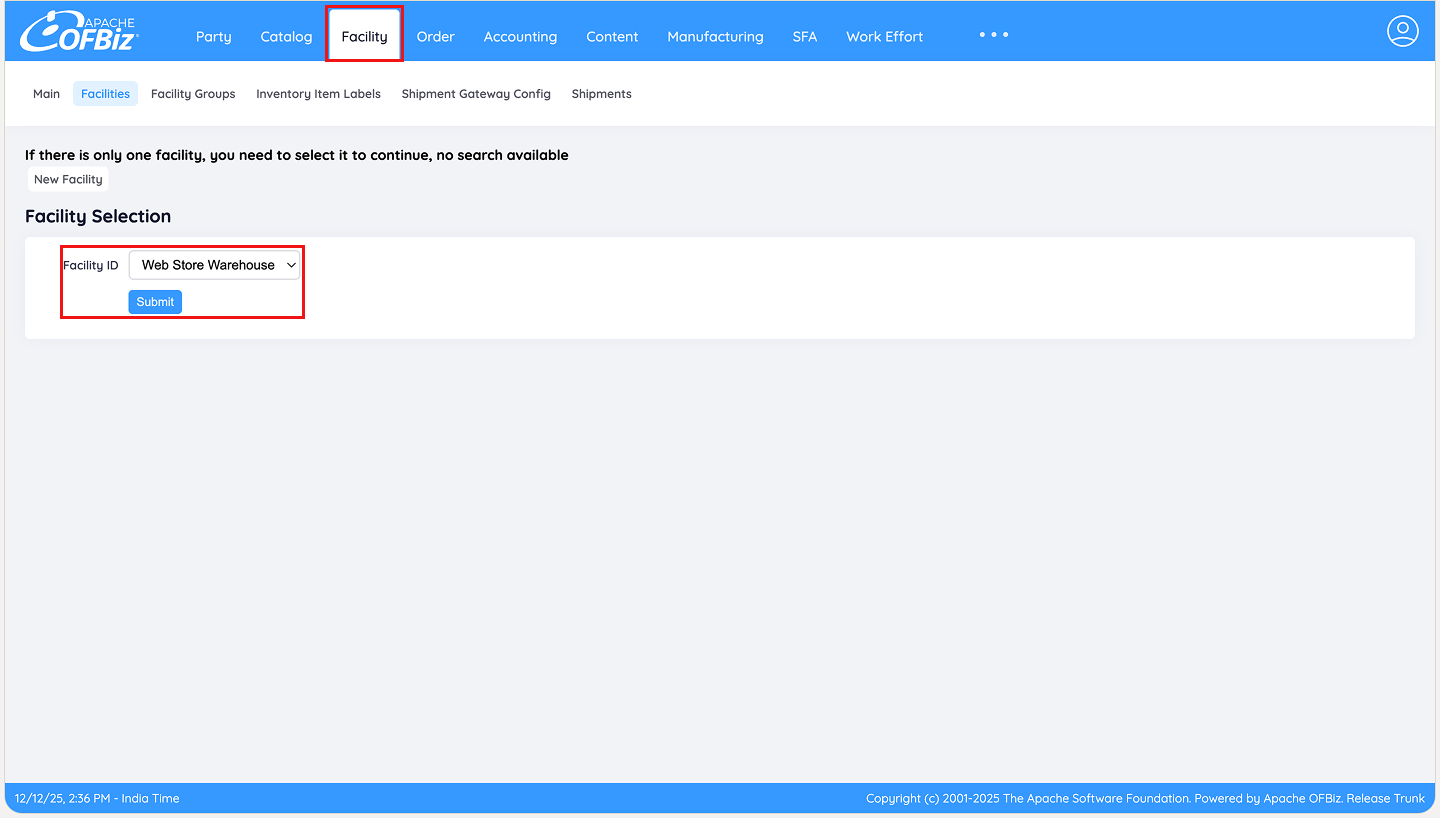
From the main menu, select Facility. On the Facilities page, choose the warehouse where the shipment is being received (e.g., Web Store Warehouse) and click Submit.
Step 3: Access the Receive Inventory Section
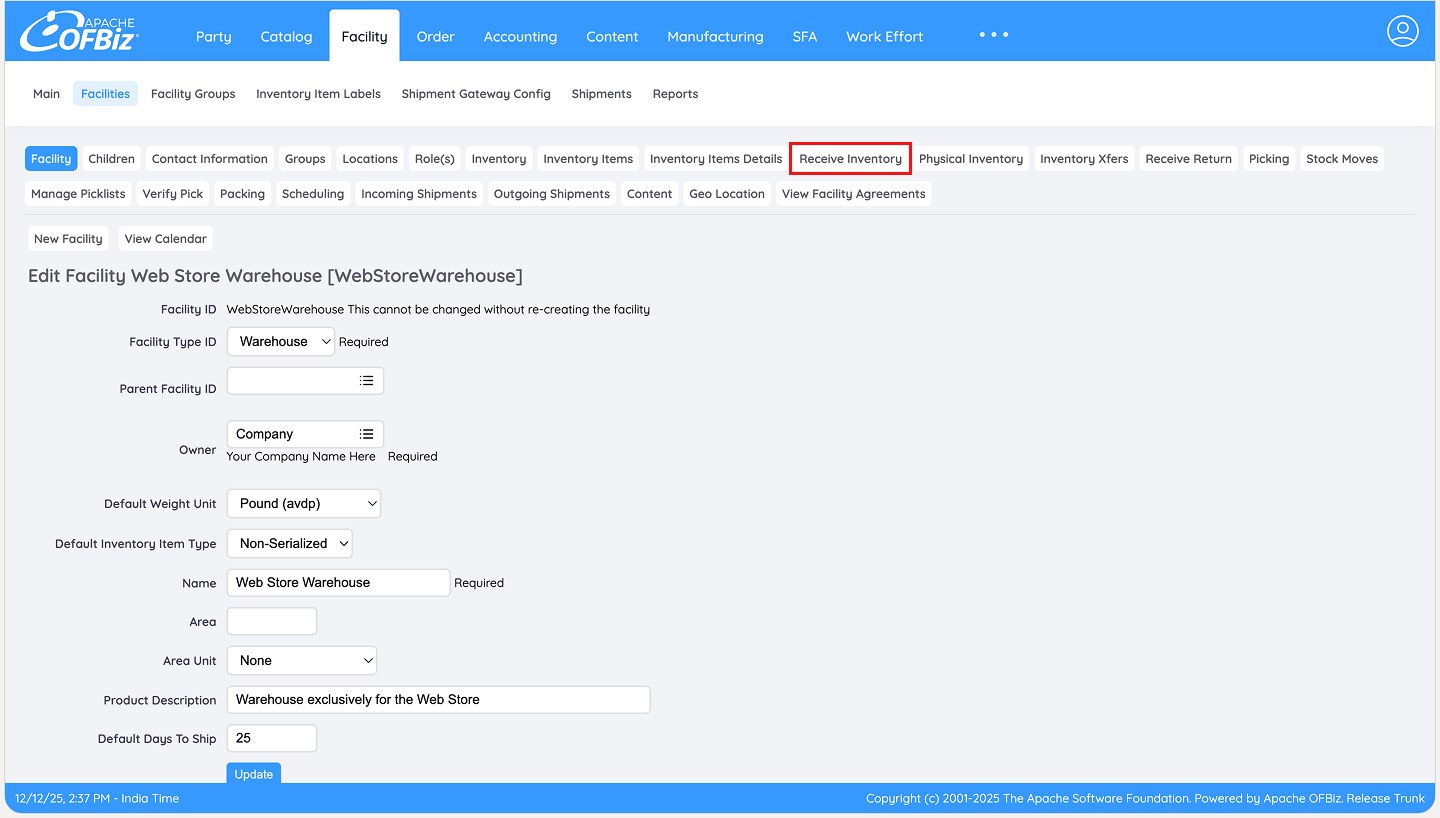
On the Facility detail page, click the Receive Inventory tab to open the receiving screen.
Step 4: Locate the Purchase Order
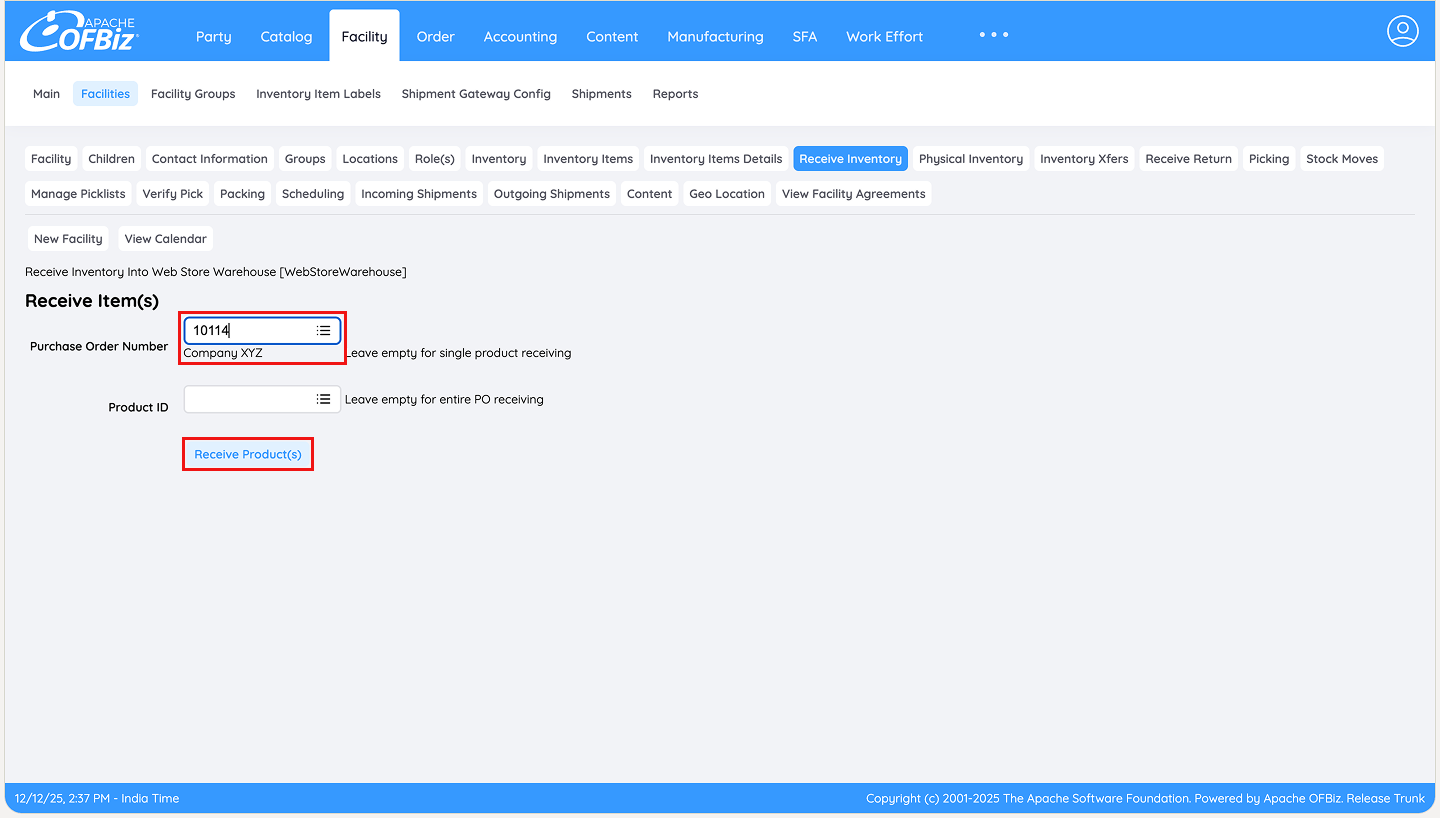
Enter the Purchase Order number in the provided field and click Receive Product(s).
Step 5: Select the Shipment
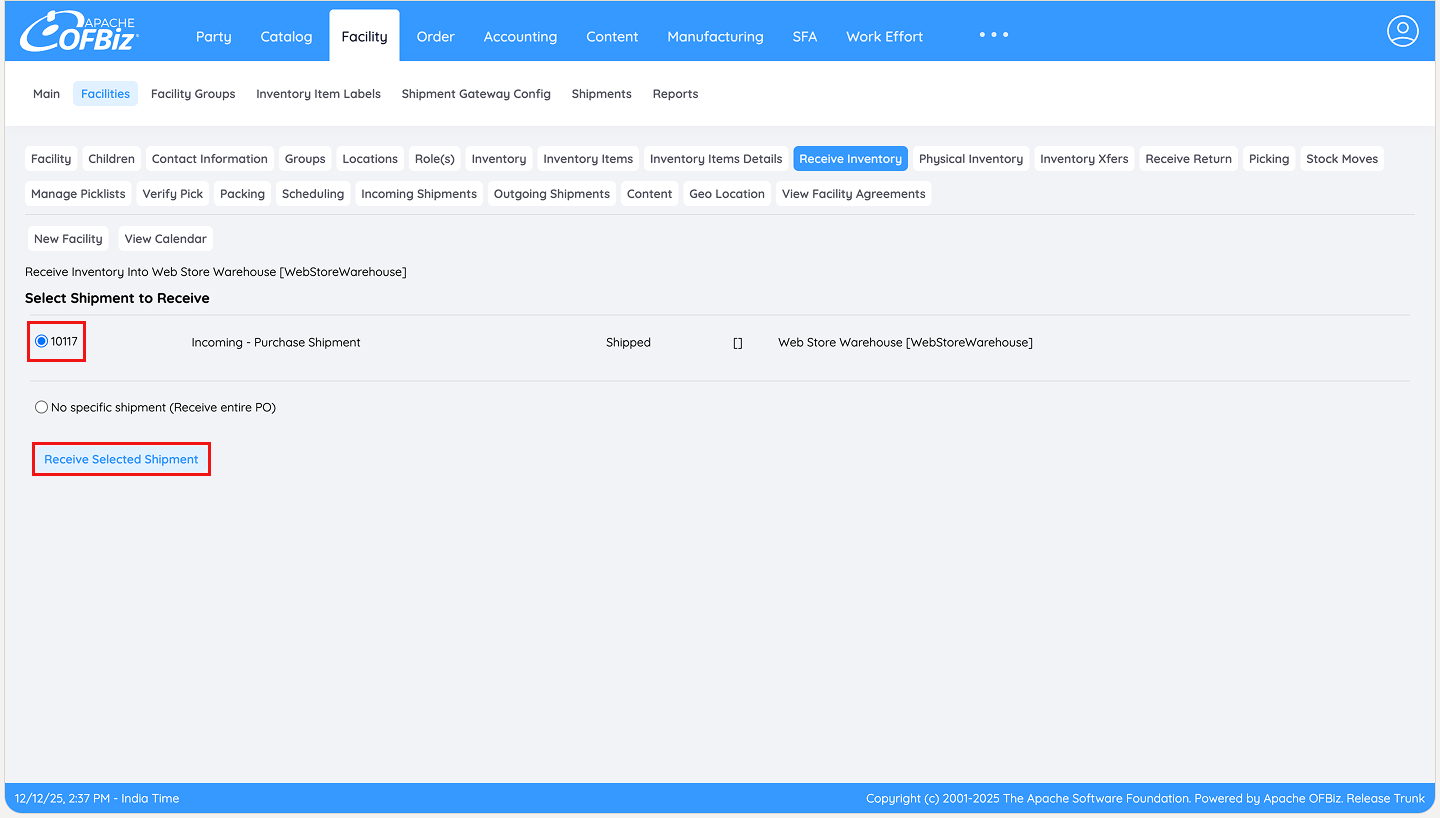
The system displays the associated shipment. Select it using the checkbox and click Receive Selected Shipment.
Step 6: Record the Partial Quantity
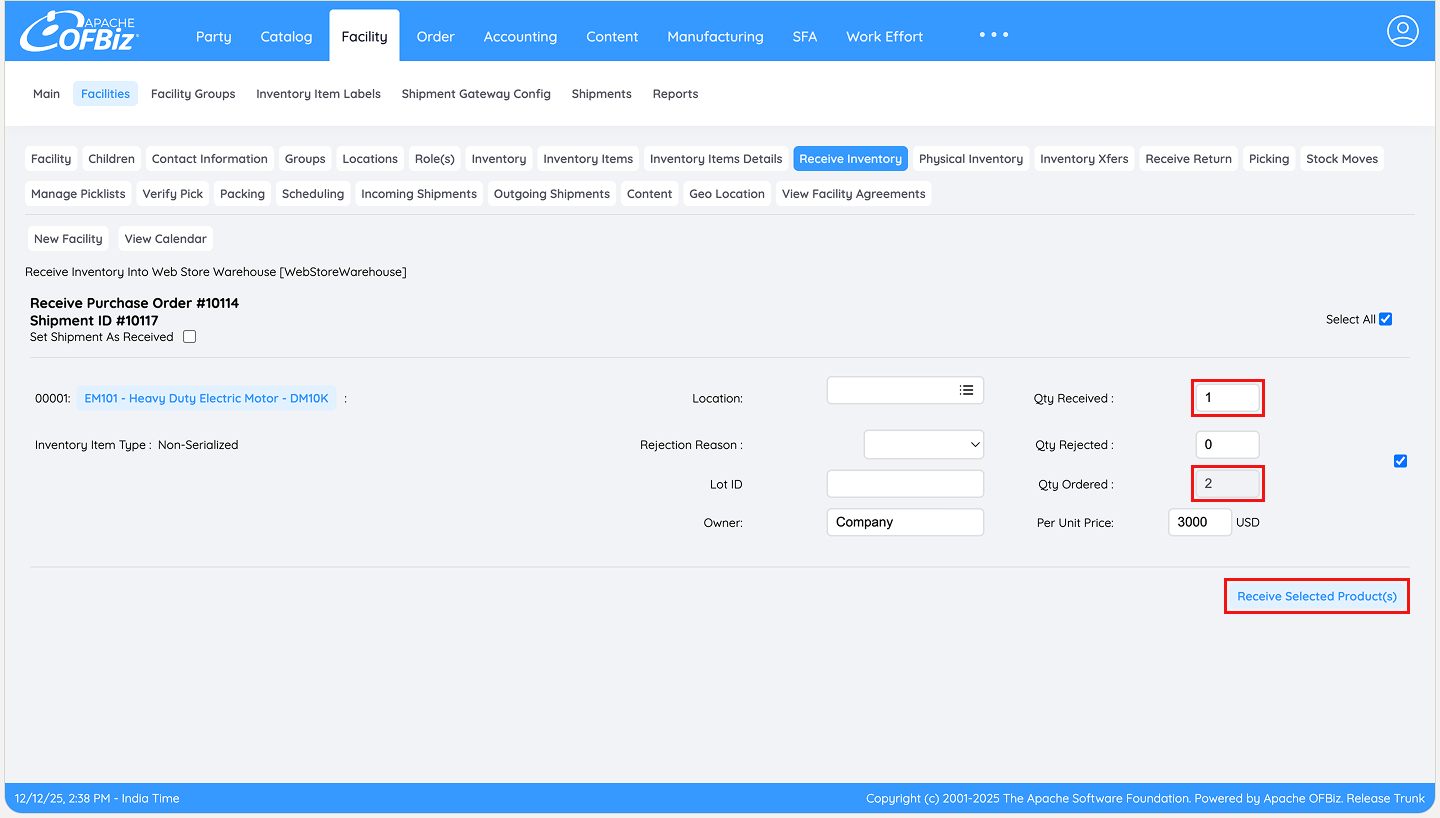
The screen now shows the ordered quantities. Select the item(s) to receive by checking the box on the right, then enter only the quantity actually received today in the Qty Received field. Click Receive Selected Product(s) to confirm.
Important Note – Leave the Set Shipment As Received checkbox unchecked at this stage. If you select it and complete the receipt, the system will mark the shipment as fully received and closed, even though only a partial quantity has arrived. This would trigger invoice generation prematurely and prevent any further receipts against the same shipment.
Step 7: Verify the Partial Receipt
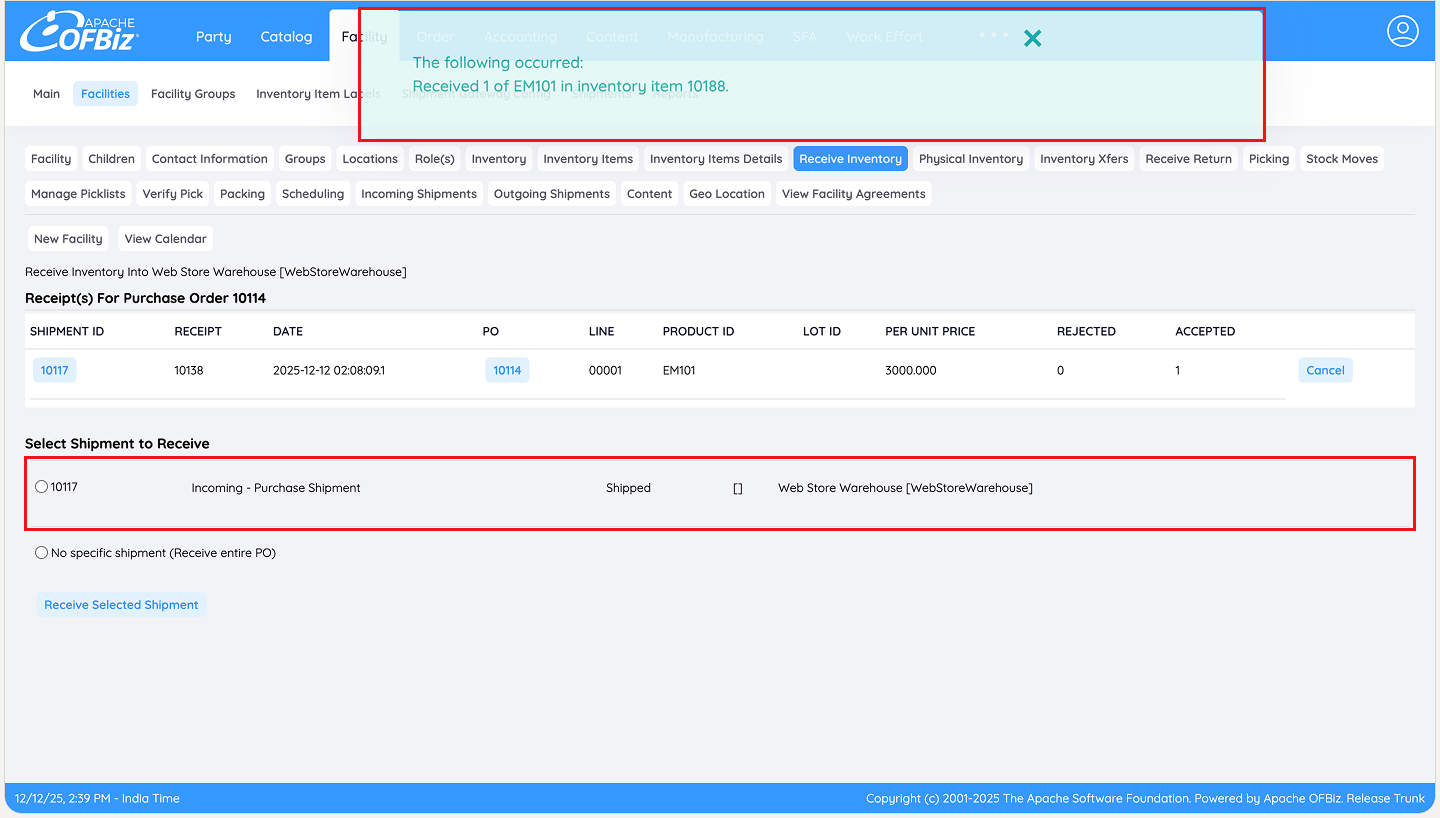
A confirmation message appears at the top. Since the received quantity is less than ordered, OFBiz keeps the shipment open for future receiving, ensuring traceability and accurate inventory updates.
Step 8: Check Status Back on the Purchase Order screen
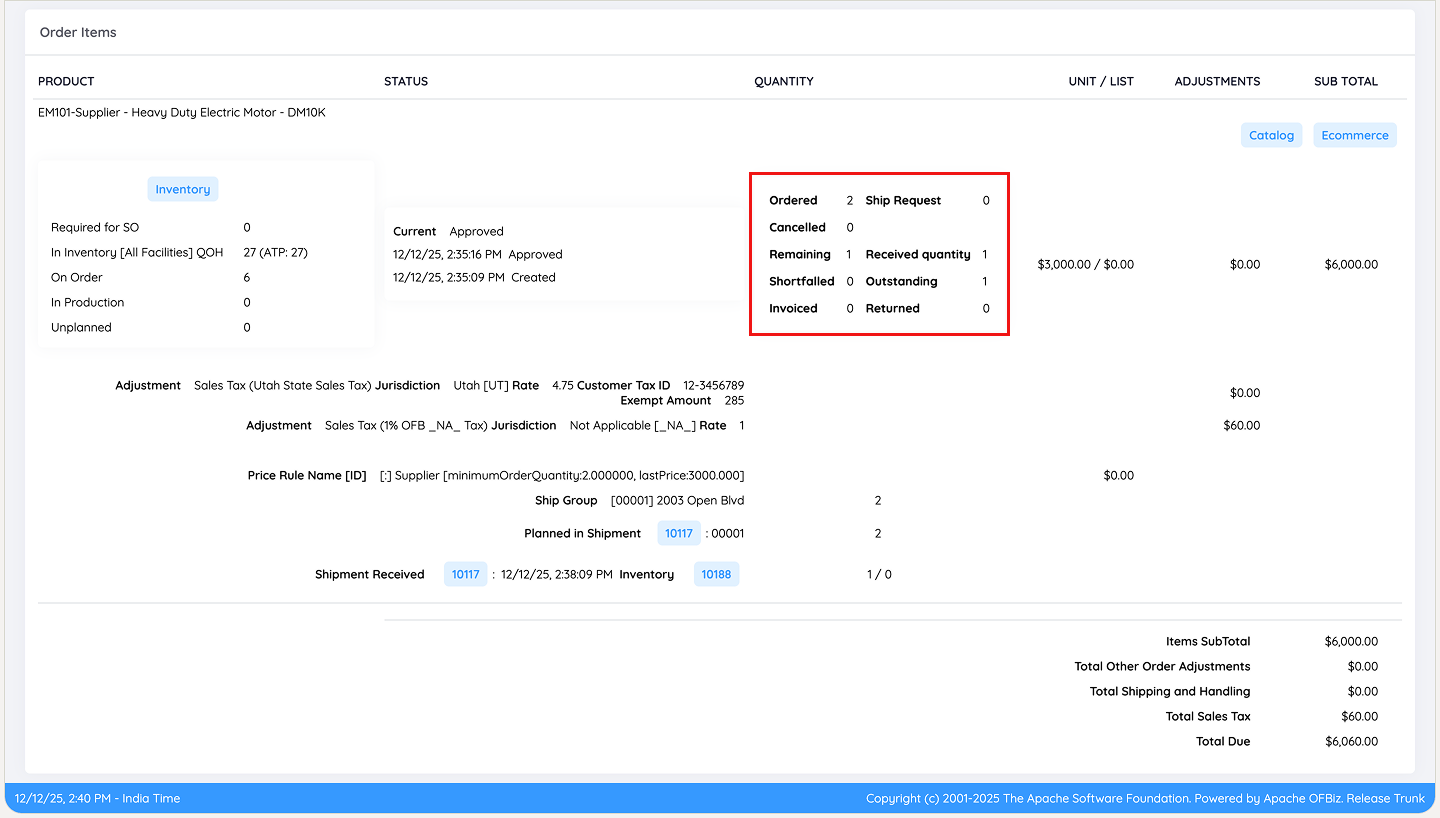
Return to the Purchase Order screen. In the Order Items section at the bottom, you will now see the partially received quantity alongside the remaining balance.
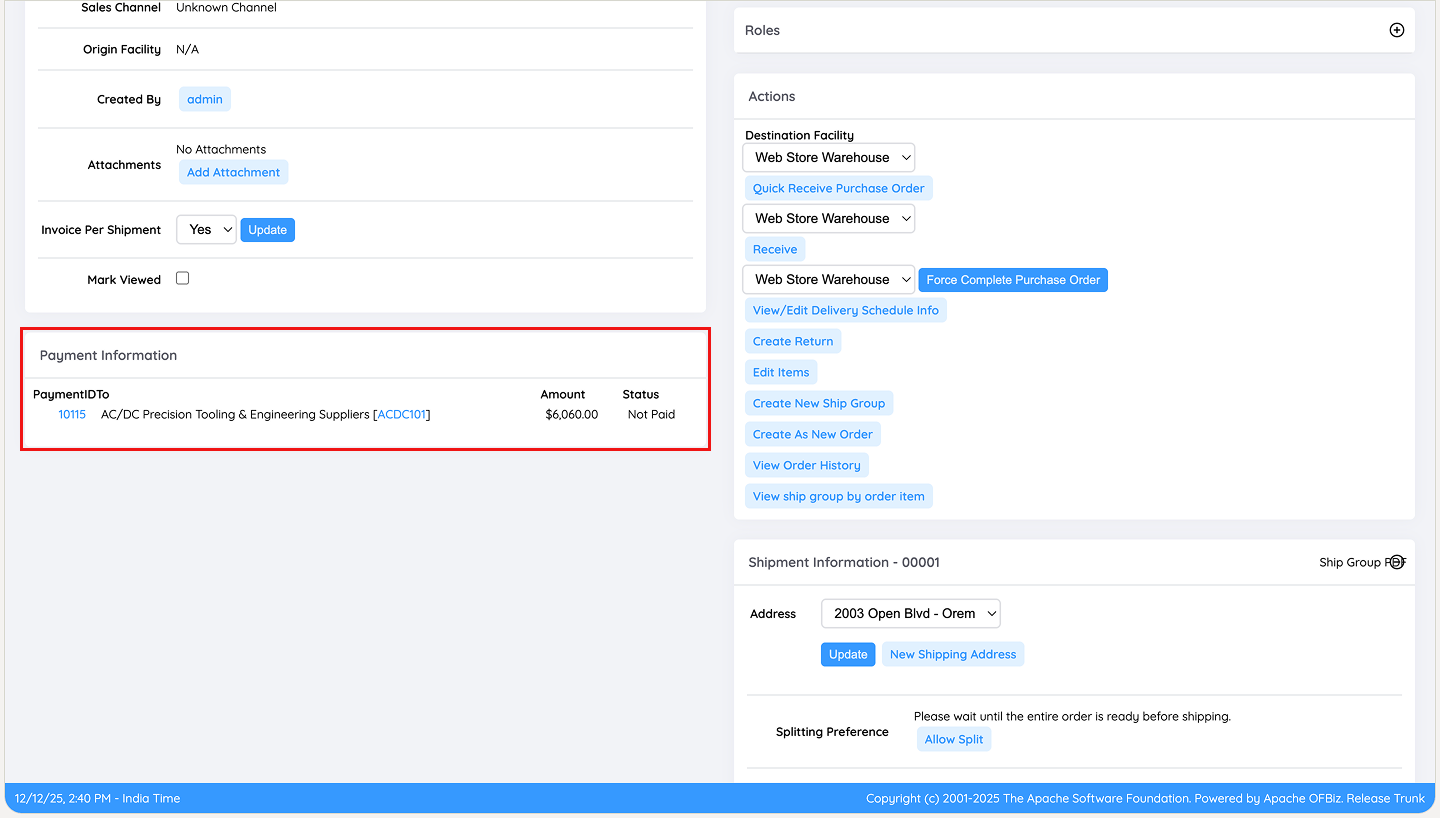
In the Payment Information section, it remains devoid of any invoices. Apache OFBiz deliberately waits for the full shipment quantity to be received before enabling invoice creation, maintaining consistency across procurement, inventory, and financial records.
Step 9: Receive the Remaining Quantity (on a Later Date)
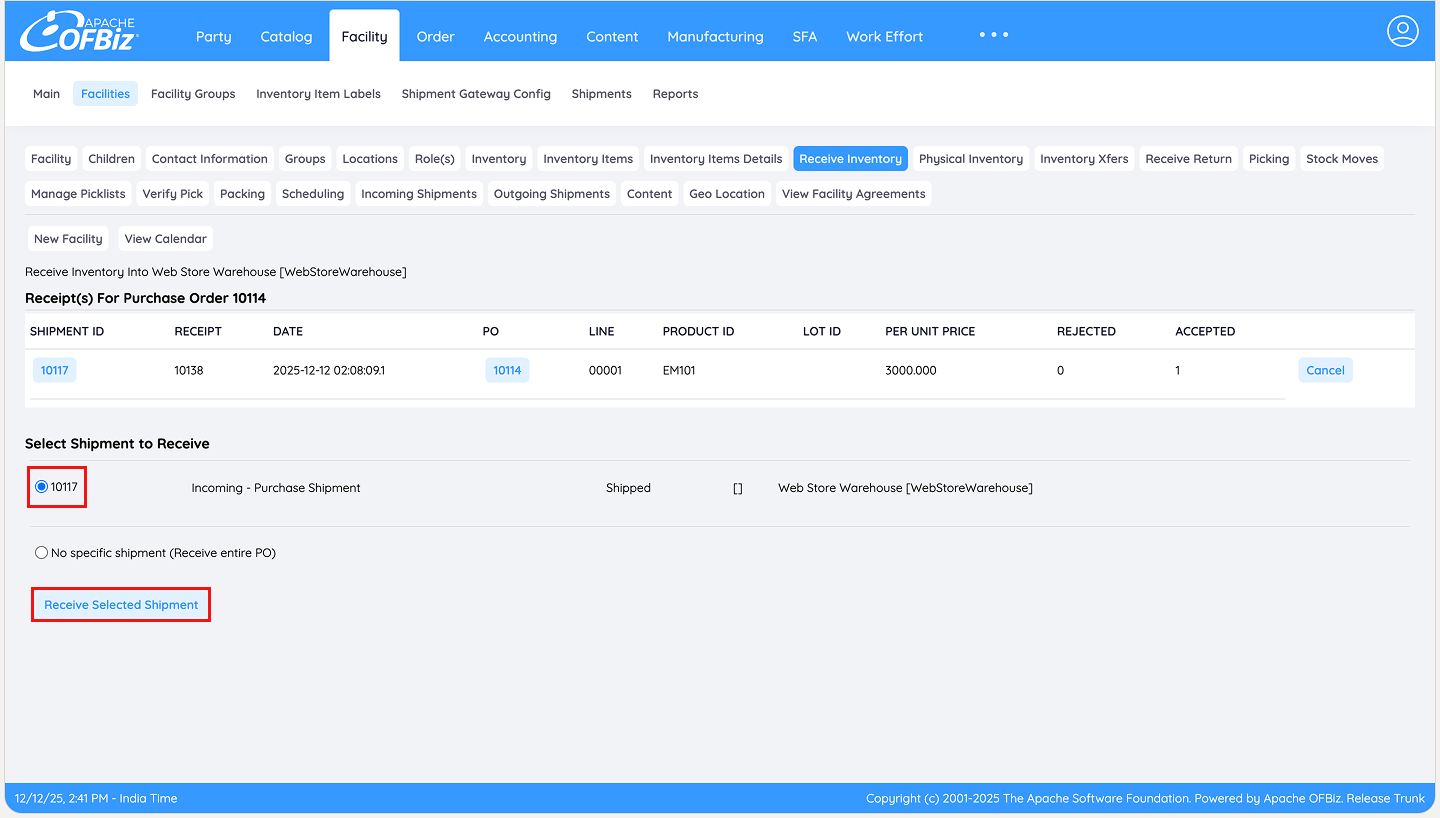
When the next portion (or the remainder) is ready to receive in the system, repeat Steps 2–4. The system brings you back to the same open shipment as seen in step 7. Click on Checkbox against the shipment ID and then click on Receive Selected Shipment.
Step 10: Enter the Remaining Quantity
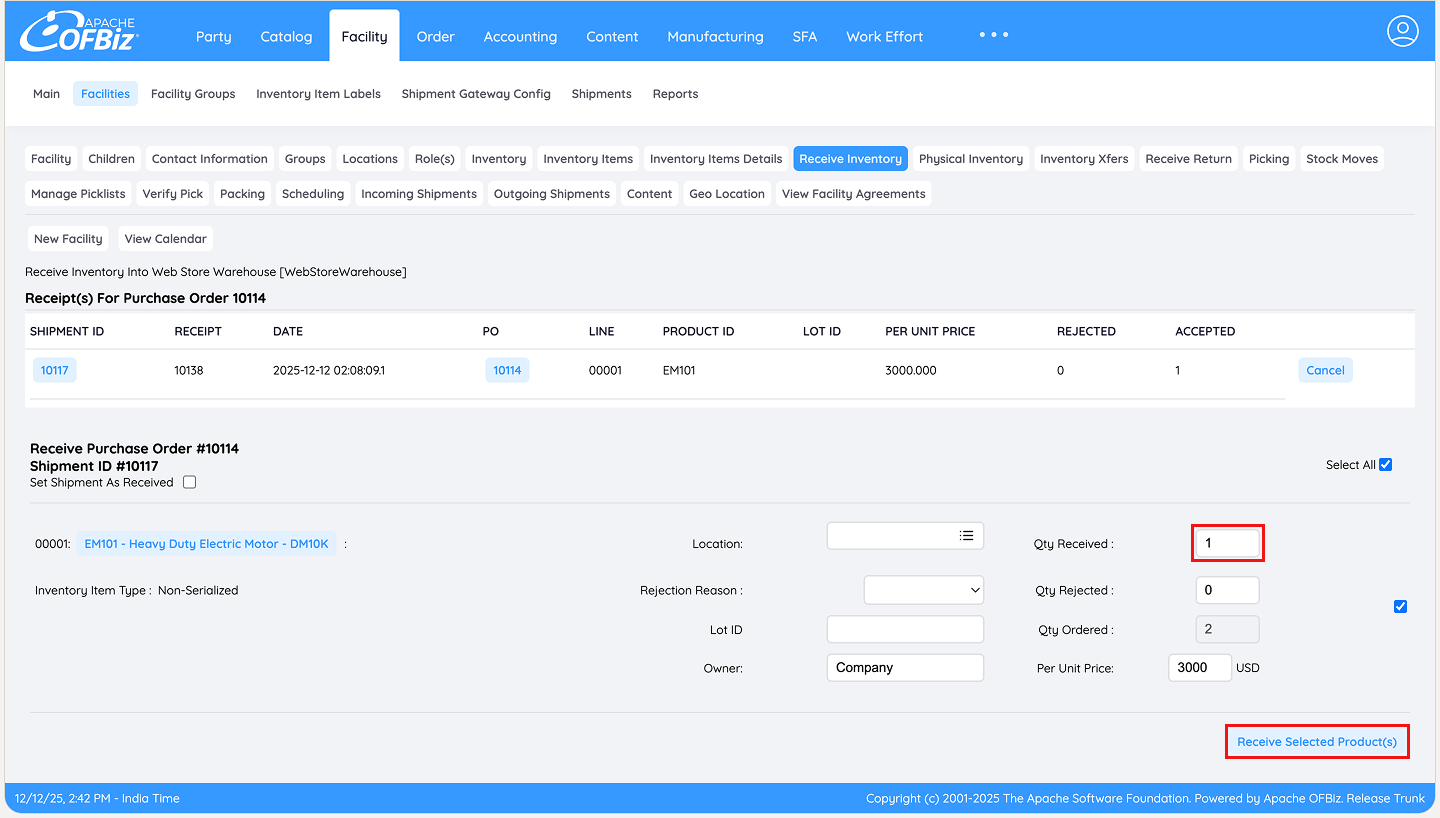
Select the item again, enter the remaining quantity in the Qty Received field, and click Receive Selected Product(s).
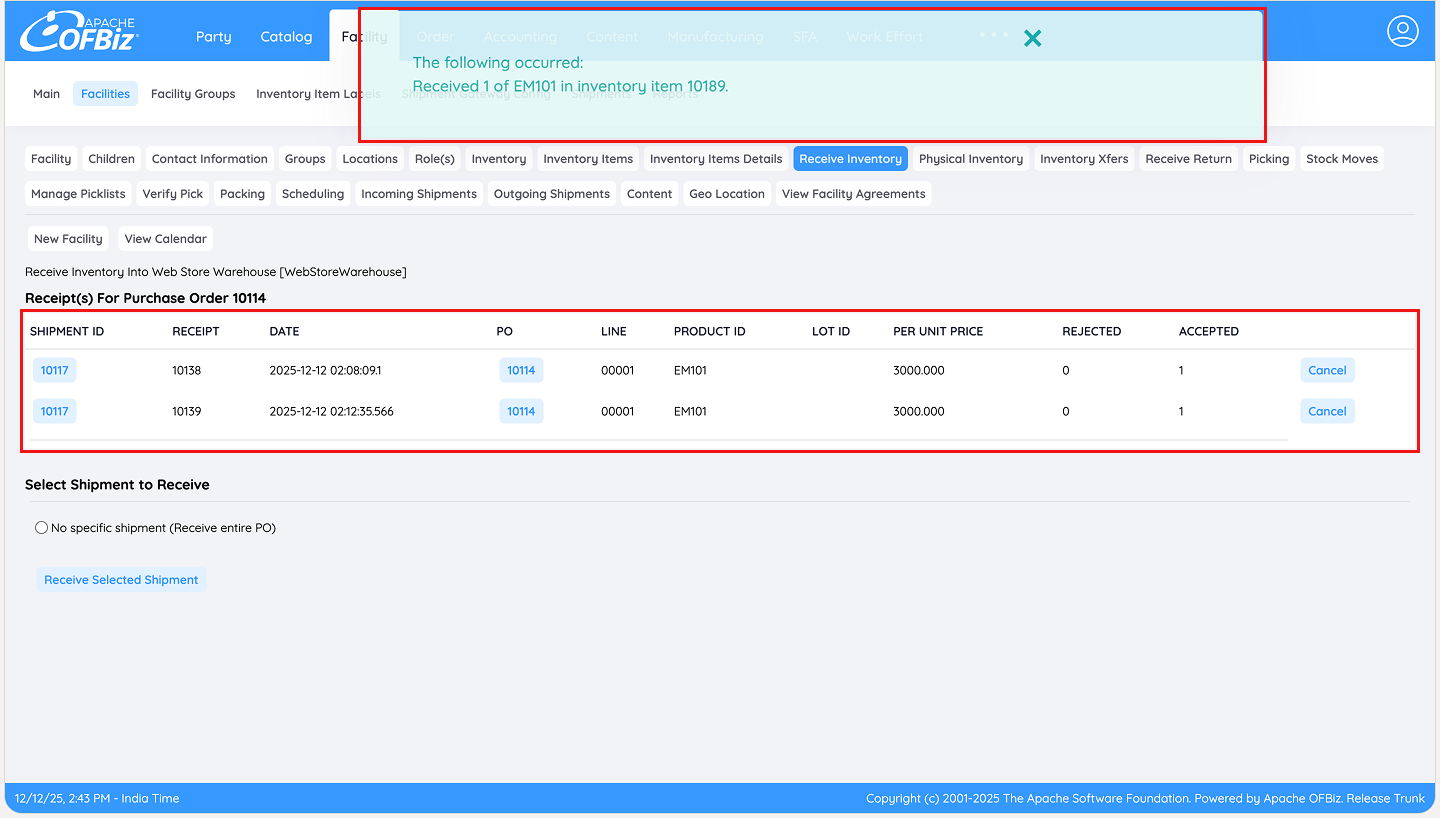
Step 11: Confirm Full Receipt
A confirmation message appears. The system now records both receiving events separately for complete traceability.
Step 12: Confirm Full Shipment Receiving
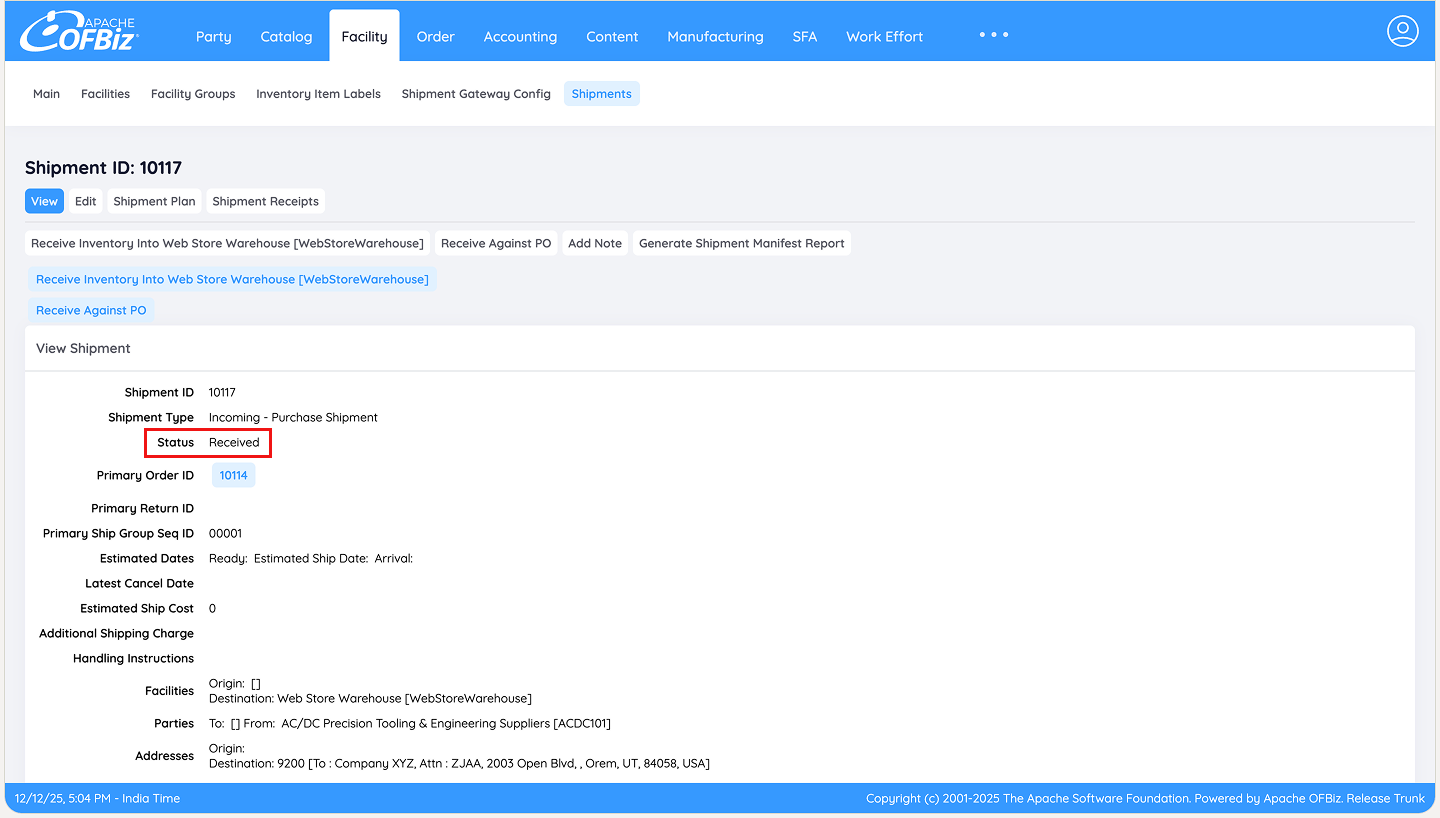
Click on the shipment ID to go to the shipment screen as shown below, where the Status now changes to Received to reflect the system updates and show that the shipment has been received fully.
Step 13: Verify Completion on the Purchase Order
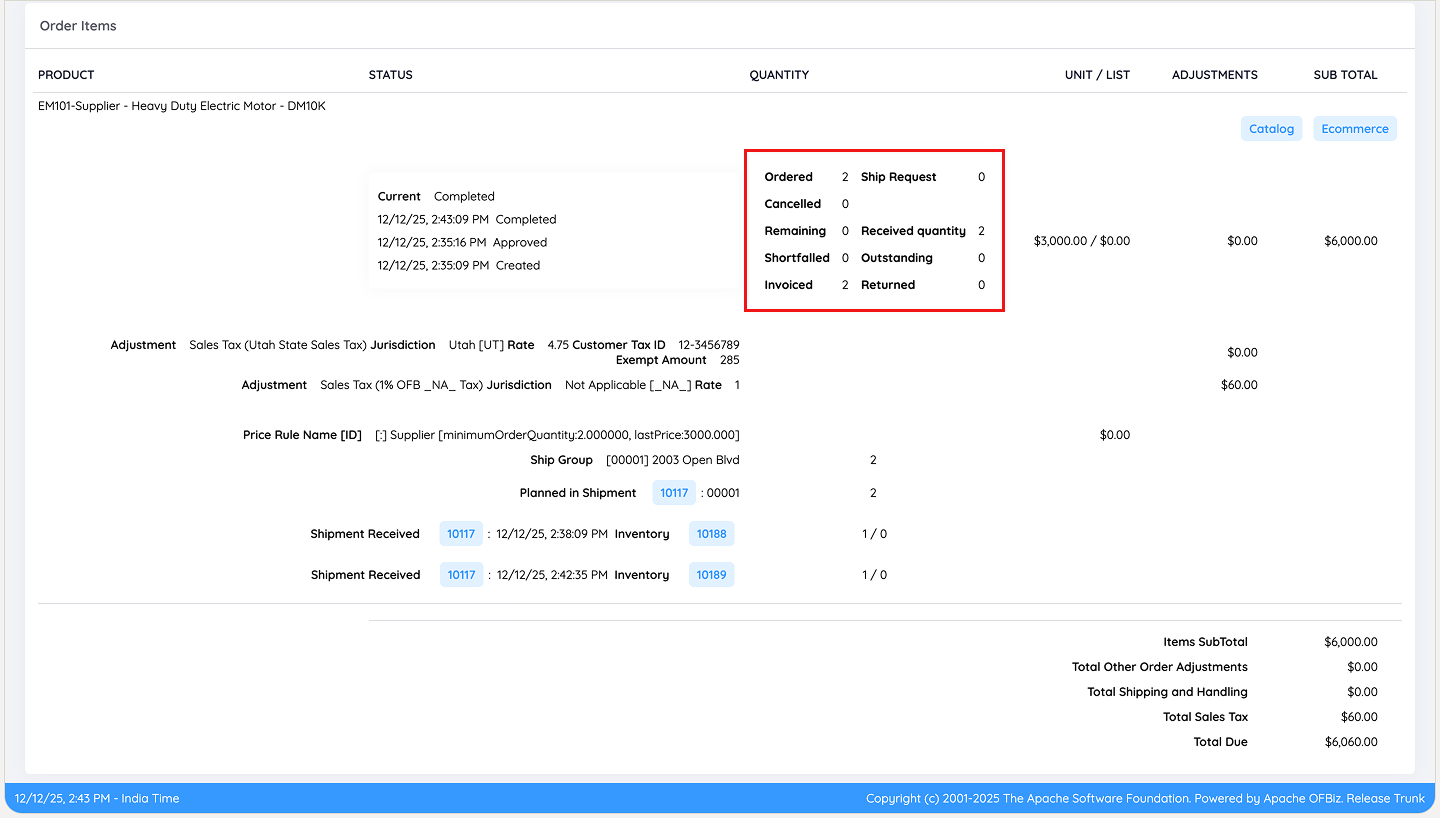
Back on the PO screen, the Order Items section reflects that all items are fully received.
Step 13: Invoice Generation
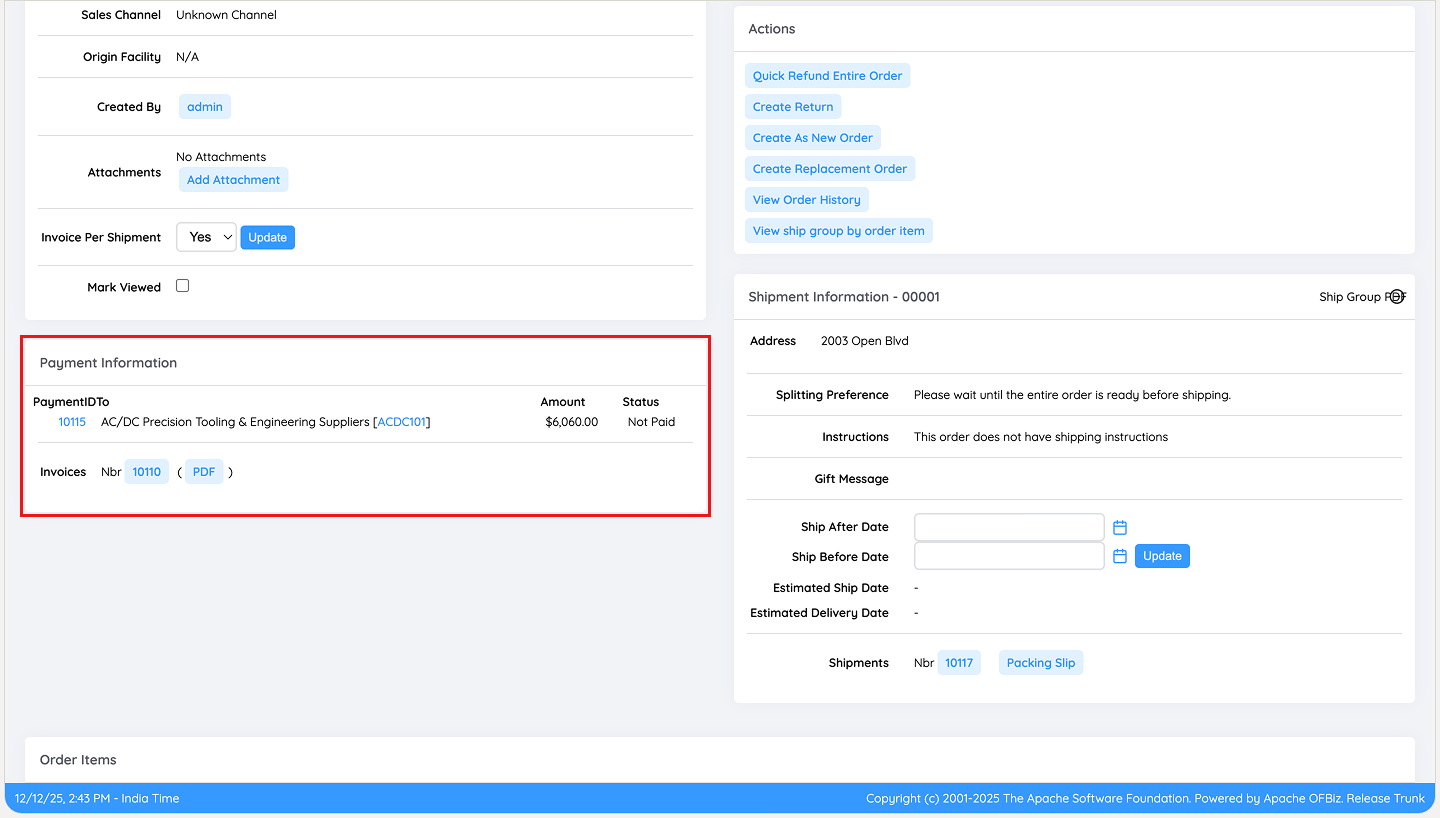
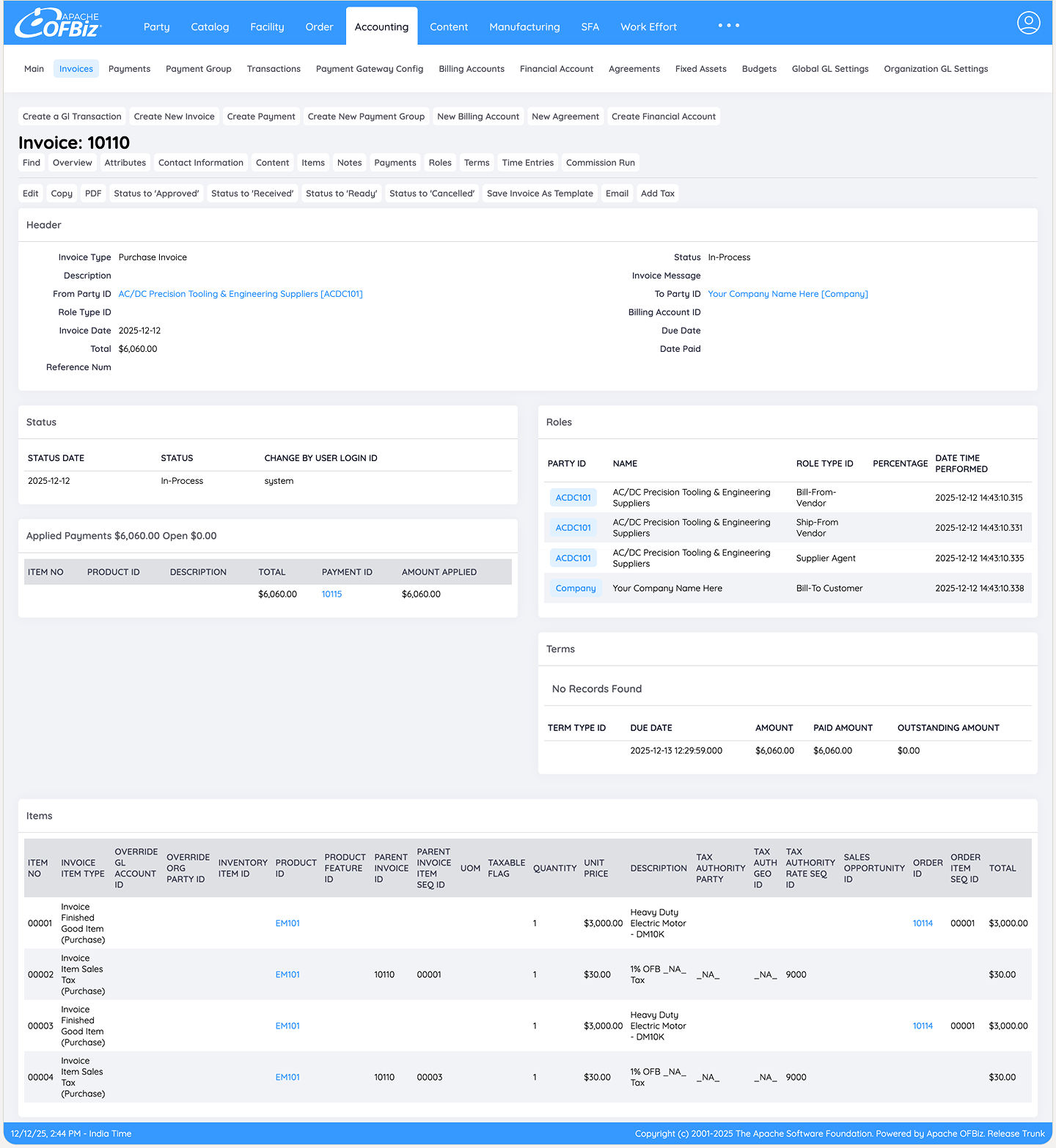
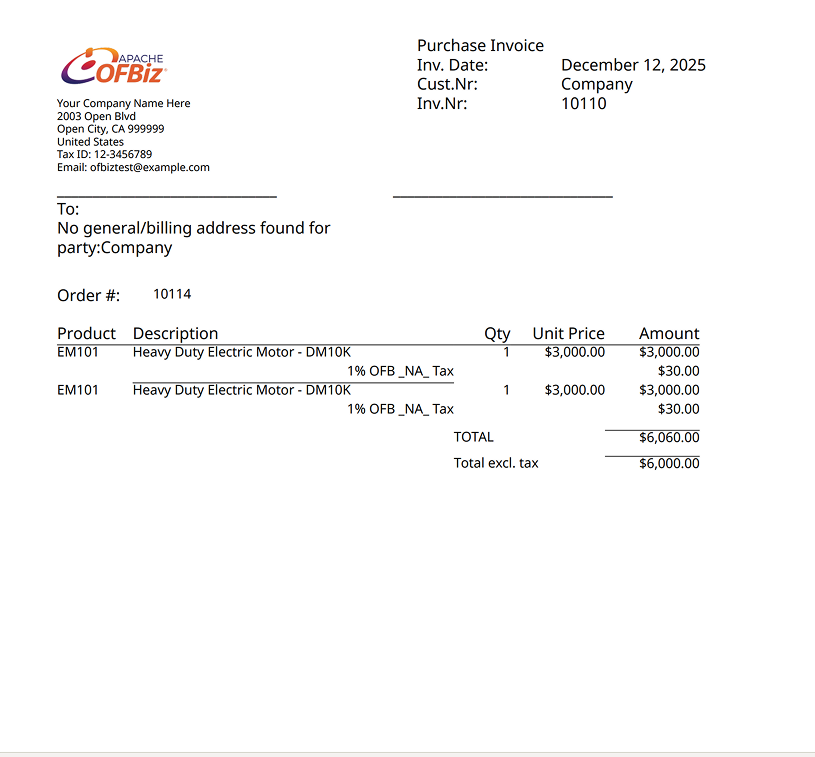
With the shipment now complete, Apache OFBiz automatically makes the invoice in “in-process” status. It's available in the Payment Information section. Click the Invoice ID to view details or download a printable PDF for physical records.
Invoice is as shown below:
Invoice in PDF format:
Conclusion
Partial receiving of a shipment in Apache OFBiz provides a flexible, reliable way to manage real-world warehouse challenges without compromising inventory accuracy or financial integrity. By updating stock in stages while tying everything to a single PO, shipment and invoice, the system supports efficient operations and clear audit trails. Once the full quantity is received, the process seamlessly enables invoicing and subsequent payment thus keeping your procurement cycle smooth and aligned with business needs.
For further reading on related receiving workflows, refer to the guides on:
- How to do Multiple Receiving against a Single PO in Apache OFBiz?
- How to Manage Purchase Orders and Receive Inventory in Apache OFBiz without creating Shipments or Invoices?
- How to Receive Shipments without a Purchase Order in Apache OFBiz?