It is recommended to have docker installed on the user's laptop to follow the tutorial till end
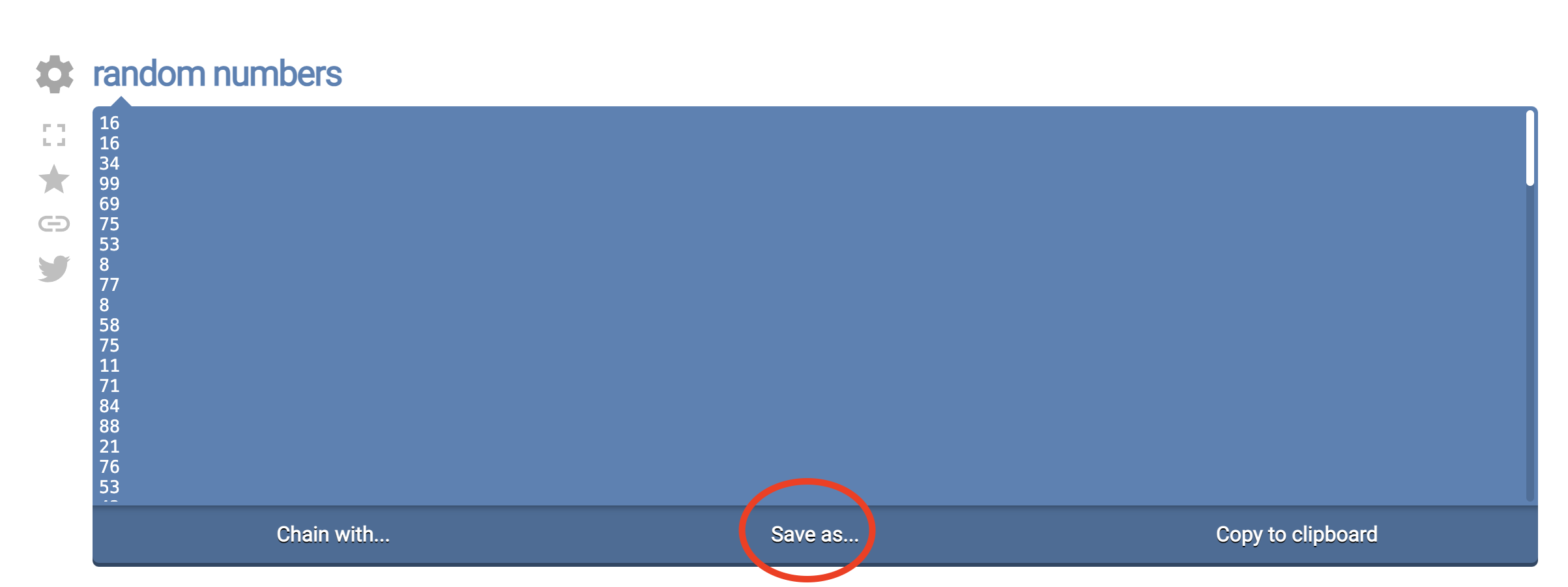
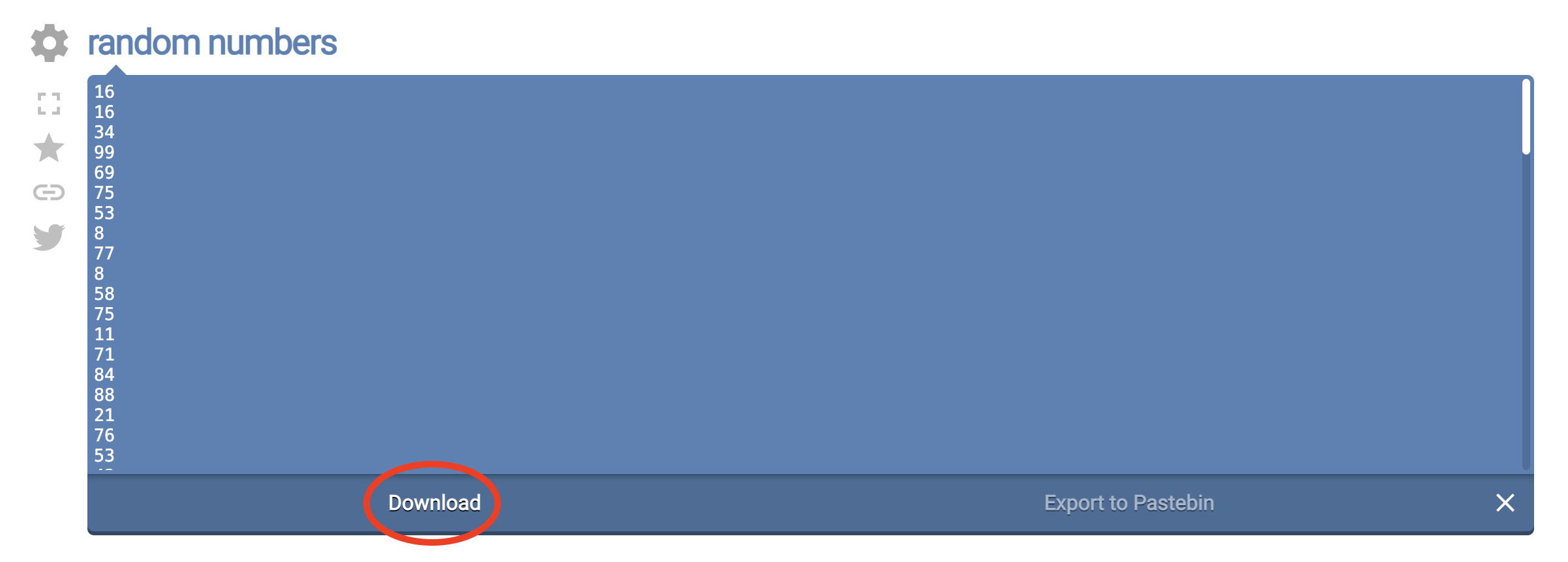
1. Go to https://onlinerandomtools.com/generate-random-numbers and download a file which contains a list of random numbers. This will download a file named "output-onlinerandomtools.txt" to your downloads directory
2. Go to https://demo..airavata.org/ and log in through CILogon
3. Click the "Launch a Notebook" button and create a notebook server by providing a name for it. This will spin up a Jetstream2 cloud-hosted notebook server

4. Once the notebook server is available, you should be able to see a start button in front of the notebook entry

5. Click the start button and it will open up a new tab with access to the newly created notebook server
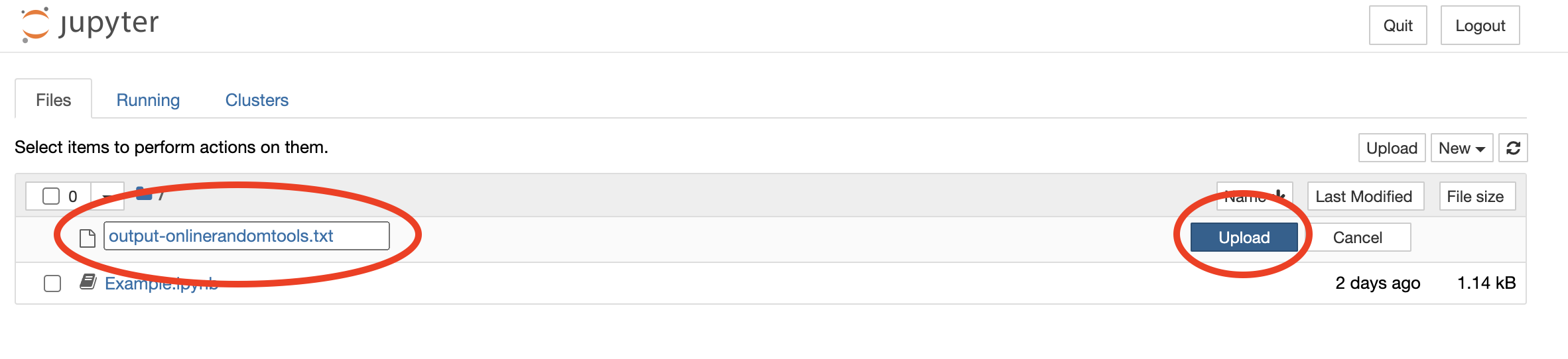
6. Using the notebook file viewer, upload the previously downloaded output-onlinerandomtools.txt to the root level of notebook server

7. Click and open Example.ipynb notebook.
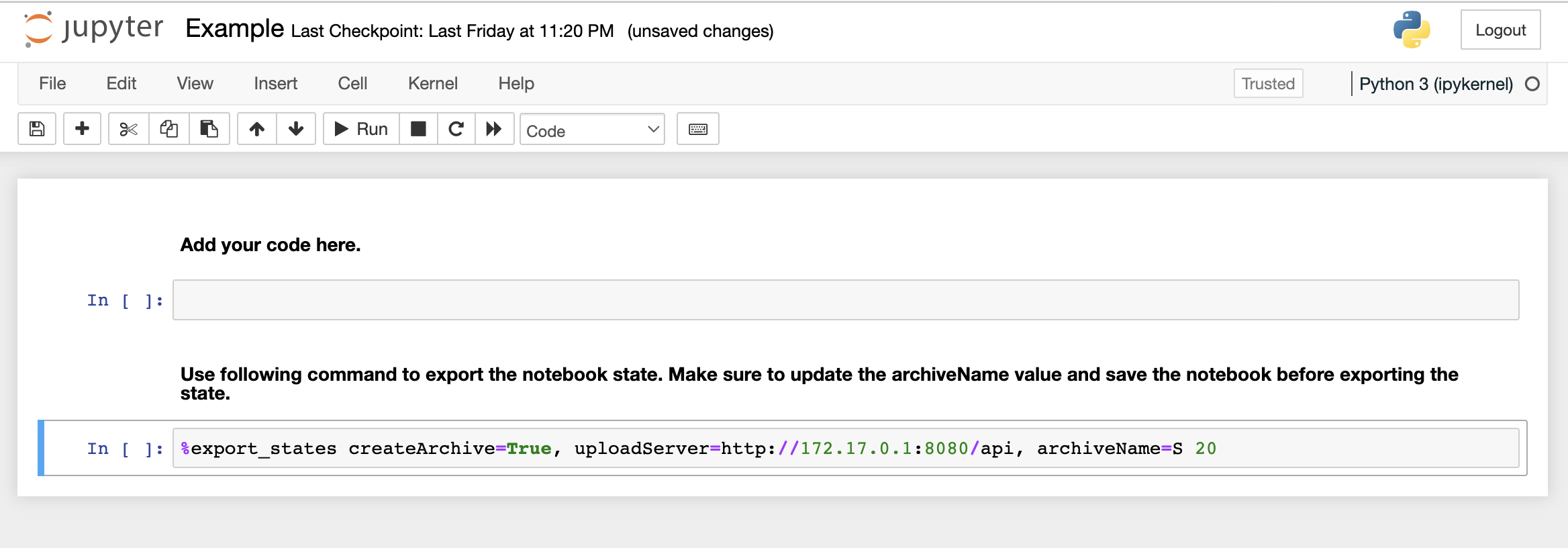
8. Run following code blocks in individual notebook cells
Code Block 1
with open('output-onlinerandomtools.txt', encoding='utf-8-sig') as f:
    content = f.read()
array = content.split()
numbers = []
for item in array:
    numbers.append(int(item))
Code Block 2
total_sum = sum(numbers)
print(total_sum)
Code Block 3
import matplotlib.pyplot as plt
plt.hist(numbers)
9. Above import will throw an error because the notebook runtime does not have matplotlib installed by default. To install matplotlib, get a new cell and run the following command
pip install matplotlib
10. Once the library is installed, try running code block 3 to make sure that the library is properly installed
11. Save the notebook and run the last line (See code block 4 below) of the notebook with an appropriate description. It is very important to save the notebook before running this command to capture the state appropriately
Code Block 4
%export_states createArchive=True, uploadServer=http://172.17.0.1:8080, archiveName=Experiment with total sum <SUM>
12. Download the ARCHIVE.zip file to your local disk by clicking the link appeared as the output of above command
13. Run a docker container with the downloaded ARICHIVE.zip as an input. Update the <Local Archive Path> value with the absolute path of the downloaded ARCHIVE.zip file
docker run --cap-add=SYS_PTRACE -it -p 8888:8888 -v <Local Archive Path>:/opt/ARCHIVE.zip -e NOTEBOOK_TOKEN=123456 dimuthuupe/ipykernel:1.2