Problem
There are many ISVs, SaaS/PaaS vendors providing value-added products and services on IaaS clouds. Unlike public cloud hosting providers such as Amazon and Rackspace, CloudStack is not deployed by a single entity. There are multiple deployments of CloudStack by service providers, enterprises and individuals. It becomes a challenge for ISVs, SaaS/PaaS vendors to make their products visible and easily consumable by various CloudStack-based clouds. It also becomes a challenge for anyone who deploys CloudStack to know whose products and services work with CloudStack and how to get a hold of them.
Proposal
This proposal is to introduce a new component called CloudStack Marketplace. It enables ISVs and SaaS/PaaS vendors to list their product and service offerings which can be viewed and easily consumed by any CloudStack deployments. The functionalities are broken down into two parts: version 1.0 (minimum viable product) and future enhancements.
Version 1.0
The goal is to release version 1.0 with the subsequent release of CloudStack following v4.0. Below are core components of version 1.0:
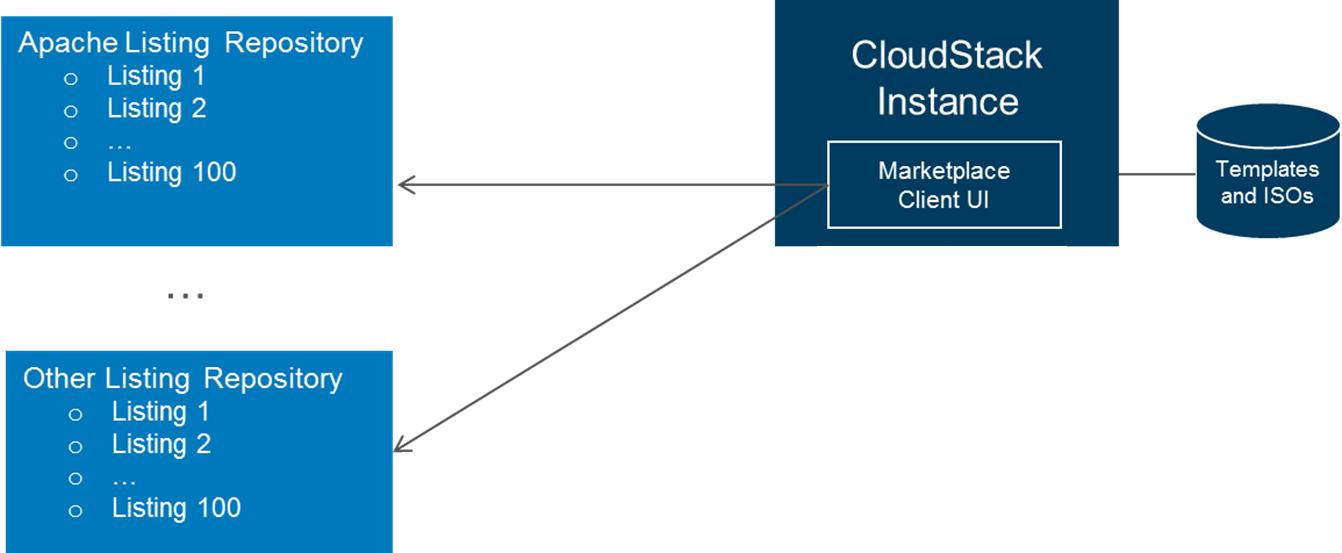
- Source code for the Marketplace client. Marketplace client is installed along with CloudStack management server and provides the Marketplace UI to the admins and users. The Marketplace client points to various listing repositories specified by the admin.
- Listing repositories contain product listings. An Apache listing repository contains listings contributed by the vendors to Apache CloudStack. Any third party can set up its own private or public listing repositories.
Use Cases
Version 1.0 will support vendor products and services distributed in the forms of image templates, bootable ISOs, non-bootable ISOs, and SaaS/PaaS offerings.
Vendors Make Listing Contribution
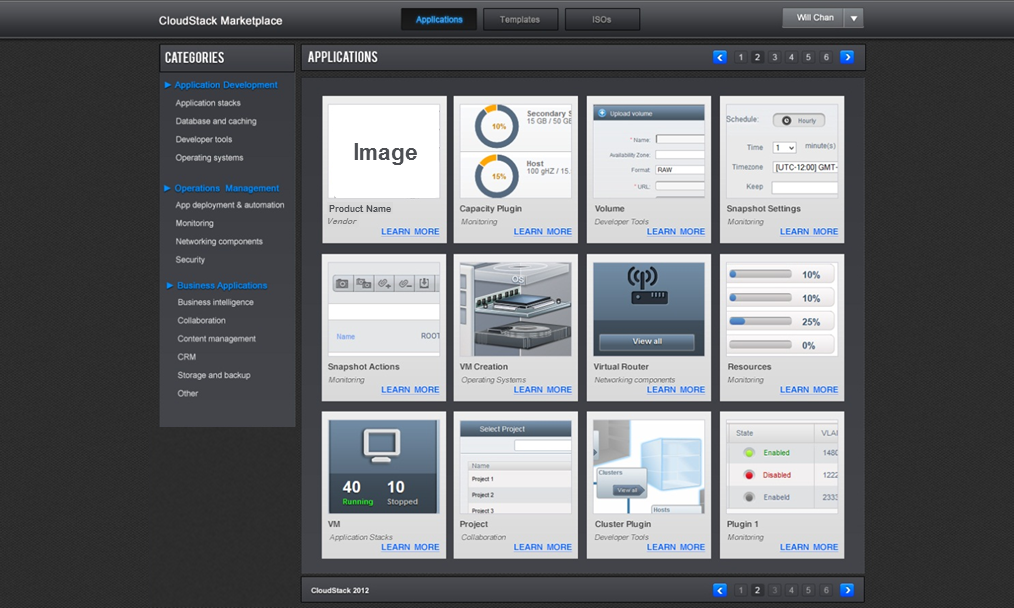
The listing repository contains a config.js file and vendor product folders. The config.js file contains an index of the listings, which will be read by the Marketplace UI to build the Marketplace Homepage. The Listing folders contain metadata and supporting files for each product listing, which will be read by the Marketplace UI to build the Details page for each listing.

For image templates and ISOs, vendors can contribute a product listing following these steps:
- Create a listing folder for its product in the listing repository.
- Create a listing.js file and place it in the folder. The listing.js file includes metadata for the listing:
- Product name
- Vendor name
- A brief description
- Location of the graphics
- Metadata for associated templates and ISOs. Templates and ISO metadata should include location of where the actual image template and ISO data file. Multiple template and ISO metadata can be included in the same product listing to cover multiple hypervisor support and multiple product versions.
- Tags (TBD)
- (Optional) Place any supporting files such as graphics and image template/ISO data files into the listing folder. Note that these files can be located in other places. In the case of the Apache Listing Repository, image template/ISO data files should be located outside of the listing repository and hosted by the vendor itself or third party.
- Add an entry to the config.js file for the listing.
For PaaS/SaaS, vendors can contribute a service listing following these steps:
- Create a listing folder for its service in the listing repository.
- Create a listing.js file and place it in the folder. The listing.js file includes metadata for the listing:
- Service name
- Vendor name
- A brief description
- Location of the graphics
- (Optional) Admin instruction. Admin instruction are steps that admin needs to follow in order to set up services for users. It can be left blank if no initial set up is required.
- "use service" action. Vendor needs to specify what happens when user clicks on the action button "use service". It can lead to a URL or scripts that can be invoked by the web browser.
- Tags (TBD)
- (Optional) Place any supporting files such as graphics and scripts into the listing folder. Note that these files can be located in other places.
- (Optional) Place plugin in the CloudStack source code repository plugin folder. If a plugin is required for the CloudStack, you can place it in the CloudStack plugin folder in the source code tree. Or you can store it externally and instruct admins how to download and install the plugin as part of the admin instruction.
- Add an entry to the config.js file for the listing.
Admins Install and Configure CloudStack Marketplace
CloudStack Marketplace client is installed along with CloudStack management server. After installation, admins can see all listings in the listing repository specified. Admins can configure the following global settings for the Marketplace client:
- Marketplace Enabled – When Marketplace is enabled, both admins and users can access it. Default setting is "TRUE" (i.e. enabled). By default, image template and ISO listings are enabled (i.e. accessible) to users when Marketplace is enabled, and SaaS and PaaS listings are not. Each SaaS and PaaS listing needs to be "enabled" by admin manually.
- Location and property of listing repositories – Admin can specify location of the listing repository and its property. When a listing repository is specified and "property" is set to "enabled", both admins and users can access listings from the repository. When a listing repository is specified and "property" is set to "disabled", only admin can access listings from the repository. Multiple listing repositories are supported.
Admins and Users Access CloudStack Marketplace
There are two ways admins and users can access CloudStack Marketplace UI:
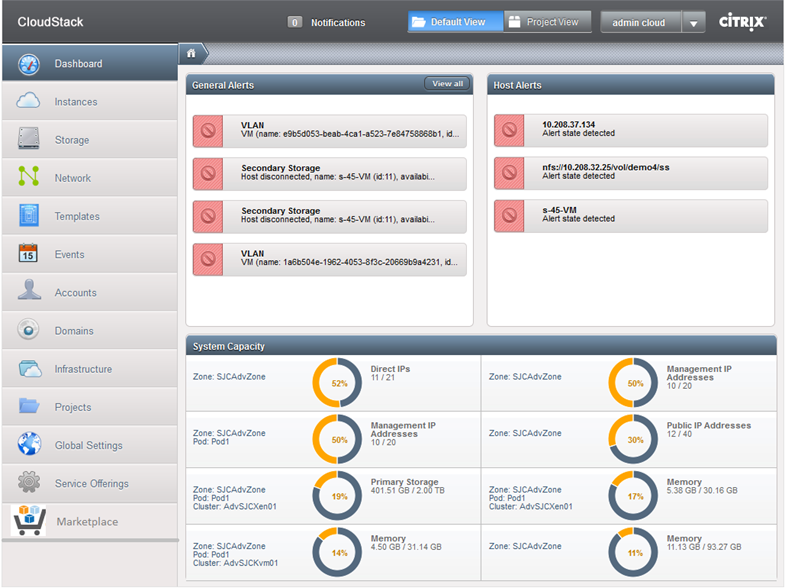
- From the CloudStack UI after login, link to Marketplace is on the left or top navigation bar.
- From the http://<cloudstack management server>/marketplace. When accessing marketplace from here, no login is required until admin/user wants to take action on a listing (for example, create an instance). Without login, the user view of the marketplace is shown.
Use Image Templates and ISOs in CloudStack Marketplace
The following figure shows an example of how a product Detailed page look like for image templates.
- Admin perspective - Admin will see an action button "Create Template". Admin can select an image template from the list and click "Create Template" button to create a template within CloudStack. Admin can set the template to be "public", so that any subsequent user request to "create instance" from this image template in the Marketplace can leverage it. In addition, the public template will be accessible to all users in the CloudStack UI.
- User perspective - User will see an action button "Create Instance". If a template has already been created within CloudStack previously (by admin or this user) and is accessible, this user will be able to create an instance directly. If the template has not yet been created or is not accessible, this user will be asked to create a template before creating instance.
Bootable ISOs will be handled similarly. For non-bootable ISOs, instead of "create instance", user will be asked to "attach ISO" to an existing instance.

Use SaaS/PaaS in CloudStack Marketplace
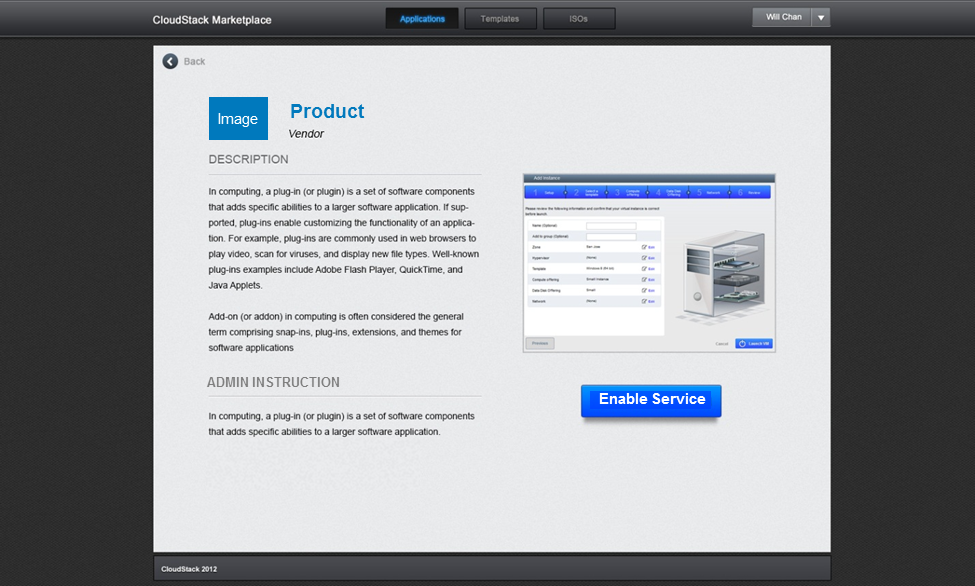
The following figure shows an example of how a product Detailed page look like for image templates.
- Admin perspective - Admin will see an action button "Create Template". Admin can select an image template from the list and click "Create Template" button to create a template within CloudStack. Admin can set the template to be "public", so that any subsequent user request to "create instance" from this image template in the Marketplace can leverage it. In addition, the public template will be accessible to all users in the CloudStack UI.
- User perspective - User will see an action button "Create Instance". If a template has already been created within CloudStack previously (by admin or this user) and is accessible, this user will be able to create an instance directly. If the template has not yet been created or is not accessible, this user will be asked to create a template before creating instance.
Future Enhancement
The following are potential future enhancements:
- A web portal for vendors to publish listings
- Workflow for cloud admins to choose which listings are enabled for their users
- User review and ratings
- Listing versioning and update notification
- Usage tracking
Discussion Topics
- Component name - I am calling it “Marketplace” tentatively in search for a final name. There is no intention for this component to handle transaction or billing. Some other names I found online are: app store, app library, app catalog. The name will likely be reflected in the UI. Ideally, the name should be most suitable for version 1.0 and is future proof. Any other ideas? What’s your preference and why?