This spec addresses the creation of a feature that allows support for new disk controllers to be added without having to extend CloudStack's source code.
Currently, CloudStack only supports IDE and SCSI (buslogic, lsisas1068, lsilogic, pvscsi) disk controllers for VMware, even though VMware also offers support for SATA (ahci) and NVME controllers. For KVM clusters, IDE, SCSI (virtio-scsi), SATA and Virtio are supported, but KVM also supports other subtypes of IDE (piix3, piix4, ich6), SCSI (buslogic, lsilogic, lsisas1068, lsisas1078, vmpvscsi, virtio-transitional, virtio-non-transitional, ncr53c90, am53c974, dc390) and Virtio (virtio, virtio-transitional, virtio-non-transitional) controllers.
For VMware, the supported disk controllers are defined in com.cloud.hypervisor.vmware.mo.DiskControllerType. For KVM, the bus types are defined in com.cloud.hypervisor.kvm.resource.LibvirtVMDef.DiskDef.DiskBus, but the controllers used for each bus type are fixed. This current hard-coded approach is not interesting, because we have to change the code for every use case that appears, and operators have to wait for releases to start using new controllers.
To address this problem, this spec introduces disk controller mappings, which allows adding support for new disk controllers without having to extend CloudStack. The initial implementation of this feature will be only for VMware, but it will be agnostic and flexible enough so that it can also be implemented for KVM in the future.
For this, we will create a table to store the necessary information about the disk controllers. By default, this table will map all the currently available disk controllers in VMware (IDE, SCSI subtypes, SATA and NVME). As a new disk controller gets supported by the hypervisor, operators will be able to add a new entry to the table to start using it immediately or to wait until a CloudStack upgrade maps the controller. It will be possible to use the mapped disk controllers for instances through the global setting vmware.root.disk.controller, and through the rootDiskController and dataDiskController details.
To identify the controller in the code we will use the column controller_reference. For VMware, we need the disk controller's class in order to configure the instance and perform validations. Thus, for VMware mappings, this column will contain the disk controller's classpath (e. g. com.vmware.vim25.VirtualLsiLogicController) so that we can obtain it through reflection. For KVM, we only need a string identifying the disk controller's model (e. g. lsilogic). In addition to this column, we will also use other columns to perform validations and apply restrictions.
The supported mappings will be loaded from the database when VmwareManagerImpl is configured, and stored in a static variable in VmwareHelper. We will adapt VMware's following workflows to use these controllers instead of using the hardcoded ones: (i) VM creation, (ii) VM start, (iii) VM import and (iv) disk attachment. Also, as some of the adapted methods are used in the SSVM as well, we will send these mappings to the system VM through the SecStorageSetupCommand after the management server connects to the SSVM.
A table named disk_controller_mapping will be created in the cloud schema with the following columns:`
| Name | Type | Nullable | Default | Description |
|---|---|---|---|---|
| id | bigint(20) unsigned | No | Auto increment | - |
| uuid | varchar(40) | No | - | - |
| name | text | No | - | Name used to identify the disk controller in configurations such as rootDiskController, dataDiskController and vmware.root.disk.controller |
| controller_reference | text | No | - | This column represents the reference to the controller. For VMware, it will be the disk controller's classpath; e.g: com.vmware.vim25.VirtualLsiLogicController. For KVM, it will be the controller's model; e.g. lsilogic |
| bus_name | text | No | - | Name of the disk controller's bus; e.g: scsi for lsilogic controllers |
| hypervisor | text | No | - | Hypervisor this mapping should be available for |
| max_device_count | int unsigned | Yes | NULL | VMware: maximum number of virtual disks a single controller can be associated with |
| max_controller_count | int unsigned | Yes | NULL | VMware: maximum number of the controllers that a single virtual machine can have; controllers sharing the same `supertype` will be considered together |
| vmdk_adapter_type | text | Yes | NULL | VMware: the VMDK file's ddb.adapterType value for disks using this controller |
| min_hardware_version | text | Yes | NULL | Minimum hardware/software version of the VM which supports the disk controller; if null, no restriction will be applied In VMware, for instance, PVSCSI requires a minimum virtual hardware version of 7, SATA requires version 10, and NVME requires 13 |
The relevant parts from the current VM start process are summarized in the following workflow.
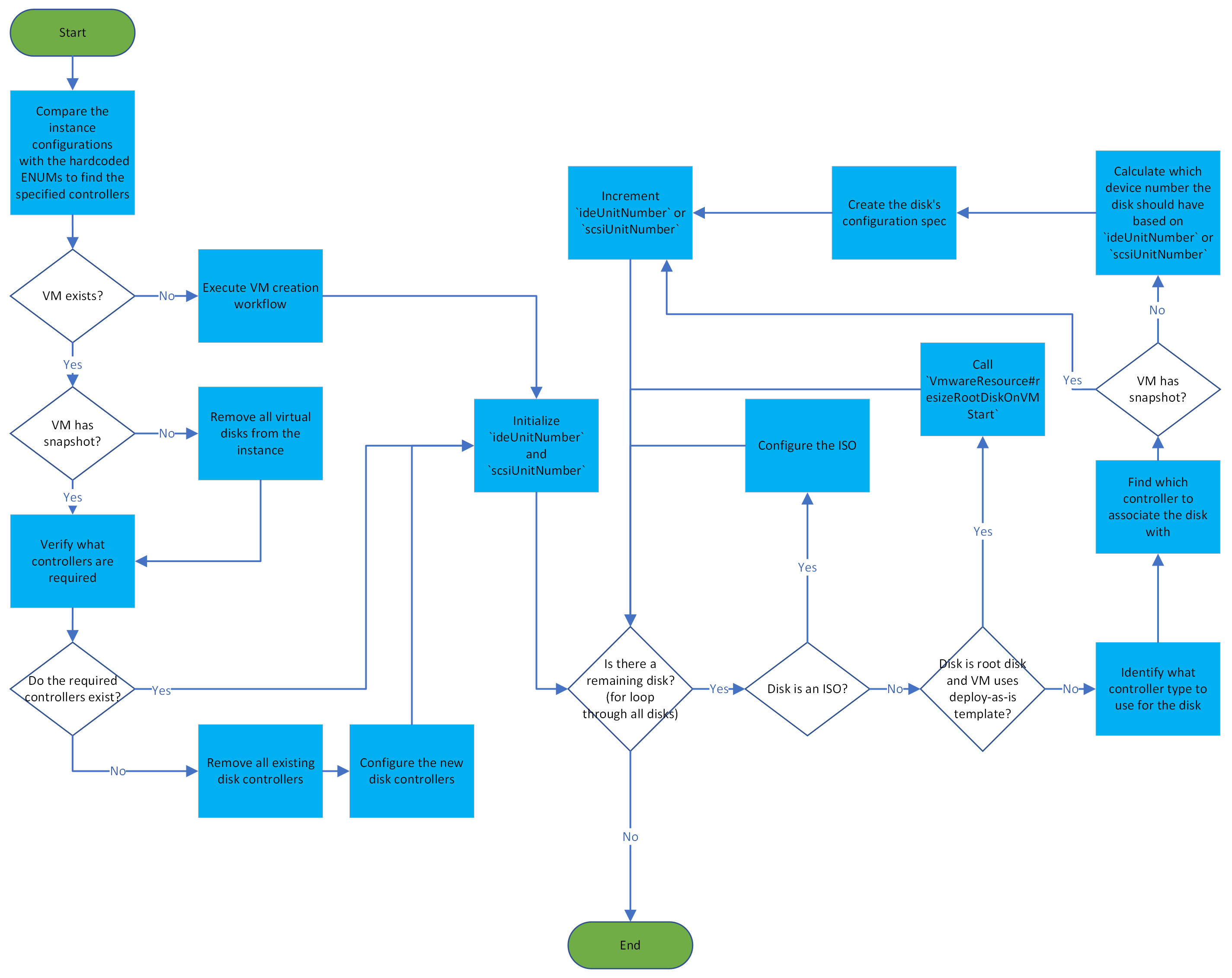
Below is a detailed description of this workflow.
rootDiskController and dataDiskController with the ENUMs in com.cloud.hypervisor.vmware.mo.DiskControllerType and creates a pair of strings representing the ENUMs.rootDiskController and dataDiskController are validated.rootDiskController gets chosen.VirtualMachineConfigSpec is instantiated.VirtualDeviceConfigSpec that gets added to the VirtualMachineConfigSpec.com.cloud.hypervisor.vmware.mo.VirtualMachineMO#configureVm is called to configure the instance by providing the VirtualMachineConfigSpec.ideUnitNumber and scsiUnitNumber are initialized at 0; otherwise, they are initialized to the next available IDE and SCSI unit number respectively. The next available unit number is obtained by finding the first IDE/SCSI controller, finding all the disks associated with it and verifying what device numbers they are using.rootDiskController.dataDiskController.ideUnitNumber by the maximum number of IDE controllers (this is wrong, but it works since the maximum number of devices an IDE controller can have is the same).scsiUnitNumber corresponds to a reserved device, it is incremented.scsiUnitNumber by the maximum number of devices a SCSI controller can have.ideUnitNumber/scsiUnitNumber, CloudStack calculates which device number the disk should be associated with.VirtualDevice representing the disk is created and associated with the chosen controller's key (5.b) and the calculated device number (5.c.i).VirtualDeviceConfigSpec is added to the VM configuration spec instructing VMware to configure the disk.ideUnitNumber is incremented; otherwise, scsiUnitNumber is incremented.In order to implement the proposed changes, we will need to change some parts of this process. Most of the changes will be small adjustments so that the code uses the values stored in the database instead of the hard-coded values. However, we will also reorder some parts of the workflow.
The verification of the disk controllers required by the settings rootDiskController and dataDiskController will be moved to the start of the workflow so that it gets done right after obtaining from the database the mappings which they point to. If both settings require different controllers that share the same bus type, this process makes the data disks use the controllers required by the root disk instead so that the number of volumes the instance can have is maximized. This change will be done to avoid repeating code, as this is also needed in the VM creation workflow, and to organize the code better, as the processes that analyze these two settings will be centered at the start of the workflow.
Moreover, during the configuration of the VM's disks, the check of whether the VM has a snapshot will be placed before the identification of which controller the disk should be associated with. This will be done to organize the code as well. As the disk does not get associated with the controller if the VM has a snapshot, there is no point in identifying it beforehand.
The new workflow is summarized in the flowchart below.
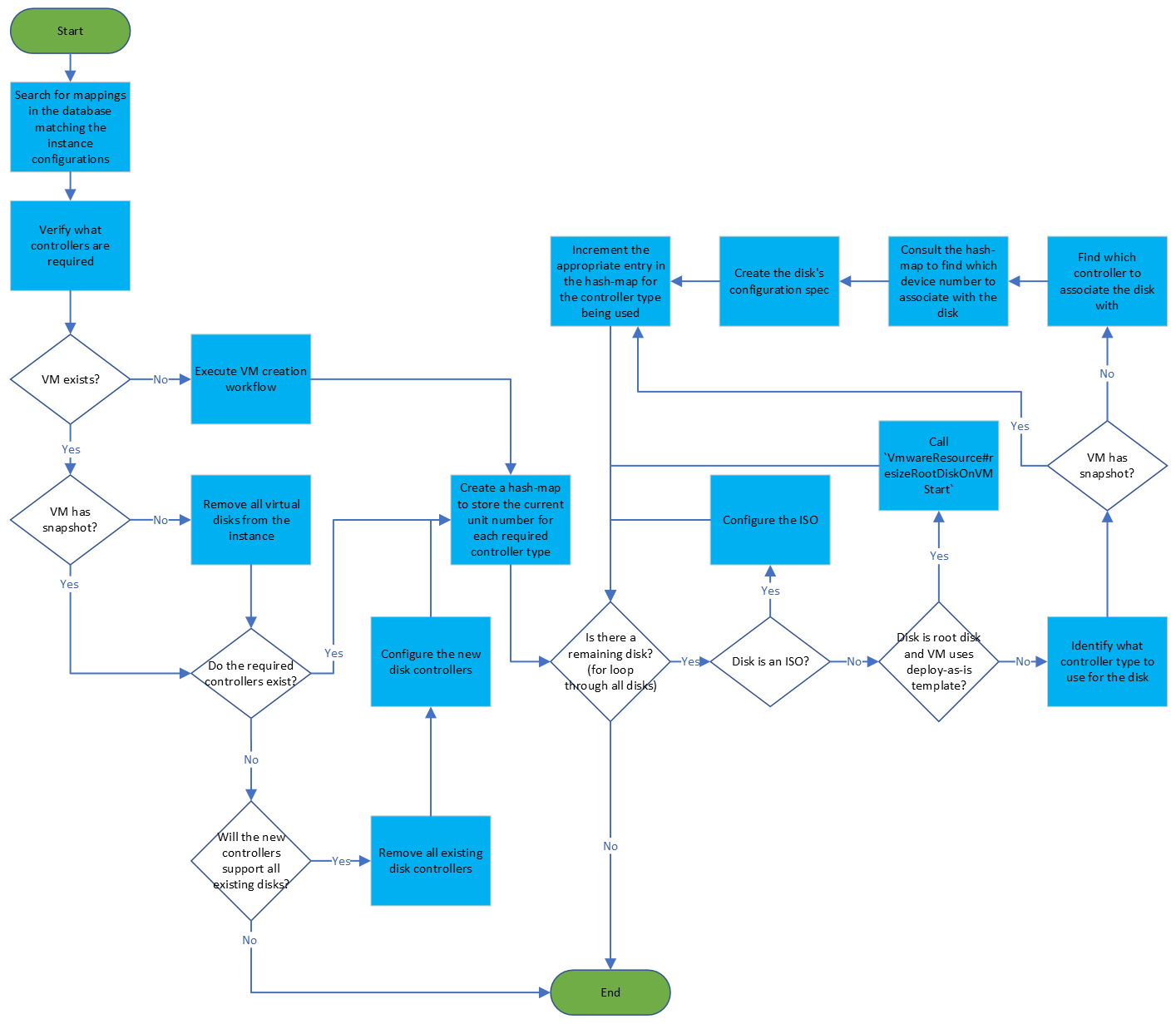
Here is a detailed description of the new process:
rootDiskController and dataDiskController, and store their VmwareDiskControllerMappings in a pair. If there is no corresponding mapping for one of these configurations, an exception will be thrown.VirtualMachineConfigSpec.VirtualDeviceConfigSpecVirtualDeviceConfigSpec.VirtualDeviceConfigSpec to the VirtualMachineConfigSpec.com.cloud.hypervisor.vmware.mo.VirtualMachineMO#configureVm to configure the instance by providing the VirtualMachineConfigSpec.com.cloud.hypervisor.vmware.mo.VmwareHypervisorHost#createBlankVm to begin the VM creation workflow, providing the pair from step 1.controller_reference):com.cloud.hypervisor.vmware.resource.VmwareResource#resizeRootDiskOnVMStart and go to the next iteration.rootDiskController.dataDiskController.max_device_count) the chosen type can have.max_device_count), and that its bus number does not exceed the maximum amount of that controller type (max_controller_count). If these conditions are met, choose that controller's key.currentUnitNumber mod max_device_count).VirtualDevice representing the disk and associate it with the controller's key and the calculated device number.VirtualDeviceConfigSpec (in deviceConfigSpecArray[i]).The VM creation process can only begin from step 3 in the VM start workflow when the instance does not exist. This process receives, from the previous workflow, a pair of strings that identify the root and data disk controllers.
The relevant parts are described below.
VirtualMachineConfigSpec is instantiated.VirtualDeviceConfigSpecs instructing VMware to add a disk controller is created. If the machine is a system VMs, this step is executed a single time, and 4 times otherwise:VirtualDeviceConfigSpec is instantiated.com.cloud.hypervisor.vmware.mo.DiskControllerType.VirtualDeviceConfigSpec.VirtualDeviceConfigSpec is added to the VirtualMachineConfigSpec.VirtualMachineConfigSpec. First, we will adjust the VM start process to provide a pair of VmwareDiskControllerMappings that identify the root and data disks controllers. This pair will already contain the chosen disk controllers instead of the controllers specified by the instance settings without any conversion. Then, the workflow will adapted.
VirtualMachineConfigSpec.VirtualMachineConfigSpec instructing VMware to create the required controllers.VirtualMachineConfigSpec.The relevant parts of the virtual machine import process are the following:
GetUnmanagedInstancesCommand is executed to fetch all unmanaged instances from VMware.GetUnmanagedInstancesAnswer for the UnmanagedInstanceTO object containing the instance's data; if no instance is found, the workflow ends here.UnmanagedInstanceTO's disks (a list of UnmanagedInstanceTO.Disks). If there is a root disk, it inserts the disk's controller attribute into the hash-map with the key rootDiskController. If there are data disks, it inserts the first data disk's controller attribute into the hash-map with the key dataDiskController.com.cloud.vm.UserVmManagerImpl#importVM to import the instance.Here, we only need to adjust GetUnmanagedInstancesCommand's response so that the UnmanagedInstanceTO.Disks' controller attribute contain the names mapped in the database. This can be done by changing com.cloud.hypervisor.vmware.util.VmwareHelper#getUnmanageInstanceDisks, which creates the list containing the disks: instead of using com.cloud.hypervisor.vmware.mo.DiskControllerType#getType to obtain the disk controller's name based on the device's class, we will consult the available mappings to find if there is an entry mapping to the class; if there is, the controller attribute will be set to the mapping's name field; otherwise, it will be set to the string none in order to preserve the current behavior.
The relevant parts of the disk attachment process are below.
VmwareStorageProcessor receives an AttachCommand containing a hash-map with the VM's rootDiskController and dataDiskController settings.dataDiskController is defined, it gets used.dataDiskController is not defined, LSI Logic is used.VirtualDisks are associated with that controller. If the maximum number of devices has been reached, an exception is thrown; otherwise, this count corresponds to the device number the disk should be associated with.ddb.adapterType property gets updated. VirtualMachineConfigSpec is instantiated.VirtualDeviceConfigSpec that gets added to the VirtualMachineConfigSpec.VirtualMachineConfigSpec. We propose the following changes in this process:
VmwareStorageProcessor will receive an AttachCommand containing a pair with the VM's rootDiskController and dataDiskController settings.rootDiskController and dataDiskController.ddb.adapterType) to the new disk controller's vmdk_adapter_type column.VirtualMachineConfigSpec.VirtualDeviceConfigSpec that gets added to the VirtualMachineConfigSpec.VirtualMachineConfigSpec.This spec addressed the creation of a flexible method of adding support for new disk controllers without having to extend CloudStack. This initial proposal is for environments using VMware; however, this feature can also be extended for KVM and XenServer in the future. Moreover, we can also create APIs to allow adding, removing and listing the controllers available for each hypervisor.