This document explains how to connect a JMX Console to ServiceMix. The following three open source JMX Consoles will be discussed:
|
ServiceMix will now use the jndiPath = jmxrmi |
String jndiPath = "jmxrmi";
JMXServiceURL url = new JMXServiceURL ("service:jmx:rmi:///jndi/rmi://<namingHost>:<namingPort>/" + jndiPath) ;
JMXConnector connector = JMXConnectorFactory.connect(url);
|
NOTE: The values shown are the default settings for ServiceMix version 3.x
|
The default namingPort is 1099 |
NOTE: The values shown are the default settings for ServiceMix version 2.x
|
The default namingPort is 1099 |
In case you cannot connect to the address printed in the ServiceMix console output and find in the JConsole console output some error like
org.apache.servicemix.jbi.jmx.JaasAuthenticator.authenticate(JaasAuthenticator.java:73) |
you may have not provided the required username and password (default: smx / smx). These credentials are configurated in /conf/jmx.xml and can be deactivated (search in jmx.xml for Comment the following lines to disable JAAS authentication for jmx) which of course poses the usual security issues (no protection at all). The default setting is to delegate the credentials to JAAS, which is configured in conf/login.properties useing the properties file at /conf/groups.properties and conf/users-credentials.properties and conf/users-passwords.properties.
The Java-2 Platform, Standard Edition (J2SE) 5.0 release includes a JMX monitoring tool, JConsole. JConsole monitors applications running on the Java platform and provides information on their performance and resource consumption. Please see Sun's JConsole documentation for more information on using this tool. Please see the following sections for instructions on configuring and using JConsole with ServiceMix.
NOTE: This tool is available with the Java 5 release only.
This section explains how to configure JConsole to monitor ServiceMix. The ServiceMix port number, the ServiceMix container id, and the JMX Service URL will be required. This information was specified in the previous section, in the Default Settings box.
bin directory of the J2SE installation directory.
cd [J2SE_install_dir]\bin jconsole |
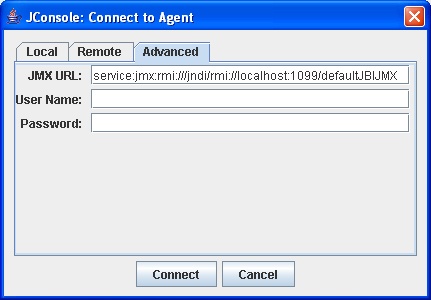
hostname is name of the host on which the application to be monitored is running, the port is the port number to connect to the application, and the app_to_monitor is the JMX enabled application to monitor. For example, if none of the defaults for ServiceMix have been modified and ServiceMix is running on localhost, enter the following: service:jmx:rmi:///jndi/rmi://localhost:1099/defaultJBIJMX.
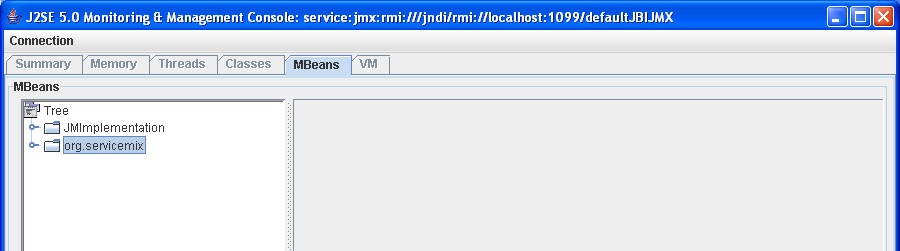
org.servicemix will be visible in the console. Click on org.servicemix to see its MBeans.
cd [servicemix_install_dir]\examples\basic ..\..\bin\servicemix servicemix.xml |
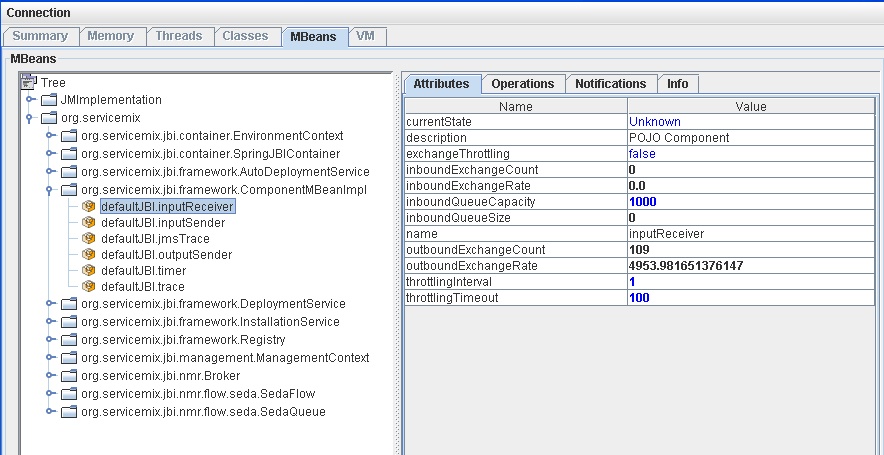
servicemix_install_dir is the directory in which ServiceMix was installed.org.servicemix.org.servicemix.jbi.framework.ComponentMBeanImpl. The components of the Basic example will be shown. Clicking on any of them will show the monitoring information available.
MC4J is a JMX Console. It can connect to J2EE servers, MBeans, and other applications to monitor them.
This section explains how to configure MC4J to monitor ServiceMix. The ServiceMix port number, the ServiceMix container id, and the JMX Service URL will be required. This information was specified in a previous section in the Default Settings box. The server connection type will also be required - it is JSR160.
MC4J Console 1.2b9.exe (for Windows) to start MC4J. The executable can be found in the top-level directory of the MC4J installation. The MC4J window will appear.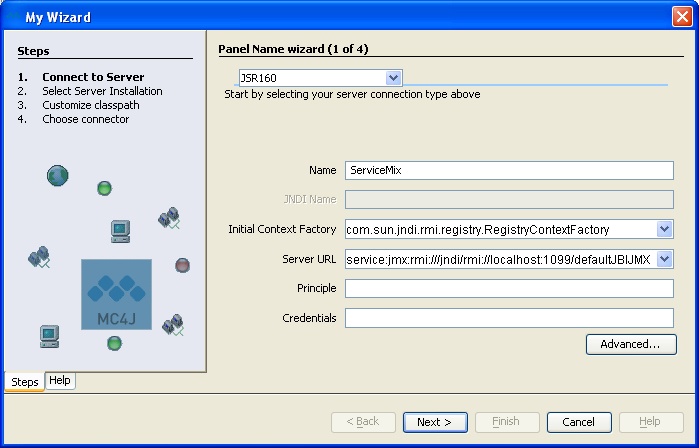
service:jmx:rmi:///jndi/rmi://hostname:port/app_to_monitor. Where the hostname is name of the host on which the application to be monitored is running, the port is the port number to connect to the application, and the app_to_monitor is the JMX-enabled application to monitor. For example, if none of the defaults for ServiceMix have been modified and ServiceMix is running on localhost, enter the following: service:jmx:rmi:///jndi/rmi://localhost:1099/defaultJBIJMX.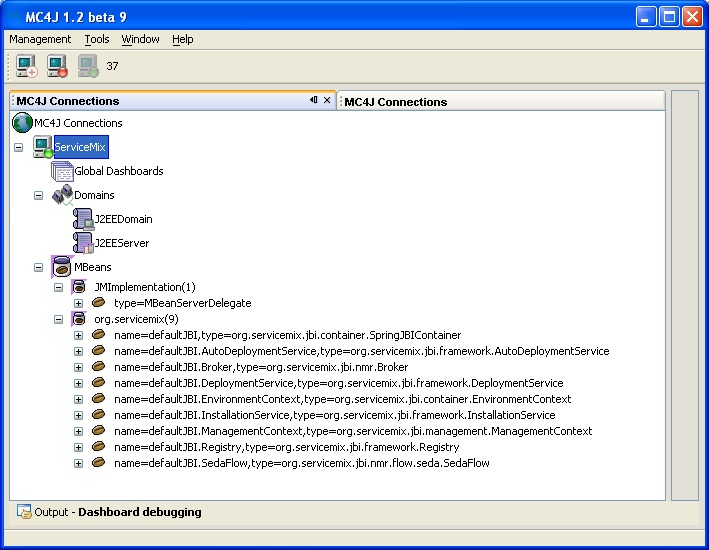
cd [servicemix_install_dir]\examples\file-binding ..\..\bin\servicemix servicemix.xml |
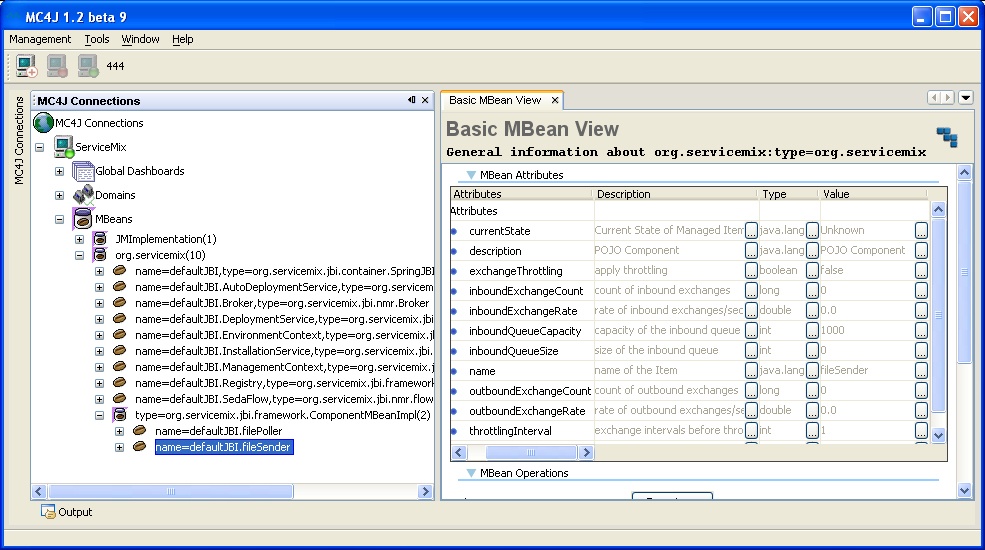
servicemix_install_dir is the directory in which ServiceMix was installed.org.servicemix.org.servicemix.jbi.framework.ComponentMBeanImpl. The components of the File Binding example will be shown. Right-click on a component and select "Available dashboards...>Basic MBean View" to see the information shown in the diagram below. For more details on using MC4J, please see the MC4J documentation.
ServiceMix includes a simple JMX operational console. A ServiceMix WAR file can be created and deployed inside any Servlet / J2EE application server in a standard deployment unit. The benefit of the ServiceMix WAR file is that it includes a JMX Console that allows a web browser to be used to view JMX attributes and statistics.
To create the ServiceMix WAR file from a source download of ServiceMix do the following:
cd [servicemix_install_dir]\tooling\servicemix-web maven war |
servicemix_install_dir is the directory to which ServiceMix was downloaded.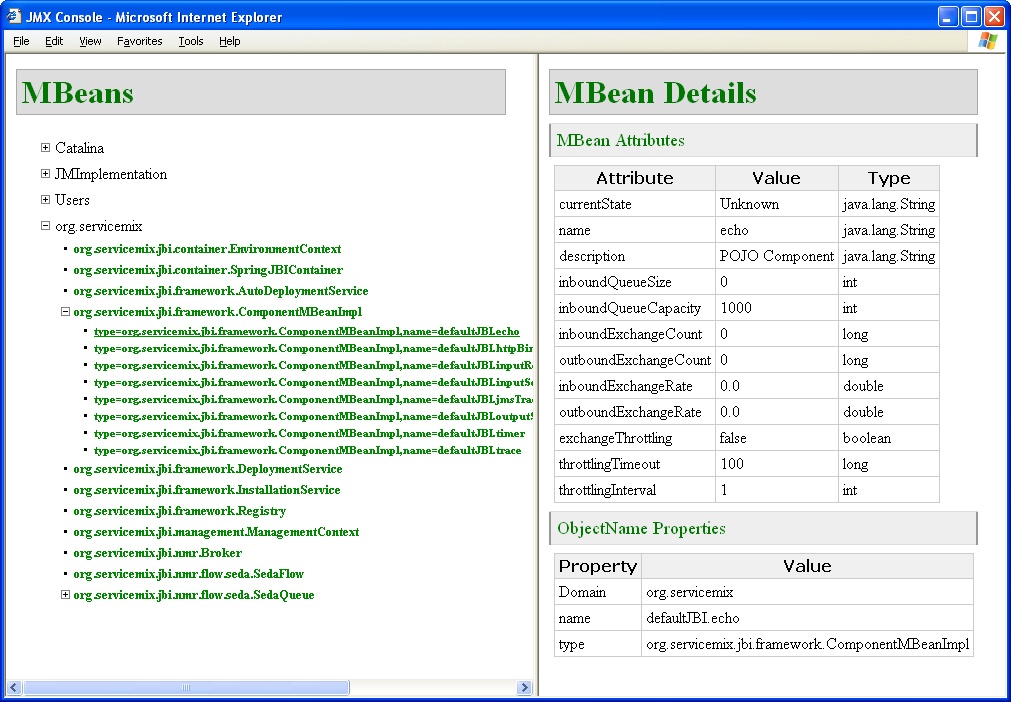
For examples of how to use the ServiceMix JMX Console, please see War Deployment.