Introduction
In Apache OFBiz, supplier payments mark the final stage of the procure-to-pay process. By treating payments as a separate step, Apache OFBiz lets businesses match supplier settlements with their cash flow realities and agreed terms.
The system supports three primary payment scenarios:
- One invoice → One payment (standard full settlement of a single invoice)
- One invoice → Multiple partial payments (instalment-based payments over time)
- Multiple invoices → One aggregate payment (A single payment covering multiple invoices from the same supplier.)
This separation allows accurate control over cash outflows, supports negotiated payment schedules (e.g., early payment discounts or extended credit), and ensures complete audit trails in accounts payable.
Payments are created and managed in the Accounting module. Once a payment is confirmed and posted, it is recorded in the general ledger and can trigger downstream actions such as cheque printing, bank transfers, or integrations with external payment systems, depending on your configuration.
Supported Payment Workflows
While the invoicing process formally records your company's obligation to the supplier, the payment workflows in Apache OFBiz focus on managing and recording the settlement of that obligation as part of the procure-to-pay (P2P) process.
Apache OFBiz serves as a powerful payment management system: it enables accounts payable teams to create, apply, and track payments against invoices, monitor supplier balances, and track outstanding liabilities, for traceability and help maintain financial business accuracy. The actual movement of funds (via cheque, bank transfer, wire, online gateway, etc.) is handled externally through your chosen payment channel or banking partner. Once the payment is confirmed externally, the settlement is recorded in Apache OFBiz to complete the financial closure and update the invoice and supplier status.
This clear separation makes Apache OFBiz highly flexible and integration-friendly. Your business can continue using preferred payment channels and external systems while relying on Apache OFBiz to orchestrate the end-to-end P2P workflow, maintain accurate inventory and payment records, and ensure complete visibility across the P2P cycle. The system supports full payments, partial instalments, and consolidated (aggregate) payments across multiple invoices, thus giving AP teams precise control over how supplier settlements are tracked, reported, and finalised.
Important Configuration Note
By default, Apache OFBiz is configured to automatically create a payment when a purchase order is approved. This behavior is intended for very simple or immediate-pay procurement scenarios.
In most real-world operations, however, invoicing and payment are deliberately kept separate to support better control, approval workflows, and compliance. To support this, Apache OFBiz provides a standard configuration option to disable automatic payment creation, allowing payments to be created and applied manually and independently.
This behaviour is controlled by a single system property in Apache OFBiz:
- Go to Webtools → Entity Data Maintenance → SystemProperty.
- Search for accounting-related properties (or directly search for the property name).
- Locate the property: accounting.payment.purchaseorder.autocreate.
- Set its value to N (No).
When this property is set to N, the system disables automatic payment creation during purchase order approval. This is the recommended setting for most businesses, as it gives the accounts payable team full control over when and how supplier payments are created and applied, based on actual invoices, receipt verification, and settlement policies.
This guide assumes that automatic payment creation has been disabled.
1. The Standard Case: One Invoice → One Payment
This is the most common and straightforward payment scenario in Apache OFBiz. It is used when a single approved supplier invoice is settled in full with one payment transaction.
How it works in Practice
Step 1: Access the Accounting Module
Select Accounting - AP (Accounts Payable).
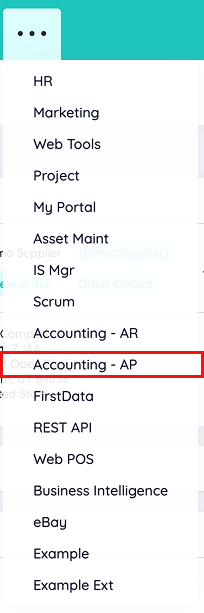
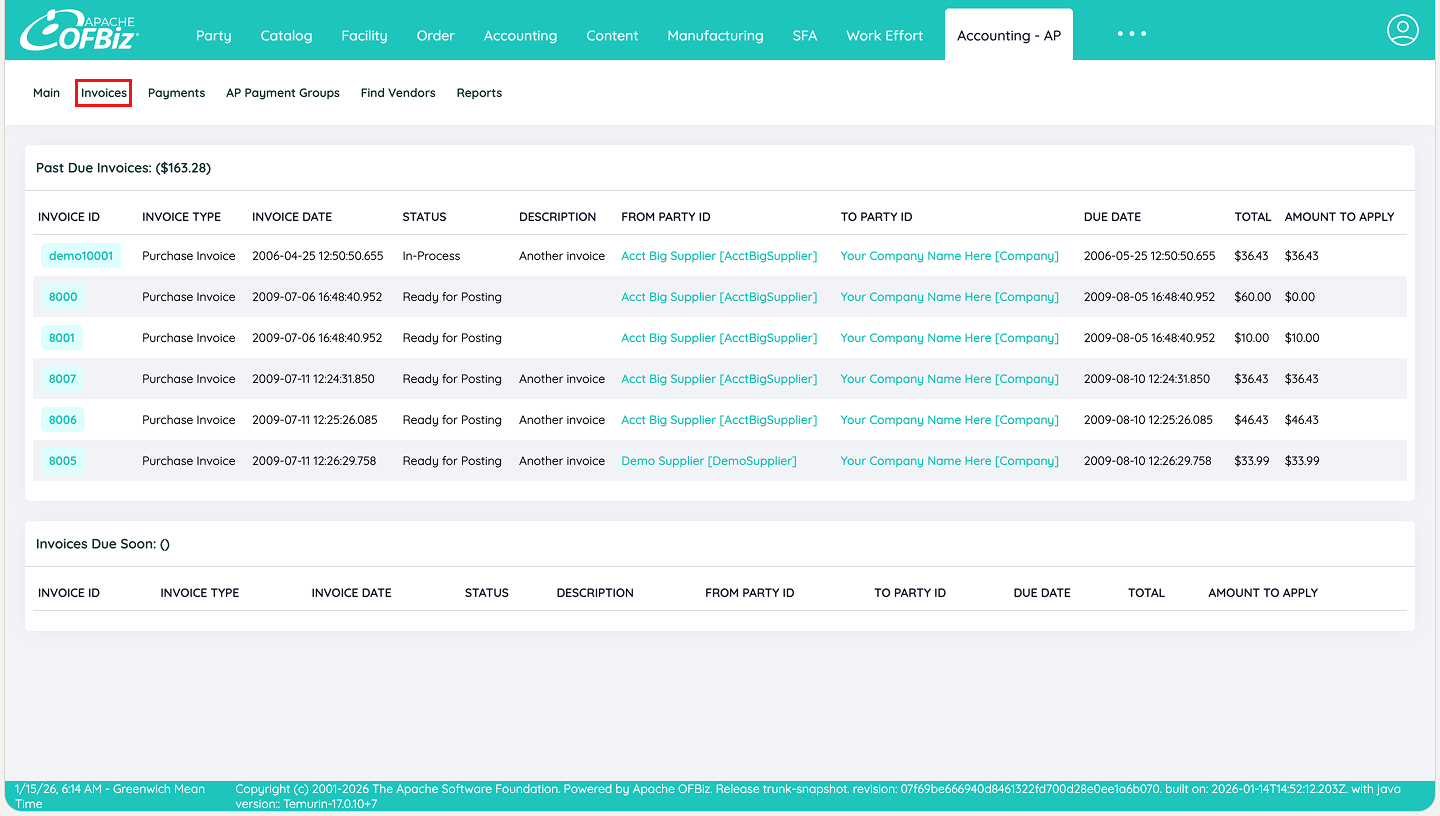
Step 2: Navigate to Invoices
On the Accounting dashboard, click Invoices in the left-hand menu or main options.
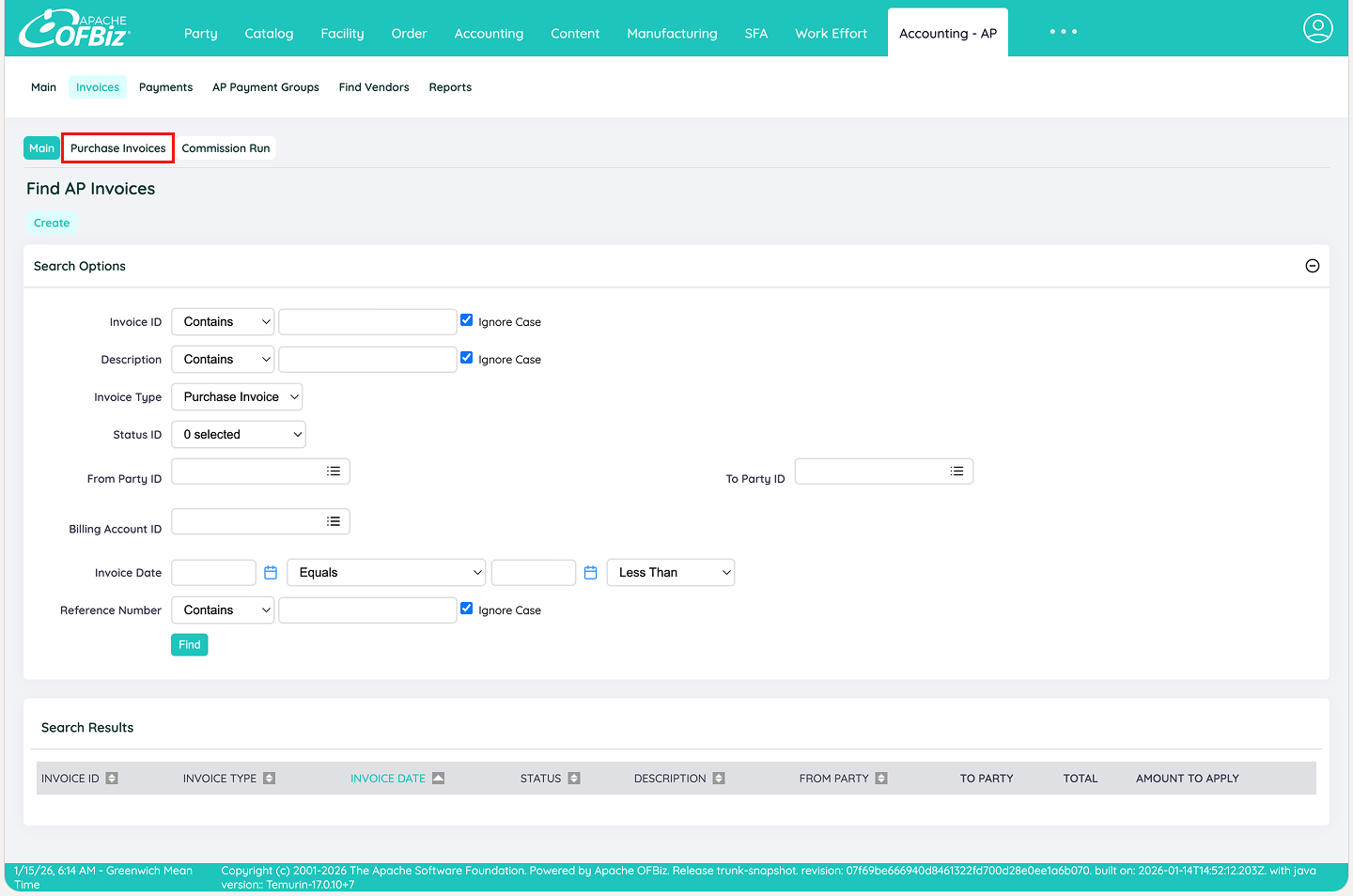
Step 3: Select Purchase Invoices
Choose Purchase Invoices to view the list of supplier invoices.
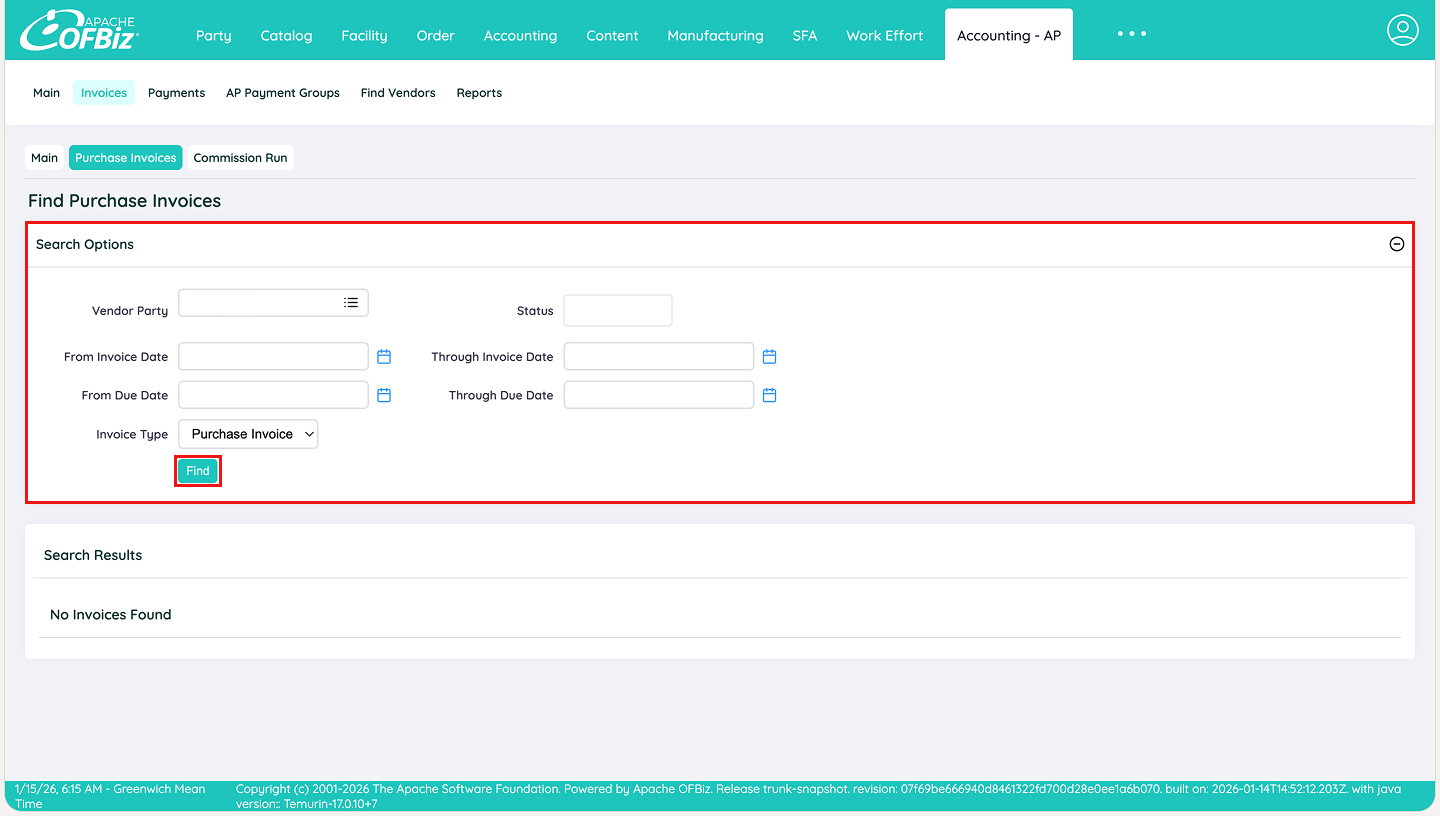
Step 4: Search or Find the Invoice
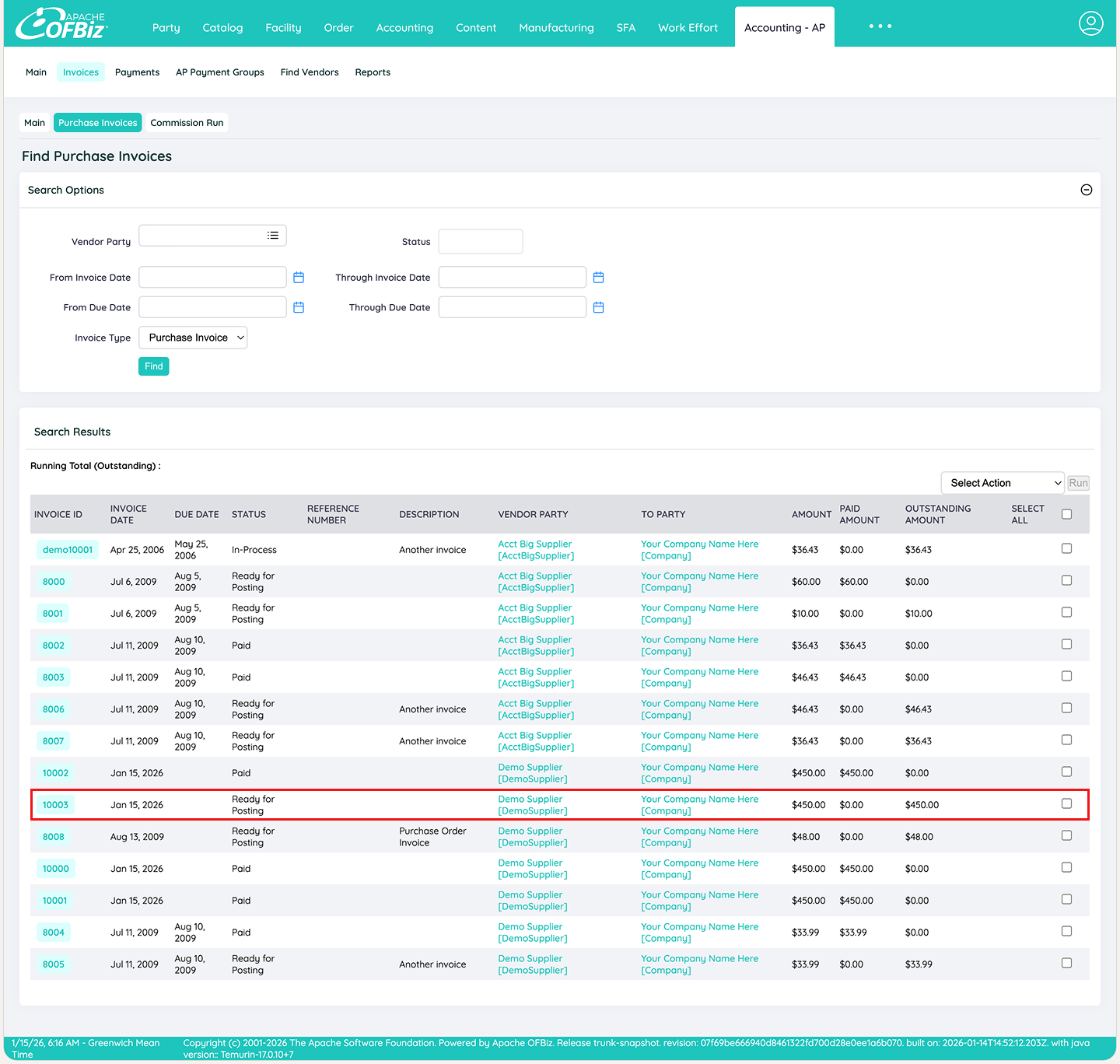
This is the screen where the Accounts Payable team starts most of their days. In real-world AP workflows, you rarely know the exact invoice ID upfront so you typically search by what you have in hand: supplier name, PO number, invoice date, due date, or amount range.
Most AP teams prioritise searching by due date (or due date range), as it directly aligns with how they manage payment schedules, prioritise urgent payments, avoid late fees, and plan cash outflows effectively.
Apache OFBiz makes this easy: enter any known details to narrow down the list, or simply click Find to display all In-Process, Approved, or Ready purchase invoices waiting for action.
Once the correct invoice appears in the results, click its Invoice ID to open it and proceed with review and payment.
Step 5: Open the Invoice
Click the Invoice ID in the list to open the detailed Invoice screen.
Step 6: Initiate Payment Creation
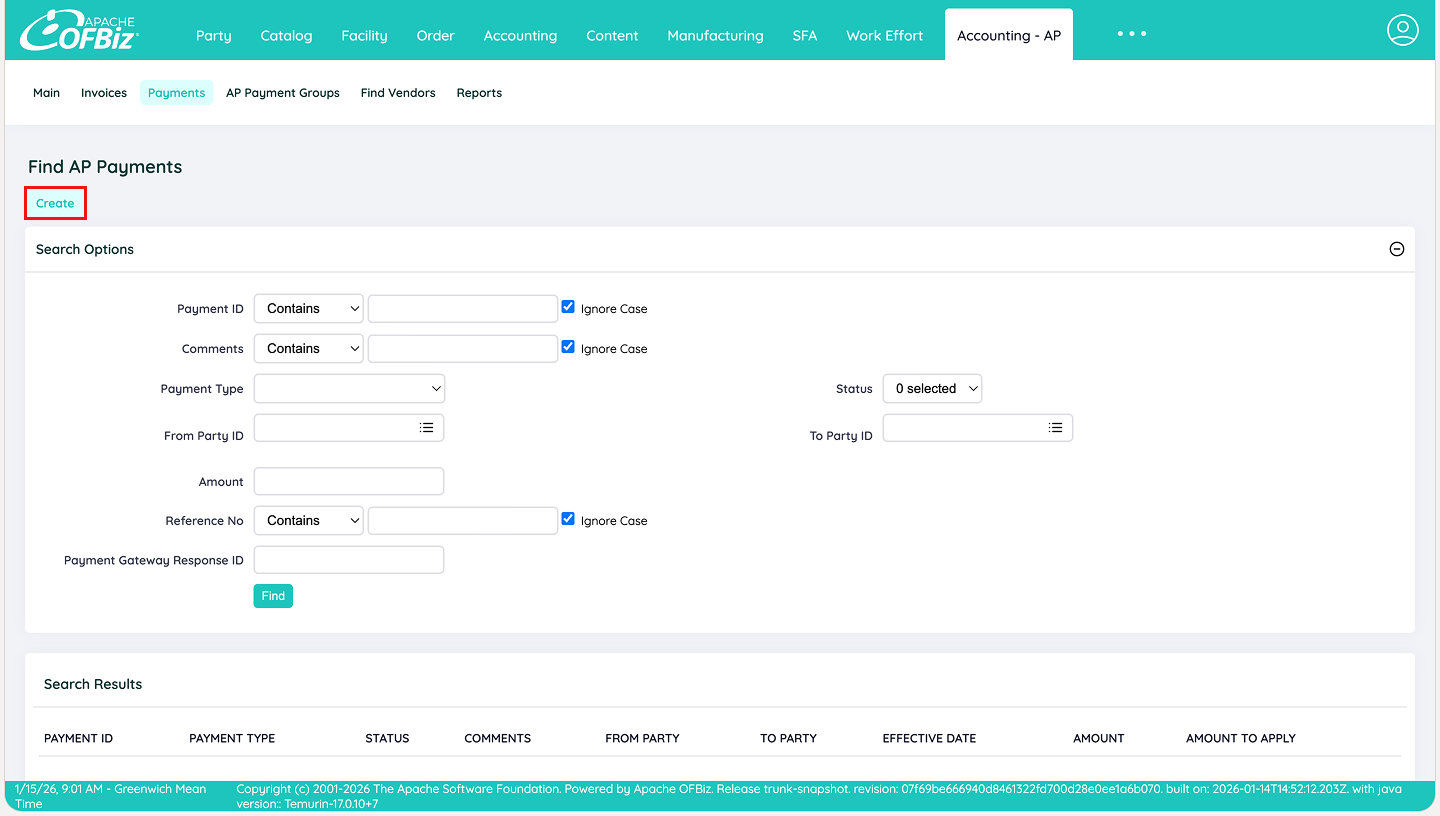
From the Invoice screen, you can click on Create Payment directly. Alternatively, navigate to Accounting AP > Payments —
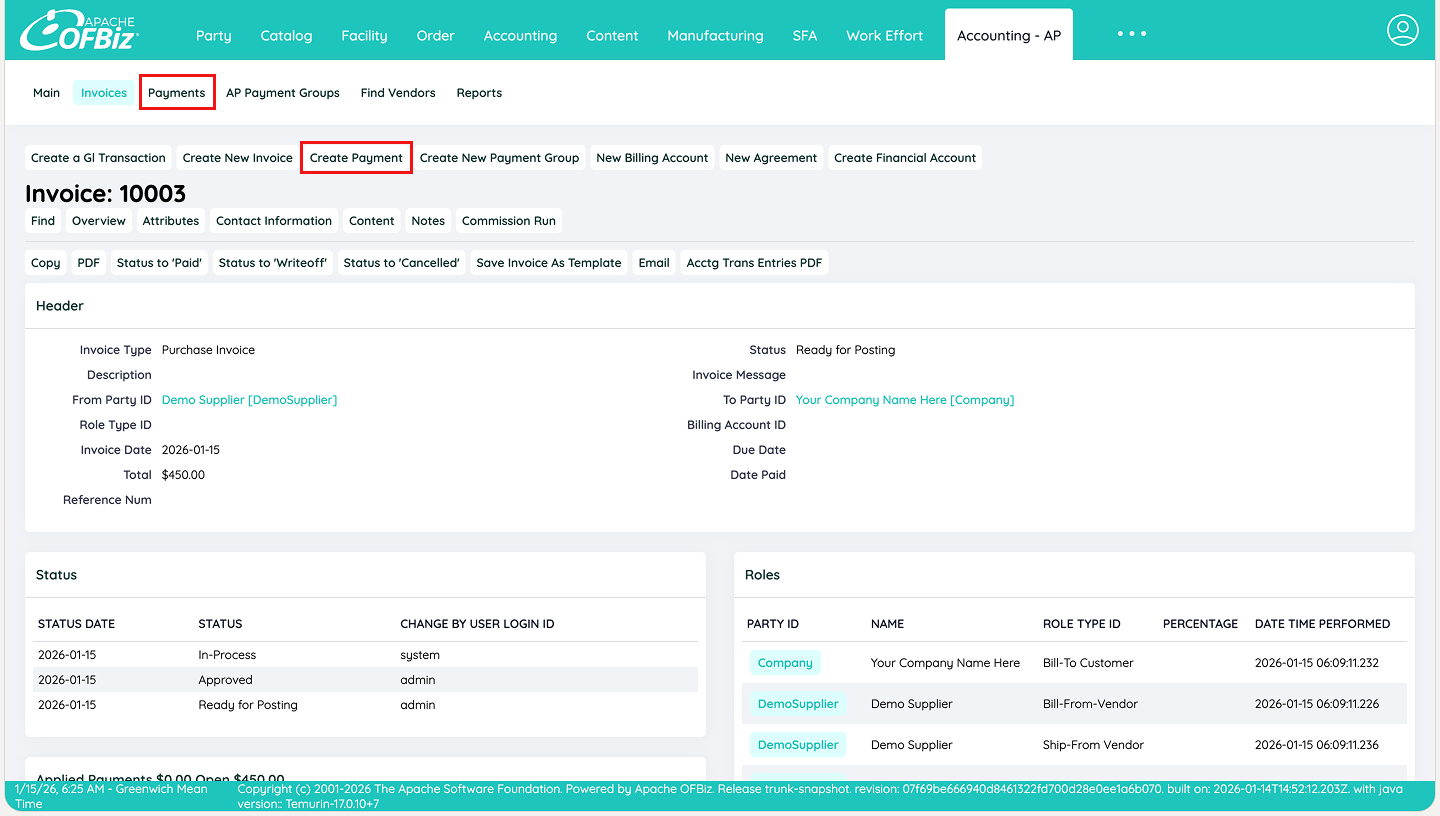
— and click Create to start a new payment.
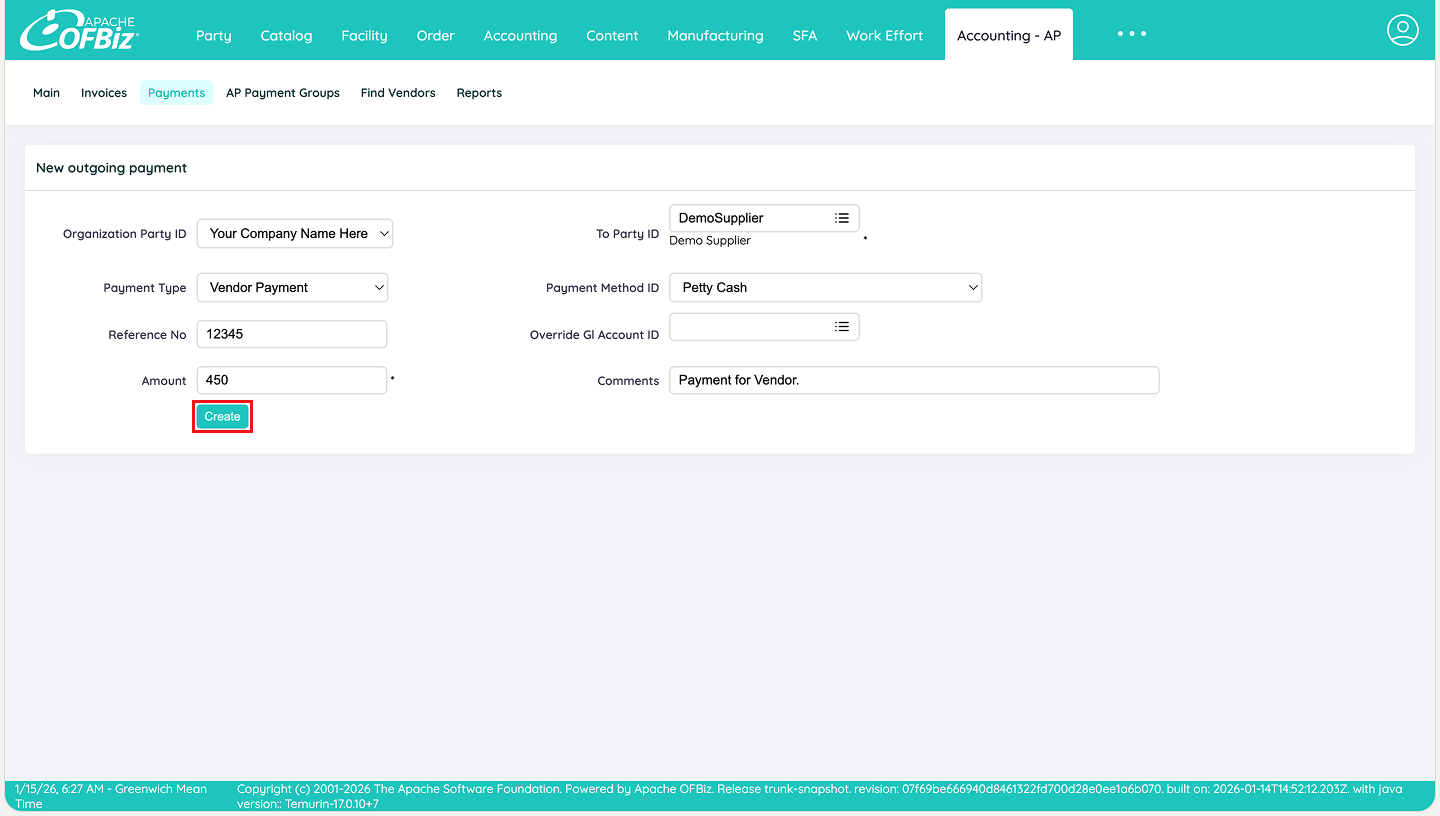
Step 7: Fill in Payment Details
On the payment creation screen (shown below), enter:
- To Party ID
- Payment amount
- Payment method
- Any reference (e.g., cheque number).
Click Create to create the payment.
Step 8: Review and Edit Payment
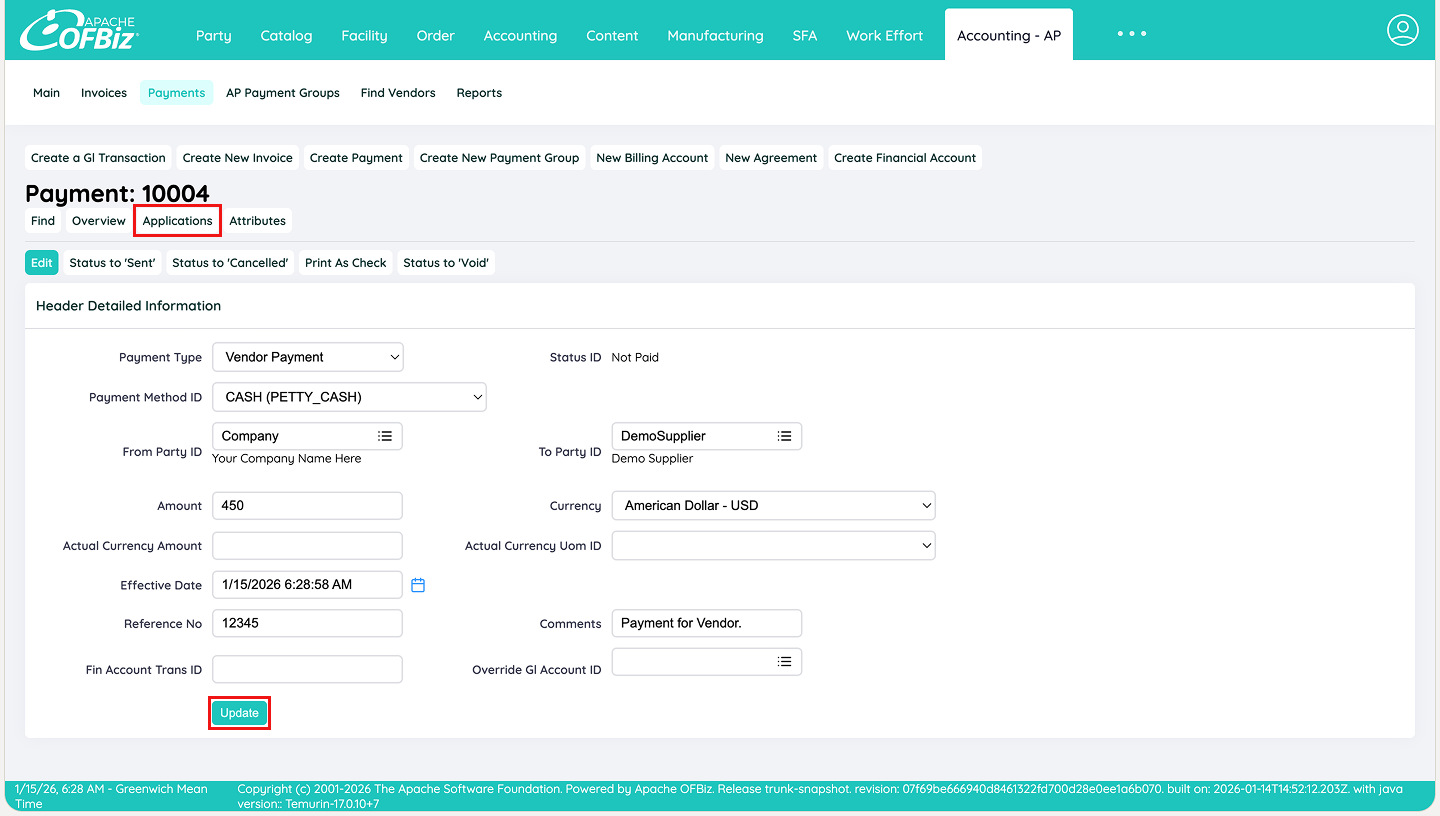
The payment screen opens. Review all details. If needed, make adjustments (e.g., add notes or change date), then click Update.
Once the details have been updated, to link the payment to the invoice, click on Applications as shown below.
Step 9: Apply the Payment to the Invoice
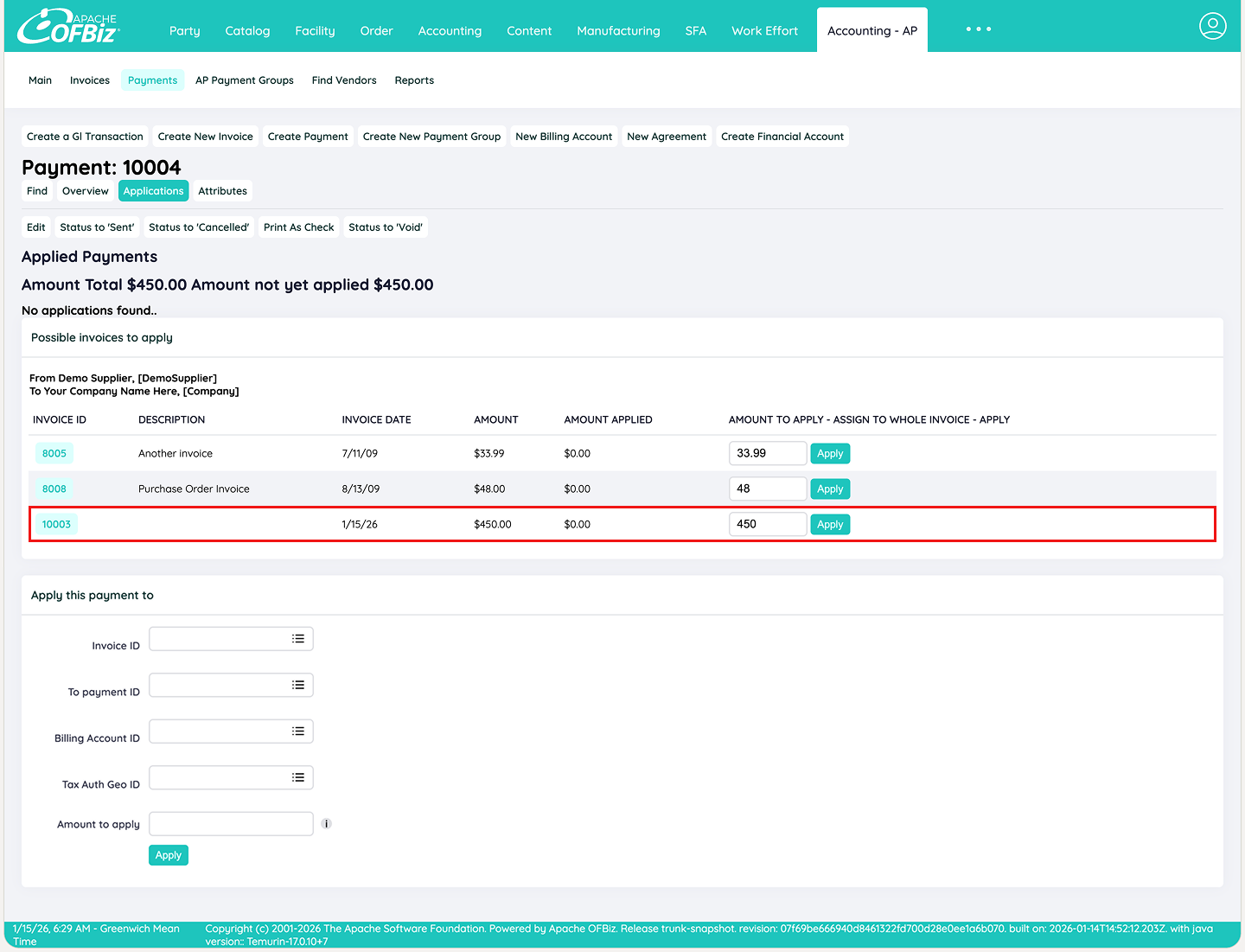
Below shown is the Applications tab. The system suggests open invoices from the supplier.
Click Apply next to the correct invoice. The amount field is pre-populated with the invoice total.
Step 10: Confirm Payment Application
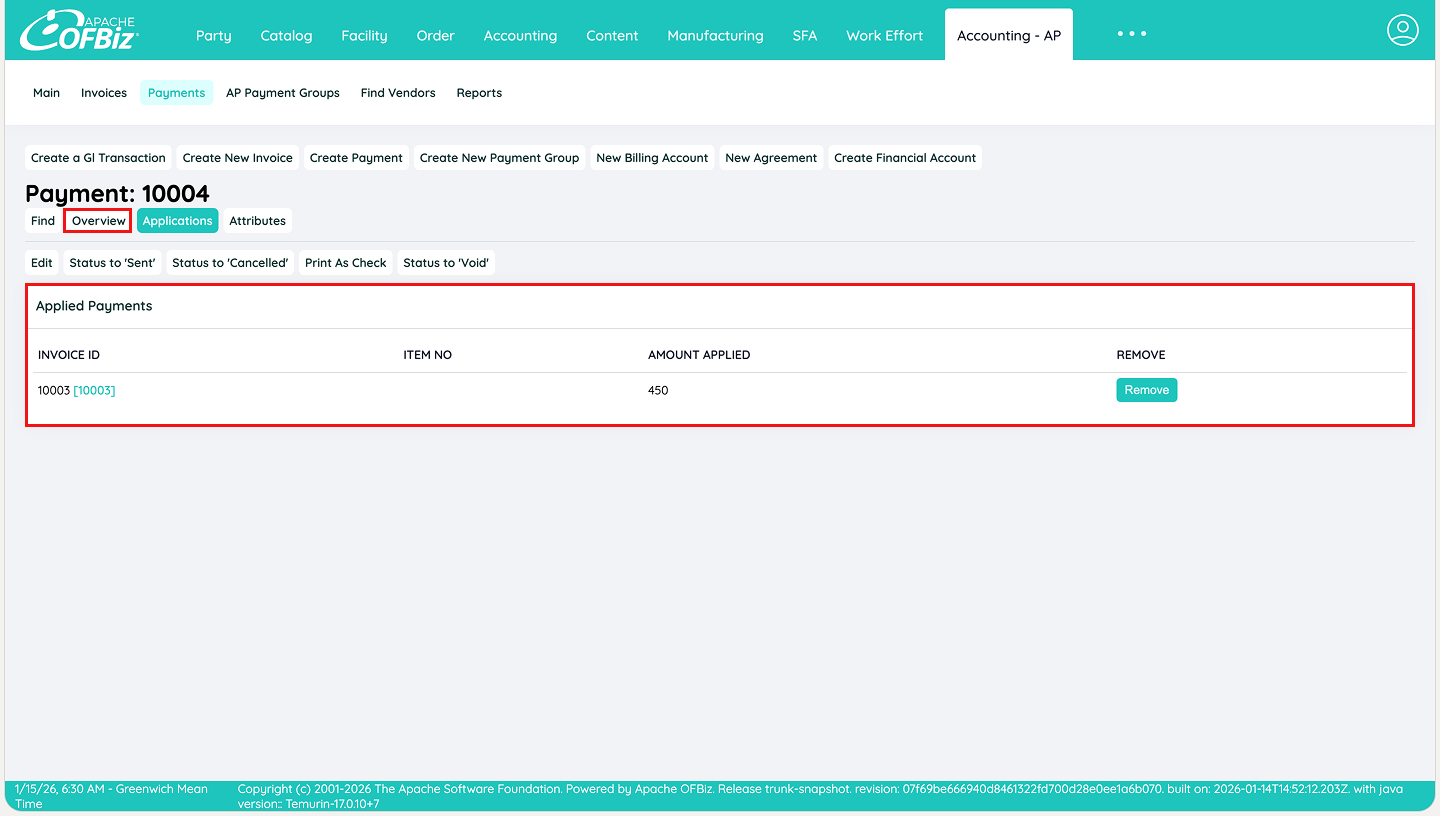
A confirmation screen appears showing the applied amount.
Return to the main payment screen by clicking Overview.
Step 11: Double-Check Before Finalising
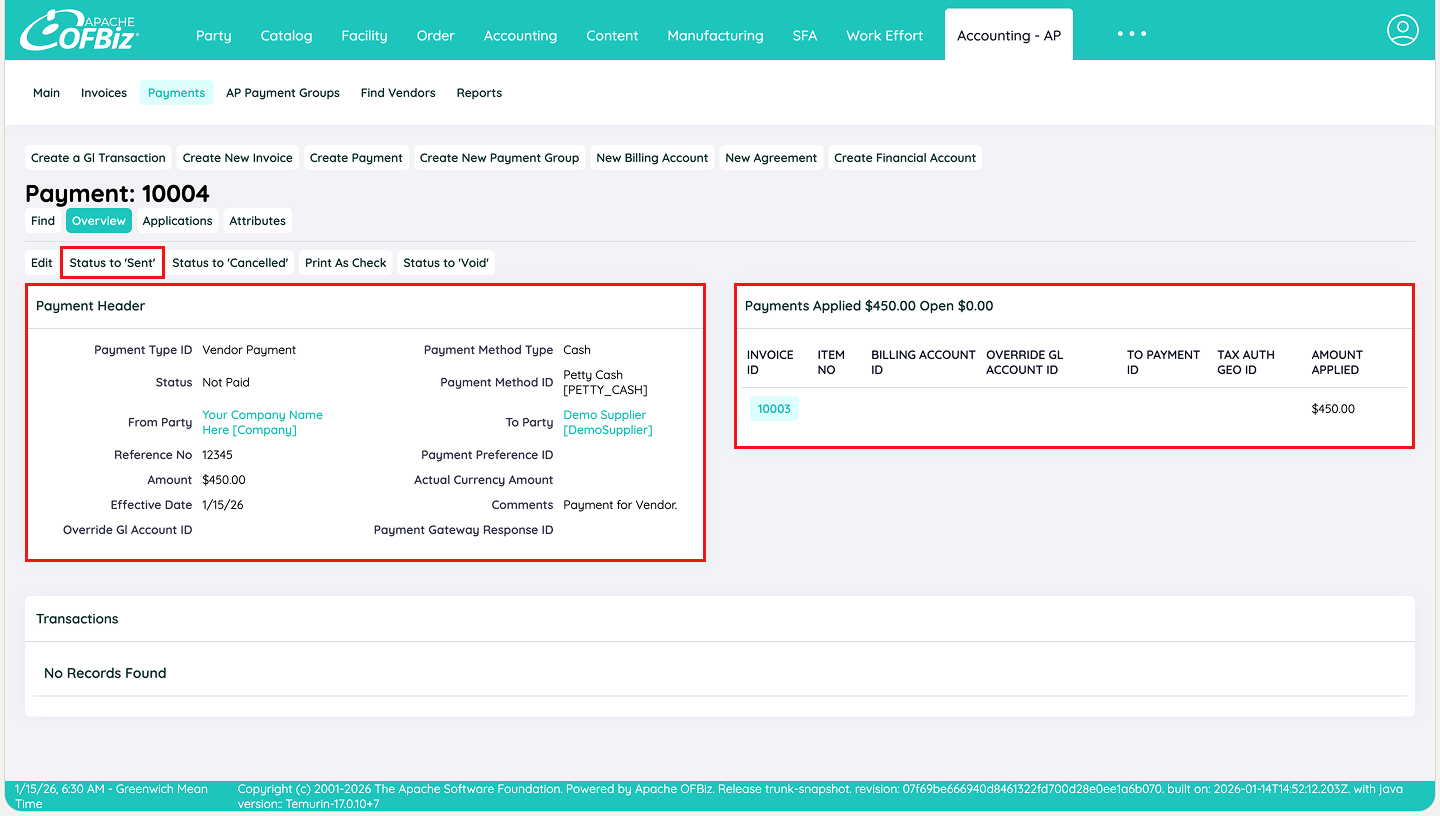
Once you have double-checked all details and confirmed that the payment is ready to be processed externally (e.g., cheque issued, bank transfer initiated, or online payment made), change the payment status to sent using the Status to ‘Sent’ button on the payment screen. Do note that Once you mark it as Sent, it cannot be reverted, only voided. This ensures transactional integrity.
What happens behind the scenes
Marking the payment as Sent automatically triggers the creation of the corresponding Journal Entry in the general ledger. This posting completes the financial transaction by:
- Debiting the cash or bank account (or clearing account)
- Crediting accounts payable (reducing the supplier liability)
This step mirrors and closes the liability that was initially recorded when you marked the invoice as Ready during the invoicing process. In simple terms:
- Ready status on the invoice = “We owe this amount to the supplier” (liability created)
- Sent status on the payment = “The liability is now settled” (liability cleared)
The system ensures both sides of the transaction are properly linked and posted, maintaining accurate books, supplier balances, and full audit traceability.
After this, the payment is considered issued. Once you receive external confirmation that the funds have reached the supplier (e.g., bank acknowledgment), you can proceed to mark the payment as Confirmed as shown in the next step (Step 12).
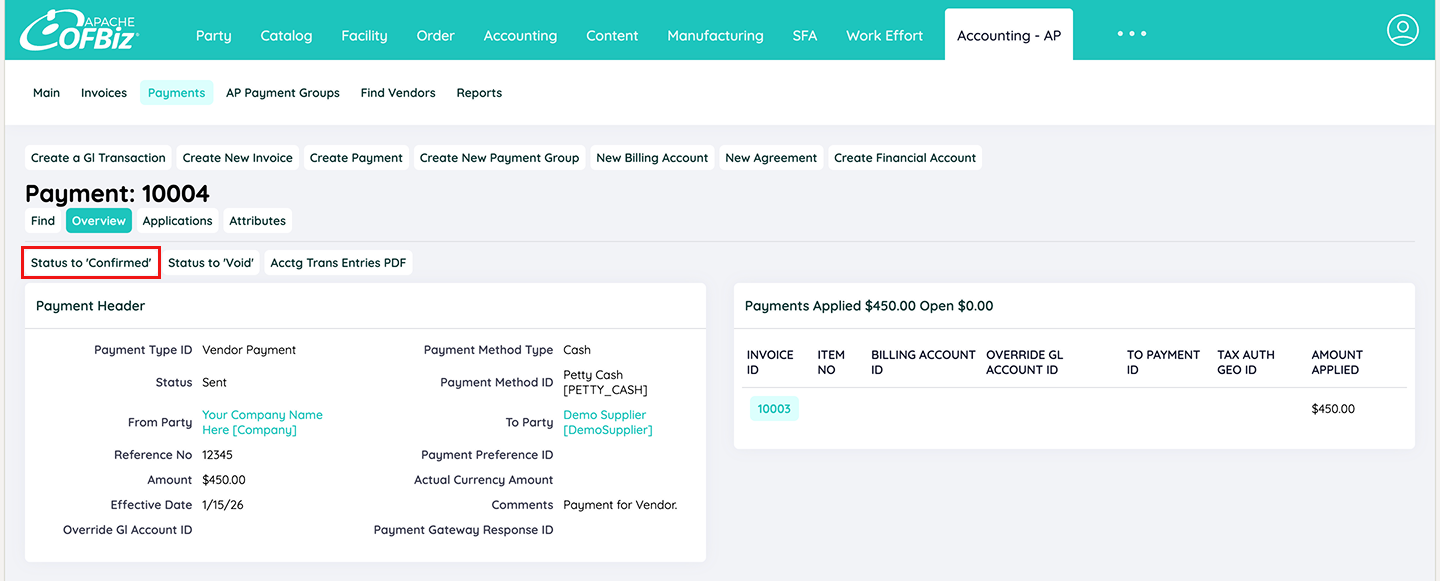
Step 12: Mark Payment as Confirmed
After confirming the external payment (e.g., bank transfer successful), return to the payment screen and change status to Confirmed. This finalises the payment in Apache OFBiz.
Step 13: Return to the Invoice and mark the Invoice as Paid
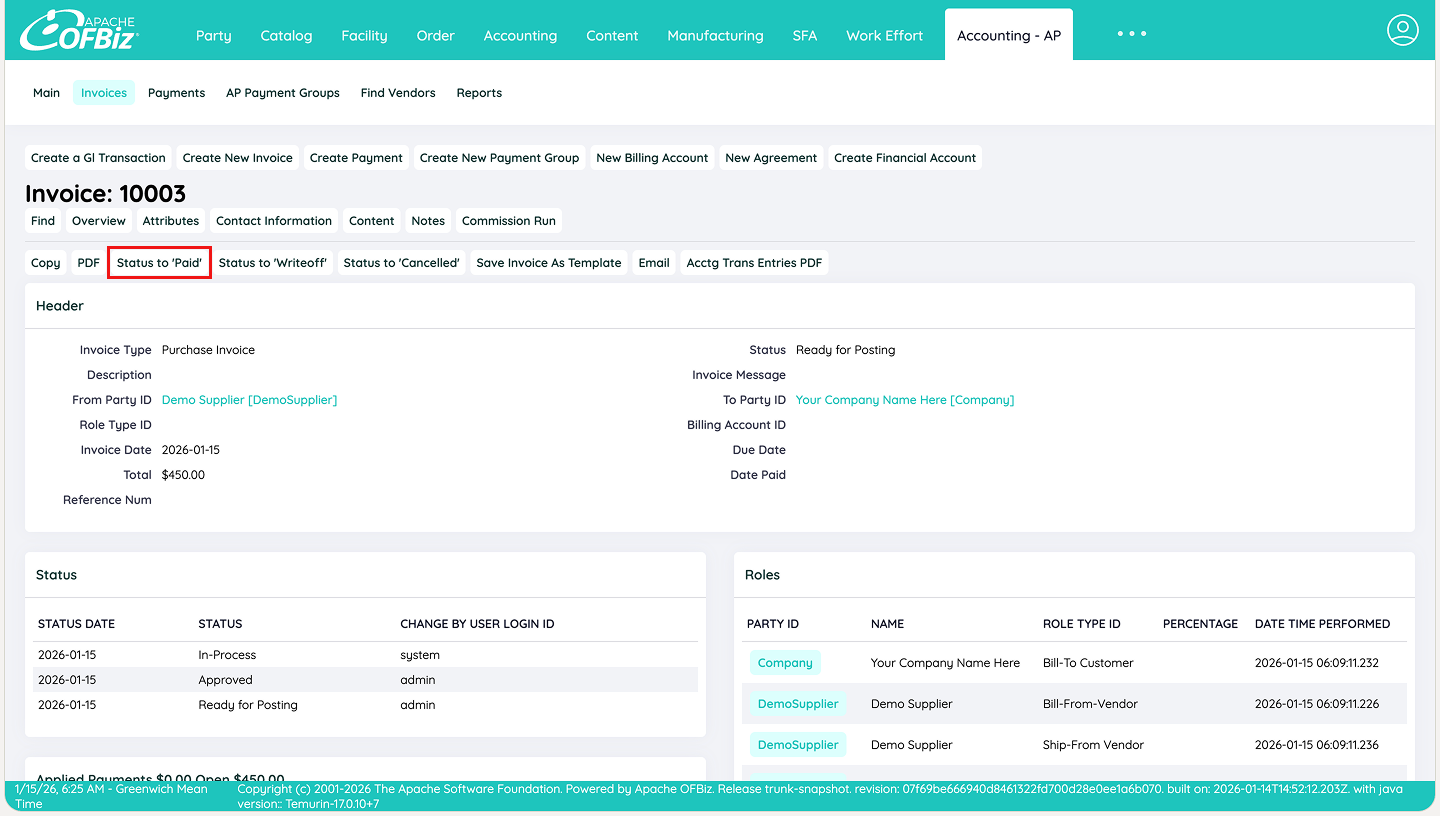
Go back to the original invoice screen. The Payments Applied section now shows the linked payment ID and amount.
Change the invoice status to Paid to close the liability. The procure-to-pay cycle for this invoice is now complete.
This standard workflow keeps things clean and efficient for most day-to-day supplier payments. It ensures every amount is accounted for and aligned with what was received and invoiced, making audits and financial reporting straightforward.
2. Partial Payments: One Invoice → Multiple payments
This workflow is designed for situations where a single approved supplier invoice needs to be settled over time rather than in one lump sum. Apache OFBiz tracks the invoice balance automatically, allowing you to apply multiple partial payments while keeping full visibility of what has been paid and what remains outstanding.
How it works in practice
The overall payment creation and application process is identical to the standard one-invoice-one-payment workflow, with just a few key differences to accommodate instalments. Here’s how it works step by step:
Start from the Invoice Screen:
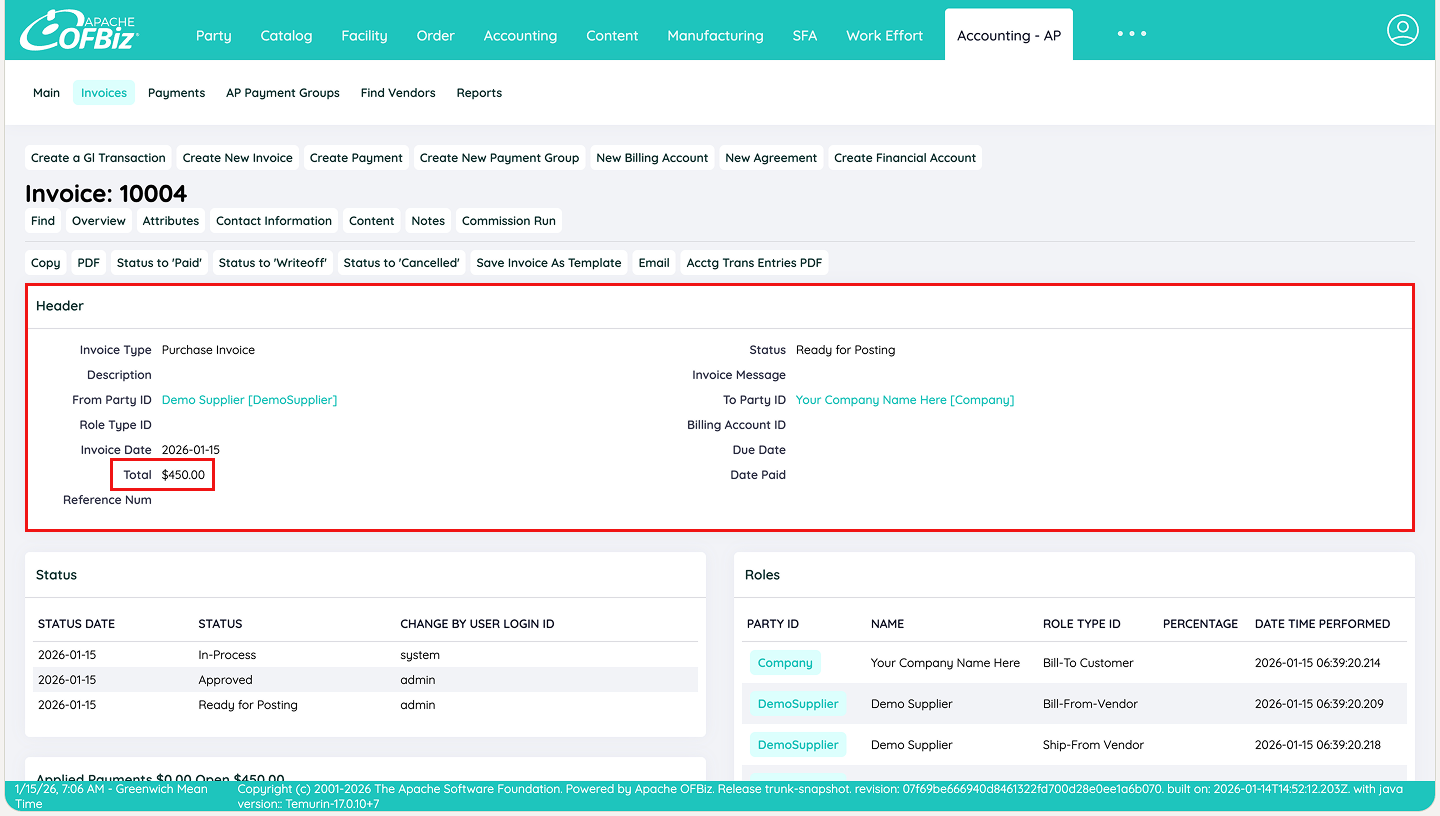
Open the marked as ready invoice (as described in the standard workflow). Note the full invoice amount (e.g., $450 in our example). The invoice is ready to be paid, but we will pay it in parts.
Create the First Partial Payment
Follow the same payment creation steps:
- Go to Payments → Create (or create directly from the invoice).
- Enter the payment amount as less than the full invoice total (e.g., $200).
- Select payment method, date, reference, etc.
- Apply the payment to the invoice by clicking the Applications tab in the payment screen.
Confirm the First Payment:
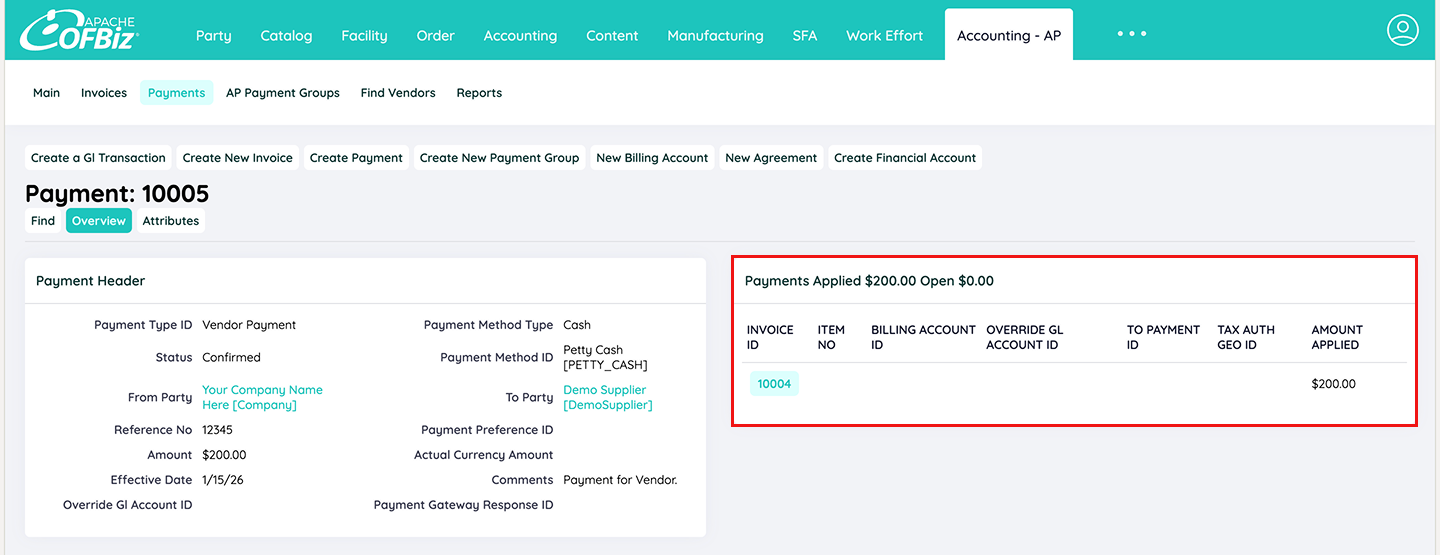
Return to the invoice screen: the Payments Applied section now shows $200 paid, with $250 remaining as the open balance.
Note: At this stage, if you attempt to change the invoice status directly to Paid, Apache OFBiz will prevent it and display an error message.
This is an intentional safeguard: the system only allows the invoice to be marked as Paid after the full balance has been settled through applied payments. Until the outstanding amount is zero, the invoice remains open (or Ready), ensuring that accounts payable records stay accurate and no invoice is prematurely closed with an unpaid balance. This built-in check helps maintain financial integrity and prevents errors in reporting, reconciliation, or supplier statements.
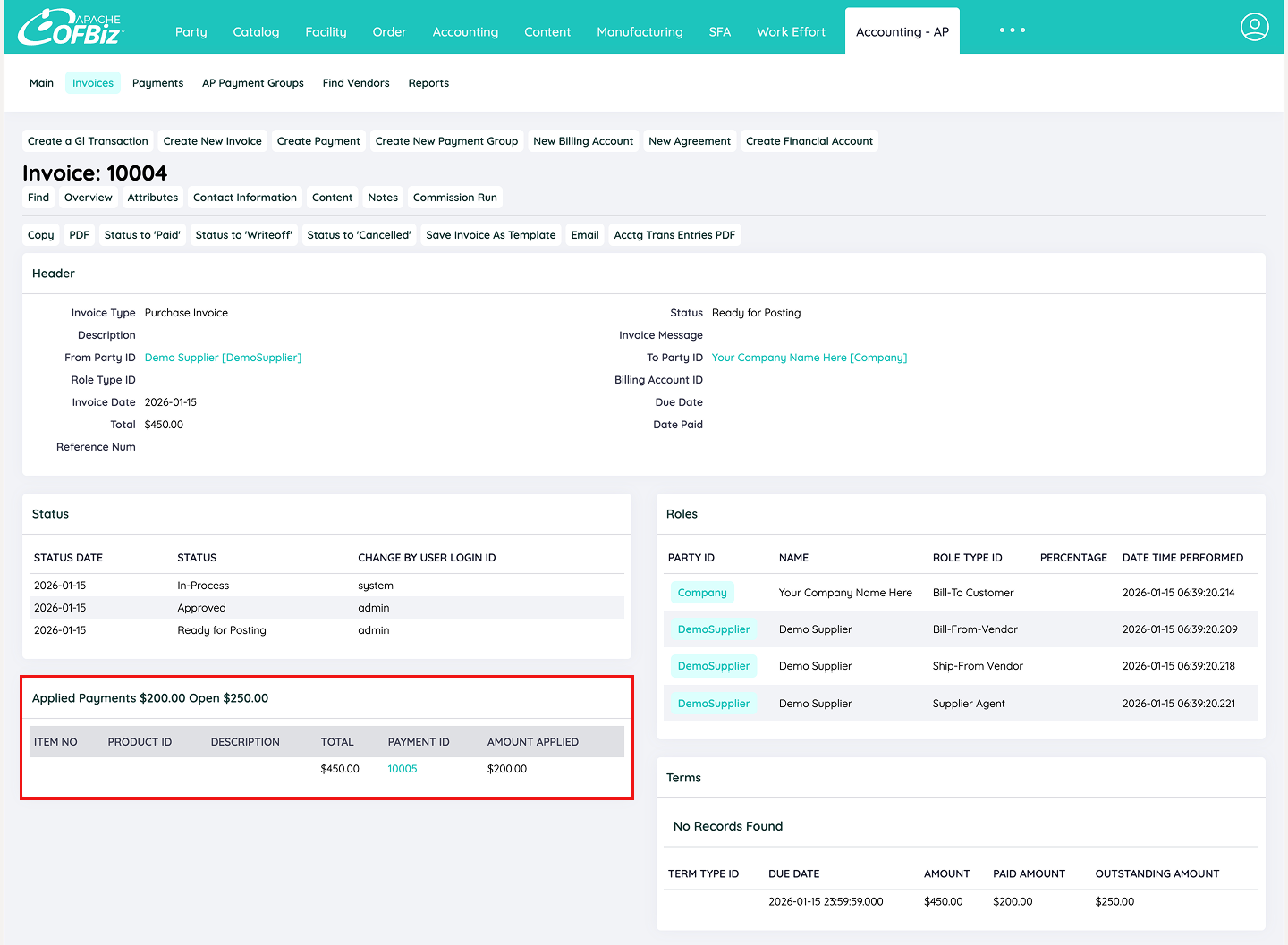
Create the Second (or Subsequent) Partial Payment:
Repeat the payment creation process for the second installment (or subsequent ones depending on - how many installments you are paying in). Do note however when applying the payment:
- The system displays the original invoice amount and the amount already paid.
- Enter the next instalment amount (e.g., $250 to clear the balance).
- Click Apply to link it to the invoice.
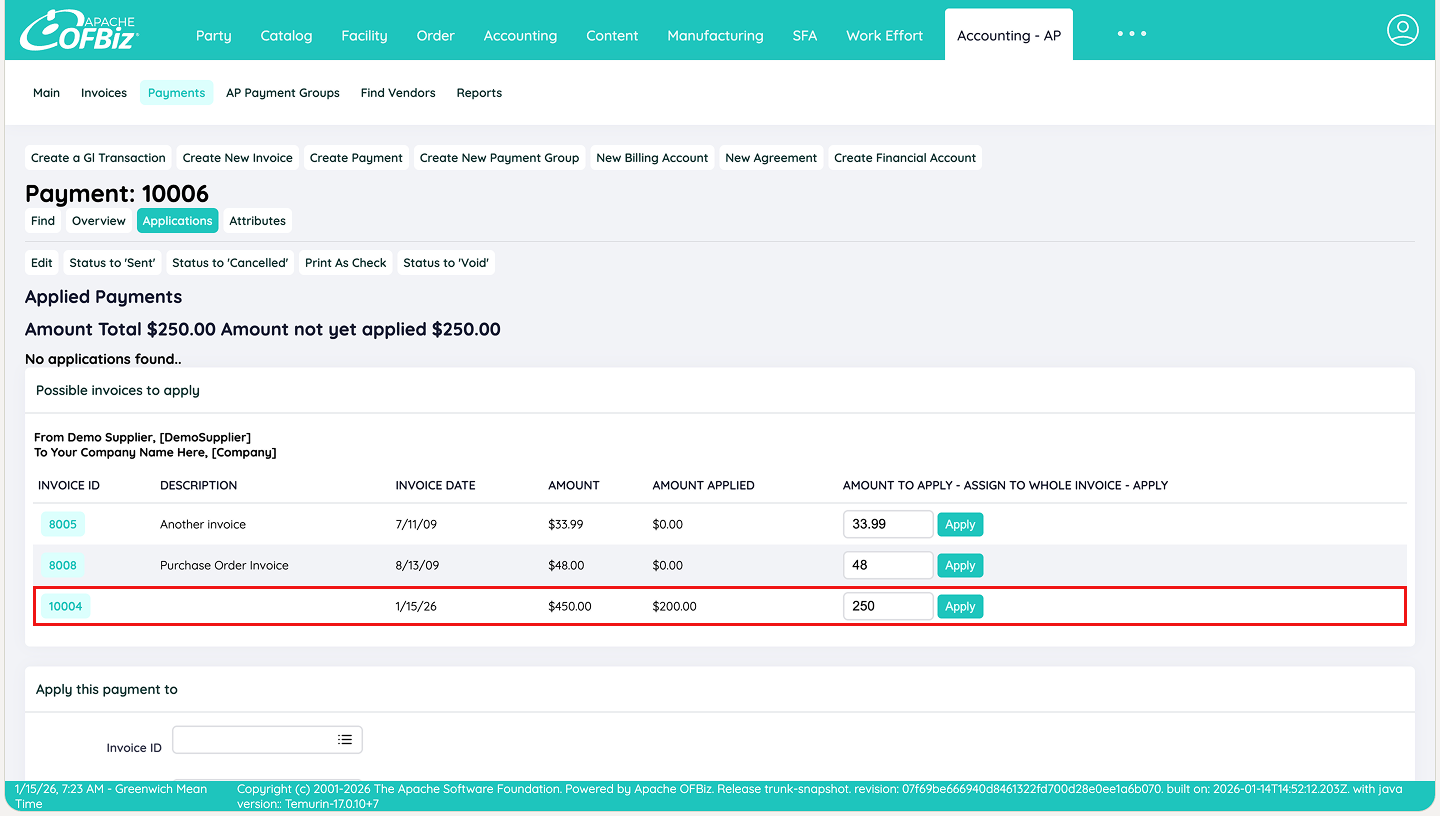
Final Confirmation:
After applying the final partial payment, return to the original invoice screen. Once the total applied payments equal the invoice amount, Apache OFBiz automatically enables the Status to ‘Paid’ option. Change the status to paid by clicking on the said button.
The Applied Payments section displays a full list of all applied payments, including dates, amounts, and payment IDs, for complete traceability. The remaining balance is now $0, indicating that the invoice has been paid in full.
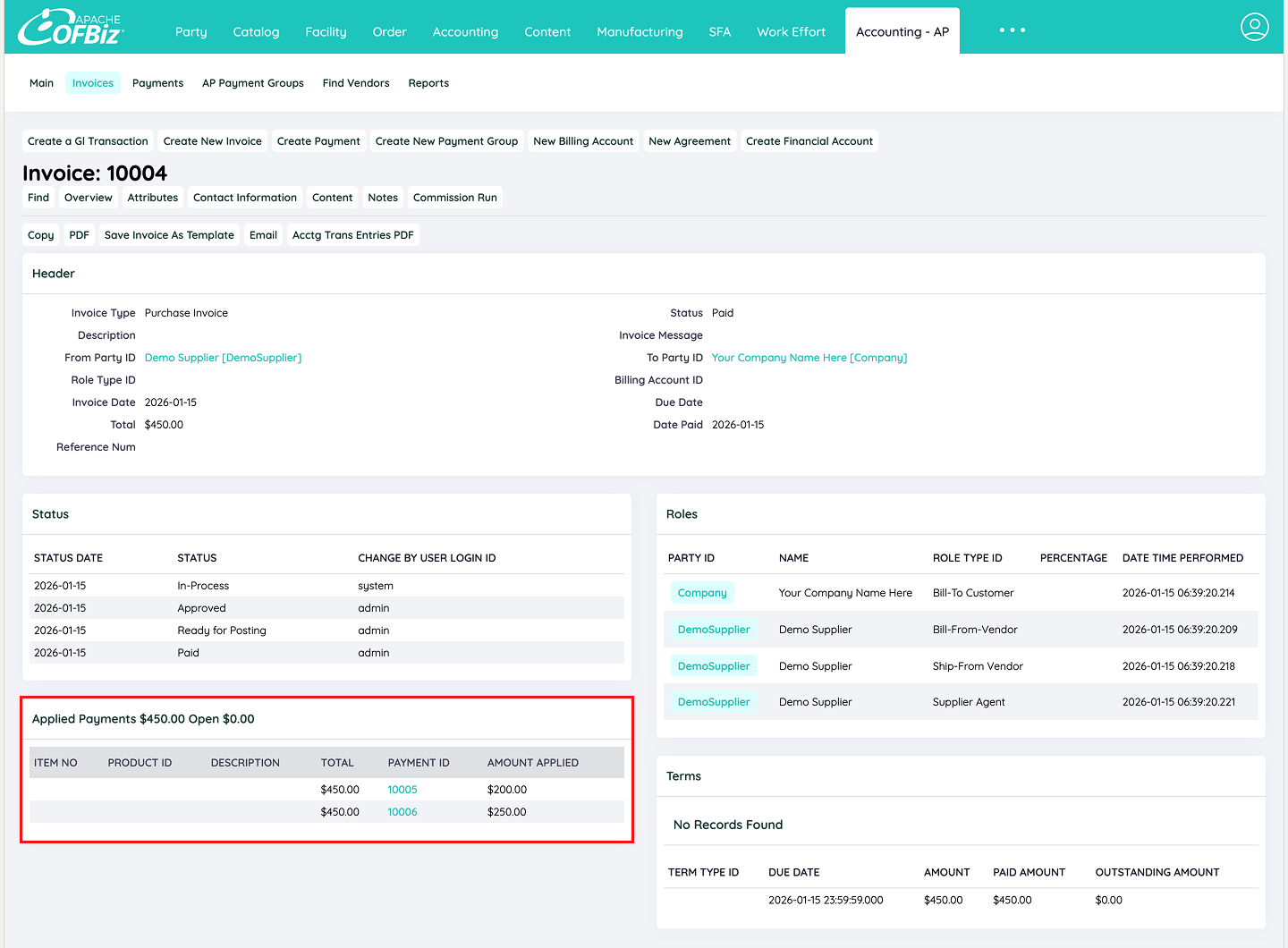
Key Notes
- The invoice remains open (status unchanged) until the full balance is paid.
- Partial payments update the supplier’s account and ledger entries progressively.
- You can view payment history on the invoice, supplier record, or in the Payments listing for auditing.
This approach gives you precise control over cash outflows while keeping the books accurate and supplier relationships smooth.
For the final scenario, i.e., consolidating multiple invoices, let’s go to the final section.
3. Aggregate Payments: Multiple Invoices → One Payment
This workflow is ideal for businesses that work with frequent or high-volume suppliers and prefer to consolidate multiple approved invoices into a single payment transaction. Instead of processing each invoice separately, you can select several invoices from the same supplier and settle them all at once, saving time and simplifying reconciliation.
How it works in practice
The payment creation process follows the same general flow as the standard single-invoice payment, with only a few key differences to handle multiple invoices. Here’s the step-by-step:
Start from Purchase Invoices
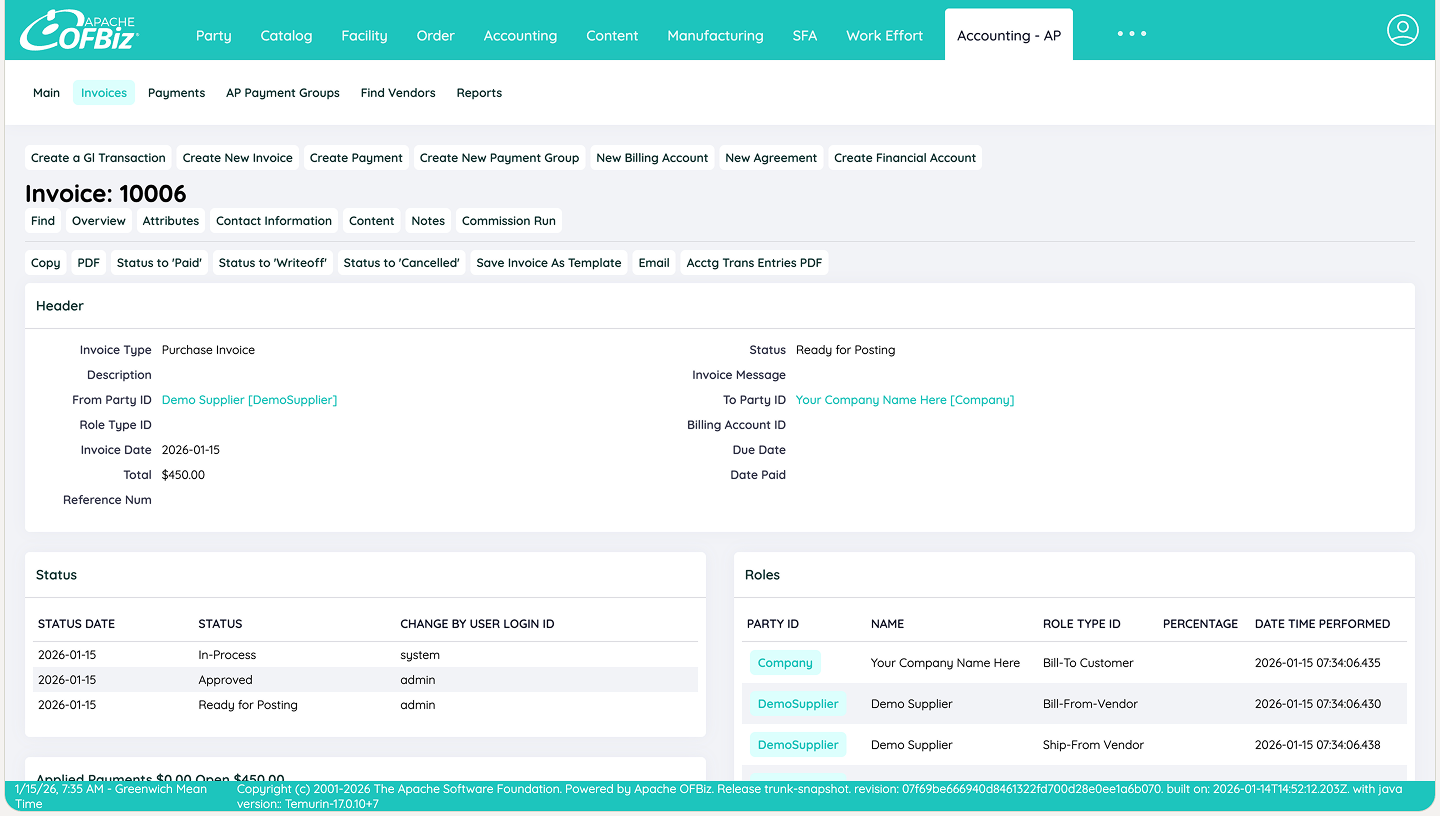
Below are 2 approved and ready invoices from the same supplier (as shown in the screenshot). Their combined grand total is $900. We will settle both with one payment.
(First Invoice)
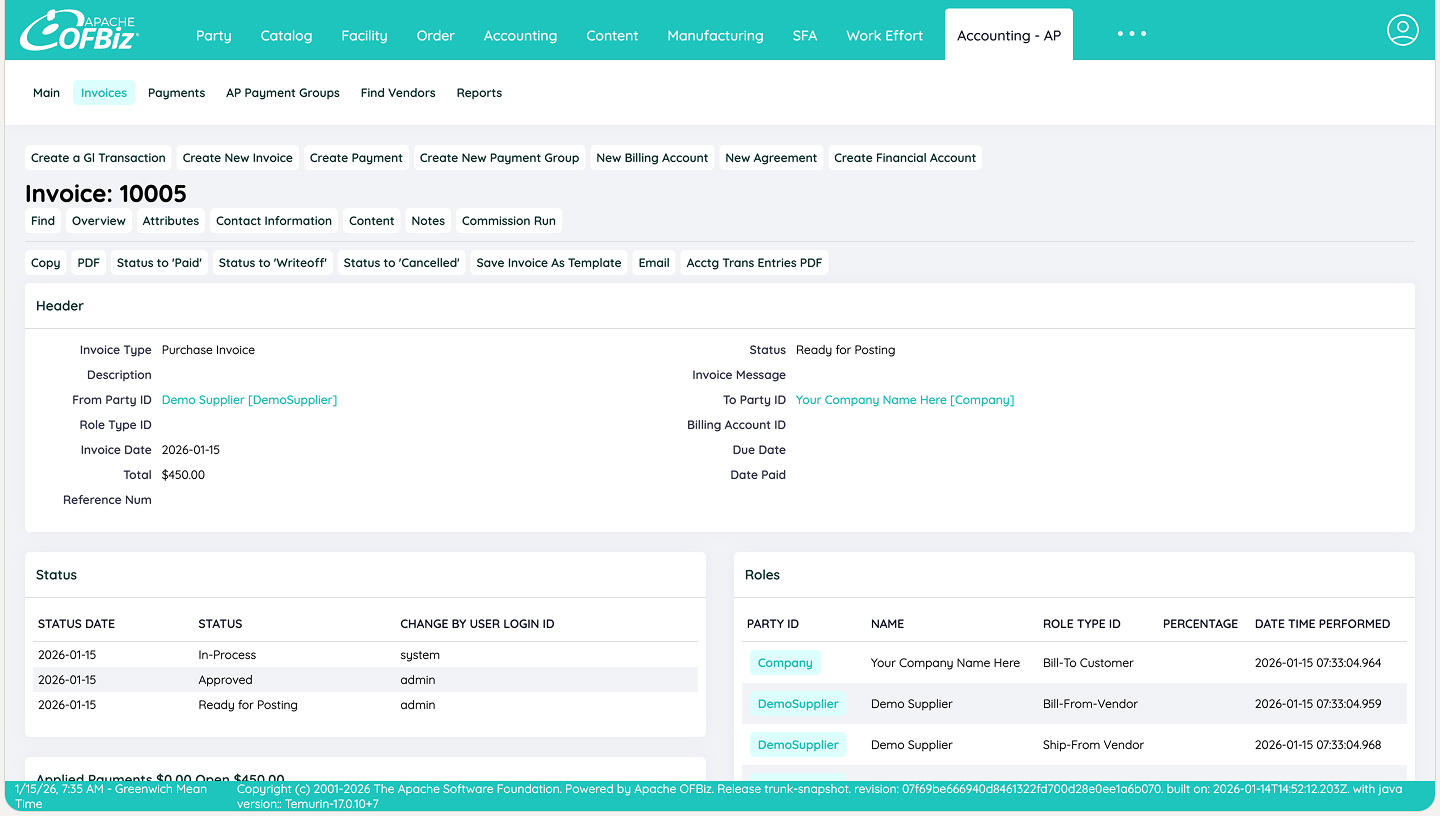
(Second Invoice)
Create a New Payment:
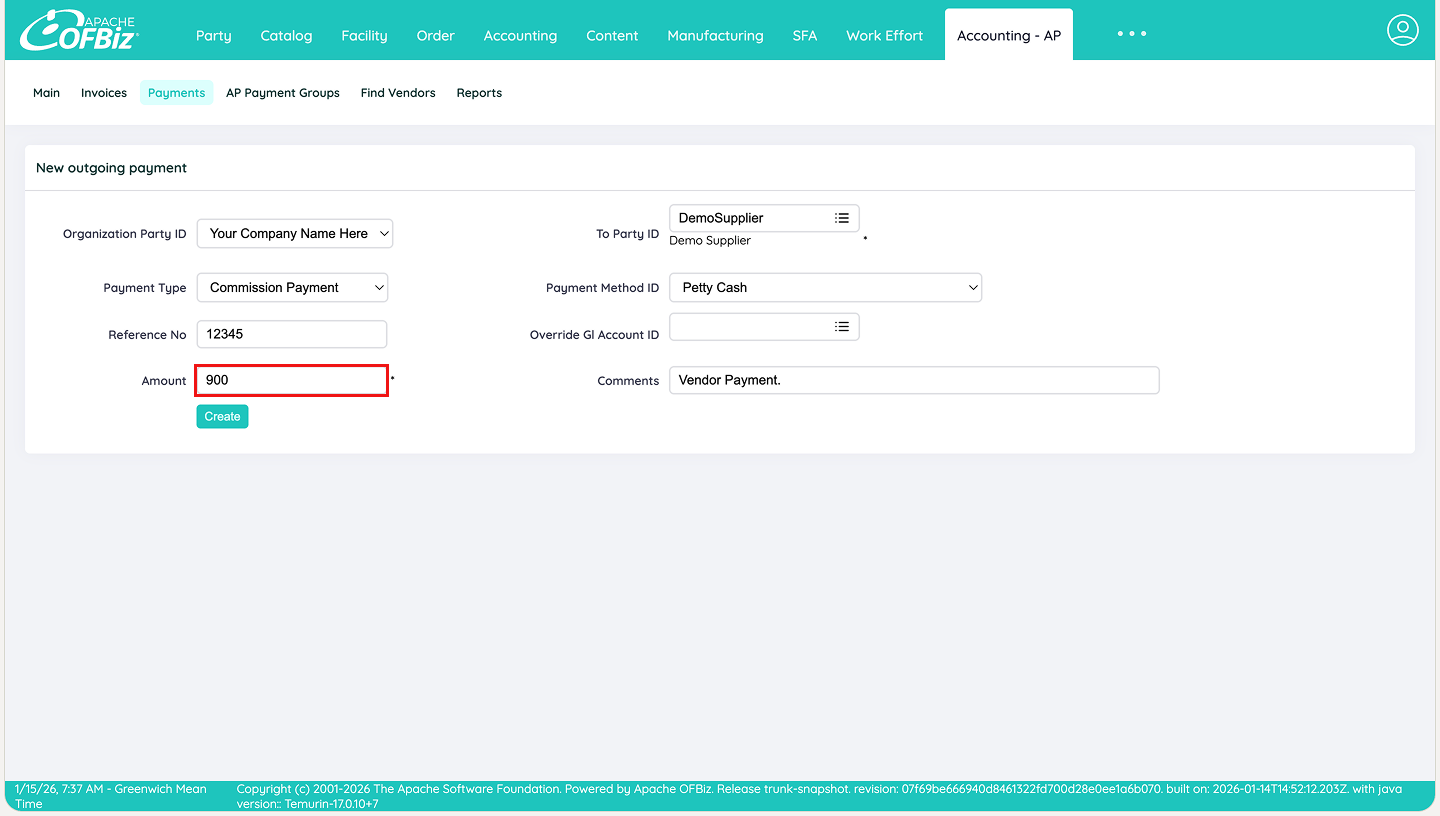
Create a new Payment. Enter the total payment amount (the grand total of all invoices you wish to settle, e.g., $900 for two invoices of $450 each). Select the supplier, payment method, reference (e.g., cheque number), and other details.
Apply the Payment to Multiple Invoices:
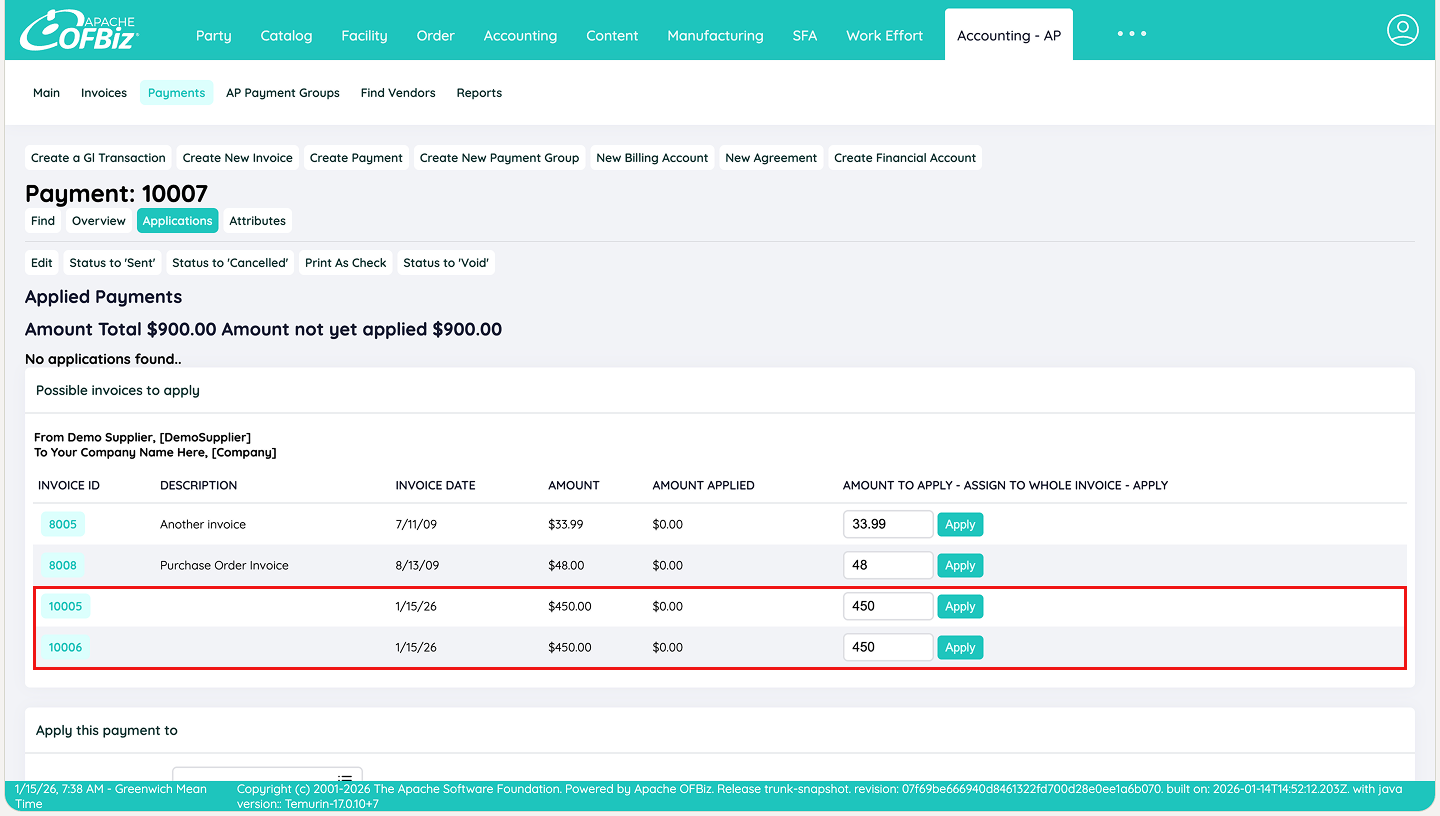
In the Apply Payment section, the system displays all open/approved invoices for the selected supplier. Check the box next to each invoice you want to settle (or select all).
You can manually override the amount applied to each invoice if needed (e.g., full amount to one, partial to another).
Click Apply to link the payment.
Check Invoice Details:
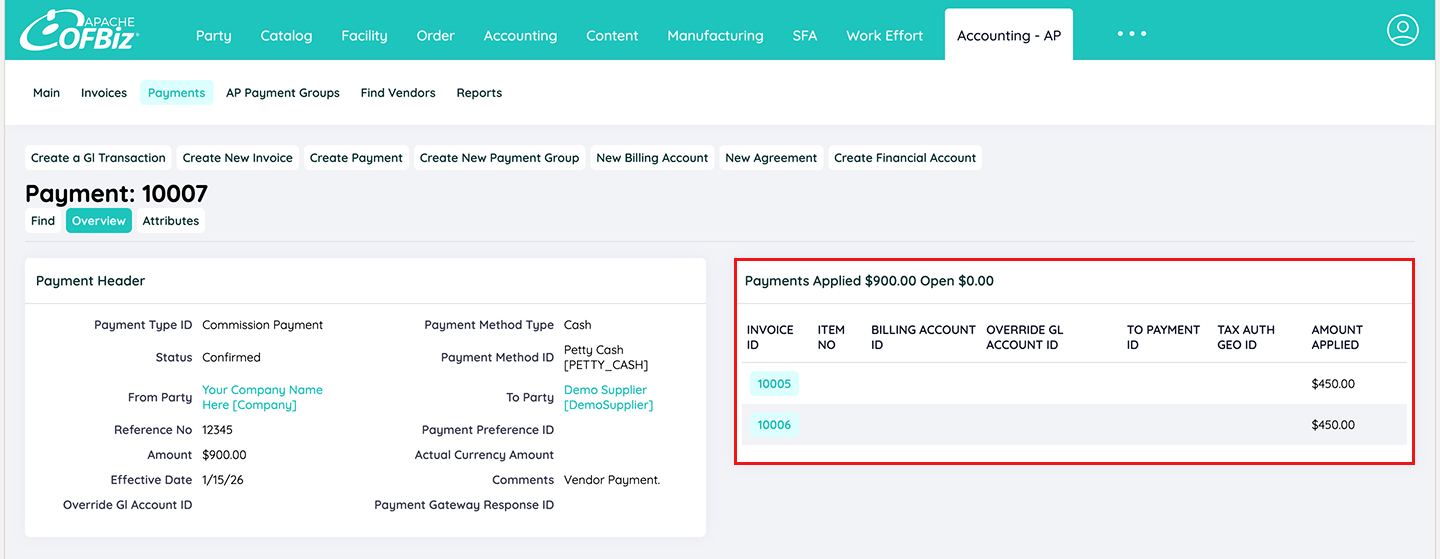
As you can observe, It shows all applied invoices, and total amount.
Verify on Individual Invoices:
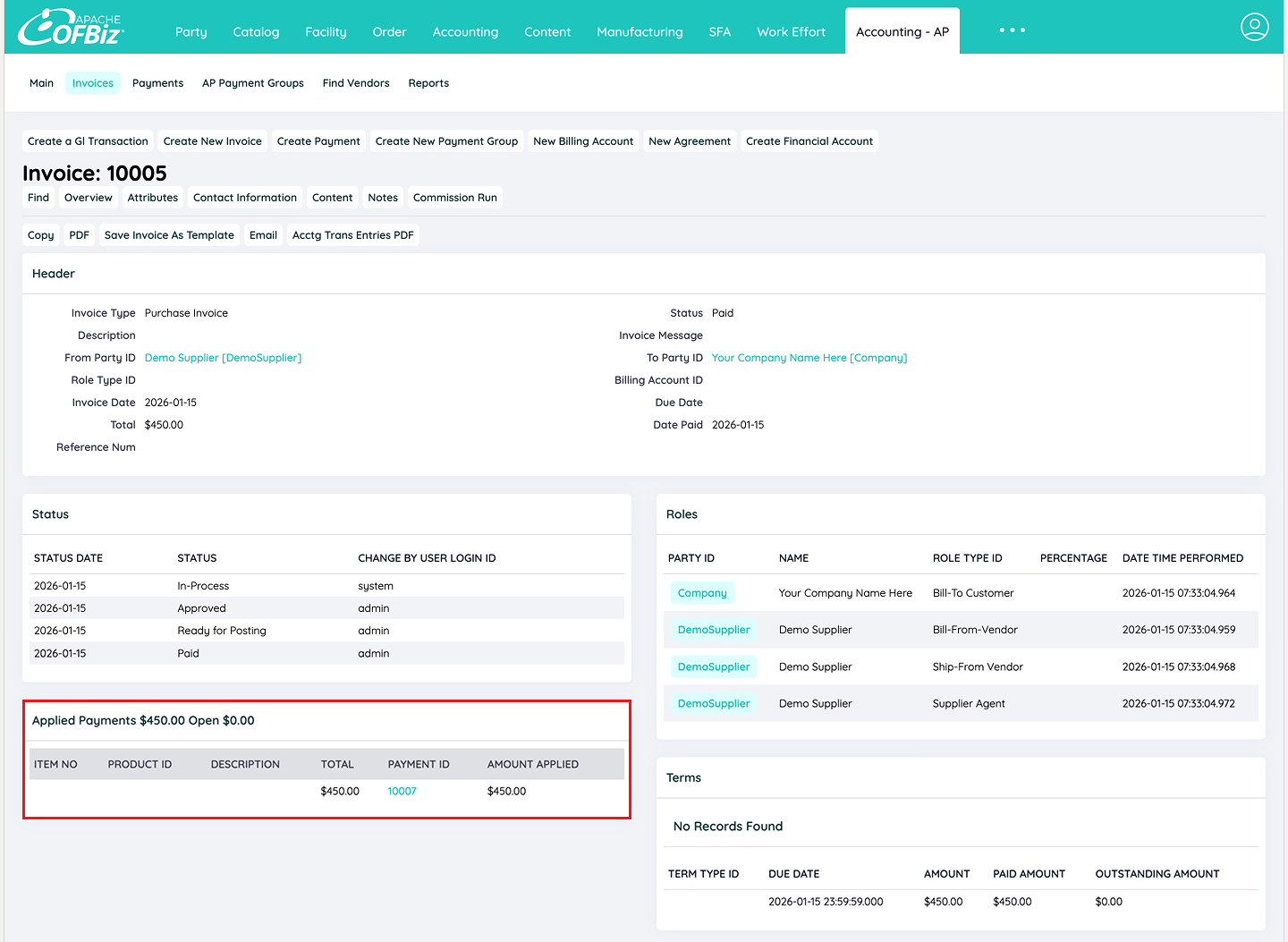
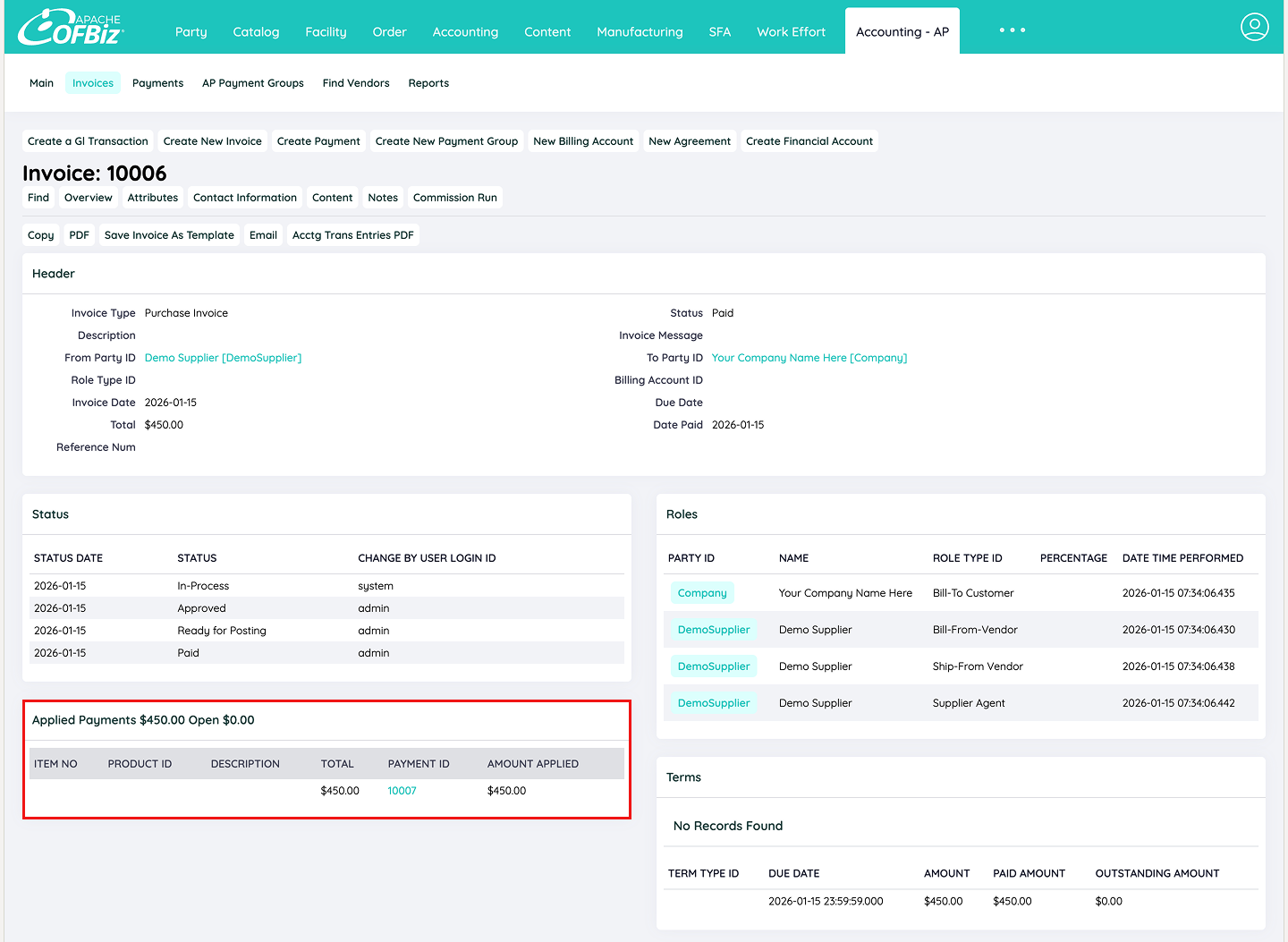
Open each affected invoice. The Payments Applied section now lists the same payment ID with the applied amount. The invoice balance is reduced or cleared to $0 as per the amounts that you applied.
(First Invoice)
(Second Invoice)
Key Notes
- The payment amount must equal or exceed the total of selected invoices (any overpayment becomes a credit).
- If an invoice is only partially settled, it remains open for future payments.
This method is efficient for high-volume suppliers, reduces transaction volume, and keeps your accounts payable clean and auditable.
Conclusion
This final step closes the loop on procurement. This guide, together with the earlier documents on Raising a Purchase Order, Receiving Items Against a Purchase Order and Invoicing Supplier Purchases, forms a comprehensive end-to-end reference for the procure-to-pay process in Apache OFBiz.