
Introduction
Currently Cloudstack accepts only URL's to register a template/volume. If the user has a downloaded template/volume available, user has to host it either on dropbox etc. or run web server so as to get downloadable url. It is desirable to be able to upload a template/volume directly through standard web browser.
This feature enables the users to directly upload the template/volume to Cloudstack and eliminates the dependency on an external http server. This will be a complementary functionality and users can continue to register template/volume with URL as well.
Use cases
- User wants to upload a template from the browser and launch a vm with it on Cloudstack
- User wants to upload a volume from the browser and attach it to a vm on Cloudstack
Functional Requirements
- Support upload of template through https POST request with pre-generated URL
- Support upload of volume through https POST request with pre-generated URL
- Template/volume upload failure is irrecoverable, it needs to be reinitiated by requesting a new upload url
- Cleanup of partially uploaded templates/volumes in case of failure
- Provide upload status using the list templates/volumes api call
- Global configuration parameter to limit the max upload size of template/volume
- Enforcement of account limits for templates/volumes
- This feature is hypervisor agnostic and should work for all hypervisors
Out of Scope
Support for Http/unencrypted upload
- Upload progress during POST request
Splitting of template/volume during upload and merge back
Ability to cancel in-progress uploads by admin
- Upload for template/volume with more than one file will not be supported
Process Flow
The browser-based uploading process will have the following steps:
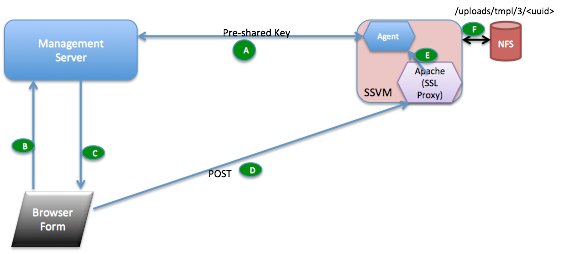
- Management Server generates a unique pre-shared key (PSK) and shares it with the SSVM agent.
- New API request "getUploadParamsForVolume/Template" encoded the usual Cloudstack API way using api keys. Request parameters include format, hypervisor, md5 sum etc.
- Management Server response to (b) returns post url to upload the file, encrypted metadata to send to the url while uploading the volume/template file and a SHA1 signature generated using PSK.
- User should upload the file over https POST request to the url obtained in (c). The signature and metadata returned in (c) should be passed as is.
- The Apache web server on the SSVM matches the url, decrypts and passes on to the SSVM java agent as plain HTTP. The SSVM agent checks the signature against the decrypted metadata using the key PSK and SHA1. Once the data is verified, it writes to the NFS storage to the location encoded in the URL.
- Once the upload completes, the MD5 checksum is compared (if available from step c).
API changes
New APIs getUploadParamsForVolume/getUploadParamsForTemplate to enable users to upload volume/template from a local or network file share. The API response has a POST URL to which the volume/template needs to be uploaded. These are available to regular and admin users of Cloudstack. The request and response parameters are described below. Required parameters are marked with 'required'. Some of the parameters are exclusive for admin user and are marked 'admin only'.
GetUploadParamsForVolume
- Request
- name: the name of the volume : required
- format: the format of the volume to be uploaded. Possible values for volume include QCOW2, OVA and VHD. : required
- zoneid: the UUID of the zone the volume is associated to : required
- checksum: the MD5 checksum of volume to be uploaded. If specified this is used to validate the content of the uploaded volume for integrity.
- account: an optional account name. Must be used with 'domainid' parameter below. Defaulted to account name of caller if not specified.
- domainid: an optional domain to which the account belongs. If the account parameter is used, 'domainid' must also be used. Defaulted to domain of the caller if not specified.
- projectid: the UUID of the project if the volume needs to be associated with one
- imagestoreuuid: the UUID of the storage pool where the uploaded volume gets stored. This can be obtained using listImageStores API call (https://cloudstack.apache.org/docs/api/apidocs-4.4/root_admin/listImageStores.html)
- diskofferingid: the UUID of the disk offering. This must be a custom disk offering as the volume size is not known before the actual upload. If not specified the default custom disk offering is used.
- Response
- uuid: Unique UUID to identify the volume. This is used to query the status of volume after successful completion of upload
- postURL: POST url to upload the file to; for e.g. "https://1-2-3-4.xyz.com/upload/uuid", where 1-2-3-4 is derived from SSVM public IP 1.2.3.4, and xyz.com is the domain name registered with Cloudstack. For more details refer to section "POST URL" below.
- metadata: encrypted data to be sent in the POST request. This is used to transfer some internal meta-data required for upload
- expires: the timestamp after which the signature expires
- signature: signature is SHA1 key generated using PSK based on 'postURL', 'metadata' and 'expires' in the response. This is used to validate that the actual POST request to upload data is a genuine one
GetUploadParamsForTemplate
- Request
- name: the name of the template : required
- format: the format of the template to be uploaded. Possible values for template include QCOW2, RAW and VHD : required
- zoneid: the UUID of the zone the template is associated to : required
- displaytext: the display text of the template. This is used for setting a suitable name for display purposes. : required
- hypervisor: the target hypervisor for the template : required
- ostypeid: the UUID of the OS type that best represents the OS of this template : required
- checksum: the MD5 checksum of template to be uploaded. If specified this is used to validate the content of the uploaded template for integrity.
- account: an optional account name. Must be used with 'domainid' parameter below. Defaulted to account name of caller if not specified.
- domainid: an optional domain to which the account belongs. If the account parameter is used, 'domainid' must also be used. Defaulted to domain of the caller if not specified.
- projectid: the UUID of the project if the template needs to be associated with one
- bits: specifies if template supports 32 or 64 bit. Default is 64 bit.
- details: additional template details in key/value pairs
- isdynamicallyscalable: true if template contains XS/VMWare tools in order to support dynamic scaling of VM cpu/memory
- isextractable: true if the template or its derivatives are extractable. Default is false
- isfeatured: true if the template is a featured template. Default is false. : admin only
- ispublic: true if the template is available to all users. Default is true. Regular users are allowed to create public templates based on global config 'allow.public.user.templates'
- isrouting: true if the template type is routing i.e. if template is used to deploy router : admin only
- passwordenabled: true if the template supports the password reset feature. Default is false.
- requireshvm: true if this template requires hardware assisted virtualization support
- sshkeyenabled: true if the template supports the sshkey upload feature. Default is false.
- templatetag: the tag for this template. Used to deploy VMs on hosts with this tag. : admin only
- Response
- uuid: Unique UUID to identify the template. This is used to query the status of template after successful completion of upload
- postURL: POST url to upload the file to; for e.g. "https://1-2-3-4.xyz.com/upload/uuid", where 1-2-3-4 is derived from SSVM public IP 1.2.3.4, and xyz.com is the domain name registered with Cloudstack. For more details refer to section "POST URL" below.
- metadata: encrypted data to be sent in the POST request. This is used to transfer some internal meta-data required for upload
- expires: the timestamp after which the signature expires
- signature: signature is SHA1 key generated using PSK based on 'postURL', 'metadata' and 'expires' in the response. This is used to validate that the actual POST request to upload data is a genuine one
GetUploadParamsForVolume API call
http://managementip:8080/client/api?command=getUploadParamsForVolume&response=json&sessionkey=TW1GLzPclNGgKtoYN5Xznbw8Nds%3D&name=windows&zoneId=c2bcad2f-1eb1-45ba-bebe-1c21873831b7&format=VHD&apiKey=miVr6X7u6bN_sdahOBpjNejPgEsT35eXq-jB8CG20YI3yaxXcgpyuaIRmFI_EJTVwZ0nUkkJbPmY3y2bciKwFQ&signature=Lxx1DM40AjcXU%2FcaiK8RAP0O1hU%3D
Volume response
{
postURL:https://1-2-3-4.xyz.com/upload/C7D351D2-F167-4CC8-A9FF-3BECB0A625C4,
metadata:TKPFeuz2nHmE/kcREEu24mnj1MrLdzOeJIHXR9HLIGgk56bkRJHaD0RRL2lds1rKKhrro4/PuleEh4YhRinhxaAmPpU4e55eprG8gTCX0ItyFAtlZViVdKXMew5Dfp4Qg8W9I1/IsDJd2Kas9/ftDQLiemAlPt0uS7Ou6asOCpifnBaKvhM4UGEjHSnni1KhBzjgEyDW3Y42HKJSSv58Sgmxl9LCewBX8vtn9tXKr+j4afj7Jlh7DFhyo9HOPC5ogR4hPBKqP7xF9tHxAyq6YqfBzsng3Xwe+Pb8TU1kFHg1l2DM4tY6ooW2h8lOhWUkrJu4hOAOeTeRtCjW3H452NKoeA1M8pKWuqMo5zRMti2u2hNZs0YY2yOy8oWMMG+lG0hvIlajqEU=,
signature:de7c9b85b8b78aa6bc8a7a36f70a90701c9db4d9,
expires: 2014-10-17T12:00:00+0530,
uuid:C7D351D2-F167-4CC8-A9FF-3BECB0A625C4
}
GetUploadParamsForTemplate API call
http://managementip:8080/client/api?command=getUploadParamsForTemplate&type=template&response=json&name=centos 64 64bit&displayText=centos 64 64bit&zoneid=-1&format=VHD&isextractable=false&passwordEnabled=false&isdynamicallyscalable=false&osTypeId=1b510c30-3352-11e4-aaca-a5c7f57670d0&hypervisor=XenServer&requireshvm=false&apiKey=miVr6X7u6bN_sdahOBpjNejPgEsT35eXq-jB8CG20YI3yaxXcgpyuaIRmFI_EJTVwZ0nUkkJbPmY3y2bciKwFQ&signature=Lxx1DM40AjcXU%2FcaiK8RAP0O1hU%3D
Template response
{
postURL:https://1-2-3-4.xyz.com/upload/DD0A9FC6-C17E-4180-963C-870B9D03A80A,
metadata:TKPFeuz2nHmE/kcREEu24mnj1MrLdzOeJIHXR9HLIGgk56bkRJHaD0RRL2lds1rKKhrro4/PuleEh4YhRinhxaAmPpU4e55eprG8gTCX0ItyFAtlZViVdKXMew5Dfp4Qg8W9I1/IsDJd2Kas9/ftDQLiemAlPt0uS7Ou6asOCpifnBaKvhM4UGEjHSnni1KhBzjgEyDW3Y42HKJSSv58Sgmxl9LCewBX8vtn9tXKr+j4afj7Jlh7DFhyo9HOPC5ogR4hPBKqP7xF9tHxAyq6YqfBzsng3Xwe+Pb8TU1kFHg1l2DM4tY6ooW2h8lOhWUkrJu4hOAOeTeRtCjW3H452NKoeA1M8pKWuqMo5zRMti2u2hNZs0YY2yOy8oWMMG+lG0hvIlajqEU=,
signature:de7c9b85b8b78aa6bc8a7a36f70a90701c9db4d9,
expires: 2014-10-17T12:00:00+0530,
uuid:DD0A9FC6-C17E-4180-963C-870B9D03A80A
}
POST URL to post the data on to SSVM. This post url is returned from the getUploadParamsForVolume/Template api calls
Ex: https://1-2-3-4.xyz.com/upload/uuid
As seen in the example, the URL has a domain name (in this case xyz.com) and a prefix (in this case 1-2-3-4). The reason for having a domain name is that SSL certs can only issued for a domain and not any IP address. The domain name to be used is configured using the global config "secstorage.ssl.cert.domain". The prefix is to identify the SSVM based on its public IP address. So if the public IP is 1.2.3.4 then the prefix is 1-2-3-4. This approach for generating the URL is already present in Cloudstack. Refer (1) and (2) for more details.
- As can be seen from the description of 'signature' above, the user should't tamper with the values of postURL, metadata, expires while making the POST request. Otherwise it would result in an upfront failure during POST request.
- Request: (this is a POST request)
- metadata: encrypted data returned from getUploadParams API call: required
- file: the location of the template/volume to be posted as multipart/form-data: required
- signature: signature returned from getUploadParams API call: required
- expires: expires returned from getUploadParams API call: required
- Response:
- '200 OK' on successful upload
- '401 authorization error' incase the signature key validation or any other validation failed
- '500 internal server error' incase the file upload fails with clear error message
- '409 conflict' incase there is already another upload with same params in-progress/success/error
Volume upload request
curl -X POST "https://1-2-3-4.xyz.com/upload/C7D351D2-F167-4CC8-A9FF-3BECB0A625C4" -F "file=@volume.vhd" -F "signature=de7c9b85b8b78aa6bc8a7a36f70a90701c9db4d9" -F "metadata=TKPFeuz2nHmE/kcREEu24mnj1MrLdzOeJIHXR9HLIGgk56bkRJHaD0RRL2lds1rKKhrro4/PuleEh4YhRinhxaAmPpU4e55eprG8gTCX0ItyFAtlZViVdKXMew5Dfp4Qg8W9I1/IsDJd2Kas9/ftDQLiemAlPt0uS7Ou6asOCpifnBaKvhM4UGEjHSnni1KhBzjgEyDW3Y42HKJSSv58Sgmxl9LCewBX8vtn9tXKr+j4afj7Jlh7DFhyo9HOPC5ogR4hPBKqP7xF9tHxAyq6YqfBzsng3Xwe+Pb8TU1kFHg1l2DM4tY6ooW2h8lOhWUkrJu4hOAOeTeRtCjW3H452NKoeA1M8pKWuqMo5zRMti2u2hNZs0YY2yOy8oWMMG+lG0hvIlajqEU=" -F "expires=2014-10-17T12:00:00+0530" -v
Volume response
200 OK
Template upload request
curl -X POST "https://1-2-3-4.xyz.com/upload/DD0A9FC6-C17E-4180-963C-870B9D03A80A" -F "file=@templatelocation.vhd" -F "signature=de7c9b85b8b78aa6bc8a7a36f70a90701c9db4d9" -F "metadata=TKPFeuz2nHmE/kcREEu24mnj1MrLdzOeJIHXR9HLIGgk56bkRJHaD0RRL2lds1rKKhrro4/PuleEh4YhRinhxaAmPpU4e55eprG8gTCX0ItyFAtlZViVdKXMew5Dfp4Qg8W9I1/IsDJd2Kas9/ftDQLiemAlPt0uS7Ou6asOCpifnBaKvhM4UGEjHSnni1KhBzjgEyDW3Y42HKJSSv58Sgmxl9LCewBX8vtn9tXKr+j4afj7Jlh7DFhyo9HOPC5ogR4hPBKqP7xF9tHxAyq6YqfBzsng3Xwe+Pb8TU1kFHg1l2DM4tY6ooW2h8lOhWUkrJu4hOAOeTeRtCjW3H452NKoeA1M8pKWuqMo5zRMti2u2hNZs0YY2yOy8oWMMG+lG0hvIlajqEU=" -F "expires=2014-10-17T12:00:00+0530" -v
Template response
200 OK
Query status of uploaded template/volume
User should be able to query the status of uploaded template/volume by calling listtemplates/listvolumes API with unique uuid obtained as part of the getUploadParams response (present in POST URL as mentioned above). The polling for status should start on successful completion of the POST request.
Volume status check request
http://managementip:8080/client/api?command=listVolumes&id=C7D351D2-F167-4CC8-A9FF-3BECB0A625C4&response=json&apiKey=miVr6X7u6bN_sdahOBpjNejPgEsT35eXq-jB8CG20YI3yaxXcgpyuaIRmFI_EJTVwZ0nUkkJbPmY3y2bciKwFQ&signature=Lxx1DM40AjcXU%2FcaiK8RAP0O1hU%3D
Volume status response
{ "listvolumesresponse" : { "count":1 ,"volume" : [ {"id":"C7D351D2-F167-4CC8-A9FF-3BECB0A625C4","name":"windows","zoneid":"c2bcad2f-1eb1-45ba-bebe-1c21873831b7","zonename":"zone","type":"DATADISK","provisioningtype":"thin","size":0,"created":"2014-10-17T15:24:06+0530","state":"Uploading","account":"admin","domainid":"fad51d88-449b-11e4-9cf2-2d5524b62490","domain":"ROOT","storagetype":"shared","hypervisor":"XenServer","diskofferingid":"a1bb6667-780c-47ad-91cb-b98aed589c18","diskofferingname":"Custom","diskofferingdisplaytext":"Custom Disk","destroyed":false,"isextractable":true,"status":"1% Uploaded","tags":[],"displayvolume":true,"quiescevm":false} ] } }
Template status check request
http://managementip:8080/client/api?command=listTemplates&response=json&templatefilter=self&id=DD0A9FC6-C17E-4180-963C-870B9D03A80A&apiKey=miVr6X7u6bN_sdahOBpjNejPgEsT35eXq-jB8CG20YI3yaxXcgpyuaIRmFI_EJTVwZ0nUkkJbPmY3y2bciKwFQ&signature=Lxx1DM40AjcXU%2FcaiK8RAP0O1hU%3D
Template status response
{ "listtemplatesresponse" : { "count":1 ,"template" : [ {"id":"DD0A9FC6-C17E-4180-963C-870B9D03A80A","name":"centos 64 64bit","displaytext":"centos 64 64bit","ispublic":false,"created":"2014-10-17T10:54:40+0530","isready":false,"passwordenabled":false,"format":"tar","isfeatured":false,"crossZones":false,"ostypeid":"1b510c30-3352-11e4-aaca-a5c7f57670d0","ostypename":"CentOS 6.2 (64-bit)","account":"admin","zoneid":"c2bcad2f-1eb1-45ba-bebe-1c21873831b7","zonename":"zone","status":"8% Downloaded","templatetype":"USER","hypervisor":"XenServer","domain":"ROOT","domainid":"fad51d88-449b-11e4-9cf2-2d5524b62490","isextractable":true,"details":{"hypervisortoolsversion":"xenserver61"},"tags":[],"sshkeyenabled":false,"isdynamicallyscalable":false} ] } }
Failed uploads
If the template/volume fails to upload (HTTP code other than 200 OK), the user should request for a new upload url and upload it again. The same upload URL shouldn't be reused.
Design
Pre-shared key management
This section covers when and how the pre-shared key is generated by management server, how is it stored, how is it passed to SSVM
- On start of management server, if the key doesn't exist, it auto-generates one using SHA1 and stores it in db
- Key is saved in encrypted form (if db encryption is enabled) in the configuration table as hidden configuration with name upload.post.secret.key
- During SSVM start-up, the key is passed on to it by management server
- SSVM stores this key in a file at /etc/cloudstack/agent/ms-psk
- If the key sharing fails SSVM agent would shut itself down
- Updating the PSK would involve the following:
- Delete the upload.secret.key config from configuration table in db (manual step)
- Restart the MS, so that it gets regenerated again (manual step)
- Destroy all the existing SSVMs (manual step)
- When the new SSVMs starts up the key is copied to it
- There will be a window when the key is not in sync between management server and SSVMs
Signature generation and verification
The signature returned from the management server in the response of getUploadParams will be validated on the SSVM Agent.
- The signature is generated using SHA1 and the PSK on the metadata, expires and postURL
- Management server and SSVM machines should be in time sync for the verification to work
- On the SSVM agent, it first checks if the expires has crossed
- It computes hash on metadata, expires and postURL using SHA1 and PSK and rejects the request if they do not match.
- The postURL, expires and metadata returned from getUploadParamsForVolume/Template shouldn't be tampered by the user. Else, signature validation would fail.
Encryption and decryption of 'metadata'
The PSK will also be used to encrypt and decrypt the metadata sent from the management server in the api response and received on the SSVM agent in the api request.
- jasypt library with PBEWITHSHA1ANDDESEDE algorithm and the initial PSK will be used to encrypt and decrypt the metadata.
- Management server encrypts the data using the method in #1 and returns the encrypted string in the response
- SSVM Agent, after receiving the metadata, decrypts it using the method in #1 and then does signature validation.
Unencrypted metadata
The unencrypted metadata is a JSON string having all the necessary information to store the uploaded volume/template to secondary store. For a template it looks something like below.
{"store":{"com.cloud.agent.api.to.NfsTO":"nfs://10.147.28.7/export/home/rajani/lxc/secondary"},"hvm":false,"description":"lxc1","maxDownloadSizeInBytes":53687091200,"id":207,"resourceType":"TEMPLATE","installPath":"template/tmpl/2/207","format":"TAR","accountId":2,"name":"207-2-09c78adc-065f-3dc8-9621-9e7a036d7dc9"}
Sequence Diagram
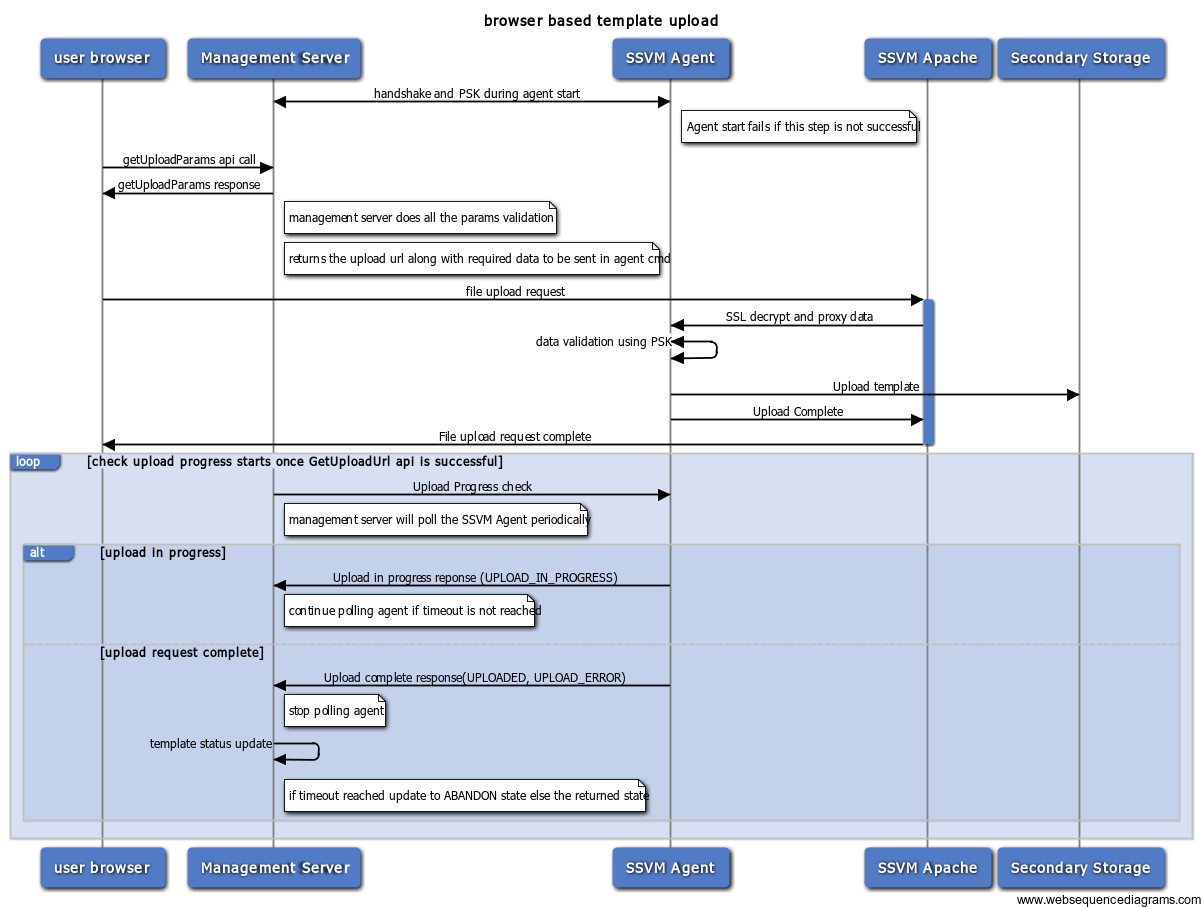
Management server and SSVM agent interaction
When the management server receives getUploadParams api call, it selects SSVM and secondary store in the zone requested by the user and returns a POST url to that SSVM. There can be multiple SSVMs in the same zone. Management servers decides which SSVM to handle this based on the load.
SSVM agent will keep track of all upload status assigned to it and sends it to management server (based on management server initiated polling). If the template/volume is selected to be cross-zone, it will uploaded to one zone and then copied to other zones from it (already existing functionality).
Management server owns the lifecycle of volume/template (initially gets created with upload state as "NOT_UPLOADED"). It polls the SSVM agent (using an already existing agent command) to get the status and triggers appropriate state transitions. Polling starts after the successful completion of the getUploadParams API. The polling 'interval' and 'timeout' are determined by global configuration parameters.
Failure at any point during the upload process to SSVM would result in upload state getting transitioned to "UPLOAD_ERROR" (refer to the state machine below). Also if the upload is not completed within 'timeout' configuration the state transitions to "UPLOAD_ERROR". This will take care of SSVM agent failure/SSVM failure scenarios.
If the management server itself goes down during the upload, the polling is resumed by the new management server that takes ownership of the SSVM. The 'timeout' is always taken in account from the time template entry gets created in db.
SSVM selection logic
TBD - check existing code and reuse
SSVM agent and SSVM apache interaction
The SSVM agent will listen for any connections from Apache web server (using the NioServer utility). It will be using the localhost and port number (come from a configuration) to listen.
SSVM apache proxies the data from https to http url on localhost:port using ProxyPass.
All the http events and data will be proxied by apache to agent. SSL validation only happens at apache layer.
Upload lifecycle
Upload failures
The below failures can happen while SSVM agent is receiving the template. When management server polls for the status of the template/volume, if any of these below errors happen, the agent returns appropriate information and management server transitions the state accordingly.
- pre-validation errors (file upload hasn't started yet)
- SSL handshake failed
- params validation with PSK failed
- max file size from the header crossed the limit
- post validation error
- file successfully uploaded
- file uploaded is not of the type specified (for ex: if the template is said to be of type tar, the actual downloaded file is not if this type)
- max upload limit crossed
- partial file upload (http errors can be caught through appropriate event handlers: exception,timeout,closed (http://hc.apache.org/httpcomponents-core-ga/tutorial/html/nio.html))
- user stopped/canceled the post request before completion
- uploading the template failed due to a network issue
- browser request timed out
- browser crashed
- SSVM is down/restarted
- SSVM apache down/restarted
- secondary storage is not accessible
- there isn't enough space in secondary storage and hence agent can't write to it
Upload success
The process is considered success If the volume/template upload is successfully completes (and installed in case of template) within the polling timeout. In this case agent returns a success status to management server during the polling.
State machine
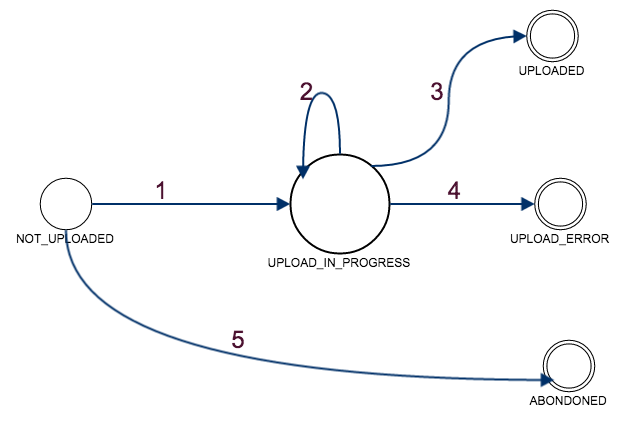
Template/Volume go through below state machine transitions, when it goes through the browser based upload.
States:
NOT_UPLOADED: getUploadParams API was successful and the template is registered. But, upload hasn't started yet (agent has no data about this upload)
UPLOAD_IN_PROGRESS: User has initiated the POST request on SSVM Apache and the validation/upload is in progress
UPLOADED: SSVM agent successfully copied the template/volume to secondary storage
UPLOAD_ERROR: Any failure in between user initiating the POST request and template being downloaded OR failure to complete within configured timeout
ABANDONED: the POST request isn't initiated within the configured timeout. In this case the SSVM agent has no record of the upload (TBD: Do we really need to distinguish ERROR and ABANDONED?)
State Transitions:
- Transition1: This state transition happens, when the user initiates the post request
- Transition2: Upload is in progress
- Transition3: On successful completion upload/copy (and installation in case of template) to secondary storage
- Transition4: This can happen in multiple ways outlined in the failures section above. All these errors will result in the same state for the template/volume as there isn't any way to recover from them or the handling isn't different for these. Additional error information will be provided in the form of a message for respective errors in the agent logs.
- Transition5: The POST request hasn't been initiated and the timeout has reached
Cleanup
A cleanup thread will be running at regular intervals (configurable, provide details). It will pick up all volume/template with upload state as "UPLOAD_ERROR" and "ABANDONED" and send agent command to cleanup any partial data from secondary store. The cleanup will be a best-effort approach.
Recovery mechanisms
There isn't any recovery or retry mechanism as this is a POST request. Once error happens user gets notified with a clear error message as part of the response. The template/volume will remain in the error state and admin will be able to troubleshoot it based on the appropriate log messages in management server log, agent log, apache access/error log files. This failed entries will eventually get be cleaned by the cleanup process. The user has to reinitiate the upload by calling getUploadParams API again.
One time POST url and parallel uploads
The POST url returned by the management server to upload template/volume is expected to be used only once. If there is a download in-progress/error/success state for template/volume in the URL and the SSVM agent gets a new request for the same URL, the agent rejects this request saying there is another download in progress (409 conflict).
Open item: The limitation here is that if the template/volume cleanup happened and the template is cleaned, agent would start accepting the url again. This will be fixed later.
DB Changes
No schema changes. Some configuration items will be created.
Configurations
The following new configurations will be added
- Global configuration to limit the max upload size of template/volume - upload.post.max.size
- hidden configuration to save sha1 PSK on the management server - upload.post.psk
- management server upload polling interval and polling timeout - upload.post.interval, upload.post.timeout
- time interval at which the GC or cleanup thread should run - upload.post.gc.interval
Security
- The NFS Store url, path and some other information are exposed to the end user in the response to getUploadParams. This is done so that agent gets all the information required to upload the template with the POST request. One option can be to encrypt the entire JSON and then send it across as part of response
- The Apache web server will only accept upload requests over HTTPS
- Proxy between apache and agent is internal to the SSVM. Hence no security threat here.
- SSVM PSK location can only be accessed by admin. Hence no security threat.
Performance
- To increase the number of parallel uploads, multiple SSVMs needs to be created. This will be handled automatically by the management server using the SSVM scale up mechanism (system.vm.auto.reserve.capacity, secstorage.capacity.standby and secstorage.session.max configuration variables). More uploads for a SSVM results in more polling related agent commands going to the SSVM and that should exhaust the session.max limit and result in spawning new SSVM. The SSVM selector logic then should pick up an SSVM during the request.
- TBD: number of parallel uploads a single SSVM can handle
UI Changes
UI to upload volume/template which should be able to accept "browse and upload" file. Existing UI for volume/template upload will be extended with the browser-based upload functionality.
UI flow for Templates:
- User navigates to the Templates page then clicks on "Register template" (existing screen)
- Register template form pops up (existing screen)
- User has now the choice to provide URL of the template (existing functionality) or Upload File from Browser (new functionality)
- Selects File Upload from Browser then specifies the template file (Browse...) to be uploaded
- User fills in other existing form fields
- User clicks OK to submit the form
- Browser UI requests an unique upload URL using the getUploadParamsForTemplate api call
- Management server returns an upload url, encrypted metadata string which should be passed on to the upload url while doing the upload
- Browser starts uploading using POST request to the upload URL
- The post request completes once the template is uploaded or there was an error uploading.
- The user can close the dialog (POST request should still be active) and use list templates API result to check the status of it
UI flow for Volume/ISO:
- User navigates to the Templates page then switches to ISO using the "Select view" selector, then the user clicks on "Register ISO" (existing screen)
- Register ISO form pops up (existing screen)
- User has now the choice to provide URL of the volume/ISO (existing functionality) or Upload File from Browser (new functionality)
- Selects File Upload from Browser then specifies the volume/ISO file (Browse...) to be uploaded
- User fills in other existing form fields
- User clicks OK to submit the form
- Browser UI requests an unique upload URL using the getUploadParamsForVolume api call
- Management server returns an upload url, encrypted metadata string which should be passed on to the upload url while doing the upload
- Browser starts uploading using POST request to the upload URL
- The post request completes once the template is uploaded or there was an error uploading.
- The user can close the dialog (POST request should still be active) and use listvolumes API result to check the status of it
Open Issues
- PSK length - for now it can be a fixed length, later on it can be made configurable.
Upload url should be active only for one call - Its partially handled now. The limitation needs to be addressed.
- Recommended configuration of SSVM and apache web server
Reference
- Procedure to Replace realhostip.com with Your Own Domain Name
- Implementation details and troubleshooting - uploading custom domain certificate instead of using realhostip.com
Bug Reference & Branch
CLOUDSTACK-....
volume-upload branch off master