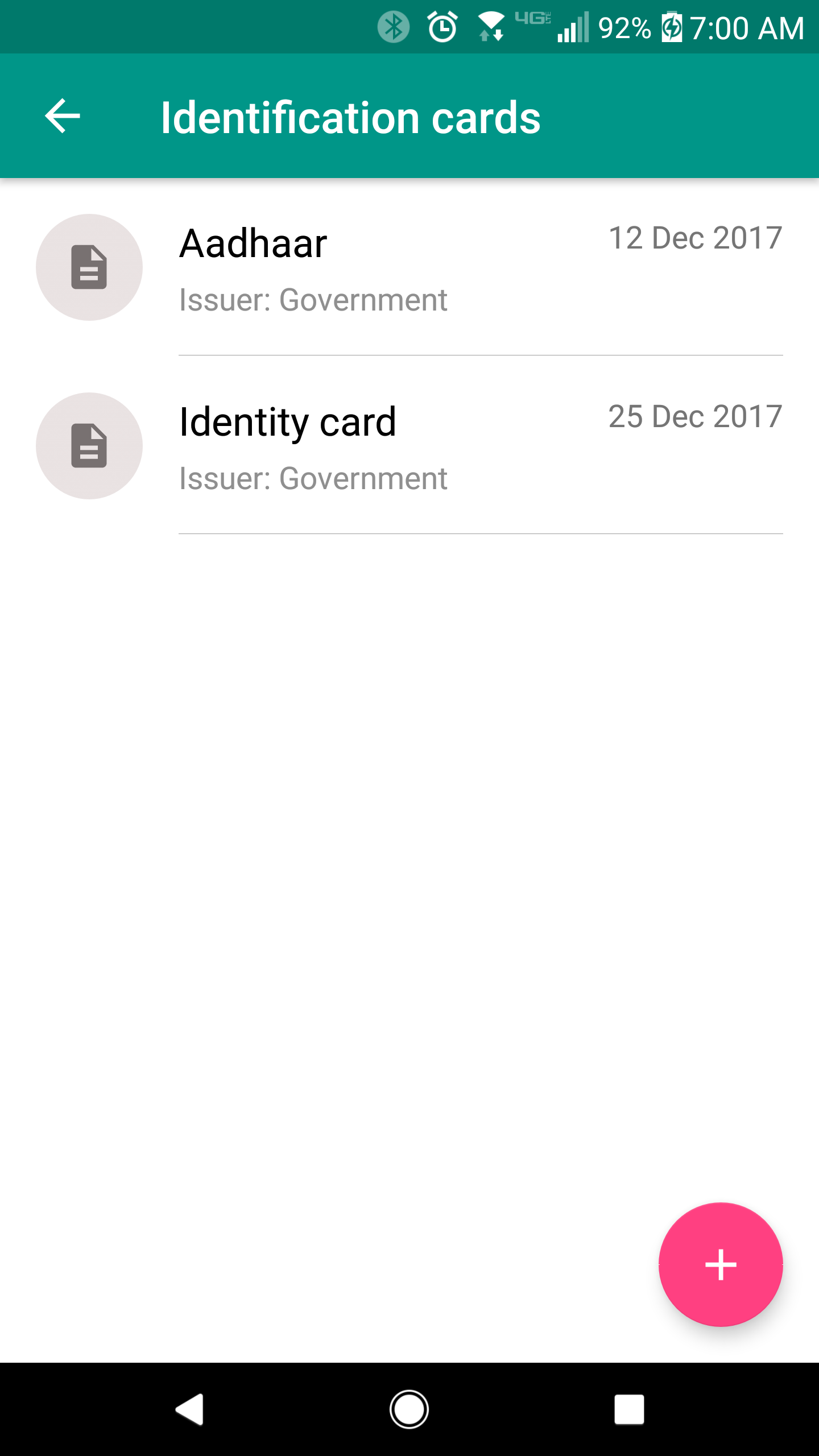
1. You should be viewing the list of a customer's identification cards (directions available here: View List of Identification Cards)
2. Click the identification card that you want to add a scan to.
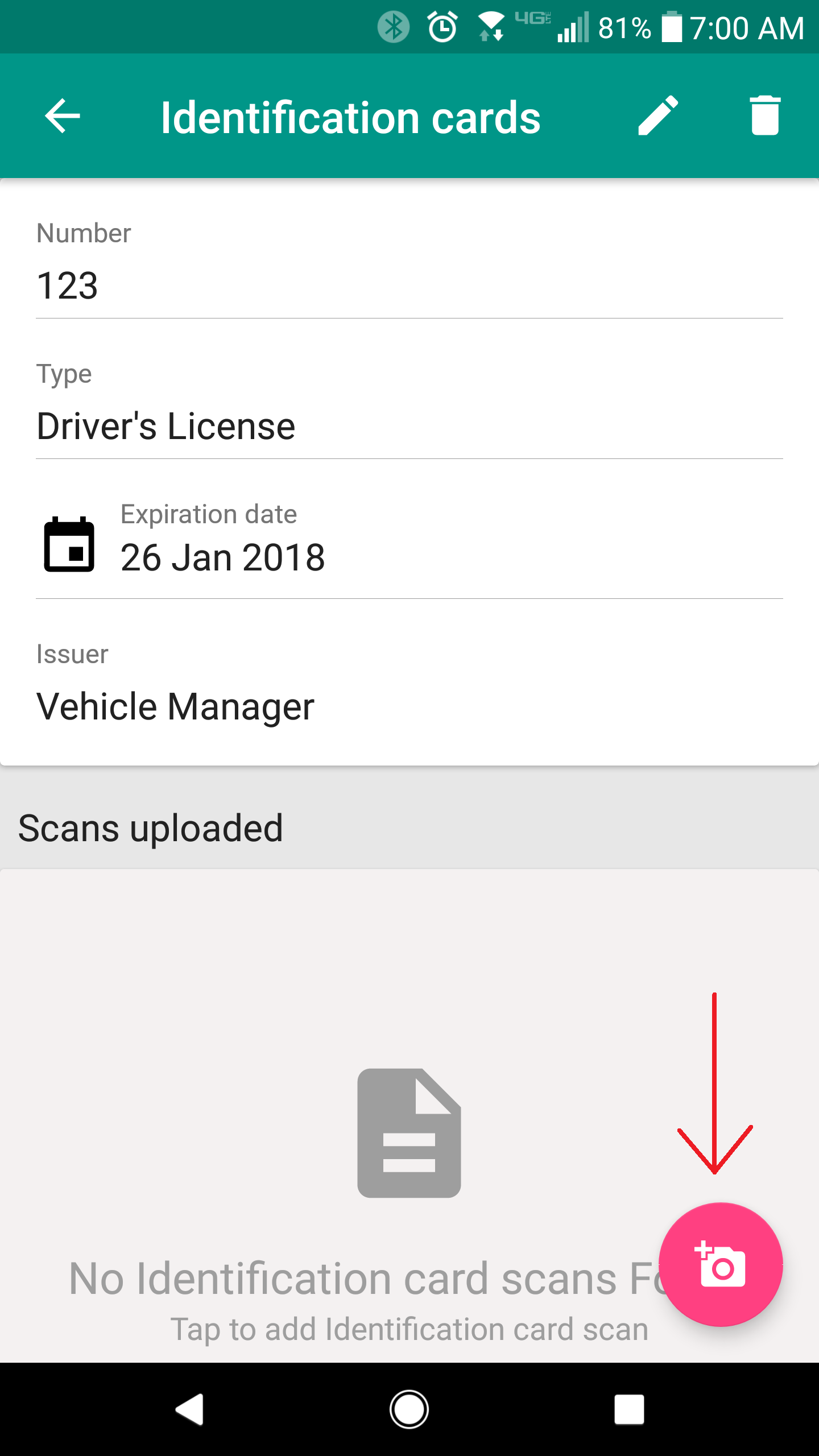
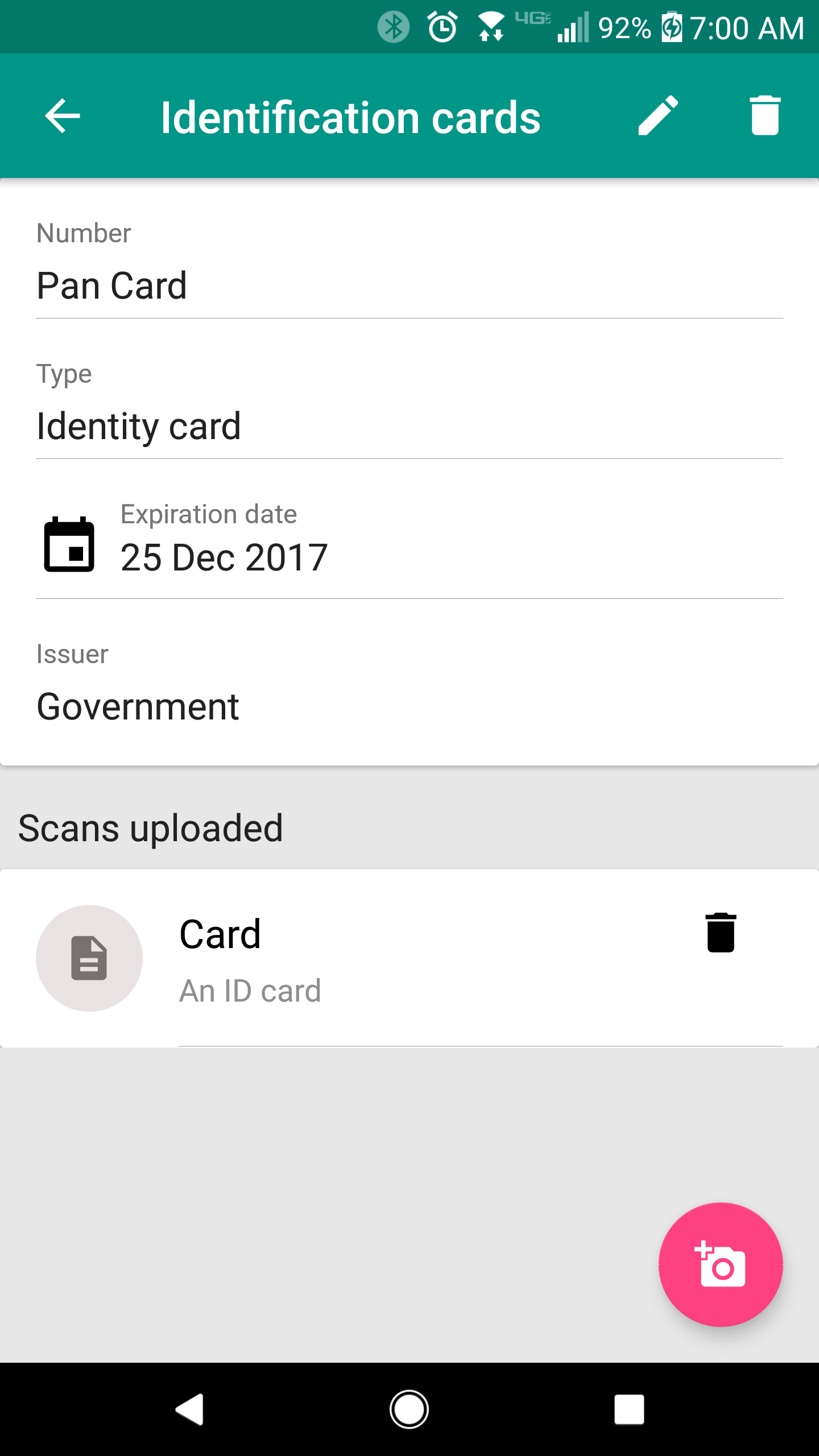
3. You should now see the details of the identification card. Here, click the add scan button ( ) at the bottom-right of your screen.
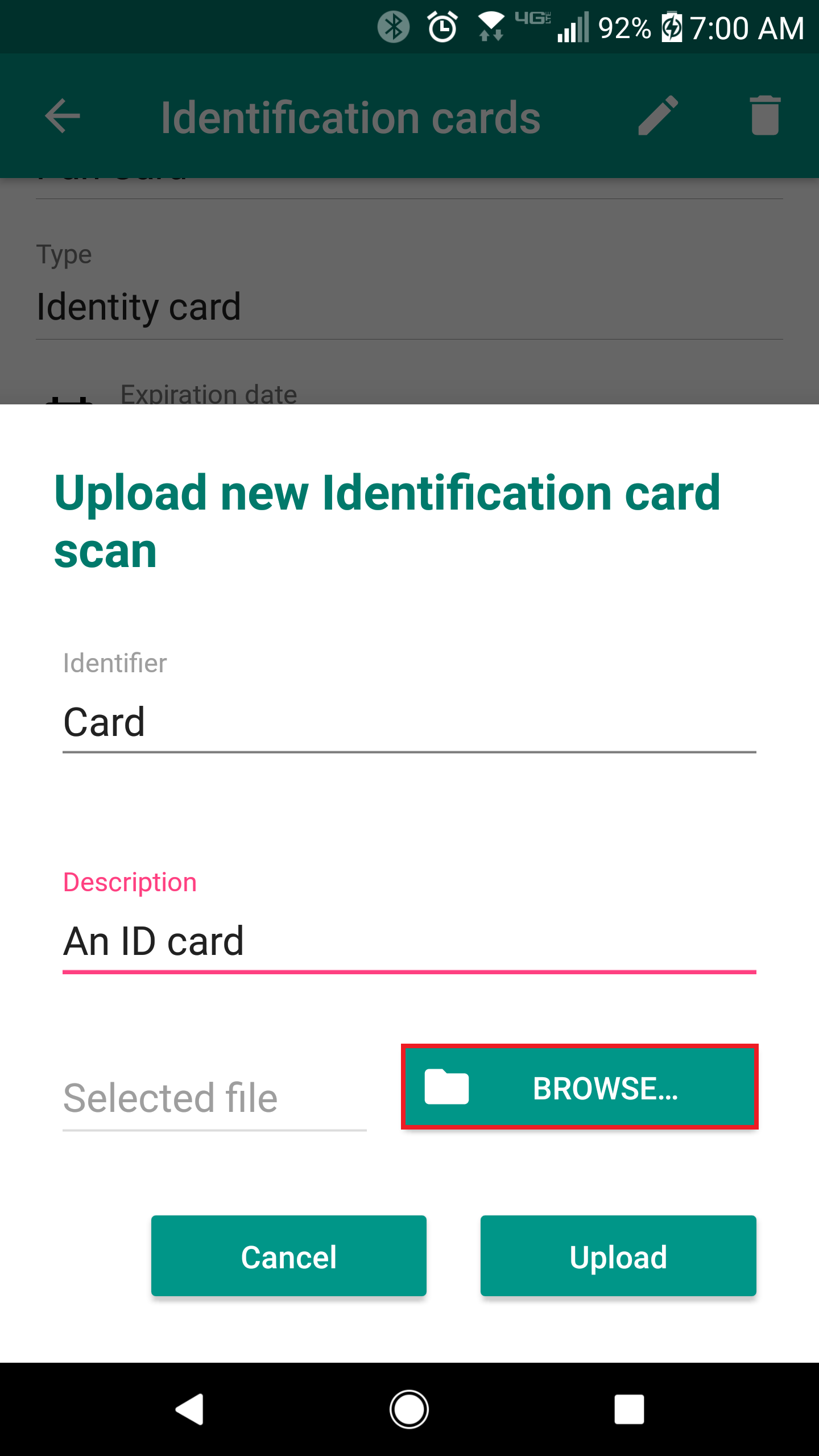
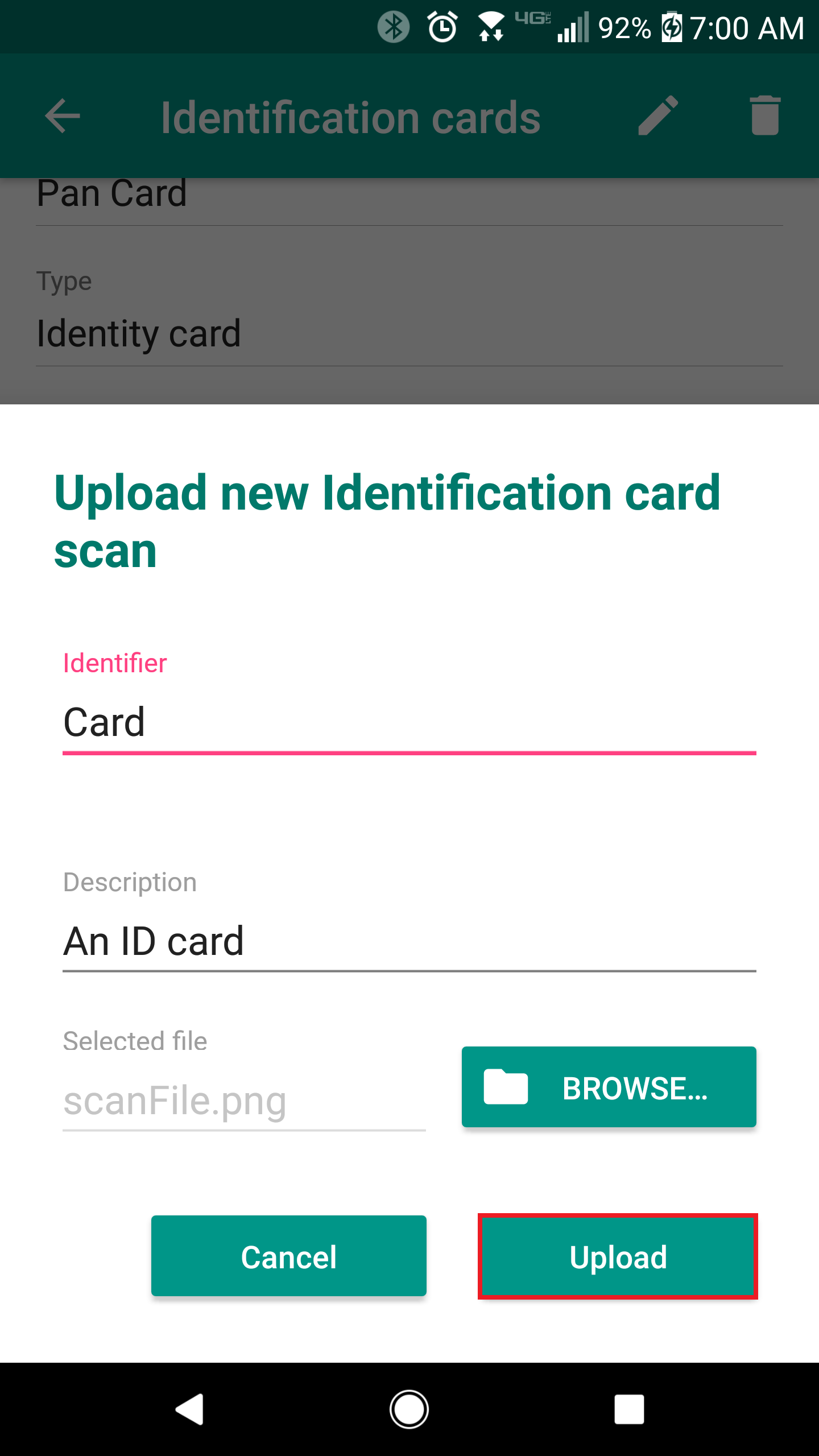
4. This will launch the "Upload new identification card scan" dialog. Enter in an Identifier and a Description. Then, click the "Browse" button to capture an image.
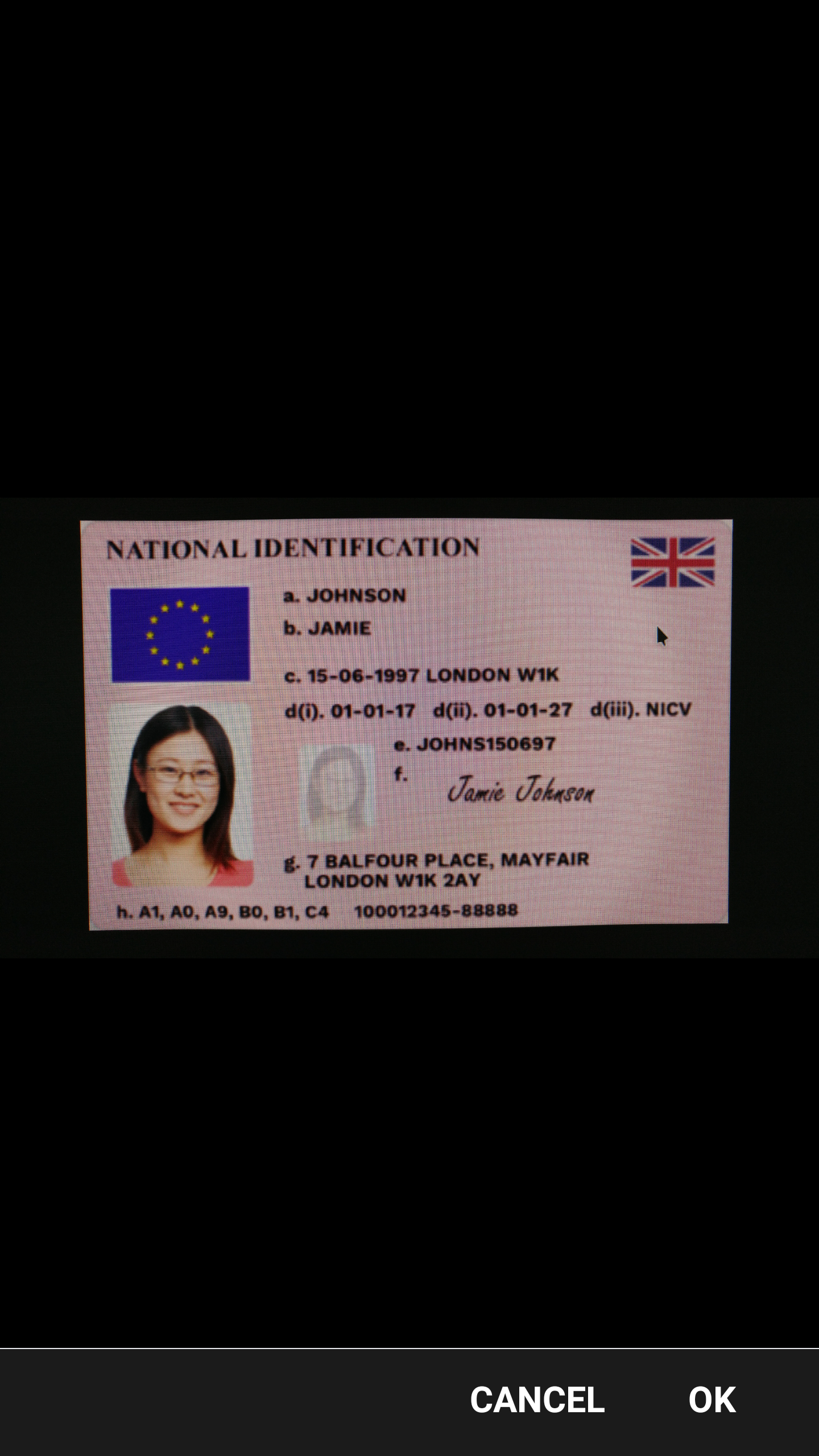
5. If the camera application is launched, capture an image. Then select "OK" to confirm the image.
6. You will be returned back to the "Upload new identification card scan" dialog. Ensure that all information that you entered is correct, including the image, and then click the "Upload" button. Otherwise, click the "Cancel" button to exit.
7. The application will return you back to the identification card details page. You should now see the scan that you just uploaded under the "Scans uploaded" section.
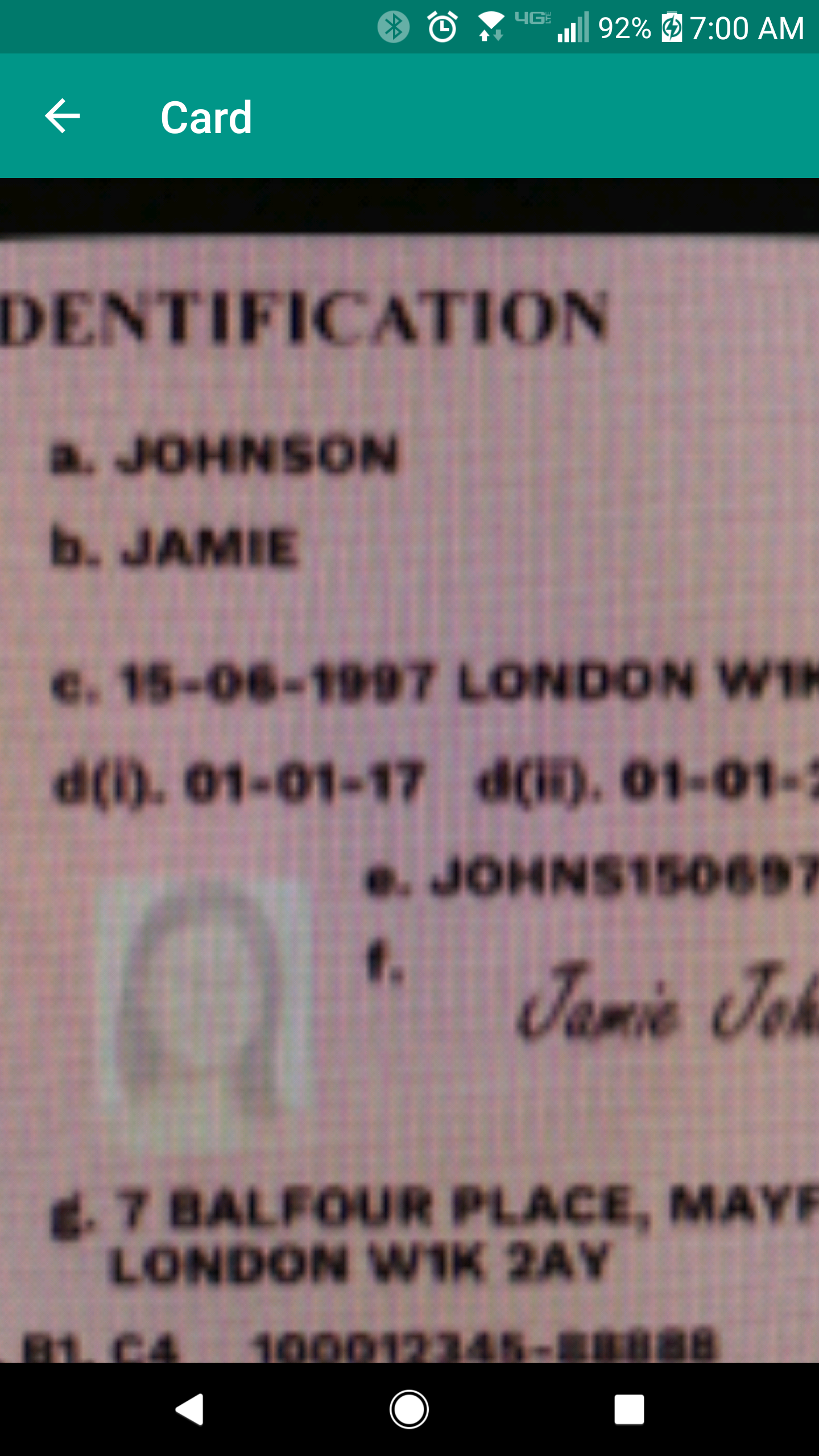
1. Click on the card that you want to view.
2. You should be able to view the scan in full size. Click the back button ( ) to return to the identification card details page.
1. Click the delete button next to the card that you want to delete.
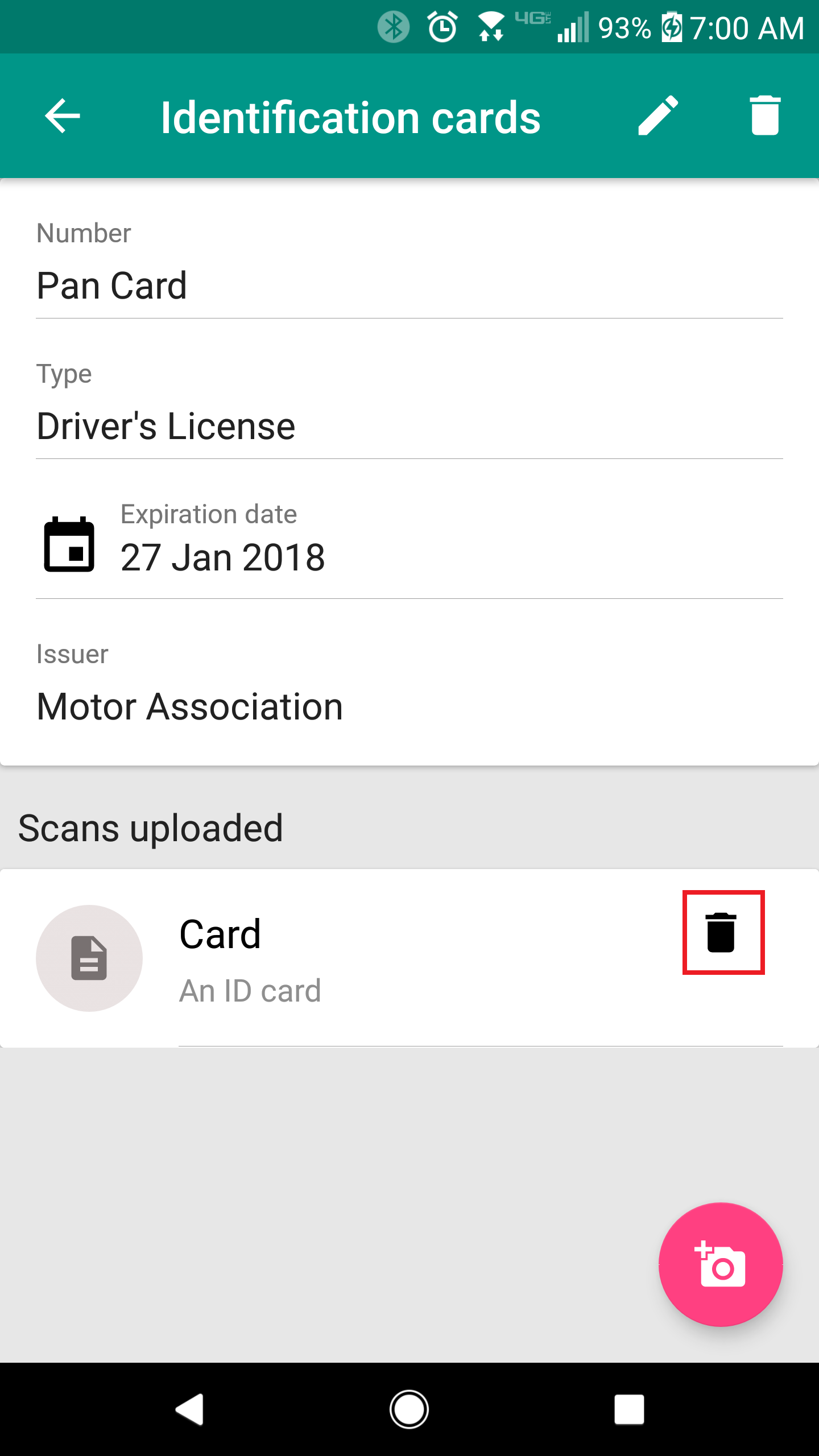
2. You will recieve a conformation dialog. Click "Delete" to delete the scan, otherwise click "Cancel" to exit.
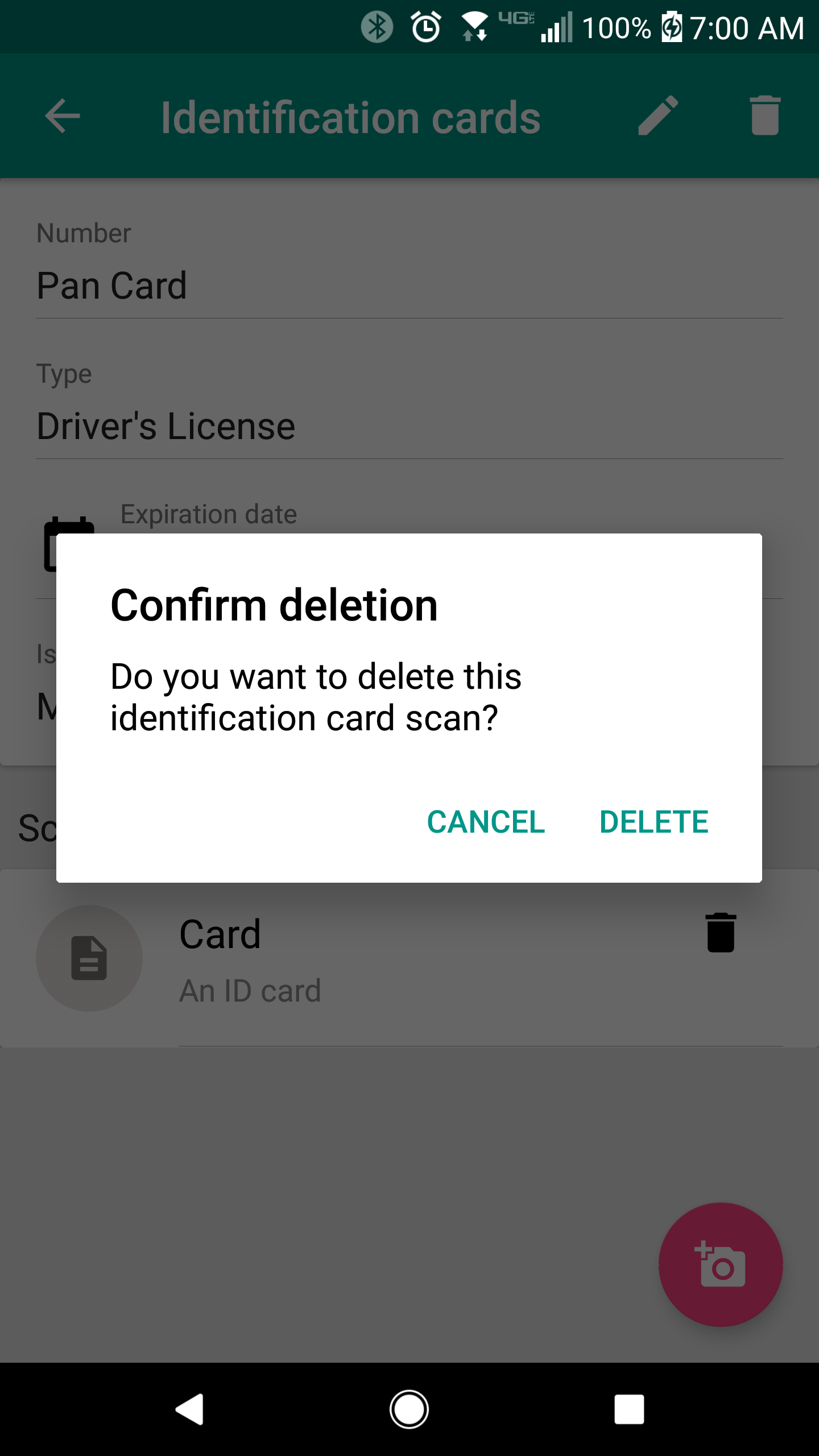
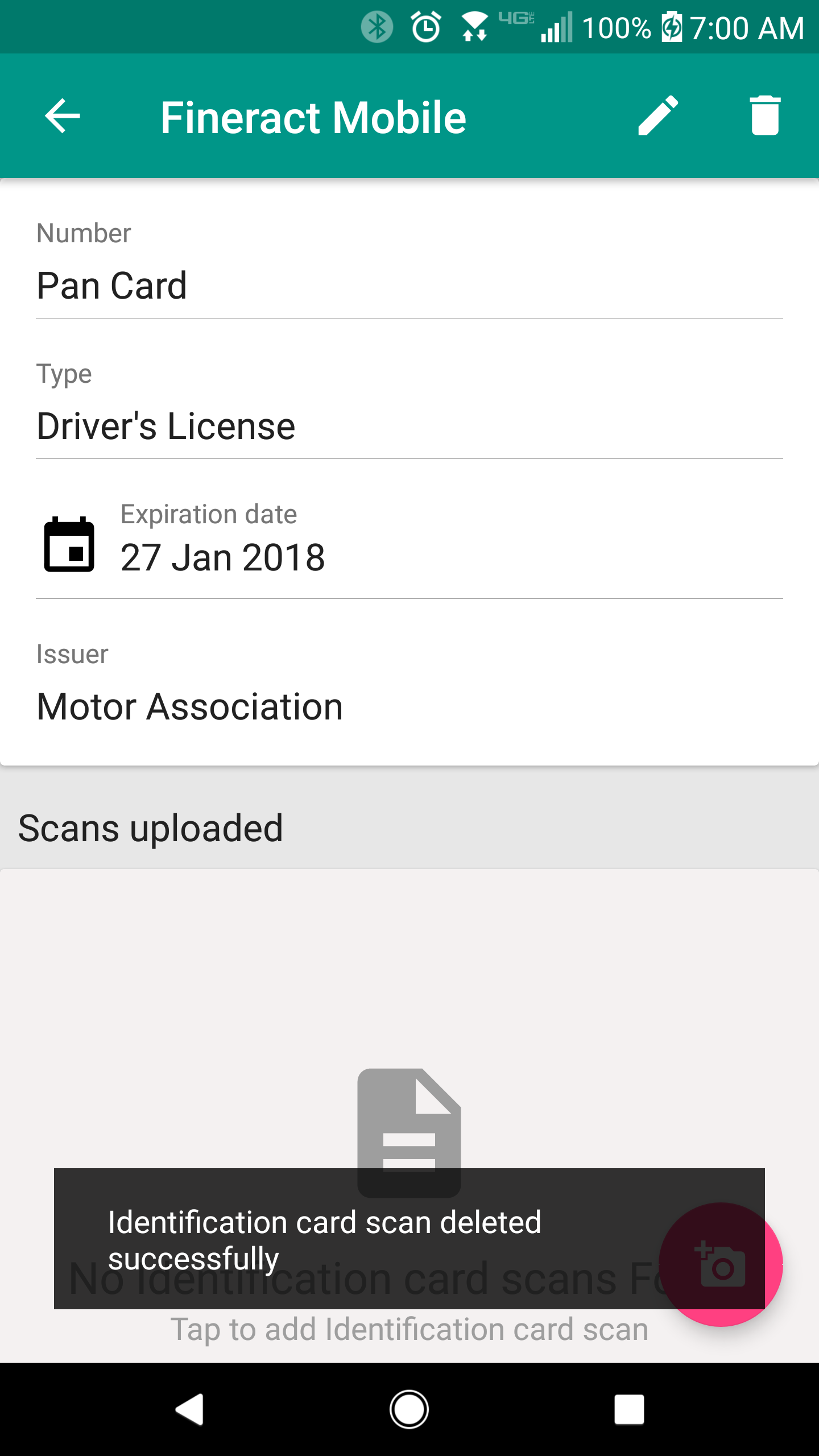
3. You will recieve a message saying "Identification card scan deleted successfully". The scan is now deleted.