Introduction
Currently CloudStack accepts only URL's to register a template/volume. If the user has a downloaded template/volume available, user has to host it either on dropbox etc. or run web server so as to get downloadable url. It is desirable to be able upload a volume or template directly through standard we browser.
This feature enables the users to directly upload the template/volume to CloudStack and eliminates the dependency on an external http server. This will be a complementary functionality and users can continue to register template/volume with URL as well.
use cases
- A user, who wants to upload a template from the browser and launch a vm with it on CloudStack
- A user, who want to upload a volume from the browser and attach it to a vm on CloudStack
Functional Requirements
This section will explain key requirement this feature shall address.
- feature shall support upload of template through https POST request
- feature shall support upload of volume through https POST request
- uploading same volume or template shall be treated as new upload by management server
- failure to upload of volume or template is irrecoverable
- management server shall ensure cleanup of partially uploaded volume or template in case of failure
- management server shall be able to give status (percentage, bytes etc) of the upload
- a new global param to limit the max upload size
- management server will use the current resource limits for templates/volumes and would error on reaching the limits.
- This is hypervisor agnostic and should work for all hypervisors
- SSVM apache will be able to handle parallel upload and will be limited by the number of connections in the apache settings
Assumptions & Out-of-Scope
No unencrypted or http version of this will not be available
- Upload progress to the user (http://creativejs.com/tutorials/advanced-uploading-techniques-part-1/ )
- split upload and join in apache so as to not hit browser timeouts
post url should be active only for one time call - return proper error message on subsequent calls - how do we determine if its already used?
Admin to list all the uploads happening and cancel any if required
- Multiple files for the same template/volume will not be supported for now
Design
This section will explain how the feature shall be implemented in CloudStack
process flow
The browser-based uploading process will have four main steps:
- management server and SSVM will establish a pre-shared key between them, which shall be used for generating signature with SHA1
- api call to get 'post url'
- retrieve post url from the api response
- post the volume/template to through http POST request to port url obtained from the 2nd step
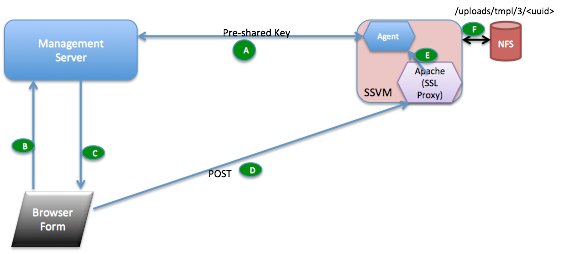
- Management Server generates a unique pre-shared key (PSK) and shares it with the SSVM agent.
- New API request "getUploadParams" encoded the usual CloudStack API way using api keys. Request parameters include format, hypervisor, md5 sum etc.
- Management Server response to (b) returns post url to upload the file, params to send to the url while uploading the file and a SHA1 signature generated using PSK and params json.
- User should upload the file over https POST request to the url obtained in (c). The signature and params returned in (c) should be passed as is.
- The Apache web server on the SSVM matches the url, decrypts and passes on to the SSVM java agent as plain HTTP. The SSVM agent checks the signature against the params using the key PSK and SHA1. Once the params are verified, it writes to the NFS storage to the location encoded in the URL.
- Once the upload completes, the MD5 checksum is compared (if available from step c).
To increase the number of parallel uploads, multiple SSVMs needs to be created. This will be handled automatically by the management server using the system.vm.auto.reserve.capacity, secstorage.capacity.standby and secstorage.session.max configuration variables.
pre-shared key management
This section shall cover when and how the pre-shared key is generated by management server, how is it stored, how is it passed to SSVM
- key is saved in encrypted form in the configuration tables as hidden configuration with name upload.secret.key
- on start of management server, if the key doesnt exist, it generates one using sha1 and stores it in db
- when the management server sends StartCommand to SSVM agent, it shares this key with it.
- SSVM agent stores this key in a file at /etc/cloudstack/agent/ms-psk.
API changes
A new API getUploadParams which takes all the params as the registertemplate/uploadvolume except for URL and which returns all the required params plus a post URL to be used to uploadVolume/registerTemplate
- Request
- type: volume or template : required
- params while uploading a volume
- format: the format for the volume. Possible values include QCOW2, OVA, and VHD : required
- name: the name of the volume : required
- zoneid: the ID of the zone the volume is to be hosted on : required
- account: an optional accountName. Must be used with domainId.
- checksum: the MD5 checksum value of this volume
- domainid: an optional domainId. If the account parameter is used, domainId must also be used.
- imagestoreuuid: Image store uuid
- projectid: Upload volume for the project
- params while uploading a tempalte
- displaytext: the display text of the template. This is usually used for display purposes: required
- format: the format for the template. Possible values include QCOW2, RAW, and VHD : required
- hypervisor: the target hypervisor for the template : required
- name: the name of the template : required
- ostypeid: the ID of the OS Type that best represents the OS of this template : required
- zoneid: the ID of the zone the template is to be hosted on : required
- account: an optional accountName. Must be used with domainId.
- bits: 32 or 64 bits support. 64 by default
- checksum: the MD5 checksum value of this template
- details: Template details in key/value pairs.
- domainid: an optional domainId. If the account parameter is used, domainId must also be used.
- isdynamicallyscalable: true if template contains XS/VMWare tools inorder to support dynamic scaling of VM cpu/memory
- isextractable: true if the template or its derivatives are extractable; default is false
- isfeatured: true if this template is a featured template, false otherwise
- ispublic: true if the template is available to all accounts; default is true
- isrouting: true if the template type is routing i.e., if template is used to deploy router
- passwordenabled: true if the template supports the password reset feature; default is false
- projectid: Register template for the project
- requireshvm: true if this template requires HVM
- sshkeyenabled: true if the template supports the sshkey upload feature; default is false
- templatetag: the tag for this template.
- Response
- postURL: post url to upload the file to. Ex: "https://ssvmpublicip/upload/signature" (signature in the postURL is SHA1 key generated using PSK initially shared between SSVM agent and Management Server and the params in the response.)
- params: params to be sent in the post request Ex: params:{"store":{"com.cloud.agent.api.to.NfsTO":"nfs://10.147.28.7/export/home/rajani/lxc/secondary"}, "hvm":false,"description":"lxc1","maxDownloadSizeInBytes":53687091200,"id":207,"resourceType":"TEMPLATE","installPath":"template/tmpl/2/207", "format":"TAR","accountId":2,"name":"207-2-09c78adc-065f-3dc8-9621-9e7a036d7dc9"}
POST url to post the data on to SSVM. This post url is returned from the getUploadParams api call Ex: https://ssvmpublicip/upload/key
- Request: (this is a POST request)
- params: json string of params returned from previous getUploadParams api call file: file to upload
- file: the location of the template/volume to be posted a multipart/form-data
- Response:
- '200 OK' on successful upload
- '401 Authorization error' incase the signature key validation or any other validation failed
- '500 internal server' incase the file upload fails
At any point, the api user should be able to call the listtemplates/listvolumes api to get the installation status of the template.
If the template failed to upload(401 or 500 above), the user should request for a new upload url and upload it again.
Example
management server api:
request:
http://managementip:8080/client?command=getUploadParams&type=template&response=json&sessionkey=OXgYX%2BINFOOcxQgI2yzEzuA3xCg%3D&name=lxc1&displayText=lxc1&zoneid=-1&format=TAR&isextractable=false&passwordEnabled=false&isdynamicallyscalable=false&osTypeId=1b510c30-3352-11e4-aaca-a5c7f57670d0&hypervisor=LXC&requireshvm=false&_=1410847402478
response:
{
"postURL":"https://ssvmpublicip/upload/uuid",
payload:{"store":{"com.cloud.agent.api.to.NfsTO":"nfs://10.147.28.7/export/home/rajani/lxc/secondary"}, "hvm":false,"description":"lxc1","maxDownloadSizeInBytes":53687091200,"id":207,"resourceType":"TEMPLATE","installPath":"template/tmpl/2/207", "format":"TAR","accountId":2,"name":"207-2-09c78adc-065f-3dc8-9621-9e7a036d7dc9"},
signature:de7c9b85b8b78aa6bc8a7a36f70a90701c9db4d9
}
file upload:
request:
curl -X POST "https://ssvmpublicip/upload/uuid" -F "template=@templatelocation.tar" -F "signature=de7c9b85b8b78aa6bc8a7a36f70a90701c9db4d9" -F "payload={'store':{'com.cloud.agent.api.to.NfsTO':'nfs://10.147.28.7/export/home/rajani/lxc/secondary'}, 'hvm':false,'description':'lxc1','maxDownloadSizeInBytes':53687091200,'id':207,'resourceType':'TEMPLATE','installPath':'template/tmpl/2/207', 'format':'TAR','accountId':2,'name':'207-2-09c78adc-065f-3dc8-9621-9e7a036d7dc9'}" -v
response:
200 OK
DB Changes
No db changes.
Sequence Diagram
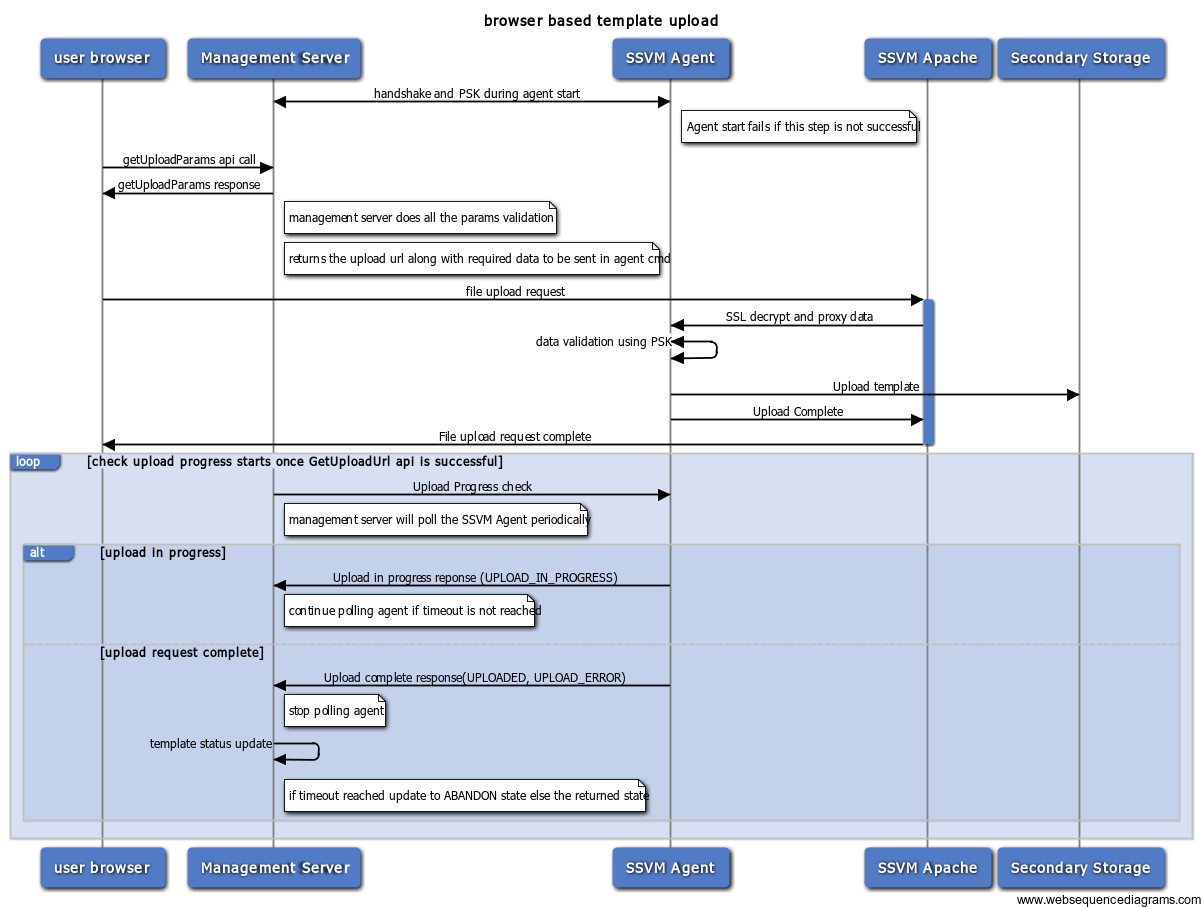
Agent Commands
- DownloadProgressCommand will be used the check the download progress (from Management server to Agent)
- DownloadCommand will be used to start the download(SSVM Apache to SSVM Agent)
fault scenarios & cleanup
This section shall describe how the management server shall detect a failed volume/template upload.
- how does the management server detect failed tasks
- when will it take action
- what it will perform to cleanup the storage.
management server and SSVM agent interaction
When the management server receives getUploadParams api call, it selects SSVM and secondary store in the zone requested by the user and returns a POST url to that SSVM. There can be multiple SSVMs in the same zone. Management servers decides which SSVM to handle this based on the load. SSVM agent will be able to return the status of the upload at any point using the in memory hash map if the download is in progress or by the file status on the secondary storage. If the template/volume is selected to be cross-zone, it will uploaded to one zone and then copied to other zones from it.
management server owns the state machine of the volume/template. It polls the SSVM agent(using DownloadProgressCommand of the agent) to get the status and updates it. Failure at any point during the form upload to ssvm apache would return error to the user and UPLOAD_ERROR when the management server pings for download status.
Polling starts after the successful return of the getUploadParams. The polling starts after an initial delay of 100ms and in intervals of 1000ms. The management server polls 5 times before it changes the state to ERROR. (we may need to add new configurations to handle this polling)
If the management server itself goes down during the upload, if the timeout hasnt crossed, it will poll for the status once its up. Otherwise the state of the template will be transitioned to ERROR. In a load balanced situation where the management server handling the ssvm upload goes down, the status wont be updated unless the SSVM is connected to a new management server.
status update
detecting failures
The below failures can happen while the agent is receiving the template. When management server asks for the status of the tempalte/volume, if any of these below errors happen, the agent returns ERROR state and management server updates the state accordingly.
- pre validation errors
- SSL handshake failed
- params validation with PSK failed
- post validation error
- file downloaded is not of the type specified (for ex: if the template is said to be of type tar, the actual downloaded file is not if this type)
- max upload limit crossed
- http errors can be caught through appropriate event handlers: exception,timeout,closed (http://hc.apache.org/httpcomponents-core-ga/tutorial/html/nio.html)
- user stopped/canceled the post request before completion
- uploading the template failed due to a network issue
- browser request timed out
- browser crashed
- management server crashed and hence the upload request is cancelled by the browser.
- SSVM apache down/restarted
- application errors will be caught through appropriate exceptions from the other services
- secondary storage is not accessible
- there isn't enough space in secondary storage and hence agent cant write to it.
- timeout reached and the management server will not poll anymore
- interruptions
- SSVM is down/restarted
- SSVM agent is down/restarted
successful completion
If the template install is successful within the polling timeout, when the management server asks for the status of it, agent returns a success state and it is updated by the management server accordingly.
State machine
Template/Volume go through below state machine state transitions, when it goes through the browser based upload.
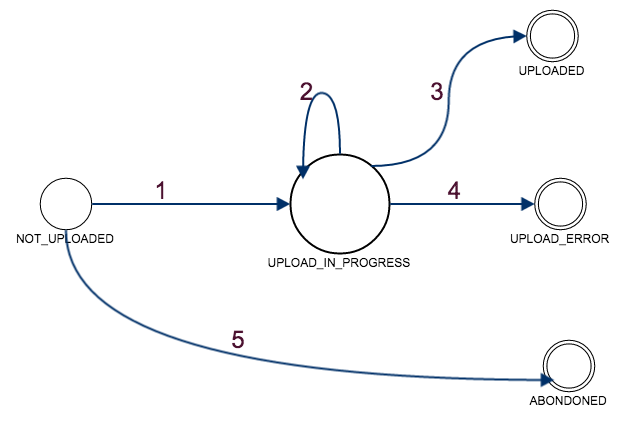
States:
NOT_UPLOADED: getUploadParams API was successful and the template is registered. But, upload hasnt started yet
UPLOAD_IN_PROGRESS: User has initiated the POST request SSVM Apache and the validation/download is in progress
UPLOADED: SSVM Agent successfully Downloaded the template to secondary storage
UPLOAD_ERROR: Any Failure in between user initiating a post request and template being downloaded
ABANDONED: the post request isnt called in the stipulated time (check sequence diagram point 4)
State Transitions:
- Transition1: This state transition happens, when the user initiates the post request
- Transition2: Post request is active SSVM agent is downloading validation or downloading the template but, not done yet
- Transition3: on successful completion of template installation to secondary storage
- Transition4: This can happen in multiple ways outlined in the failures section above.
All these errors will result in the same state for the template/volume as there isnt any way to recover from them or the handling isnt different for these. Additional error information will be provided in the form of a message for respective errors.
- Transition5: The post request hasn't happened and the timeout has reached
Cleanup
Of the error categories defined in the failures above,
- pre validation errors will not result in any download and hence no cleanup is required.
- post validation errors, template/volume will be cleaned
- http errors shall be caught in the appropriate events and the partially downloaded file will be cleaned.
- application errors and interruptions: existing template/volume sync will handle these when the SSVM is restarted. (TODO: add ref to the documentation of tempalte/volume sync)
recovery mechanisms
There isnt any recovery or retry mechanism as this is a POST request. Once errored, template/volume will remain in the error state and admin will be able to troubleshoot it based on the appropriate log messages in management server log, agent log, apache access/error log files.
Security
SSVM public ip will be given to the end user in the response to getUploadParams. This is required as it is the location to which the template/volume has to be uploaded.
The NFS Store url, path and some other information are exposed to the end user in the response to getUploadParams. This is done so that agent gets all the information required to download the template with the POST request.
UI Changes
A new register template and upload volume UI which should be able to accept "browse and upload" file.
UI flow:
- Browser UI requests the upload form by doing the getUploadParams api call.
- Management Server returns a upload url, params json string which should be passed on to the upload url while doing the upload
- UI shows an upload dialog with a way to browse and upload file.
- User chooses a file and posts on the url.
- The post request completes once the template is downloaded/errored.
- The user can close the dialog(Post request should still be active) and use list page to check the status of it.
Open Issues
- SSL CA certificates - what kind of certificates will be used?
Bug Reference & Branch
CLOUDSTACK-....
template-upload branch off master
