DUE TO SPAM, SIGN-UP IS DISABLED. Goto Selfserve wiki signup and request an account.
...
At this point, Maven has created the Eclipse .project and .classpath files, and we can import the project. In addition, since we specified -DdownloadSources, it has downloaded the sources to Tapestry and its dependencies and linked the library JAR files to those source JARs; that means we can see the sources for any Tapestry classes right into Eclipse, which is very useful when debugging or exploring.
Launch Eclipse and switch over to the Java Perspective.
Right click inside the Package Explorer view and select Import ...
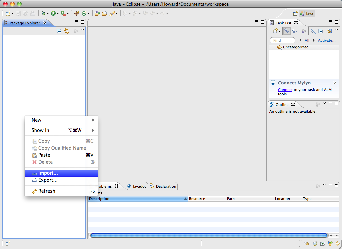
Choose the "existing projects" option:
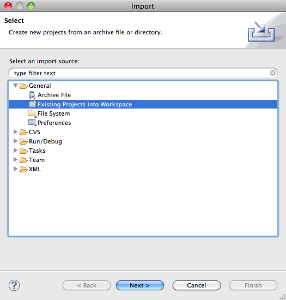
Now select the folder created by Maven:
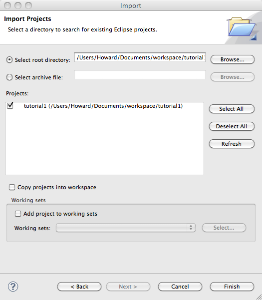
When you click the Finish button, the project will be imported into the Eclipse workspace.
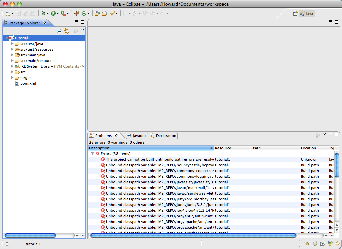
However; there are many errors. Maven expects that you will configure a classpath variable, M2_REPO, that points at your local repository; a directory in your home directory that stores all those downloaded JARs and other files. Open Eclipse's preferences panel and navigate to Java > Build Path > Classpath Variables:
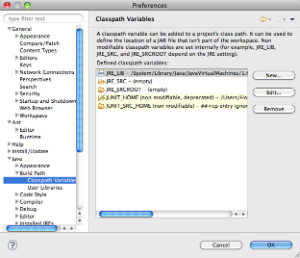
Click the New button, and enter the new variable (you'll have to adjust this for your operating system and local paths):
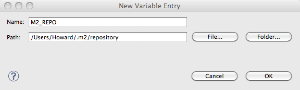
Eclipse will ask to perform a clean build, and the errors will be gone once it has done so.
...
Choose the Run ... item from the Eclipse Run menu to get the launch configuration dialog:
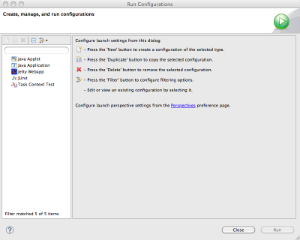
Select Jetty Webapp and click the New button, then fill in a few values:
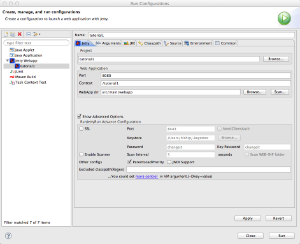
Make sure you clear the field labeled HTTPS.
...
Once you click Run, Jetty will start up and launch (it should take about two seconds).
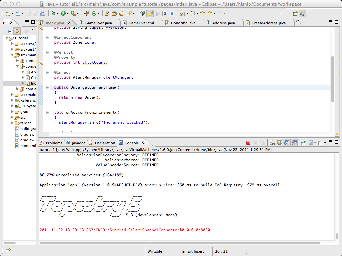
You may now start the application with the URL http://localhost:8080/tutorial1/
...