DUE TO SPAM, SIGN-UP IS DISABLED. Goto Selfserve wiki signup and request an account.
Tasks Management
Once you are logged into the Fineract CN Mobile app, you will be greeted with the dashboard page. Here, click the navigation drawer button at the top-left, then select "Customer" (Figure 1). You can also click the "View Customer" button (Figure 2).
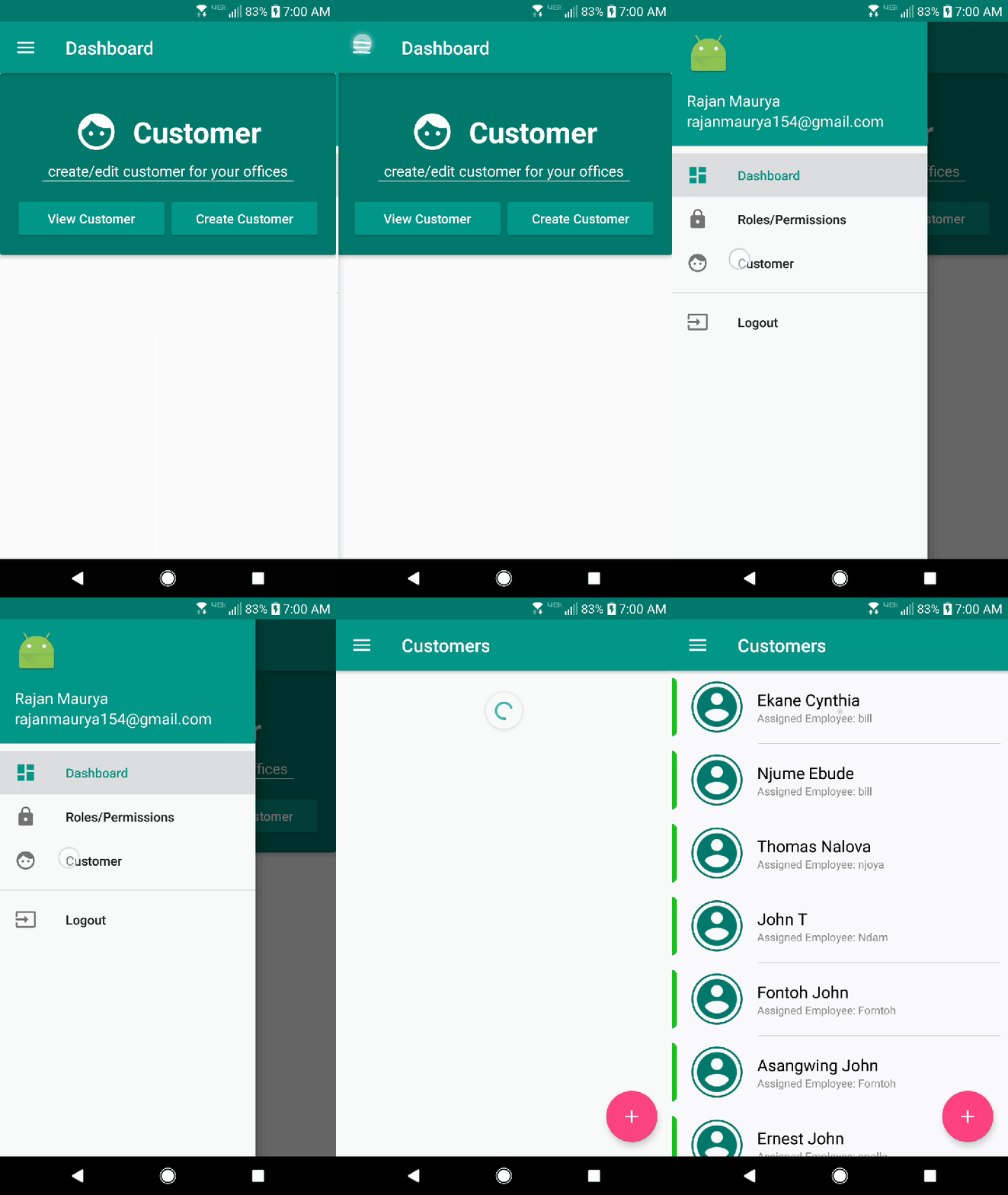

Figure 1 Figure 2
2. After you've selected and entered the customer details menu then swap-down your screen down to find the posts in the management "Tasks", See Figure.2A & 2B


Figure.2A Figure.2B
3. Go to the "Tasks" section.
4. After "tasks" opens you will see options according to customer status. Basically, customer can have status
A. Pending
B. Active
C. Lock
D. Close
Here customer have active state
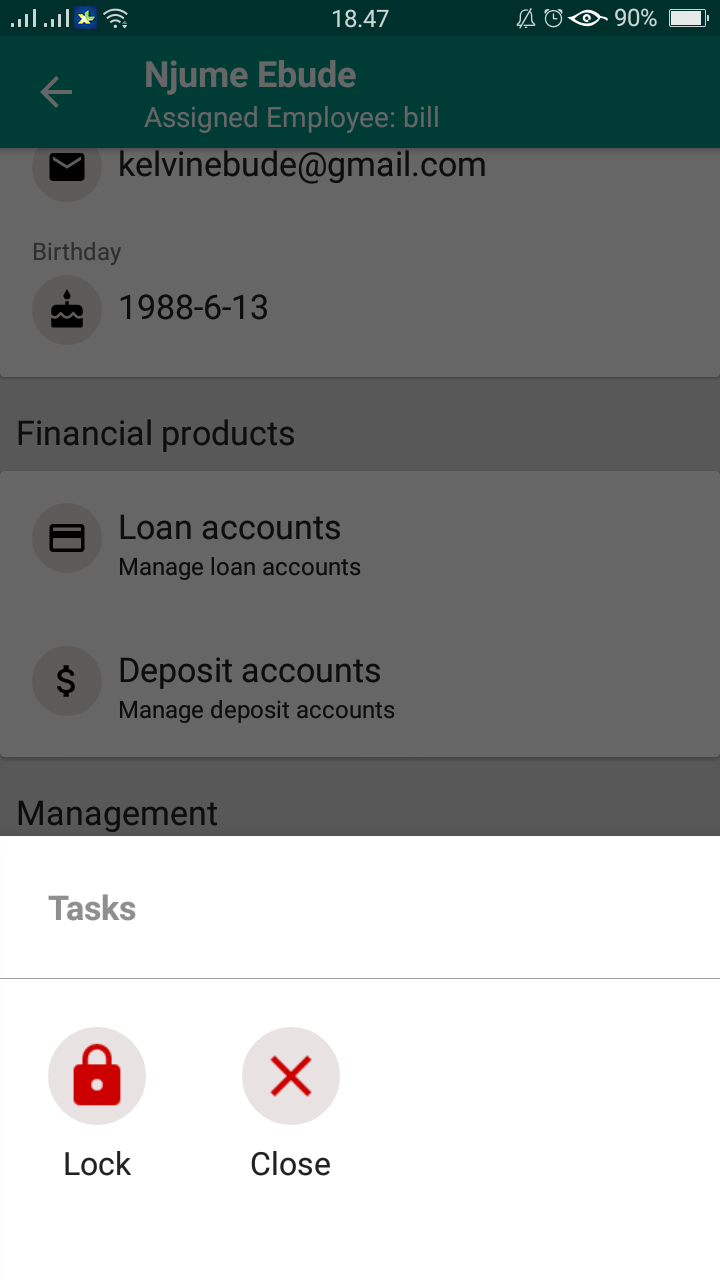
Figure.3
Here are the actions that can be executed according to status.
a. Unlock / Lock
b. Reopen / Close
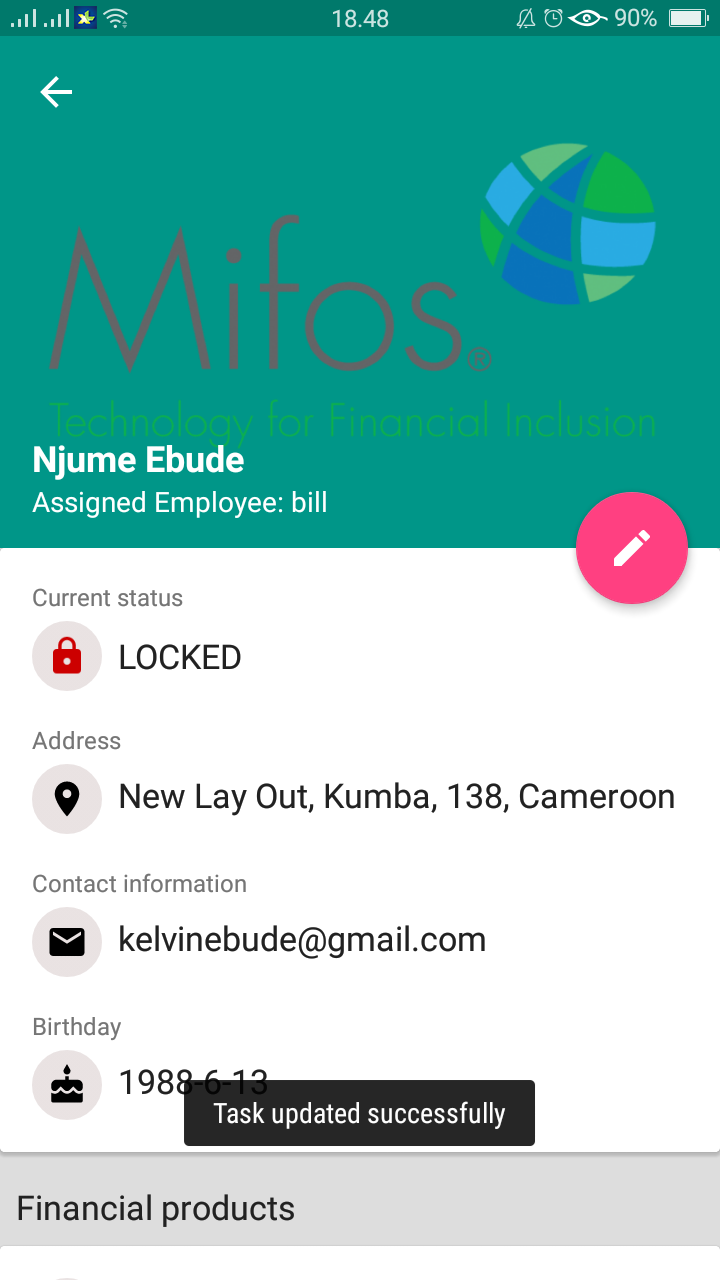
How-To Change the Status of Customer, here an example :


Activities Management
Once you are logged into the Fineract CN Mobile app, you will be greeted with the dashboard page. Here, click the navigation drawer button at the top-left, then select "Customer" (Figure 1). You can also click the "View Customer" button (Figure 2).
Figure 1 Figure 2
2. After you've selected and entered the customer details menu then swap-down your screen down to find the posts in the management "Activities", See Figure.2A &2B
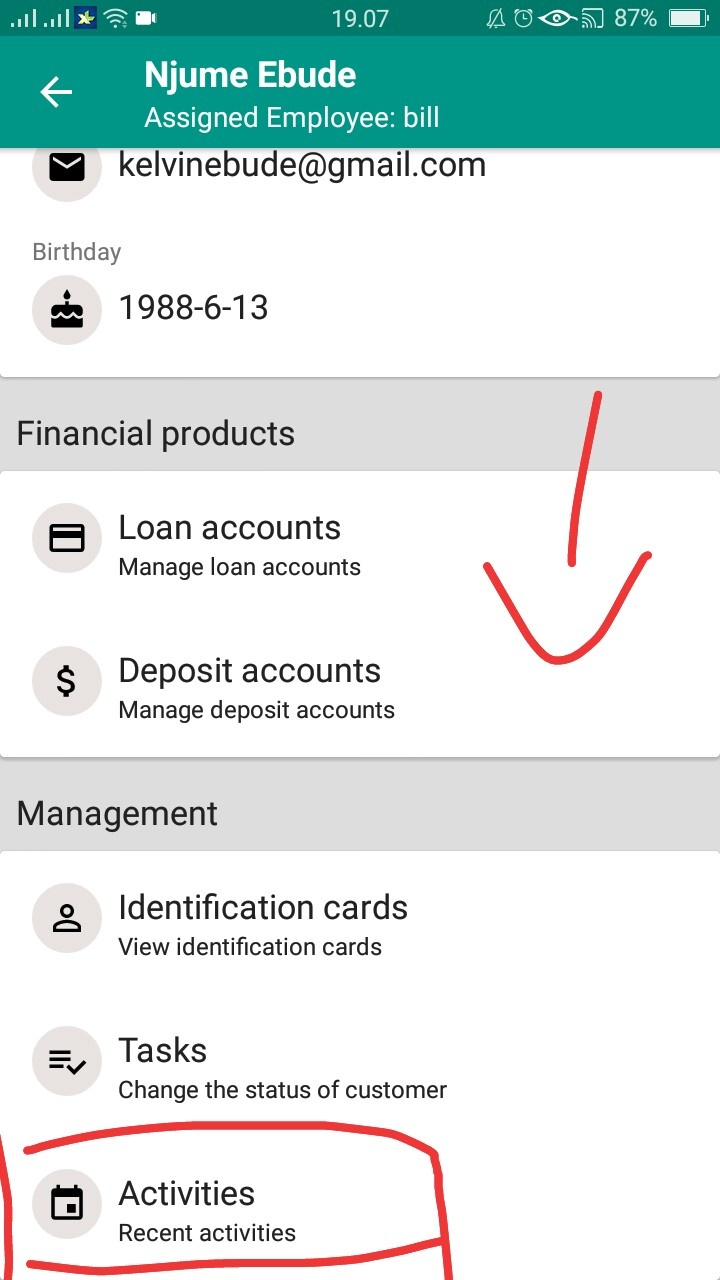
Figure.2A Figure.2B
4. Go to the "Activities" section
5. After "Activities" is open you will see statistics or activity history from your customer's status, See Figure.3
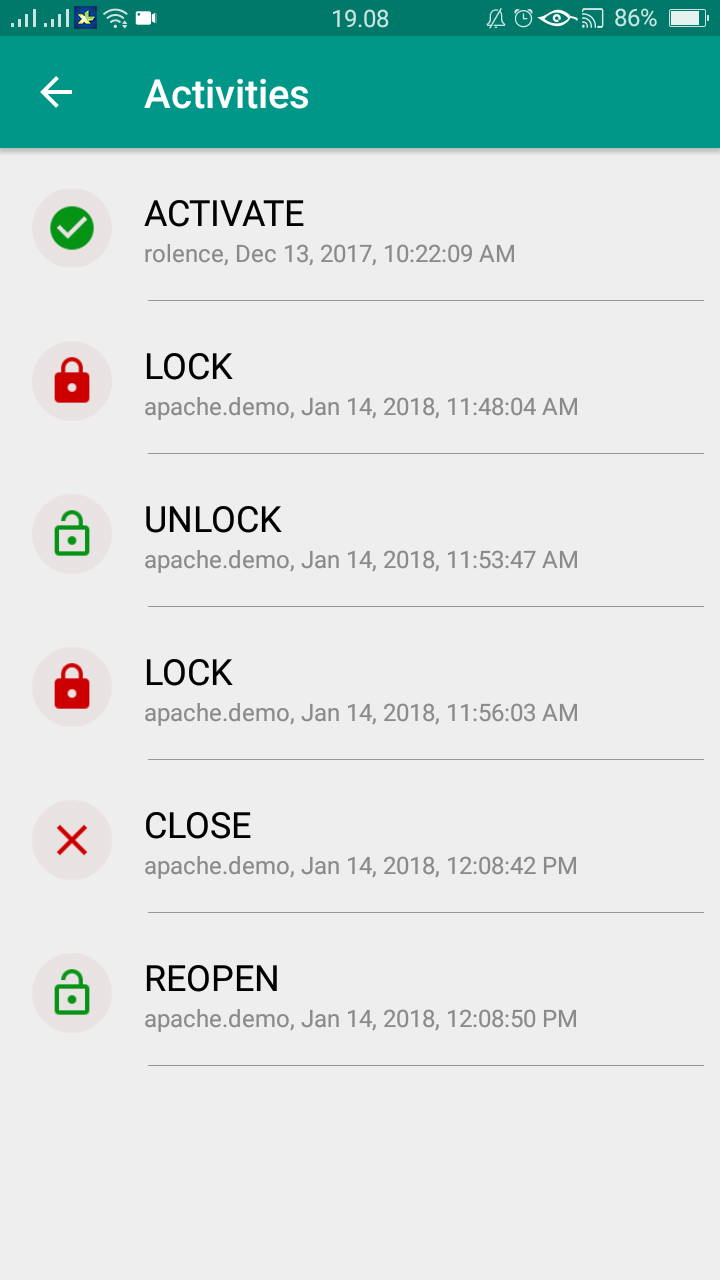
Figure.3
it works on the Customer Management section of Tasks and Activities